
More Google visitors only help if they get in touch. These two tools work on that last step. A/B Tests shows a new headline or button text to half the visitors and keeps count of the enquiries each version gets, so you change the page based on leads instead of opinions. Form drop-off shows how many visitors start each form, how far they get, and the field where most of them give up.
Before you start
- Both run through the RankThat Bridge plugin on WordPress: version 1.17 or newer for A/B tests, 1.18 or newer for form drop-off. The plugin updates itself. If it isn’t installed yet, see Install the WordPress Bridge plugin. Sites on other platforms can’t run them.
- Tests are judged on leads: contact forms, phone taps, email clicks and WhatsApp. Newsletter sign-ups don’t count. Lead tracking must be on in the Bridge, or every test reads zero.
- Nothing visitors type into a form is collected, for either tool.
- A test needs traffic: about 2,000 visits to the page (1,000 per version) before the two versions can be told apart. When you pick a page, RankThat shows how many visits it got from Google last month and how long a test would take. If that’s more than six months, it suggests the site’s busiest pages, and you have to tick Start anyway to test the quiet page.
Part 1: A/B tests
Step 1: Open A/B Tests
In the project, go to Analytics & Reports › A/B Tests. If the site isn’t ready, a yellow note says the tests need the Bridge 1.17 or newer and shows the version the site has. If the Bridge is fine but no leads have been recorded, a second note asks you to check lead tracking in the Bridge settings.
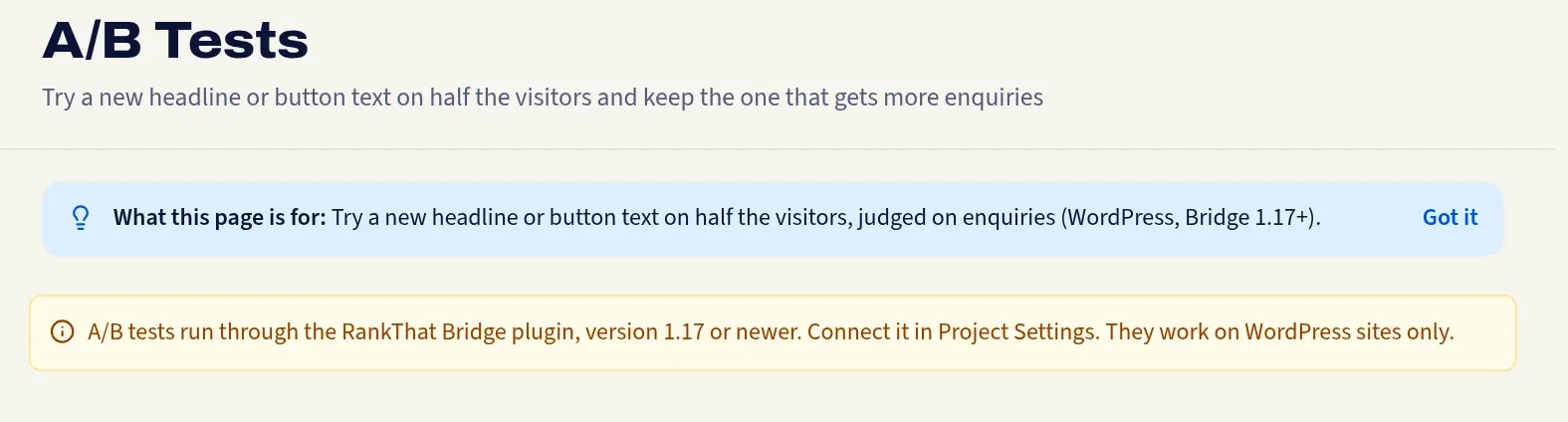 On a site without the Bridge, this note replaces the New test form. Connect the plugin in Project Settings and come back.
Step 2: Pick the page and what to test
In the New test card, enter a page of the site (it starts with the homepage address) and click Find headline and buttons. RankThat opens the page and lists its Headline and its Buttons; a button that appears several times shows a count, such as ×3.
Click the headline or a button to test it. Its text goes into A · current headline (or button text), exactly as it is on the page. You can also switch between Headline and Button in the menu and type the text yourself; it must match the page exactly, or nothing gets swapped.
Good first tests: the homepage headline, and the main button on the page that gets the most Google visits.
Step 3: Write version B
Type the new text in B · new text, or click Ideas for up to three suggestions, each with a line on why it might work. Click one to use it, then edit it if you like.
Make B clearly different. “Get a free quote” against “Get a quote” rarely shows a difference; “Get a free quote today” against “See our prices” might.
Step 4: Start the test
Click Start test. The site picks it up on its next check-in, within 5 minutes. From then on, half the visitors see B, and each visitor keeps the version they first saw.
Limits:
- up to 5 tests running at once per site,
- one headline test and one button test per page at a time,
- the page must be on the project’s own site.
Step 5: Read the results and pick a winner
Each test has a card with A · original and B · new text side by side: visitors, leads and lead rate for each. While it runs, a bar shows the Chance B gets more leads, with the difference in lead rate.
The line under it tells you what to do:
- Keep it running until the test has covered a full week and has at least 100 visitors per version.
- The new text wins when the chance reaches 95%. Click Keep B for everyone.
- The original wins when the chance drops to 5%. Click Keep the original and try another idea.
- After 6 weeks with no clear winner, it suggests stopping: the change makes little difference, so test something bolder.
Stop ends a test and shows everyone the original. Delete removes the test and its results.
When B wins, change the text on the page itself in WordPress afterwards. Keep B for everyone works through the plugin, so the new text would disappear if the plugin were removed.
Part 2: Form drop-off
Step 1: Open the Forms card
Form drop-off lives in the site audit. Go to SEO › Site Audit, open the UX & Conversion tab and scroll to Forms: where visitors give up. It covers real visitors over the last two months. If you haven’t run an audit yet, start with Run a site audit.
Step 2: Read each form
Each form shows, with the page it is on:
- started: visitors who clicked into a field,
- tried to send: visitors who pressed send,
- left without sending: the number and the share of starters (in red when at least 20 people started and half or more left),
- enquiries received: form leads that actually arrived from that page,
- time to send: how long people took, on average, to send it.
Below that, one bar per field shows how many people reached it, ending with Sent. Gave up at names the fields where most people stopped.
Step 3: Fix the field that loses people
When a form has at least 20 starts and half or more leave without sending, the next audit adds the issue “Most visitors who start the form leave without sending it”, with the field most people stopped at.
What usually works:
- make that field optional, or remove it (phone, budget and address are the usual suspects),
- cut the form to name, email or phone, and message,
- show error messages next to the field, where people can see them,
- say how quickly you reply.
Check the card again a few weeks after the change. You can then A/B test the form’s button text as well.
FAQ
“Tried to send” is higher than “enquiries received”. Why?
The form showed an error (a required field or a failed captcha), or the email wasn’t delivered. If the gap is large, send a test message through the form yourself.
The Forms card says no one has started a form yet.
The Bridge began counting when it reached 1.18. Figures appear as visitors use the forms.
I can’t see the Forms card at all.
It only shows for sites connected with the Bridge plugin. Connect it in Project Settings.
My test shows visitors but no leads.
Check that lead tracking is on in the Bridge settings, and that the page has a form, phone number or email link people can use.
Next, see how your published articles bring in visits: Google Analytics and Content Performance.