
Site Audit crawls your website the way Google does and checks more than 100 things that affect how well it ranks: whether pages can be found and indexed, titles and descriptions, content, broken links, speed, security, structured data and whether AI assistants can read and cite you. Every problem comes with a plain-English “why it matters” and “how to fix”, so you know what to work on first. Run one when you take on a new site, after a redesign, and then regularly to see your progress.
Before you start
- Audits count toward your plan’s monthly allowance. Every audit counts, including re-runs and scheduled reports. Just above the run button, the form shows how many you have used this month.
- Full audits need Professional or Enterprise. On other plans the Full audit card shows a Pro lock and the form uses a mini audit.
- Firewalls. RankThat crawls as RankThatBot and never tries to get around bot protection. If your firewall blocks it, the audit still runs on what it can check and explains how to allowlist the bot. On WordPress, the RankThat Bridge plugin can send the pages from inside the site instead.
Step 1: Open Site Audit
In your project, go to SEO › Site Audit. The page has three tabs: Technical audit (the main audit, covered here), Content quality (a page-by-page content score) and Google index (which pages Google has indexed). The technical audit opens by default and shows your latest audit.
 1: New audit opens the form. The menu on the left lists your past audits with their date, type and score, and Trend shows the last scores.
Step 2: Choose the audit type and start it
Click New audit. (If the project has never been audited, the form is already open.) The form is titled Run a technical SEO audit and asks for:
- Mini audit: up to 50 pages and usually 1 to 3 minutes. Every key check, plus speed and a summary. Good for quick checks.
- Full audit: up to 500 pages with a deeper crawl. It adds orphan pages, duplicates, every broken link, competitors and a full action plan. Projects start on a full audit when your plan includes it.
- Pages to crawl: leave it empty for the default (25 for mini, 200 for full) or enter a number from 5 up to the maximum.
- Prepared for (optional): a client or company name shown on the PDF cover.
Click Run mini audit or Run full audit.
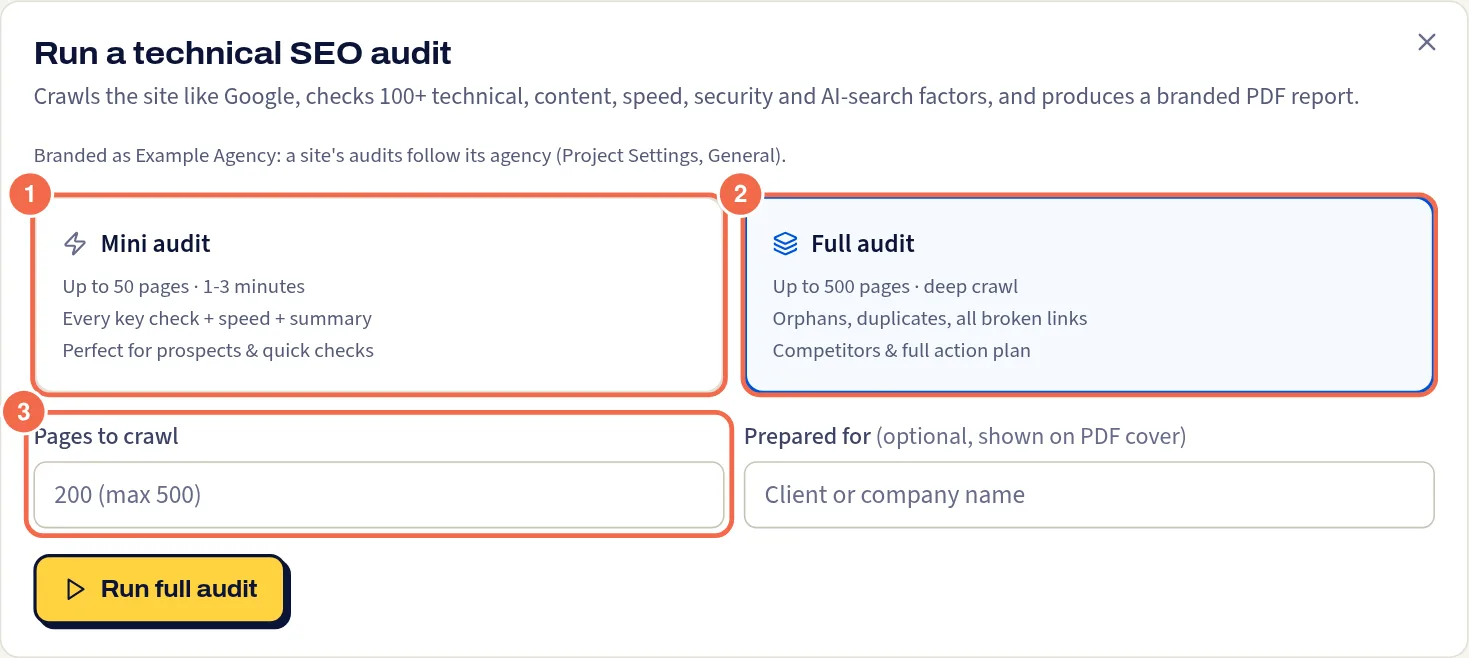 1: Mini audit. 2: Full audit. 3: Pages to crawl (empty means the default).
Step 3: Wait for the crawl to finish
While it runs you see a progress bar and the stages: checking site configuration, crawling pages, checking links, testing speed and Core Web Vitals, gathering rankings and backlink data, writing the executive summary and generating the PDF. You can leave the page and come back; the audit keeps running in the background.
Step 4: Read the score and category cards
When the audit is done, the top of the report shows:
- SEO health: a score out of 100 with a grade (A is 90 and up, B 80, C 70, D 60, F below 60). Green is 80 or more, yellow 60 to 79, orange 40 to 59, red under 40.
- The number of critical problems, warnings and notices.
- After your second audit, the change since the last one (for example “+6 since Oct 3”).
- An executive summary next to the score, written by AI from the audit data when an OpenAI key is set, or from the audit rules otherwise.
Beside the score, In short gives the summary’s headline and first lines; Read more shows the rest.
Below it, Needs work lists the areas scoring under 90, lowest first, with their score and how many issues each has. The areas are Crawlability & Indexing, On-Page SEO, Content Quality, Speed & Core Web Vitals, Links & Structure, Security & HTTPS, Structured Data, AI Search Readiness and Authority & Visibility, plus UX & Conversion and Accessibility when they were checked. The line beside it says how the other areas score; All areas shows them too. Click an area to jump to its issues (Speed and Authority open their own tabs). An area marked “own score” is scored separately and doesn’t change SEO health.
Step 5: Work through the tabs
Under the areas the report has these tabs:
- Action plan: after a second audit, one line says what changed since the last one (“4 fixed, 2 new” and the areas that moved; What changed lists them). Then the top priorities, one row each with their impact and effort: click one to read why it matters and how to fix it, and to open its issues. Quick wins and what’s working sit below, and 90-day plan shows the plan. When AI can fix some issues, the yellow Review N AI fixes button at the top says how many.
- Issues: every problem found, worst first. Filter by Critical, Warning or Notice and by category. Click an issue to read why it matters, how to fix it and which pages are affected. See Fix audit issues.
- UX & Conversion and Accessibility: shown when the audit checked them. They have their own scores.
- Site health: totals (pages crawled, indexable pages, URLs in sitemap, broken links, redirects, 4xx / 5xx errors, average words per page, average response) and a pass or fail list of site-wide checks.
- Speed: mobile and desktop speed scores and Core Web Vitals for the homepage.
- Authority: ranking keywords, estimated visits, referring domains, backlinks and organic competitors.
- Pages: every crawled page with its status, words, depth, inlinks, response time, issue count and score. Filter by With issues, Errors & redirects or Not indexable, sort by worst score or fewest words, and click a page to see its issues.
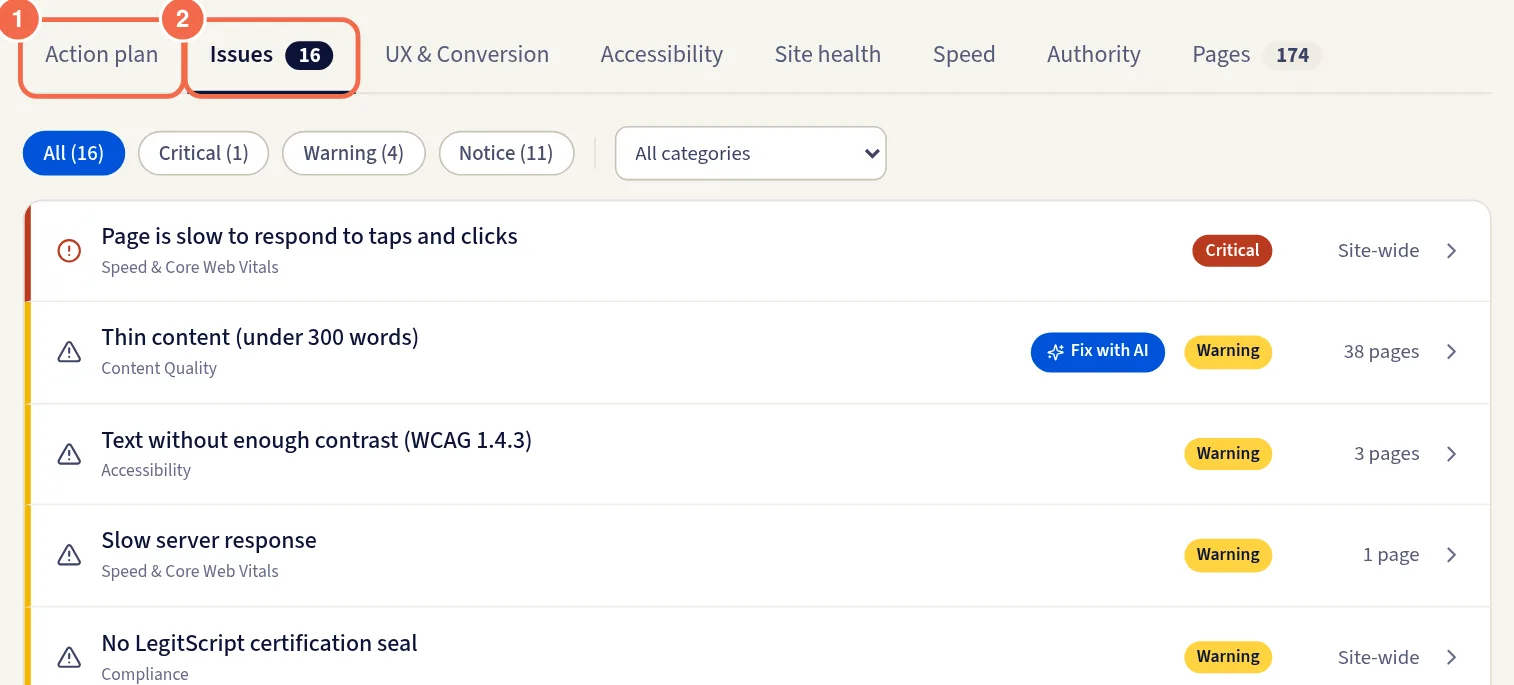 1: Action plan shows what to do first. 2: Issues holds the full list, with the severity filters above it.
Step 6: Re-run after you make changes
Open the audit and click Re-run at the top of the report. It runs the same type of audit with the same page limit and adds the new audit to the picker, so you can switch between them and see the trend. To audit automatically every week or month, use Scheduled reports at the bottom of the page.
Tips for useful results
- Start with critical issues. They are the ones most likely to hold rankings back. Notices can usually wait.
- Look at the page count. The header says how many pages were crawled. If a full audit stopped at its page limit, the Site health tab says so, and orphan-page detection needs a complete crawl, so raise Pages to crawl next time.
- Connect Search Console. The audit is stronger with your own Google data, and the Google index tab needs it. See Connect Google Search Console.
- Compare like with like. A mini audit checks fewer pages than a full audit, so compare scores between audits of the same type.
Troubleshooting
The audit says “The audit could not be completed”
The reason is shown under the message. Common causes: the site is down, a firewall or bot protection blocks automated visits, or the domain is misspelled. If a firewall is named, follow the allowlist steps shown, then click Re-run.
I see “Firewall-protected site” at the top of the report
The firewall blocked RankThatBot, so live checks ran through Google Lighthouse and content checks used archived copies of your pages where they existed. Allowlist RankThatBot using the steps shown and run the audit again for a complete crawl.
The Full audit option is locked
Your plan includes mini audits only. Full audits are on Professional and Enterprise.
The run button is grayed out
You have used all the audits included in your plan this month. The form shows the count and an Upgrade for more link.
The Speed tab says it was not measured
Speed is measured on the homepage. If the test could not load it, the tab shows the reason. Everything else in the audit is unaffected.
Next step
Now that you know what’s wrong, fix it. Fix audit issues shows how to draft fixes with AI, apply them to your site and undo them if needed. For the background on what an audit covers, read how to do an SEO audit or see the Site Audit feature.