
The technical audit tells you what is broken across the site. The content quality audit looks at each page on its own and asks: is this page good enough to rank? It reads every page in your sitemap and gives it a score out of 100 for on-page SEO, content, E-E-A-T (signs of experience and trust), semantic depth and technical basics. Sort by the worst score and you have a to-do list of the pages that most need work.
Before you start
- Your project needs a sitemap URL. The crawl starts from your sitemap. Add it in Project Settings › General under Sitemap URL (for example
https://example.com/sitemap.xml). - The AI part uses your OpenAI key when one is set. The rule-based checks run on every page. When an OpenAI key is available, RankThat also adds an AI assessment of E-E-A-T and semantic depth.
Step 1: Open the Content quality tab
Go to SEO › Site Audit and click the Content quality tab. If you’ve never run it, you see No Audit Data Yet with a Start Crawl & Audit button. Otherwise the tab shows your scores and when they were last updated.
Step 2: Crawl and audit your pages
Click Re-Crawl & Audit (or Start Crawl & Audit the first time). RankThat reads your sitemap, fetches each page and scores it. It runs in the background and appears in Track Jobs while it works. Pages that were crawled in the last 24 hours are skipped, so a second crawl the same day only picks up pages it hasn’t read yet.
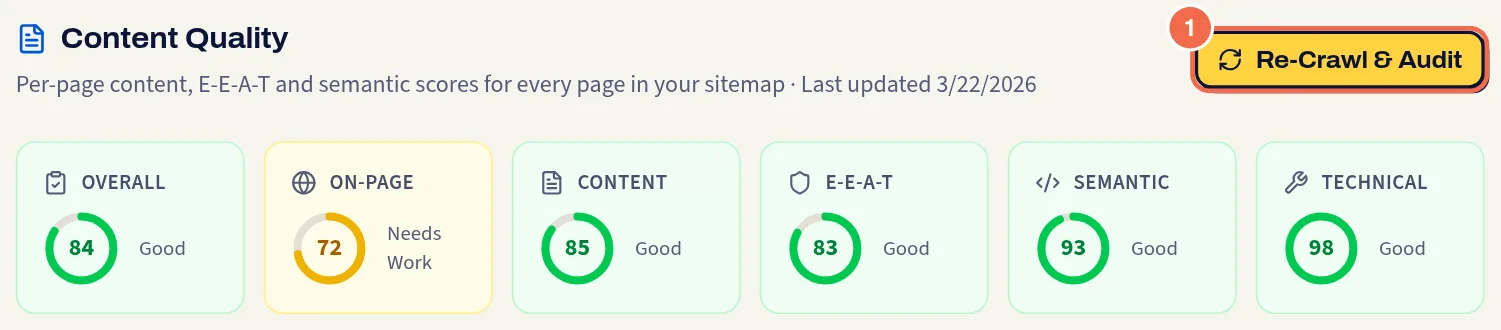 1: Re-Crawl & Audit reads your sitemap again. The cards show the average score per area across all pages.
Step 3: Read the score cards
Six cards show the average across every audited page:
- Overall: the page score, weighted 25% On-Page, 25% Content, 25% E-E-A-T, 15% Semantic and 10% Technical.
- On-Page: title, meta description, headings, URL, canonical, image alt text, internal and external links, Open Graph tags.
- Content: length, readability, subheadings, lists and tables, images, freshness.
- E-E-A-T: author byline, visible dates, citations of other sources, links to About and Contact pages.
- Semantic: structured data (schema) and semantic HTML.
- Technical: response time, page size, language attribute, noindex, canonical mismatches and HTTPS.
Each card is labeled Good (80 and up), Needs Work (60 to 79), Poor (40 to 59) or Critical (under 40). The bar below the cards shows how many pages were audited and the total of errors, warnings and info items.
Step 4: Find the weakest pages
The table lists every page, worst score first. Use the filters above it to narrow the list: All, Poor (<40), Needs Work (40-70) or Good (70+). Click URL, Score or Words to sort by that column.
Each row shows the page title and path, the overall Score, the five area scores (On-Page, Content, E-E-A-T, Semantic, Tech), the word count and the number of issues (errors in red). The table shows 50 pages at a time, with page numbers below.
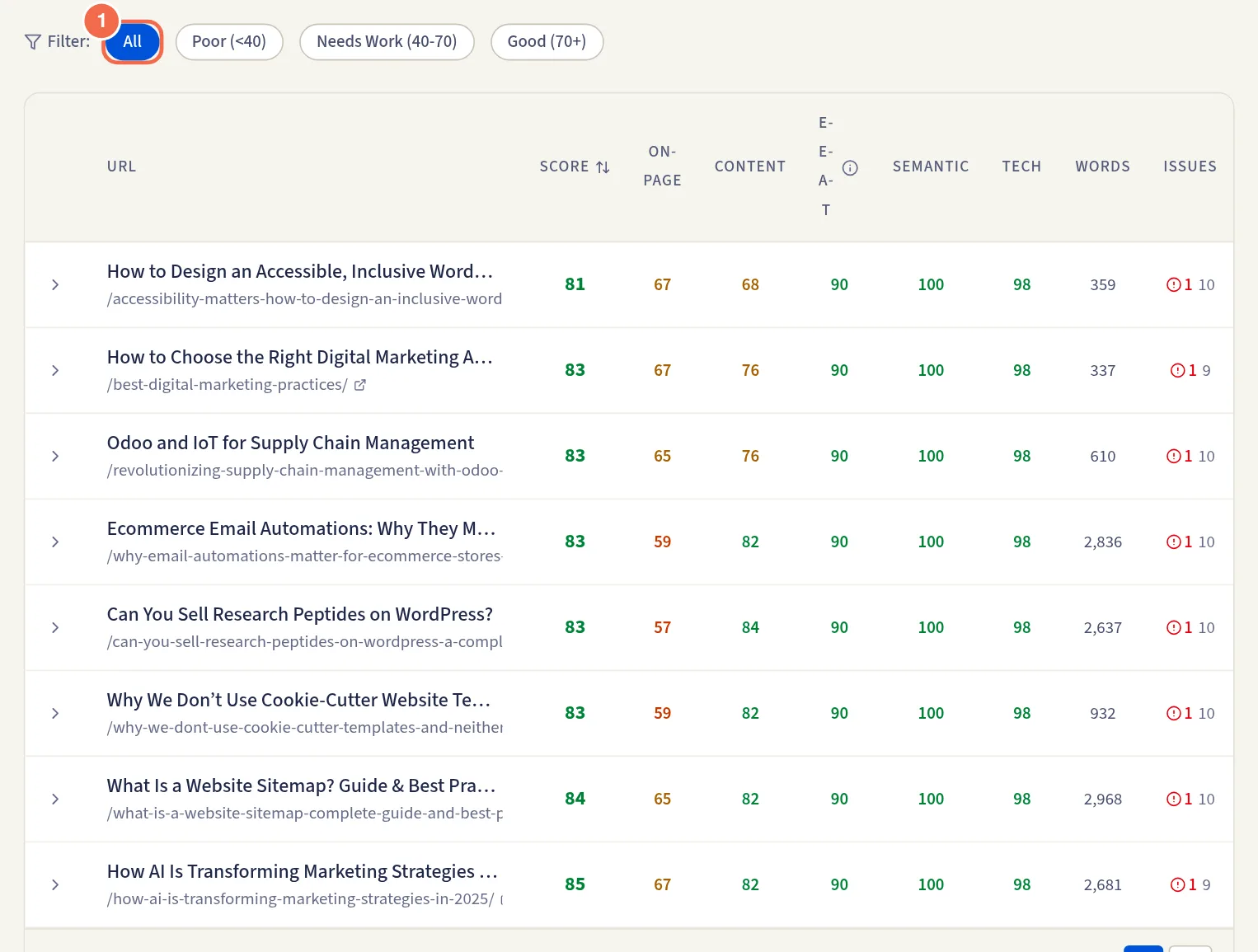 The lowest scores come first. 1: All is the default; Poor (<40) and Needs Work (40-70) narrow the list to the pages that need the most work. Sort by Words to find the thinnest ones.
Step 5: Open a page to see what to change
Click a row to open it. You see:
- The five area scores as colored pills
- Quick stats: Words, Readability, Images (how many have alt text), internal and external links, and response time
- The issues for that page, grouped by area, each with a short description and a recommendation, for example “Thin content”, “Missing H1 heading”, “No author byline” or “Content may be outdated”
- AI Recommendations, the AI E-E-A-T Assessment (experience, expertise, authority and trust scores with a note) and the AI Semantic Analysis (topic depth, entity coverage and topical relevance), when the AI check ran
Work through the recommendations from top to bottom, edit the page in your CMS, then crawl again to see the new score.
Step 6: Fix site-wide patterns
At the bottom of the tab, Top Site-Wide Issues lists the issues found on the most pages, with the share of pages affected (for example 64% means 64 out of every 100 pages). An issue on most of your pages usually comes from your theme or template, so fixing it once in the template fixes every page.
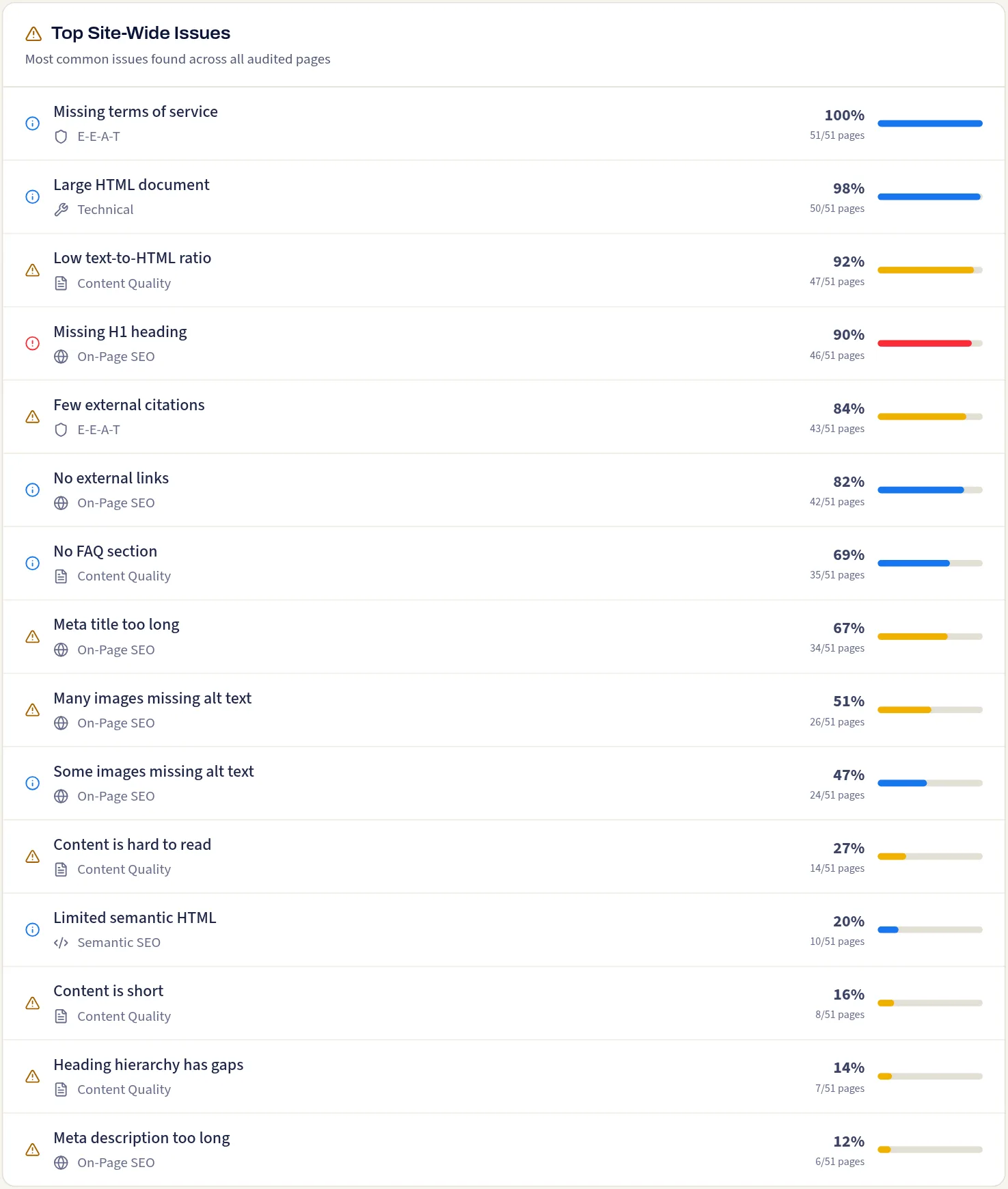 The most common issues across the site. A high percentage usually points to the theme or template.
How this differs from the technical audit
| Technical audit | Content quality | |
|---|---|---|
| What it reads | Crawls the site from the homepage (up to 500 pages) | Every page in your sitemap |
| What it scores | The whole site’s SEO health | Each page on its own |
| Best for | Broken links, speed, security, indexing, schema | Which pages need better content |
| Fixes | Many issues have Fix with AI | You edit the page; the recommendations tell you what to change |
For thin pages, the technical audit’s Thin content (under 300 words) issue can draft the missing sections for you. See Fix audit issues.
Tips
- Start with pages that bring in business. A Poor score on your main service page matters more than on an old news post.
- Low E-E-A-T is often quick to fix. Add an author name with a short bio, a visible “updated” date, and links to your About and Contact pages. Adding real facts about your business in Brand Voice helps the articles RankThat writes score well from the start.
- Don’t chase 100. A clear, useful page that answers the search well beats a page stuffed to tick every box. Read about E-E-A-T and thin content.
- Check indexing too. A low-scoring page is a likely reason for “Crawled - currently not indexed” on the Google index tab.
Troubleshooting
Nothing happens when I click Start Crawl & Audit
The project probably has no sitemap URL. Add it in Project Settings › General and try again. You can check progress in Track Jobs.
Some pages are missing from the table
Only pages listed in your sitemap are audited. Pages that couldn’t be fetched are left out. Check that the sitemap lists every page you want to rank.
The AI assessment boxes are missing
The AI check only runs when an OpenAI key is available. The rule-based scores still work without it.
The scores didn’t change after I edited a page
Pages crawled in the last 24 hours are skipped. Wait a day and click Re-Crawl & Audit again.
Next step
Content is only half of it: pages also need links pointing at them. The internal links report (in SEO › Internal Links) shows orphan pages and link suggestions, using the pages this crawl collected.