
Every finished site audit comes with a PDF report you can send to a client, a boss or a prospect. It explains the score, the top priorities and every issue in plain English, with a 90-day plan at the end. You can put your own logo, colors and contact details on it, share it with a link instead of an attachment, and have RankThat re-audit the site and email a new report every week or month.
Before you start
- You need a finished audit. The PDF buttons only appear once an audit is complete. See Run a site audit.
- White-label branding needs Professional or Enterprise. On other plans the PDF carries RankThat branding. You can still set up your branding: it switches on as soon as you upgrade.
- Scheduled reports use your audit allowance. Each scheduled report runs a new audit, and every audit counts toward your plan’s monthly total.
Step 1: Add “Prepared for” when you run the audit
When you start an audit with New audit, the Prepared for field puts a client or company name on the PDF cover. It’s optional. Leave it empty for your own sites.
Step 2: Download the PDF
Open the audit in SEO › Site Audit. In the audit’s header, click PDF report. RankThat prepares the file and downloads it.
 1: Share link copies a link to the PDF. 2: Re-run starts a new audit. 3: PDF report downloads the file.
The report includes, when the audit has the data:
- A cover with the site, the date, the overall score and grade, and “Prepared for” if you filled it in
- The executive summary, score by category and what’s working well
- Top priorities and quick wins
- The site health checklist
- Speed & Core Web Vitals, with how the homepage looks on desktop and mobile
- UX & Conversion and Accessibility, when they were checked
- Authority & search visibility: top keywords and organic competitors
- Issues found, by category, and the pages that need the most attention
- Progress since the last audit (from the second audit on)
- Your 90-day action plan
Fixes you applied through RankThat and that were checked live are listed as fixed, so the report shows the score before and after.
Step 3: Open, rebuild or share it
Click the … (More actions) button next to PDF report for more options:
- Open PDF in a new tab: view it in the browser without downloading.
- Rebuild PDF with latest branding: a PDF is built once per audit. If you changed your branding after that, rebuild it so the new logo and colors show.
To share without an attachment, click Share link. The link is copied to your clipboard. Anyone with the link can view the PDF, without logging in, so only send it to people who should see the report.
Step 4: Put your branding on the report
In the toolbar above the audit, click Report branding (it opens SEO Audits › Agency branding & Audit API, tab Report branding). Fill in:
- Identity: Agency name, Logo, Primary color and Dark accent color.
- Contact details: Website, Email, Phone and Address, shown on the cover and the closing page.
- Call to action for the last page of every report: a Pitch paragraph, Button text (for example “Book a free strategy call”) and Button link.
- Footer note: an optional disclaimer.
The PDF cover preview on the right updates as you type. Click Save branding. Your branding applies to every PDF built from then on. For audits that already have a PDF, use Rebuild PDF with latest branding.
Step 5: Email a fresh report every week or month
At the bottom of the Technical audit tab, the Scheduled reports card re-audits the site automatically and emails your branded PDF, with the progress since the last report. Click Schedule and choose:
- How often: Monthly or Weekly.
- Audit type: Mini (up to 50 pages) or Full (up to 500 pages). Full needs Professional or Enterprise.
- Email the report to: client email addresses, separated by commas.
- Send me a copy too: on by default.
- Prepared for: the client name on the PDF cover.
- Send the first report now, or Start on a date and time you pick.
Click Schedule report. Emails are sent from your agency name, and replies go to the email in your branding.
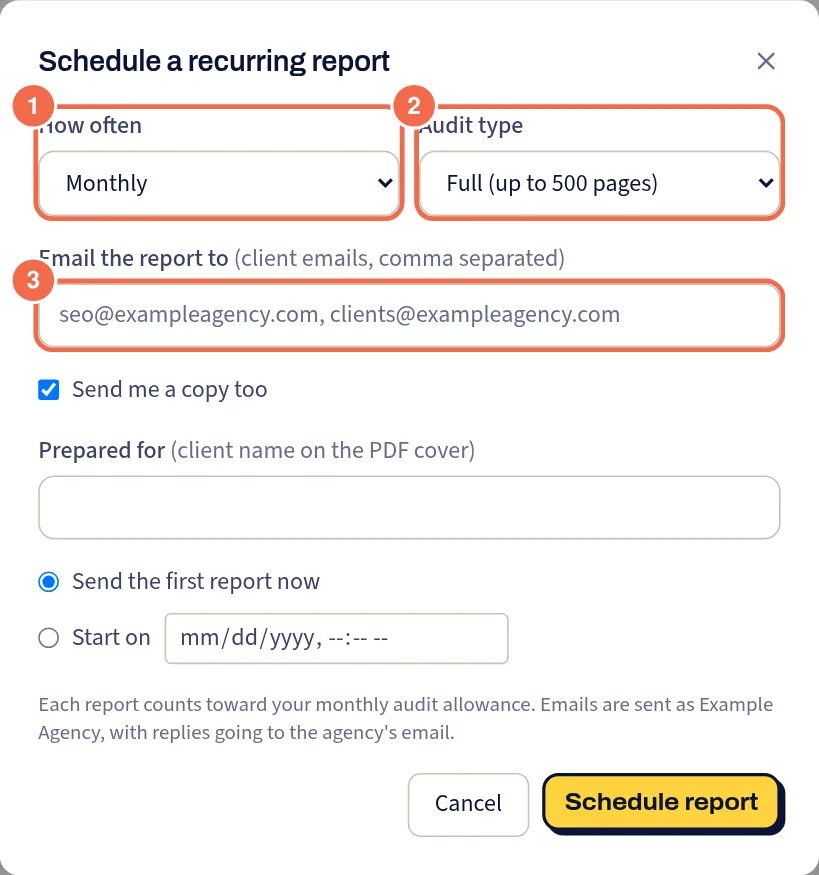 1: How often. 2: Audit type. 3: Email the report to. Nothing is sent until you click Schedule report.
Each schedule in the list shows the site, how often it runs, who gets it, the next run date and the score of the last report with its change. The buttons on the right are Run now, Pause (or Resume), Edit and Delete. Deleting a schedule stops future reports; past audits are kept.
Find the PDF from Reports
Analytics & Reports › Reports & Exports has an SEO audit report (PDF) row that takes you to Site Audit with Open Site Audit. The PDF is always downloaded from the audit itself.
 1: Open Site Audit on Reports & Exports goes straight to Site Audit, where the PDF is downloaded.
Tips
- Fix first, then send. Apply the easy fixes before you share the report: fixes checked live already count in the score. See Fix audit issues.
- Use the call to action. For prospects, the last page is your pitch. Link the button to your booking page.
- Monthly beats weekly for most clients. A monthly report shows real progress; a weekly one often shows little change.
- Audit and monthly report are different. The audit PDF covers the site’s technical health. For rankings, traffic and work completed, use the monthly client report.
Troubleshooting
“Could not generate the PDF”
Try again in a minute. If it keeps failing, use Rebuild PDF with latest branding from the More actions menu.
My logo or colors don’t show on the PDF
The PDF was built before you saved your branding. Use Rebuild PDF with latest branding. If your plan doesn’t include white-label reports, the branding page shows a notice and PDFs stay RankThat-branded.
A scheduled report didn’t arrive
Open Scheduled reports. If a report couldn’t run, the reason is shown in red under the schedule, for example when the month’s audit allowance is used up. Check the client’s spam folder too.
There is no PDF report button
The audit isn’t finished, or it failed. Wait for it to complete, or click Re-run.
Next step
Before you send a report, clear the quick wins so the score reflects your work: Fix audit issues shows how. For a wider client report with rankings and traffic, see the Reports feature.