
A page that isn’t in Google’s index can’t rank, however good it is. The Google index tab asks Google directly, page by page, whether your important pages are indexed and, if not, why. The answers come from your own Search Console (Google’s URL Inspection tool), so they are Google’s verdict, not a guess from a crawler. Use it to catch pages Google has skipped, pages blocked by mistake and pages Google treats as copies of others.
Before you start
- Connect Search Console and choose the property. This tab needs a Search Console connection and the right property selected in Project Settings. See Connect Google Search Console.
- The Google account must have access to the property. RankThat inspects pages with the account you connected.
Step 1: Open the Google index tab
Go to SEO › Site Audit and click the Google index tab. If Search Console isn’t set up, you see “Connect Search Console and choose the property in Project Settings to see which pages Google has indexed.” Otherwise you see three totals:
- Pages checked, with the date of the last check
- Indexed: pages Google has in its index
- Not indexed: pages Google has left out
 1: Check pages now asks Google about your pages again. The three totals show where you stand.
Step 2: Check your pages
Click Check pages now. RankThat starts checking in the background and the button changes to Checking pages. A run usually takes a few minutes, and the tab refreshes on its own while it runs.
Which pages are checked, most important first:
- Your homepage
- The pages Search Console shows getting the most impressions
- The pages from your latest site audit (not redirects or errors)
- Articles you published with RankThat
Only pages inside your Search Console property are checked, up to 300 per run, and each page at most once a week. Pages checked in the last 7 days are skipped, so clicking again the same day won’t re-check them. Google limits inspections to 2,000 per property per day; if a large site reaches that, the rest are checked on the next run.
You don’t have to remember to do this: RankThat also checks your pages automatically every month.
Step 3: Read why pages aren’t indexed
The Why pages aren’t indexed card groups the left-out pages by Google’s reason, with the number of pages and what to do. The reasons you’ll see most:
| Google’s reason | What it means | What to do |
|---|---|---|
| Crawled - currently not indexed | Google read the page and chose not to index it, usually because it looks thin or too similar to other pages | Improve and expand it, link to it from strong pages, or merge it |
| Discovered - currently not indexed | Google knows the page exists but hasn’t crawled it yet | Link to it from important pages and make sure it’s in the sitemap |
| Excluded by noindex | The page tells Google not to index it | Remove the noindex tag if it should appear in search |
| Duplicate or canonical | Google treats it as a copy of another page | Make the content distinct, or point the canonical to the page you want indexed |
| Blocked by robots.txt | robots.txt stops Google from crawling it | Allow the path if the page should rank |
| Not found (404) or soft 404 | The page is missing or looks empty | Restore it or redirect it to the best live page |
| Page with redirect | The URL redirects | Link to and list the final URL instead |
| URL is unknown to Google | Google has never seen it | Add it to the sitemap and link to it |
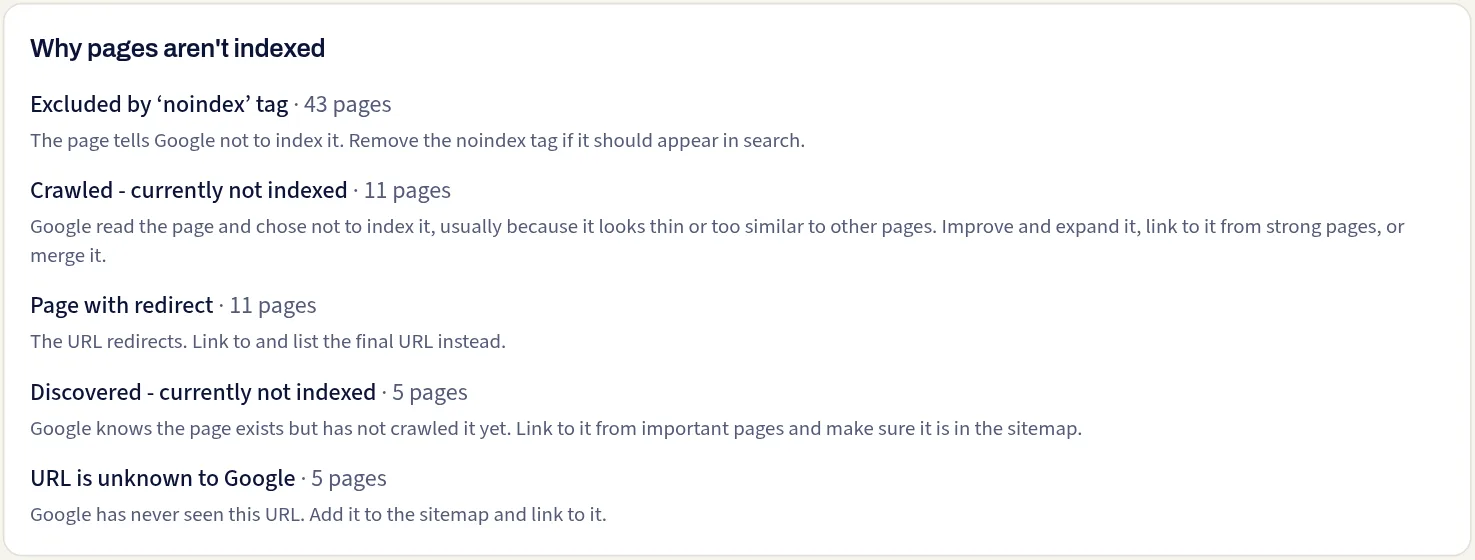 Each reason with the number of pages it affects and what to do about it.
Step 4: Go through the pages one by one
The Pages not in Google table lists every left-out page with its Status (Google’s reason) and when Google Last crawled it (“never” if Google hasn’t). Click a page to open it in a new tab.
Work down the list with the reason in mind:
- Should this page be in Google at all? Tag pages, thank-you pages and old test pages are often fine to leave out. Don’t spend time on them.
- If it should, fix the cause from the table above. For thin pages, see what the Site Audit says about them on the Issues tab (for example Thin content (under 300 words)), where RankThat can draft new content for you.
- Then wait. Google decides when to re-crawl. Your fix shows up here after Google crawls the page again and the next check runs.
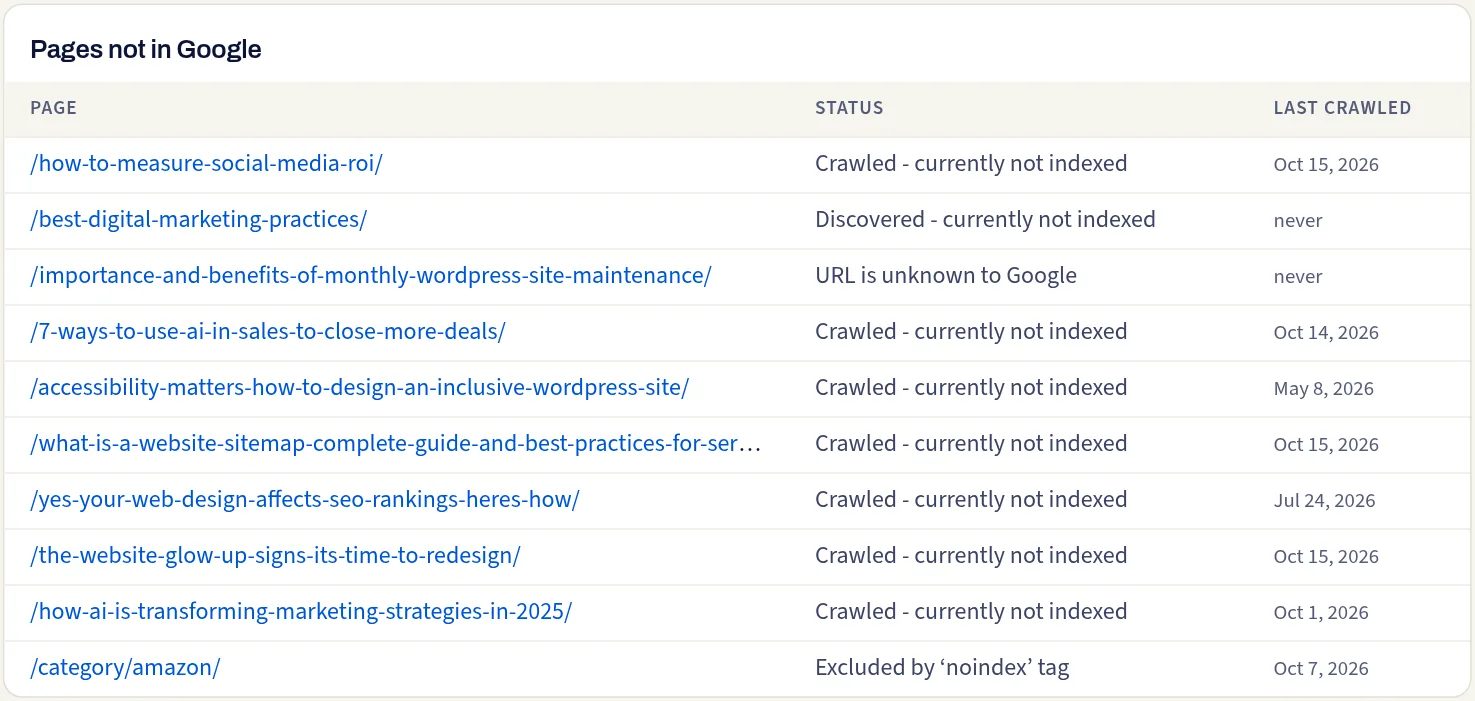 Each page Google has left out, with its status and the date Google last crawled it.
Step 5: Fix pages where Google picked a different main page
The Google picked a different main page card appears when a page says one URL is its main version (its canonical) and Google chose another. Next to each page you see the URL Google chose. Make the canonical tags and your internal links agree on one URL, so Google indexes the page you want.
When every checked page is indexed, the tab says “Every checked page is in Google’s index.”
Get told when pages drop out
If a page that was indexed drops out of Google on a later check, RankThat raises an alert “N pages dropped out of Google” with the pages and Google’s reason. This is the Pages dropping out of Google alert, which is on by default and can be switched off in your alert settings.
Tips
- Start with pages that matter for money. A service page or product category that isn’t indexed costs you more than an old blog post.
- “Crawled - currently not indexed” is a quality signal. Google saw the page and didn’t think it was worth indexing. Adding words alone rarely fixes it: add useful detail, internal links and something other pages don’t say. Read how to fix crawled, currently not indexed.
- Check after a migration or redesign. Run Check pages now a week or two after big changes to catch pages that fell out.
- Compare with Search Performance. A page with zero impressions in Search Performance is often a page that isn’t indexed.
Troubleshooting
The tab asks me to connect Search Console, but it is connected
The project also needs a property chosen. Open Project Settings, pick the Search Console property for this site and come back.
“Set a Search Console property in Project Settings first”
Same cause: no property is selected for this project.
The check ran but nothing changed
Pages checked in the last 7 days are skipped. Wait a week, or until the automatic monthly check. Also check that the pages belong to the property you chose: a property for https://www.example.com/ doesn’t cover https://example.com/.
Fewer pages were checked than I expected
Each run checks up to 300 pages, and only pages RankThat knows about (your top Search Console pages, your latest audit and your published articles). Run a site audit to add more pages to the list.
Next step
Once Google can see your pages, make sure the ones it sees are good enough to rank. Run a site audit and work through the content issues, and read about noindex and canonical tags if those reasons show up often.