
An audit tells you what is wrong. For many issues RankThat can also write the fix for you: new SEO titles and meta descriptions, business schema, redirects for missing pages, alt text for images, links to orphan pages, extra content for thin pages and more. You review every draft, change what you like, and only then apply it to the live site. Each change is checked on the live site afterwards and can be undone.
Before you start
- Run an audit from the project. Fixes can only be applied to audits run inside a project (SEO › Site Audit). See Run a site audit.
- Connect your site so fixes can be applied. On WordPress, install and connect the free RankThat Bridge plugin. Sites without WordPress can use a Cloudflare Worker or a script snippet, set up in Project Settings › Connections under “Fixes on sites without WordPress”. The Worker and snippet apply a smaller set of fixes (titles, descriptions, schema, alt text and, with the Worker, redirects, link updates, security headers, llms.txt and AI crawler rules). Without a connection you can still draft fixes and copy them.
- Drafting uses your OpenAI key. The fix window says so while it drafts.
Step 1: Find the issues AI can fix
Open your latest audit in SEO › Site Audit. At the top of the report, the yellow Review N AI fixes button says how many issues AI can fix. Click it, or open the Issues tab. Issues with a ready-made fix have a blue Fix with AI button on their row.
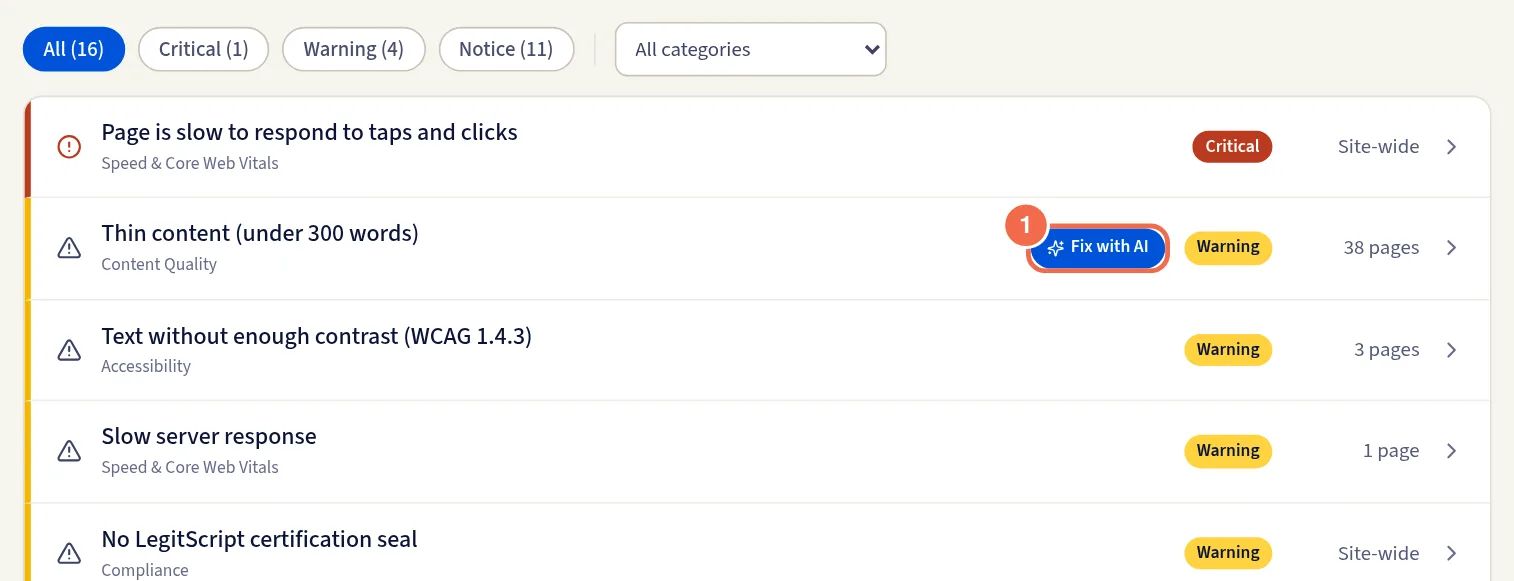 1: Fix with AI on an issue that RankThat can fix. When two or more fixable issues are open, Fix all with AI also appears at the right of the filters.
Common fixes include:
| Issue | Fix |
|---|---|
| Missing, too long, too short or duplicate titles and descriptions | Write or rewrite them |
| Missing business or page schema | Generate the JSON-LD |
| Broken internal links and missing pages (4xx) | Redirect them to the closest live page |
| Links that point at redirects, redirect chains | Update the links to the final address |
| Images missing alt text | Write alt text (AI looks at each image) |
| Oversized images, images not in modern formats, main content loads slowly (LCP) | Shrink the images and serve WebP copies, load the main image first |
| YouTube videos load the whole player | Show a preview that loads the player on click |
| Orphan pages, pages with few internal links | Add links from related pages |
| Thin content (under 300 words) | Write the missing content |
| Broken outbound links, insecure (http) files | Fix or remove the links, move files to https |
| Missing trust pages, no call to action, phone not tappable | Draft the pages, add a call / book bar, make the number tappable |
Step 2: Read the issue first
Click the issue row (not the button) to open it. You see Why it matters, How to fix and the affected pages or details. This tells you whether the issue is real for your site before you change anything. If a page is short on purpose, for example a contact page, you don’t need to fix it.
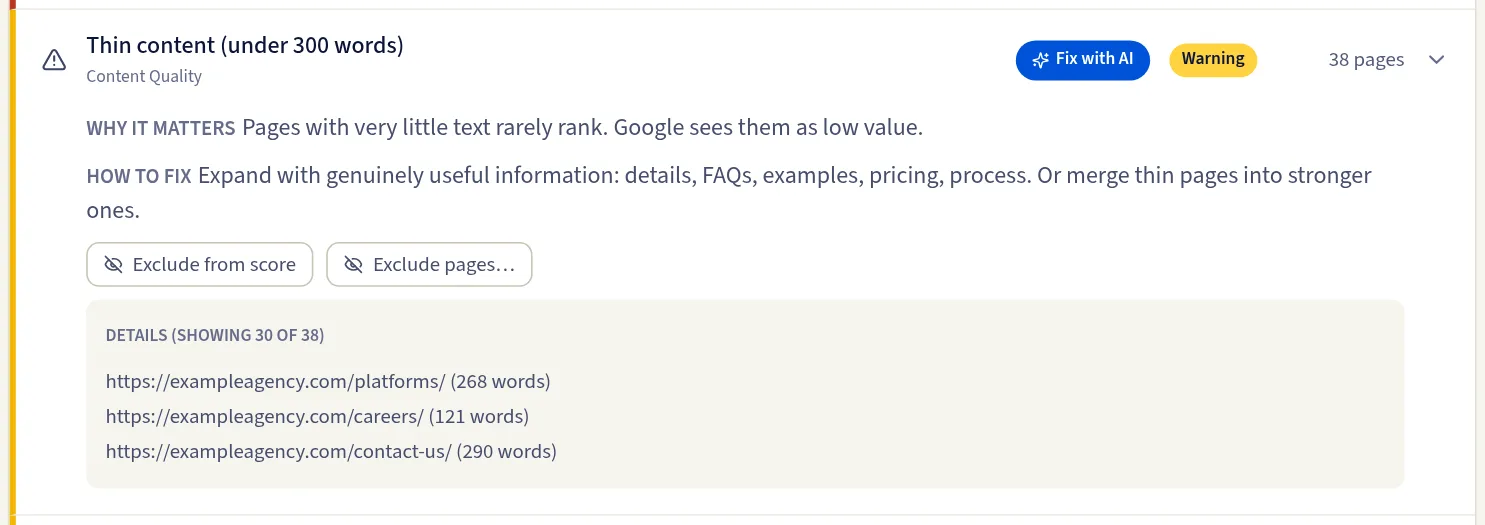 An opened issue: why it matters, how to fix it, and the pages it affects.
Step 3: Draft the fix and review it
Click Fix with AI. A window opens titled “Fix with AI” followed by the issue name, with a short note on what the fix does. RankThat reads the affected pages and drafts the fixes. This usually takes 20 to 60 seconds.
What you review depends on the fix:
- Titles and descriptions: one row per page with the current text crossed out and the suggestion below it, with a length counter. Edit any suggestion and untick pages you want to leave alone.
- Redirects, links, alt text, images and internal links: a list of each proposed change with a checkbox.
- Thin content: new sections for the thin pages that get the most Google impressions, written from what the page already says, your business facts and the searches it shows up for. Pages that are short by nature (contact, legal, careers, portfolio and similar) are skipped. Pages built with Elementor, Divi or another page builder get a WordPress draft to paste in instead.
- Schema, llms.txt and AI crawler rules: the code or text itself, which you can edit (the AI crawler rules are read only).
Check names, phone numbers and addresses carefully, especially in business schema. If you would rather apply a fix by hand, click Copy.
Step 4: Apply it
Click Apply to WordPress (for titles and descriptions it reads Apply N to WordPress, with the number of pages selected). The footer above the button says how the change will be applied. If it can’t be applied, the footer explains why, for example “Applying this needs the RankThat Bridge plugin (v1.19) connected in Project Settings” or that your Bridge version needs an update.
When it’s done, the window shows what was applied and anything that was skipped, with the reason. Click Done.
Sites behind a firewall: if the firewall blocks direct connections, the fix is queued and RankThat Bridge applies it from inside WordPress on its next check-in, usually within 5 minutes. The issue shows Fix queued until then.
Step 5: Check that the fix is live
Back on the Issues tab, the fixed issue’s button changes to a status:
- Checking live…: RankThat is loading the live pages to confirm the change.
- Fixed · checked live: the change is on the live site.
- Applied · not live yet: applied, but the live page still shows the old version. Hover for the reason. Clearing your page cache usually solves it.
- Fix applied: applied; no live check was possible for this type of fix.
Open the issue to see the fix details: when it was applied, how many pages checked out live, and anything that wasn’t changed. Click Check again to re-check the live site, for example after you clear your cache. Once a fix is confirmed live, the score at the top of the report updates and shows both numbers, for example “84 at audit, 91 after fixes checked live”.
Step 6: Undo a fix if you need to
Open the issue and click Undo in the fix box, then confirm. Everything the fix changed on the website is put back. Pages edited since the fix are left alone, so your own later edits are never overwritten. The issue’s Fix with AI button comes back, so you can draft it again.
On WordPress you can also see and undo every change from Project Settings › Connections, in Changes made by RankThat Bridge. If a fix can’t be undone from the audit (it was applied by an older Bridge version, or more than 60 changes ago), the fix box says so.
Fix everything at once
When two or more fixable issues are open, Fix all with AI (N issues) appears above the issue list. It drafts every fix in one window: one new title and description per page (only what that page needs, even if it has several issues) plus the site-wide fixes such as schema and llms.txt. Untick anything you don’t want, then apply the selection together.
Tips
- Fix critical issues first, then warnings. Notices can wait.
- Re-run the audit after a round of fixes to confirm everything and see your score move. On the Action plan tab, the line under the tabs says how many issues were fixed and how many are new; What changed lists them.
- Use a page cache? Clear it after applying, or the live check may report “not live yet”.
Troubleshooting
The fix window says “Could not generate fixes”
The reason is shown in the window. Drafting needs a working OpenAI key and pages that RankThat can load. Fix what the message points to, then click Fix with AI again.
“This audit is not linked to a WordPress project”
The audit was run outside a project (from SEO Audits). Copy the fixes and apply them by hand, or run the audit from the project’s Site Audit page.
“Not applied: see the reason in the window”
WordPress refused the change or the Bridge plugin couldn’t be reached. The red box in the window says why. Check that the plugin is active and up to date, click Sync now in WordPress › Settings › RankThat, and apply again.
There is no Fix with AI button on an issue
Only some issues have an automatic fix. For the rest, follow How to fix in the opened issue.
Next step
Want to know more about where fixes work? See RankThat fixes. To keep the site healthy, re-run your audit regularly and compare scores, as described in Run a site audit.