
RankThat Ads reads each site’s ad accounts every day: spend, clicks and each platform’s own conversions per campaign. It needs one sign-in per login, and then each site picks the account that is its own. This article covers Google Ads, Microsoft Advertising and Meta Ads, the logins you keep in Settings, and the one setting in Meta that decides whether the website can tell its visits apart.
You need the RankThat Ads add-on first (see Run your ads in RankThat), and Editor or Admin access to the site.
Before you start
- Google Ads: a Google login that can open the ad account. Read access is enough to see the numbers. Pausing campaigns, changing budgets and sending leads back need Standard or Admin access. Agencies can sign in with their manager account (below).
- Microsoft Advertising: a Microsoft login that can open the ad account.
- Meta Ads: a Facebook login that can open the ad account (Business Settings › Ad accounts). To read Meta’s lead forms too, the same login needs the business’s Facebook Page.
Step 1: Connect Google Ads
Go to Analytics & Reports › Ads and open Setup. The Setup checklist lists five rows, each with its state in one line: Ad accounts, Tracking checks, Leads and customers sent back, Monthly budget and target cost per lead and Rules. Open Ad accounts.
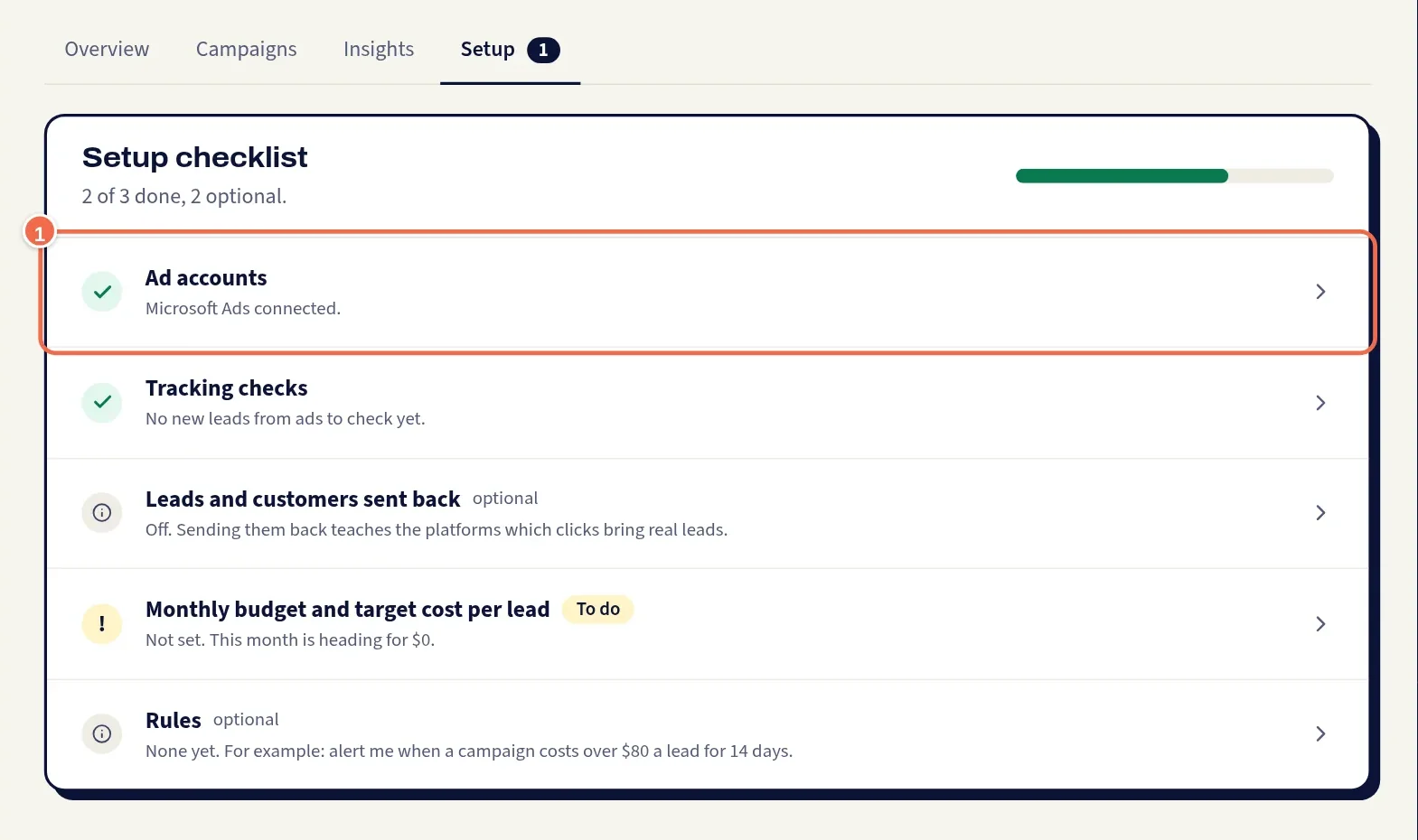 The Setup checklist, with what is done, what is optional and what is still to do. 1: Ad accounts opens the connection cards for Google Ads, Microsoft Ads and Meta Ads.
- Click Connect Google Ads and sign in with the Google login that opens the ad account. Leave the Google Ads boxes ticked on Google’s screen, or Google doesn’t give RankThat access.
- Back in RankThat, choose the account from the list and click Use this account.
- The first numbers arrive within a minute. After that RankThat reads the account every day.
The same connection cards are also in Project Settings › Connections.
Agencies: Google Ads manager accounts
If you run clients’ ads from a Google Ads manager account (MCC), you don’t need each client’s login. Sign in once with the login that opens the manager account. Every client account under it is listed, marked “through manager” with the manager’s number, for example “Coastline Plumbing (123-456-7890) · through manager 987-654-3210”.
On each client’s site, open Setup › Ad accounts, pick that client’s account and click Use this account. One sign-in then serves every client site. When you have several logins, each account in the list also shows the login it comes from.
Step 2: Connect Microsoft Ads and Meta Ads
Microsoft Ads and Meta Ads connect the same way, with Connect Microsoft Ads and Connect Meta Ads: sign in, pick the account, Use this account.
- Microsoft Ads: RankThat reads spend, clicks and Microsoft’s conversions per campaign. Pausing a campaign or changing its daily budget is possible from RankThat after you confirm it, as with Google Ads.
- Meta Ads: RankThat reads spend, link clicks and Meta’s leads per campaign. It only reads Meta: it changes nothing in Meta Ads Manager.
Meta Ads sign-in may be limited until Meta finishes reviewing RankThat’s app. If you can’t connect a Meta ad account yet, contact us at info@rankthatseo.com.
Step 3: Keep the connection working
Once an account is connected, its row shows when it last synced, with:
- Sync now: read the account again straight away.
- Change: pick another account for this site.
- Sign in again: renew the sign-in.
- Remove: stop reading the platform for this site. Its spend numbers are removed; leads keep their campaign.
When a sign-in stops working, the row says why in red:
- The sign-in expired or ended. Meta ends a sign-in after about 60 days, so sign in again when RankThat asks. RankThat also alerts you when a Meta sign-in is about to end.
- The login can no longer open the ad account. Ask the account owner to add the login again, or connect another login.
- The last sync failed, with the platform’s reason.
Several logins: Settings › Google & ads
Logins you already added in Settings › Google & ads show up on every site, so you pick the account without signing in again. On a site’s card, Connect another Google login (or Connect another Microsoft login, Connect another Facebook login) adds one more. Each site picks the login that reads it. See Connect Google Search Console for the list of logins.
This is how an agency with clients in different Google Ads accounts works: one login for the manager account, plus a login for any client whose account sits outside it.
When your tier is full
The first ad account linked on a site makes it a site running ads. If your tier has no place left, RankThat refuses the link and says so, for example “RankThat Ads Solo covers 1 site running ads, and 1 already is. Move to a bigger tier on the Ads page, or remove the ad accounts from another site first.” A second or third platform on a site that already runs ads never counts again. See Change your tier.
Step 4: Meta’s lead forms
Leads from Meta’s own lead forms never reach the website. RankThat reads them into the Leads inbox when the Meta sign-in included the business’s Facebook Page. If the checklist says to sign in again for them, click Sign in again on Meta Ads and pick the Page.
Step 5: Tag your Meta ads’ links
The website can only tell a visit from a Meta ad apart from an unpaid post when the link says so. When that is missing, Tracking checks shows the line to paste in Ads Manager (open each ad › Destination › URL parameters):
utm_source=facebook&utm_medium=paid&utm_campaign={{campaign.name}}&utm_content={{ad.name}}
Meta fills in the campaign and ad names itself, so the same line works on every ad.
FAQ
Why do Meta ads show few leads from the website?
Usually the ads’ links aren’t tagged, so the website can’t tell a Meta ad visit from an unpaid post. Paste the URL parameters from Step 5 in Ads Manager. Leads from Meta’s own lead forms count separately, once the Meta sign-in included the Facebook Page.
Does connecting a second platform on a site use another place in my tier?
No. A site with Google Ads, Microsoft Ads and Meta Ads linked is one site running ads.
Can a client connect their own ad account?
Anyone with Editor or Admin access to the site can. People with Client (view-only) access can read the numbers but not connect accounts.
What happens to the numbers if I remove an account?
Its spend numbers are removed from the site. Leads that came from its ads keep their campaign, so the Leads page still shows where they came from.