
Ad platforms bid better when they know which clicks became real leads, and which leads became customers. Left alone, Google Ads may learn from page views and phone taps, and Meta from its own forms. RankThat Ads can send each site’s real website leads, and the customers you mark on the Leads page, back to each platform, so the bidding aims for the people who actually get in touch and buy.
Each switch is per site and off until you turn it on. Leads go from RankThat’s server, so ad blockers and browser limits don’t lose them. You need the RankThat Ads add-on, the ad account connected (see Connect Google Ads, Microsoft Ads and Meta Ads) and Editor or Admin access to the site.
In Analytics & Reports › Ads, open Setup, then Leads and customers sent back.
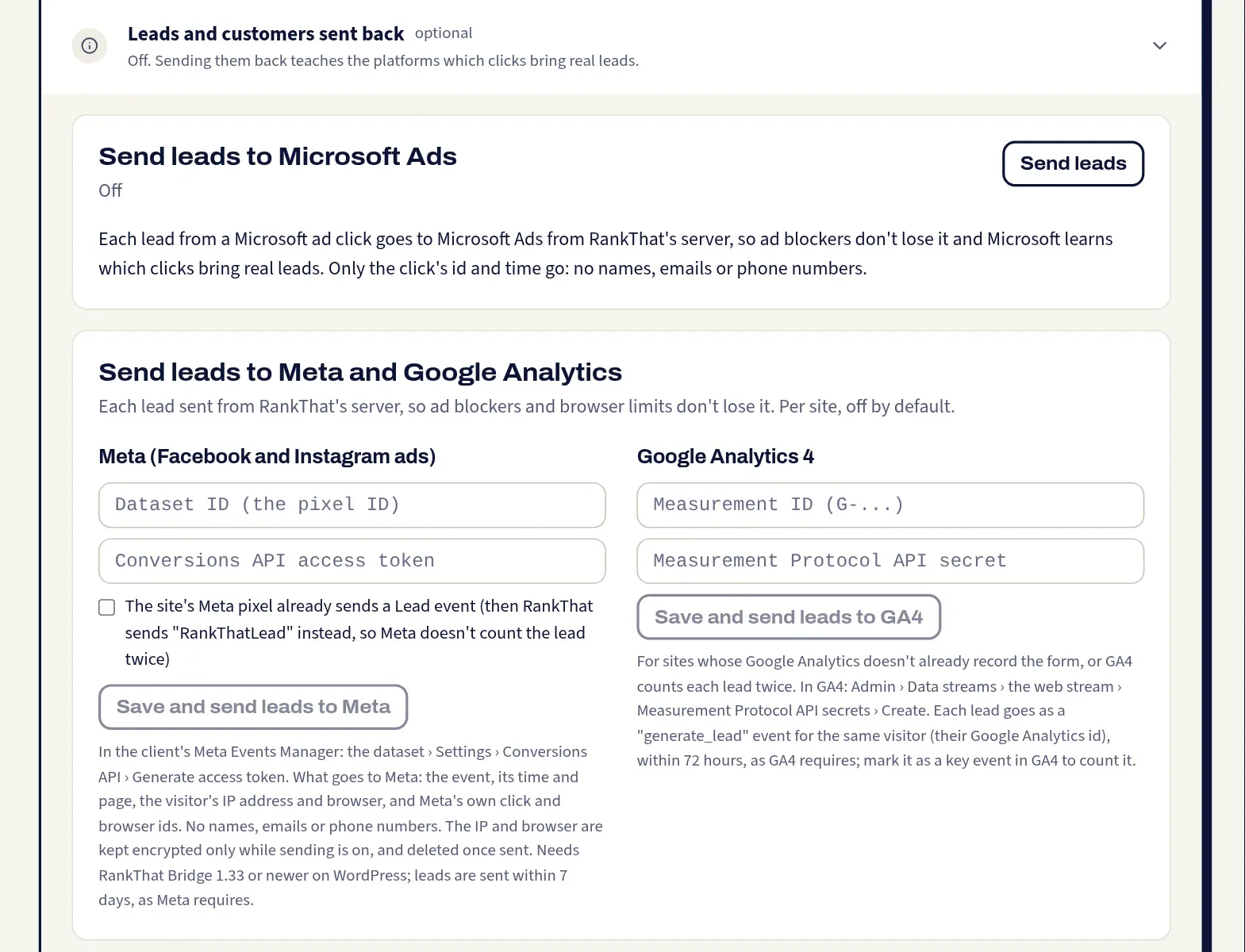 A site with Microsoft Ads connected and nothing sent yet: Send leads for Microsoft Ads, then the Meta and Google Analytics 4 settings.
Google Ads
- Send leads to Google Ads creates the conversion action “RankThat lead” in the account and sends each lead from a Google ad click to it. Only the click’s id and time go: no names, emails or phone numbers. The action is secondary, so Google records it without bidding on it until you make it primary in Google Ads (Goals › Conversions › Summary). Keep only one form conversion primary, so leads aren’t counted twice.
- Send customers to Google Ads sends the leads you mark Customer on the Leads page, with the value you enter, as “RankThat customer”. It is secondary too. After a few weeks of customers, making it the primary goal lets Google bid for customers (or for their value) instead of any lead.
Sending to Google Ads needs a login with Standard or Admin access to the ad account. Stop on the customers card stops sending customers; those already sent stay in Google Ads.
Microsoft Ads
Send leads to Microsoft Ads and Send customers to Microsoft Ads do the same with offline conversion goals. The customer goal, “RankThat customer”, is left out of bidding until you include it. Microsoft takes the first uploads 2 hours after a goal is created, so the first results show a little later than Google’s.
Meta and Google Analytics 4
The card Send leads to Meta and Google Analytics has a part for each.
Meta (Facebook and Instagram ads):
- In Meta’s Events Manager, open the client’s dataset › Settings › Conversions API › Generate access token.
- In RankThat, paste the dataset ID and the Conversions API access token.
- Tick the box if the site’s Meta pixel already sends a Lead event, so Meta doesn’t count the lead twice.
- Click Save and send leads to Meta.
- Click Send a test event. When it works, RankThat says “Meta received the test event: check Events Manager › Test events”.
Send customers adds Meta lead form stages and customers. Leads from Meta’s lead forms go stage by stage (New lead, Contacted, Customer), so in Events Manager you can pick “Customer” as the dataset’s conversion stage and lead ads can aim for people who buy. Website leads you mark Customer that came with Meta’s click or browser id go as “RankThatCustomer” with the value. Use the dataset that is connected to the Page’s lead forms, and mark leads Contacted or Customer in the Leads inbox; Meta takes each change within 7 days.
To replace the token later, paste a new one in New access token (only to replace it). Removing Meta from a site deletes the token, and every IP address and browser kept for Meta.
Google Analytics 4: paste the measurement ID and a Measurement Protocol API secret and click Save and send leads to GA4. Each lead goes to Google Analytics as “generate_lead”.
Health businesses never send leads to Meta
For health, mental health and addiction businesses the Meta option is switched off for good: Meta restricts their lead events, and it is RankThat’s rule. The card says “Not for this site” instead of the Meta fields. Google Ads and Google Analytics are fine.
See what was sent
Each card shows the month’s results: how many the platform recorded, how many are waiting for an answer and how many weren’t matched, with the reason. Each lead’s result is on the Leads page (see Website leads).
Check the tracking
Tracking checks, in Setup, runs every day and opens the Tracking health card:
- What Google counts as a conversion: the account’s conversion actions and their last 30 days next to the leads the website recorded. It flags actions that aren’t leads (a page view or a scroll), taps on the phone number counted as calls, and two actions counting the same lead. RankThat only reports these: you change them in Google Ads.
- Ad click tracking: how many leads from ads carry their ad click, which ties each one to its campaign and lets RankThat send it back. The website saves the ad click only when the visitor accepts marketing cookies, so a share under 100% is normal.
- Leads sent from RankThat’s server: each switched-on platform’s last 7 days, such as Working, Most refused, Most not sent, On, nothing to send or Stopped.
If leads stop going back to a platform, RankThat alerts you (see Pause campaigns, apply suggested changes and set rules).
For Coastline Plumbing, Tracking health might show that Google counts “Page view: thank you” and “Contact form” as two conversions for the same lead, and a phone tap as a call. Turning off the extra action in Google Ads, and making “RankThat lead” primary, leaves Google one honest count to bid on.
FAQ
Does RankThat send my customers’ details to the platforms?
No names, emails or phone numbers go to Google Ads or Microsoft Ads: only the ad click’s id, the time and, for customers, the value. For Meta, the visitor’s IP address and browser go with Meta’s own ids; RankThat keeps them encrypted and deletes them once sent. Health businesses never send leads to Meta.
Why weren’t some leads matched?
A lead can only go back to the platform its click came from. Leads without a saved ad click (the visitor declined marketing cookies, or arrived without one) can’t be matched, and the card gives the reason for each.
Will sending leads change my bidding straight away?
No. “RankThat lead” and “RankThat customer” start as secondary goals in Google Ads, and the Microsoft customer goal starts left out of bidding. Bidding changes only when you make them primary or include them.
Do I still need the Google Ads tag on the website?
Keep what you have. RankThat sends from its server on top of the site’s own tags. Keep only one form conversion primary in Google Ads, so a lead isn’t counted twice.