
Once you can see what a real lead costs, the next step is acting on it: pausing a campaign that spends without leads, moving budget to one that brings them cheaply, blocking searches that don’t fit. RankThat Ads does this from the same page, but never on its own. Every change waits for someone with Editor or Admin access to click it and confirm, and every change to a campaign can be undone.
This article covers pausing and daily budgets, the list of changes to make, rules and alerts, the weekly brief and Ask your ads. You need the RankThat Ads add-on and a connected ad account (see Run your ads in RankThat).
Step 1: Pause a campaign or change its daily budget
Go to Analytics & Reports › Ads, open Campaigns and click a campaign. For Google Ads and Microsoft Ads campaigns, the top of the side panel shows the campaign’s Status (Running or Paused) and Daily budget.
- Pause campaign stops its spend at once. Turn on starts it again.
- Change next to the daily budget lets you type a new amount and Save it.
RankThat asks you to confirm each change, then sends it to the platform straight away. The panel shows the last change with Undo. A budget shared by several campaigns is changed in the platform itself. Meta campaigns are read only: change them in Meta Ads Manager.
Pausing and budget changes need a login with Standard or Admin access in Google Ads (see Connect Google Ads, Microsoft Ads and Meta Ads).
Step 2: Review the changes to make
Open Insights. Changes to make is one list of what is worth changing, each with Review:
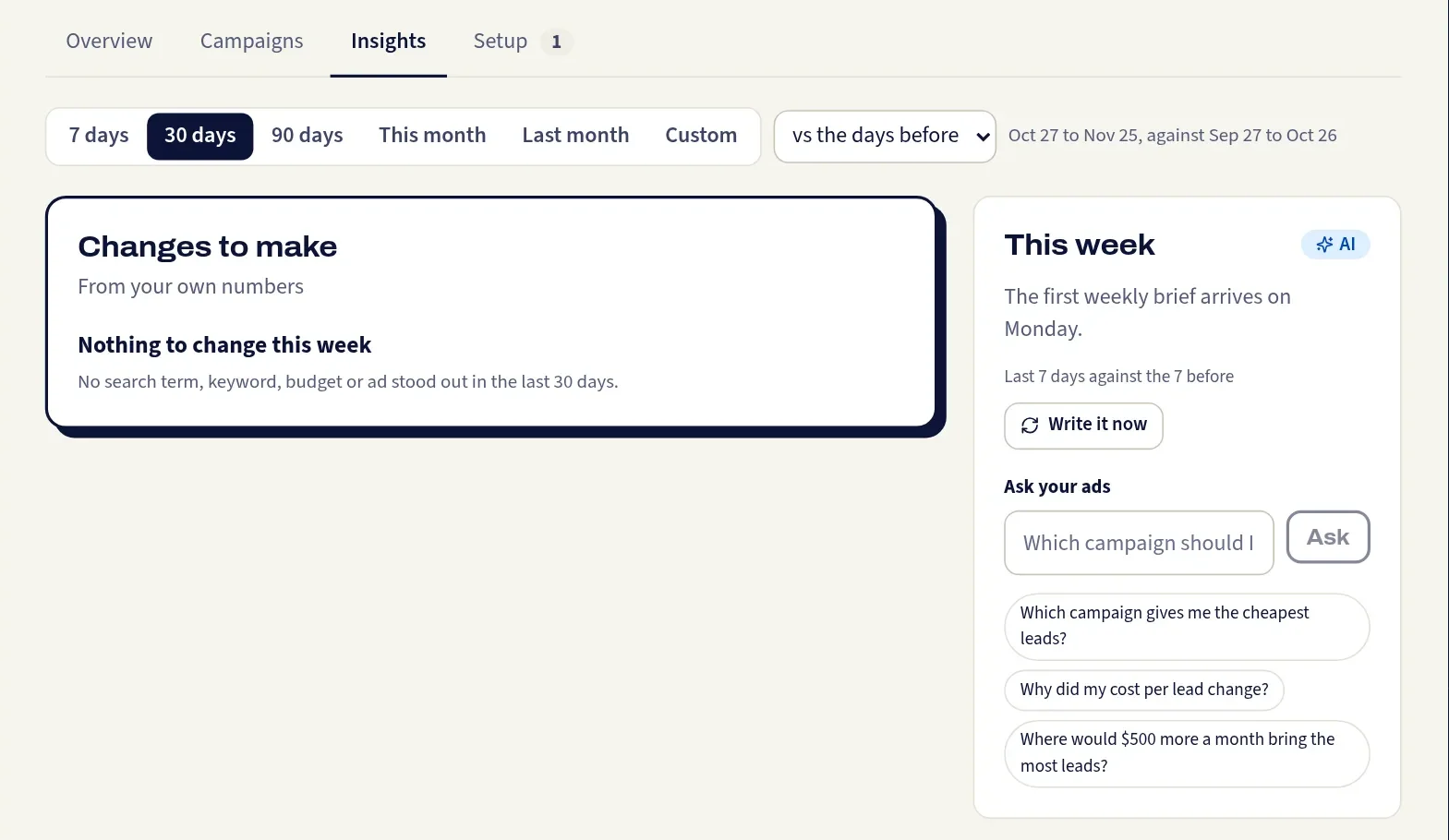 A week with nothing to change. On the right, This week (the weekly brief) and Ask your ads with example questions.
- Block search terms: searches that cost money and don’t fit the business, such as “plumber jobs” or “how to fix a leaking pipe yourself”, to add as exact-match negative keywords in Google Ads.
- Pause keywords: keywords that spent twice the cost per lead without a lead.
- Move budget: from a campaign with expensive leads to one with cheap leads that loses searches to its budget, or between platforms by their real cost per lead.
- Refresh an ad: Meta ads seen three or more times each whose click rate fell a quarter in a week. A new picture or opening line usually brings it back (see Write ad copy, images and landing pages).
Review opens the suggestion in a side panel. Untick any search term or keyword you want to keep, then click Apply (for example Apply 3 of 4) or Dismiss (it isn’t suggested again for 90 days). Nothing changes in Google Ads until you apply it. Check again looks at the account again.
The same suggestions also wait in the Autopilot inbox with your other sites’ work, so an agency can approve every client’s changes in one place.
Step 3: Undo a change
Changes and Undo, under the list, opens Changes RankThat made: every change made from RankThat on Google Ads and Microsoft Ads, with Undo on each. That covers the changes from the side panel and the suggestions you applied. Each row says what changed and when; once undone it is marked Undone with the date.
Step 4: Find the searches your ads miss
Beside the list, Searches your ads miss shows two things:
- Not covered: searches people already find the website for in Google’s free results that no keyword covers, with Copy to paste them into Google Ads.
- No lead yet: buyers’ searches that cost a lead’s worth without bringing one.
Step 5: Set rules
In Setup, open Rules. A rule reads like a sentence: “When a campaign costs more per lead than (or spends, with no lead,) $80 in the last 14 days, alert me (or suggest pausing it).”
- Fill in the sentence.
- Click What would it match today? to see which campaigns it would catch.
- Click Add rule.
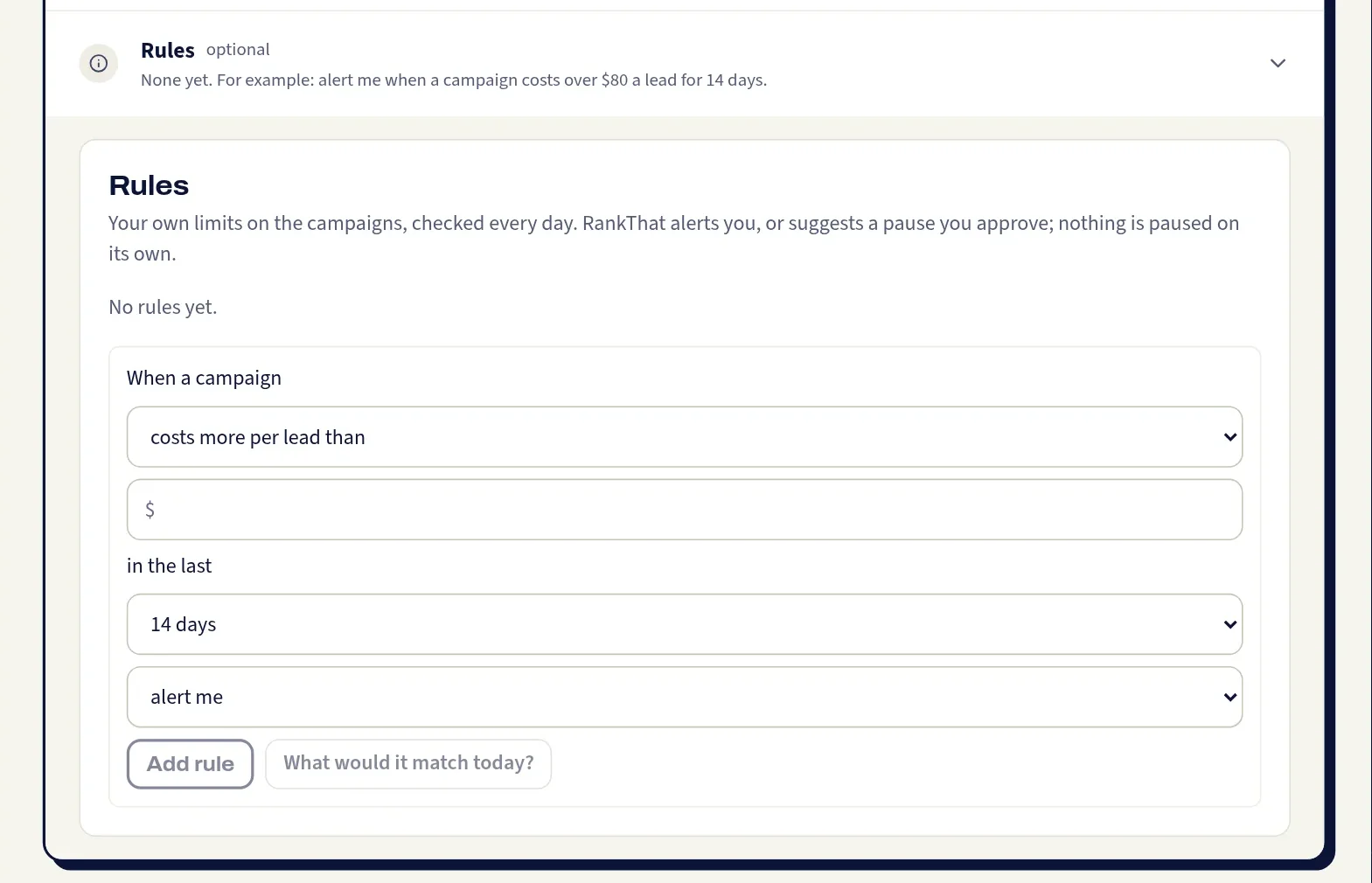 A site with no rules yet. The menus build the sentence; What would it match today? shows what the rule would catch before you add it.
Rules are checked every day. A suggested pause is for Google Ads campaigns and waits in Autopilot for your approval: nothing is paused on its own. Turn off or delete a rule at any time.
For Coastline Plumbing, a rule “When a campaign spends, with no lead, $150 in the last 7 days, suggest pausing it” would have caught “Water heaters” in a slow week, and left the decision to the owner.
Step 6: Know which alerts come without a rule
RankThat also sends these alerts without a rule:
- an ad account that stopped updating;
- a week of spend with no lead;
- cost per lead up 40% or more;
- disapproved ads;
- a platform that counted no conversions in a week;
- leads that stopped going back to a platform;
- a Meta sign-in about to end.
The budget alerts from the monthly budget and target come on top (see Read your ad results). Choose how you get them in Notifications.
Step 7: Read the weekly brief
On Insights, This week shows the analyst’s headline and the last 7 days against the 7 before: Spent, Leads and Per lead. The brief is written every Monday. Click Update (or Write it now before the first one) to write it again.
The owner and editors also get it by email on Mondays as the Weekly ads brief (Settings › Notifications): what changed and what to do next. It never goes to clients.
Step 8: Ask your ads
Ask your ads answers a question from the dates picked at the top, such as “Which campaign gives me the cheapest leads?”, “Why did my cost per lead change?” or “Where would $500 more a month bring the most leads?”. The numbers come from your ad accounts and website leads; the AI only puts them into words, and an answer with a number that isn’t in the data is not shown.
FAQ
Will RankThat change my ads by itself?
No. Campaigns are paused, budgets changed and suggestions applied only when someone clicks, and rules only alert or suggest. Ad copy goes to Google Ads paused. Every change to a campaign is listed under Changes and Undo.
Can I pause Meta campaigns from RankThat?
No. RankThat only reads Meta Ads. Pause or change Meta campaigns in Meta Ads Manager; RankThat shows the result at the next sync.
Who sees the weekly brief?
The owner and editors of the site, on the Insights view and by email on Mondays. Clients never get it.