
A new ad starts with two questions: what are competitors saying, and what can this business truthfully say better? RankThat Ads answers the first with Competitors’ ads and the second with Ad copy, which writes a Google search ad and a Meta ad from the site’s own business facts and reviews, makes images for both platforms, and writes a landing page that matches the ad.
Both are on the Insights view of Analytics & Reports › Ads. You need the RankThat Ads add-on (see Run your ads in RankThat). Writing ads and saving them to Google Ads or WordPress needs Editor or Admin access to the site.
Step 1: See competitors’ ads
Competitors’ ads, on Insights, lists the competitors this site tracks with the ads Google’s ad library (the Ads Transparency Center) shows for them in the last 30 days, checked weekly. A competitor with none says “No Google ads in 30 days”.
Below it, On your keywords shows who advertised on your tracked keywords at the Rank Tracker’s checks. Google often leaves its ads out of automated checks, so that part is a sample. The Google and Meta links open each advertiser’s full ad library, with dates.
To fill it, add competitors on the Competitors page (see Add competitors and find the topics they cover), or keywords in the Rank Tracker (see Track keyword rankings in Google).
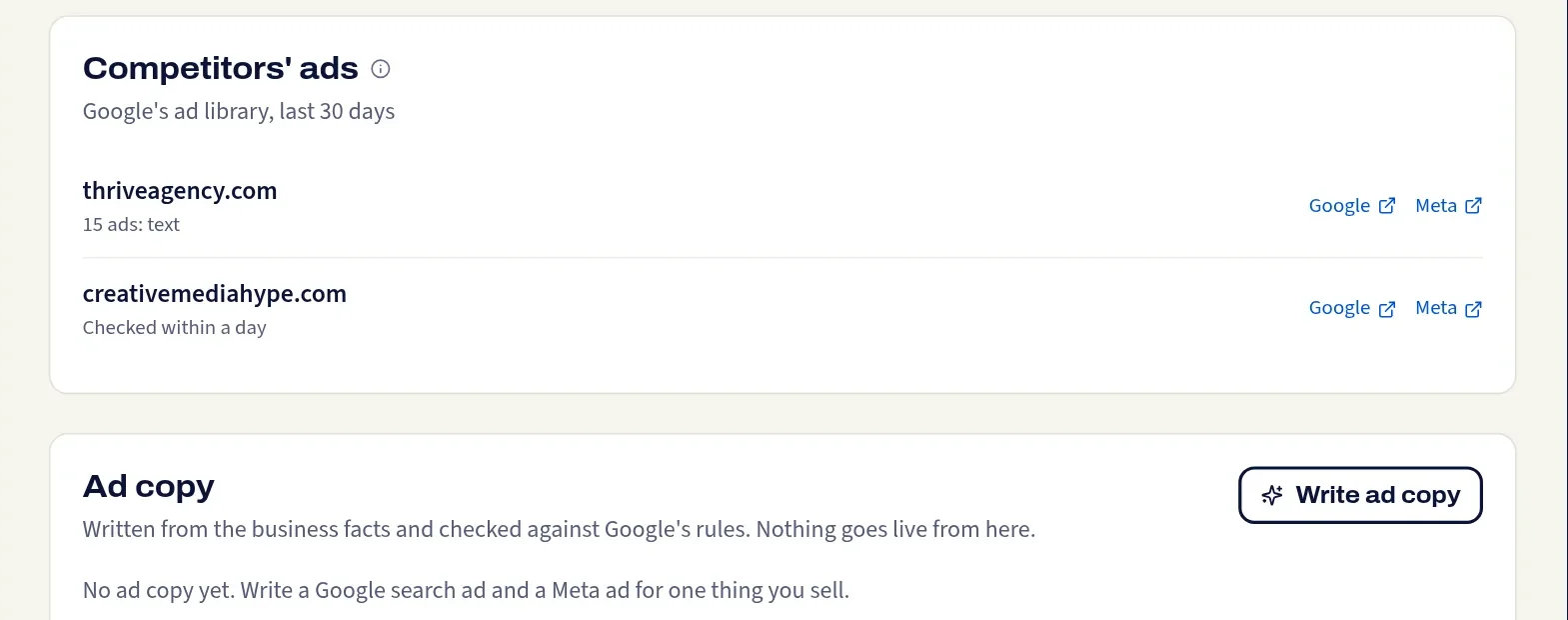 Two tracked competitors with their Google ads from the last 30 days, the Google and Meta library links, and Ad copy below with Write ad copy.
For Coastline Plumbing, the list might show that two competitors run “Same-day water heater install” ads and one runs nothing at all. That tells you which promise is crowded and where a different angle stands out.
Step 2: Write ad copy
Ad copy, at the bottom of Insights, writes a Google search ad and a Meta ad for one thing you sell.
- Click Write ad copy.
- Fill in What to advertise (for example “emergency plumbing”). The list suggests the site’s services.
- Fill in the Landing page, the page the ad sends people to.
- Tick Google search ad, Meta ad or both.
- Click Write ad copy. It takes about a minute.
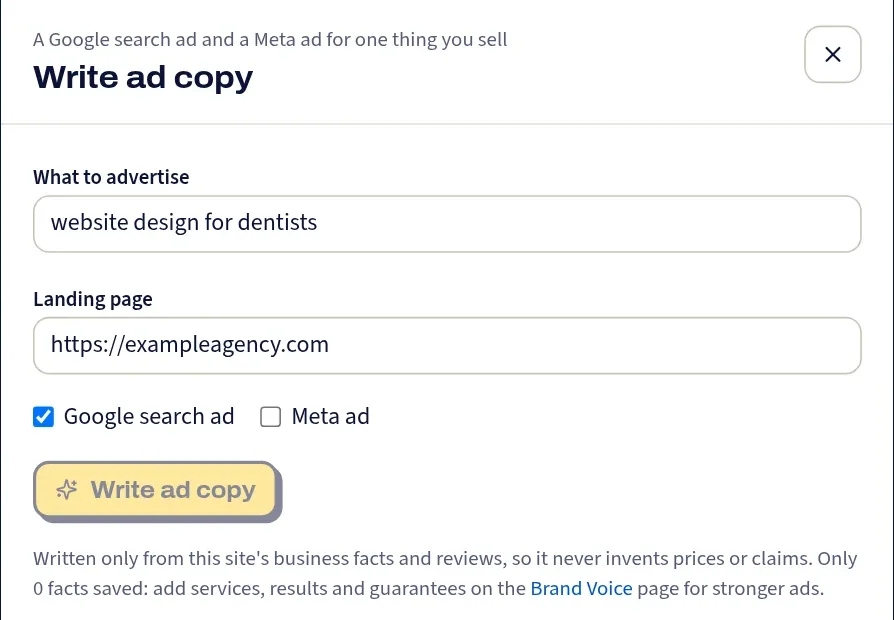 The panel with an example filled in. The note under the button says how many business facts the copy can draw on.
The copy is written only from the site’s business facts and reviews, so it never invents prices or claims. With only a few facts saved, the panel says so: save more services, results and guarantees in Brand Voice for better copy (see Set up Brand Voice and business facts). Every line is checked against the length limits and Google’s text rules, with a count beside it. Lines in red need fixing before the ad can go to Google Ads.
Each ad you write stays in the site’s list, marked draft or “in Google Ads, paused”. Delete removes one from the list; it doesn’t touch Google Ads.
Step 3: Edit, copy or export
Open an ad from the list. Then:
- Edit the lines and pin headlines to a position.
- Copy all to paste the ad somewhere else.
- Download a Google Ads Editor CSV to import it with Google Ads Editor.
Step 4: Make images
Make images makes sizes for Google (landscape, square) and Meta (square, portrait) from one picture, cropped for each placement. It takes about a minute. It is a made-up scene of the service, not a photo of the business, so check it fits. Click an image to download it.
Step 5: Write a matching landing page
An ad converts better when the page it opens says the same thing. Landing page writes a page that matches the ad, from the ad and the business facts.
- Save to WordPress as a draft puts it in WordPress as a draft page; the Bridge plugin saves it at its next check-in, within 5 minutes. Add the form or booking button, check it and publish it there. After a change, Update the draft in WordPress sends the new version.
- Test it against the current page then splits visitors between the two: half the visitors to the current landing page see the new one, and A/B Tests shows the result (see Run A/B tests).
Saving to WordPress needs the Bridge plugin on the site (see Install the WordPress Bridge plugin).
Step 6: Create the ad in Google Ads
Create in Google Ads (paused) adds the ad to an ad group you pick. It stays paused until you turn it on in Google Ads, so you can check it there first. New ad groups appear in the list after the next sync. Without Google Ads connected, RankThat asks you to connect it in Setup first.
The Meta ad isn’t created in Meta: RankThat only reads Meta Ads. Copy it, or use the images, in Meta Ads Manager.
FAQ
Can the ad copy include prices or offers?
Only if they are in the site’s business facts. The writer never invents prices or claims, so a price, guarantee or offer has to be saved in Brand Voice first.
Does RankThat publish the ad or the landing page?
No. The ad goes to Google Ads paused, and the landing page goes to WordPress as a draft. You turn on the ad and publish the page yourself.
Why does a competitor show no ads when I see them on Google?
The list shows what Google’s ad library holds for the last 30 days, checked weekly, and On your keywords is a sample from the Rank Tracker’s checks. Open the Google link for the advertiser’s full library.
Are the images real photos?
No. Each image is a made-up scene of the service. Check it fits the business before using it, or use your own photos.