
Your competitors in Google are not always the businesses you meet in person. They are the sites that show up for the searches you want. Competitor Analysis helps you find those sites, keeps an eye on what they publish, and compares their content with yours. Content Gaps then lists the topics they cover and you don’t, ranked by priority, so you can turn each one into an article.
Before you start
- Your plan sets how many competitors each project can have.
- Find from Search Console needs Google Search Console connected to the project. See Connect Google Search Console.
- Content Gaps compares competitors’ pages with the pages in your own site’s sitemap, so it works best once the project has been crawled.
Step 1: Open Competitor Analysis
Go to Competitors › Competitors. With no competitors yet, the page says No Competitors Added and offers Add Your First Competitor. Once you have some, the header shows how many are tracked and the buttons below.
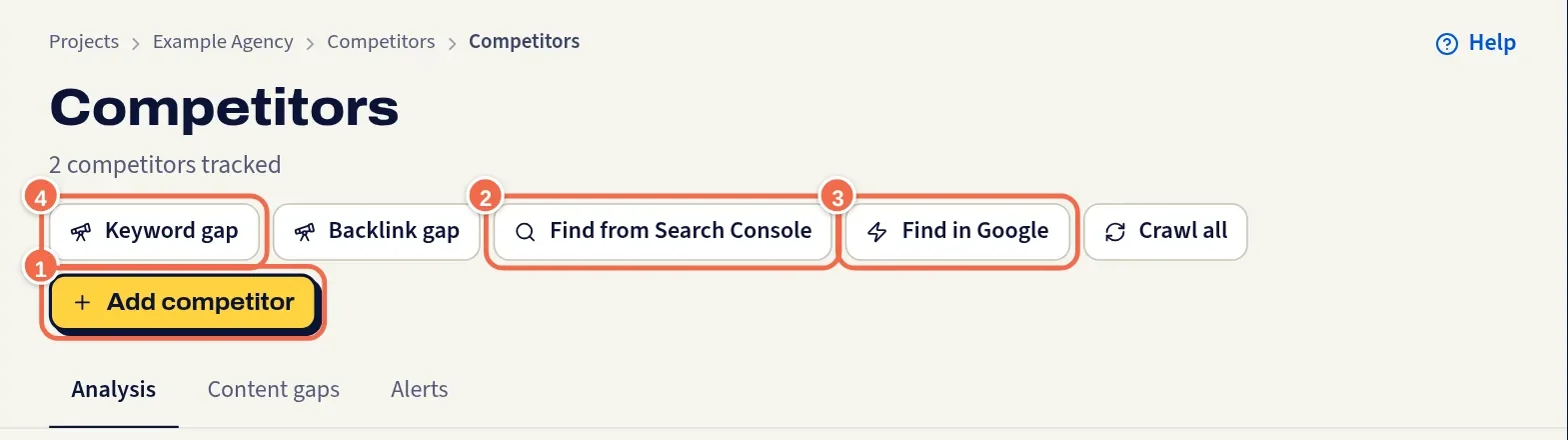 1: Add competitor adds a site by hand. 2: Find from Search Console and 3: Find in Google suggest competitors. 4: Keyword gap opens the keywords they rank for and you don’t.
Step 2: Find your real competitors
You can add a site you already know about, but it is worth asking the data first:
- Find from Search Console takes the searches your site gets clicks for in Search Console and finds the sites that show up next to you for them. It takes 10 to 20 seconds and lists each site with its keyword overlaps, average position and some of the shared keywords.
- Find in Google lists the sites that rank for the same keywords as you, with Keyword Overlaps, Avg Pos, Est. Traffic Value and Ranked KWs.
Click Add next to any suggestion to track it. Sites already tracked show Added.
Pick competitors that sell what you sell, to the people you sell to. A national publisher that ranks for one of your keywords is a different kind of rival from the plumber across town, and for content gaps the plumber is the useful one. Three to five competitors are enough to start.
Step 3: Add a competitor by hand
Click Add competitor. Enter the Website URL (for example https://competitor.com) and, if you like, a Name (optional), then click Add Competitor.
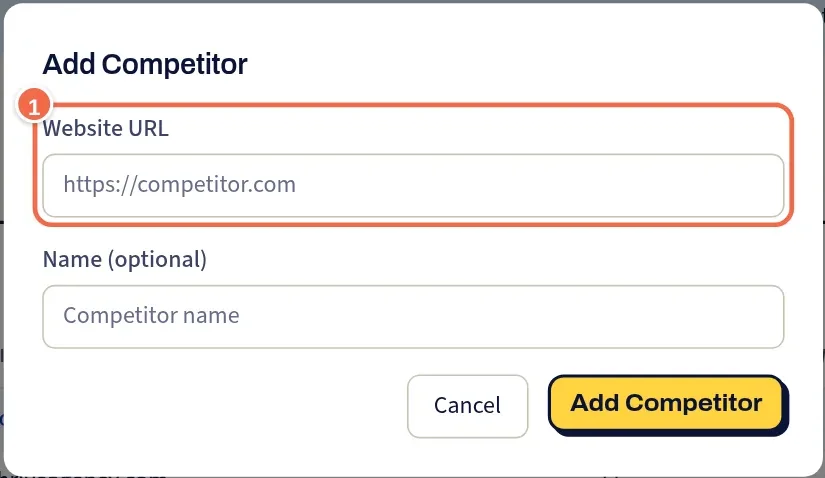 1: Website URL is the competitor’s home page. The name is only a label for you.
Step 4: Crawl the competitors
RankThat reads each competitor’s sitemap to learn which pages they have and what each one covers. Click the refresh icon on a competitor’s row to crawl it now, or Crawl all in the header. After that, every competitor is crawled again each Sunday by itself, and new, changed and removed pages show up under Competitors › Competitors › Alerts.
A site without a sitemap can’t be crawled this way, so it shows no pages.
Step 5: Compare your content
Comparison Overview puts Your Site next to every competitor: Pages, Avg Words, FAQ % (the share of pages with a question-and-answer section) and Last Crawled.
Each competitor also has its own row with the number of pages crawled, Avg Words, FAQ Rate, Topics and Last Crawled. Where Google data is available, a second line adds KW Overlaps, Avg Position, Est. visits/mo and Ranked KWs. Click the eye icon to see their Topic Coverage: the topics found on their pages.
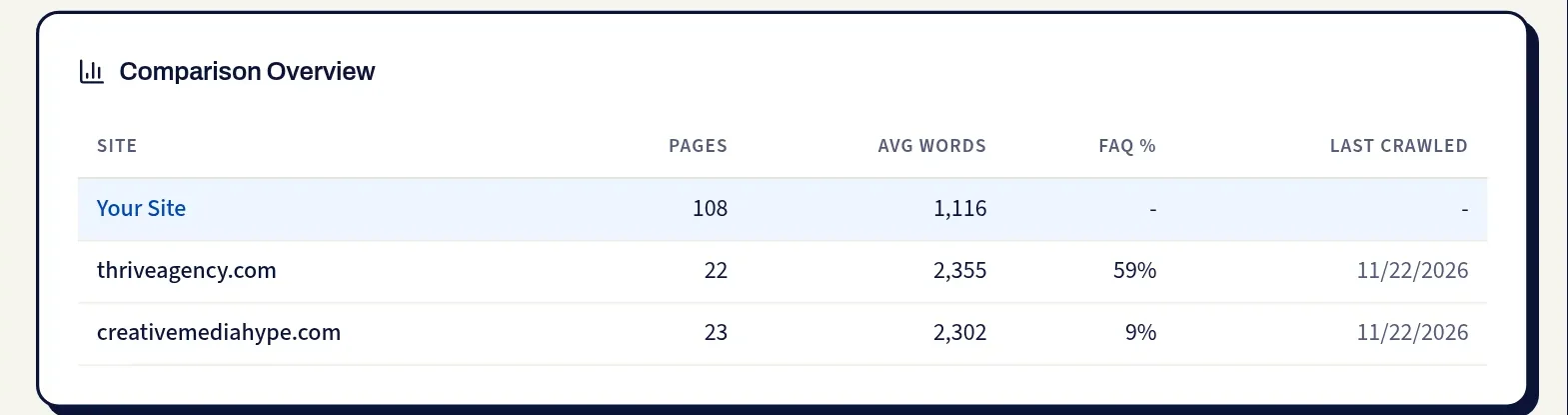 Your site is the blue row. Much longer average pages or a far higher FAQ share often explain why a competitor’s pages win.
Two shortcuts in the header open the Domain Explorer with your site and up to four competitors filled in: Keyword gap (keywords they rank for and you don’t) and Backlink gap (sites that link to them and not to you).
Step 6: Open Content Gaps
Go to Competitors › Competitors › Content gaps. The page compares every topic your competitors cover with the topics on your own pages. At the top you see Your Topics, Competitor Topics, You Cover, Gaps Found and Competitors, then a short table per competitor and a Priority Distribution bar.
The analysis is saved, and the header shows when it ran. Click Re-analyze after you crawl competitors again or publish new content.
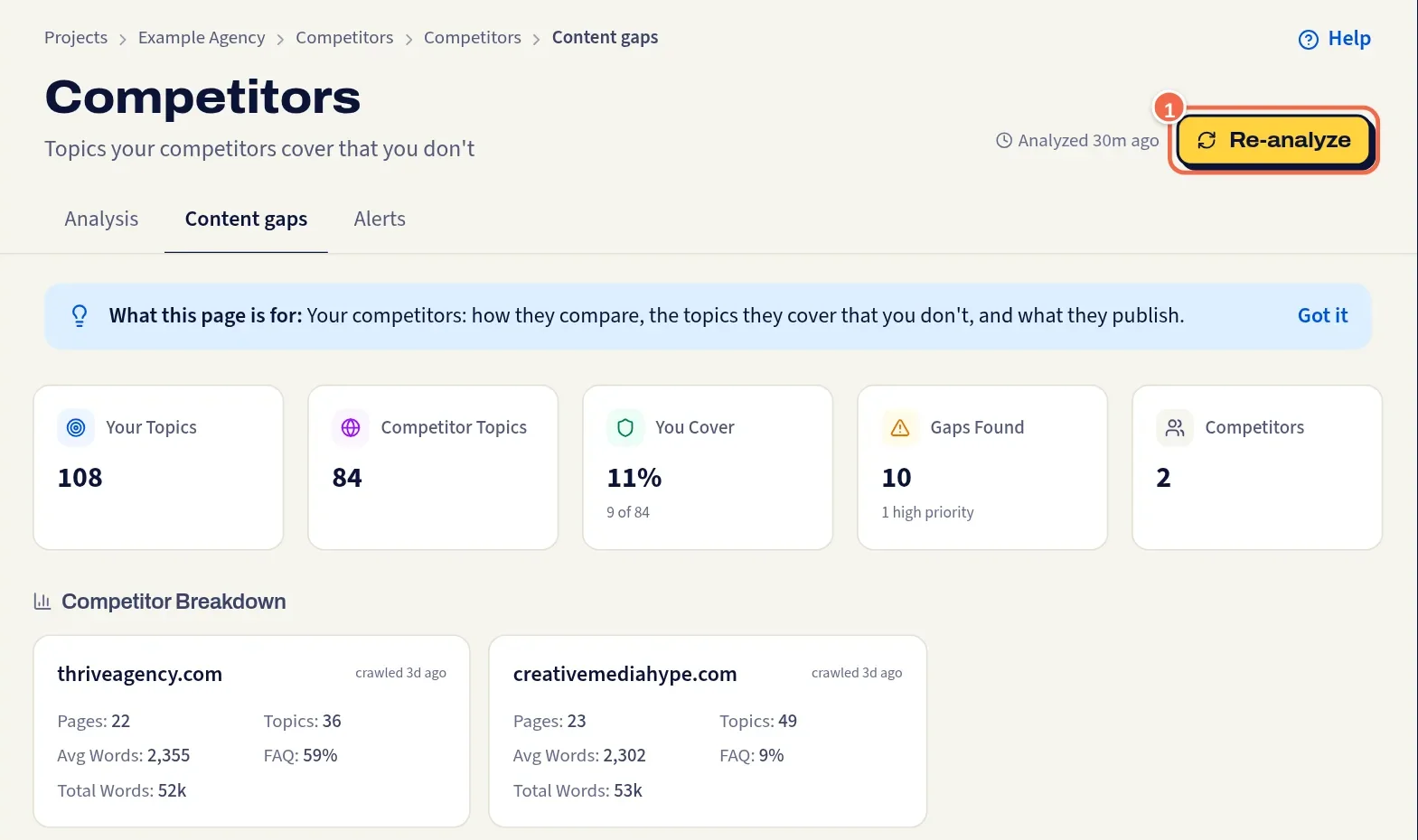 1: Re-analyze compares the latest competitor crawls with your pages again.
Step 7: Turn gaps into topics
Each gap is a card with the topic, a suggested title, its priority (High, Medium or Low), an estimated difficulty (Easy, Medium or Hard) and a content type such as Guide, Listicle, Comparison, Review or Case Study. Filter by priority, and sort by Priority, Easiest First or Most Competitors.
Click Show details to see Why this matters, which competitors cover it (Covered by competitors) and Suggested keywords. When a gap is worth writing, click Add to plan: it is added to the Ideas in your Content Plan with the suggested title, ready to approve and write.
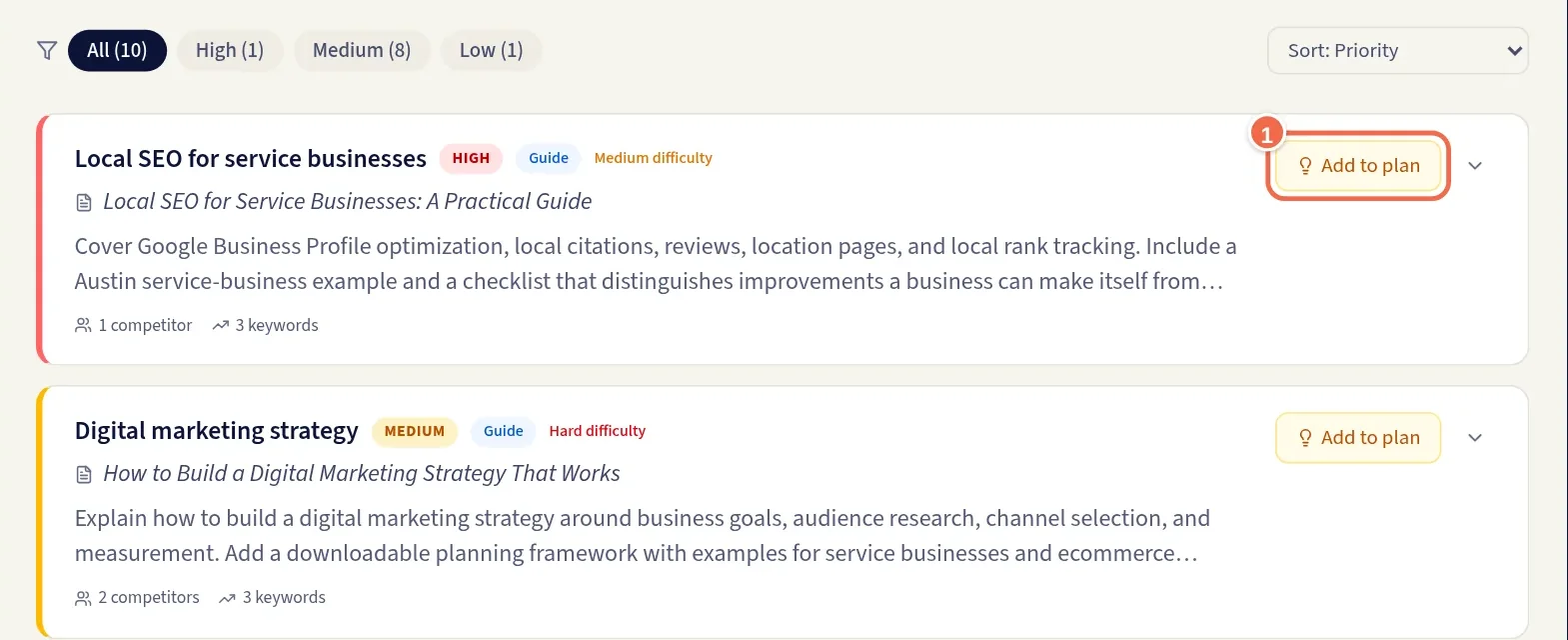 Each gap card shows its priority, content type, difficulty, suggested title and how many competitors and keywords back it. The arrow on the right opens the details. 1: Add to plan sends the gap to your Content Plan. Start with high-priority, easy gaps covered by several competitors.
Reading the results
- A gap covered by every competitor is usually a topic customers expect. Write it first.
- High priority but Hard gaps are worth planning, but don’t start there if you have easy ones.
- Not every gap fits. Skip topics for services you don’t offer. A gap is a suggestion, not an order.
- Check the suggested keywords in Keyword Magic before writing, to pick the version people search for most.
Troubleshooting
Content Gaps says “No Content Gaps Found”
Add competitors and crawl them first. The button on the page takes you to Competitor Analysis.
Find from Search Console finds nothing
Suggestions come from the searches your site gets clicks for in Search Console. Connect it, or add competitors by hand.
A competitor shows 0 pages crawled
Its sitemap couldn’t be found or read. Check that the site has a sitemap at the usual address, such as /sitemap.xml.
Once your articles are planned, see Write an article. For links your competitors have, compare referring domains on Backlinks & Audit.