
Keyword Magic shows every Google search people make around a topic, with monthly volume, keyword difficulty, intent, cost per click, a 12-month trend and what appears on the results page. Use it to plan blog posts, find service pages worth building and pick the searches to track. Instead of guessing what customers type, you see the actual searches and how many people make them.
Before you start
Keyword Magic works in any project. Results come from DataForSEO. The first search for a topic takes up to a minute and uses data credit; after that, filters, word groups, sorting, pages and the same search again are free for 30 days.
Step 1: Search a topic
Go to SEO › Keywords › Find new. Type a topic in the search box, for example “water heater repair”. You can enter up to 5 topics separated by commas.
Pick the market in the menu next to it. Client’s market uses the project’s own location. You can also pick a country from the list (United States, United Kingdom, Canada, Australia and others). Click Search.
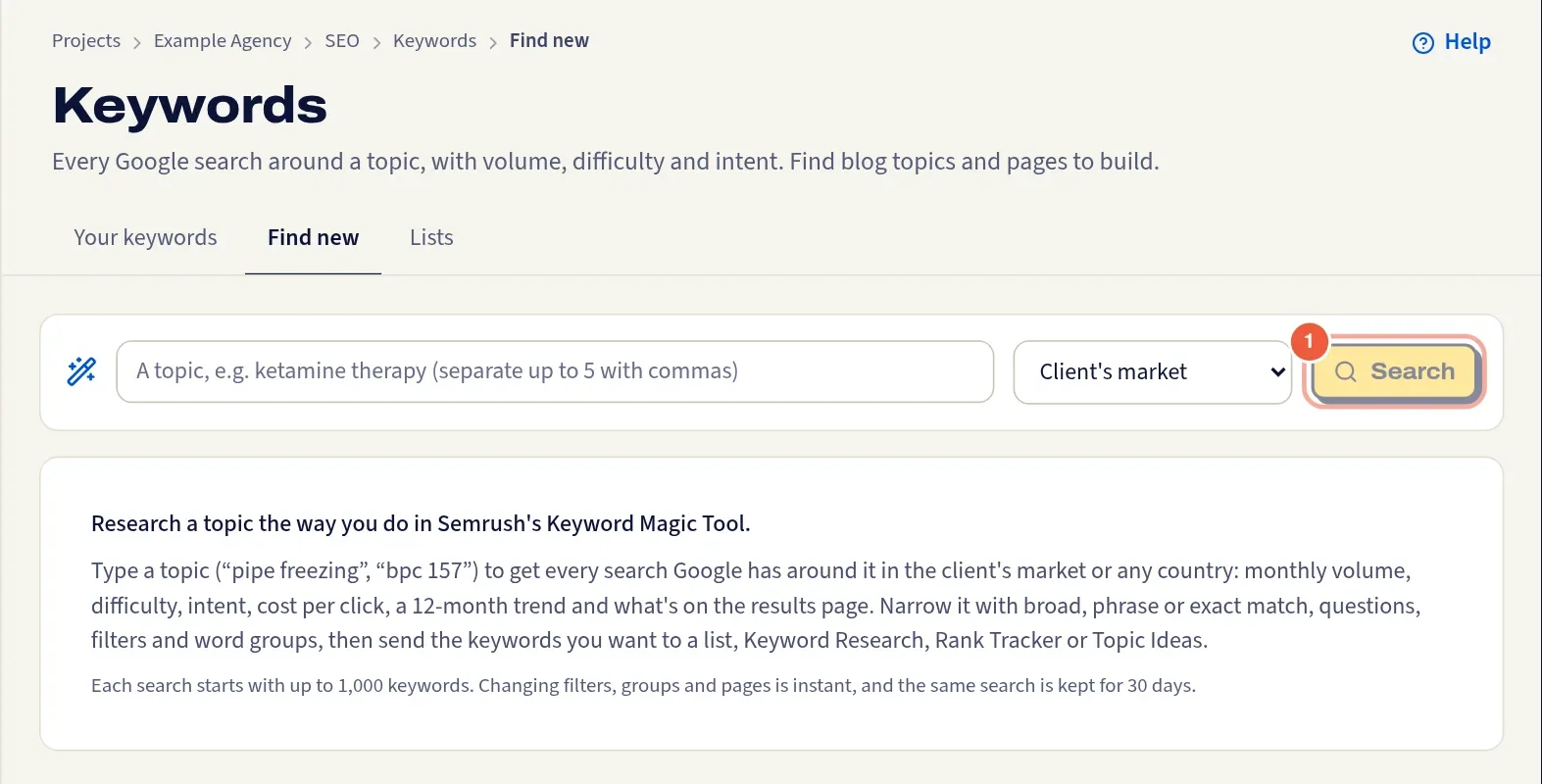 Type a topic, keep Client’s market or pick a country, then click Search (1).
Tip: start broad and short. “Water heater” finds more than “best tankless water heater installation cost”, and you can narrow it with filters afterwards.
Step 2: Choose the match type
Above the filters, four buttons decide which searches count as a match:
- Broad match (default): all your words, in any order and form, plurals included.
- Phrase match: your words together and in order.
- Exact match: exactly what you typed, inside a longer search.
- Related: searches Google shows as related, and theirs. Good for finding angles you would not think of.
Next to them, Questions keeps only question searches (how, what, why, can, is…). Questions make strong blog posts and FAQ sections. All keywords goes back to everything.
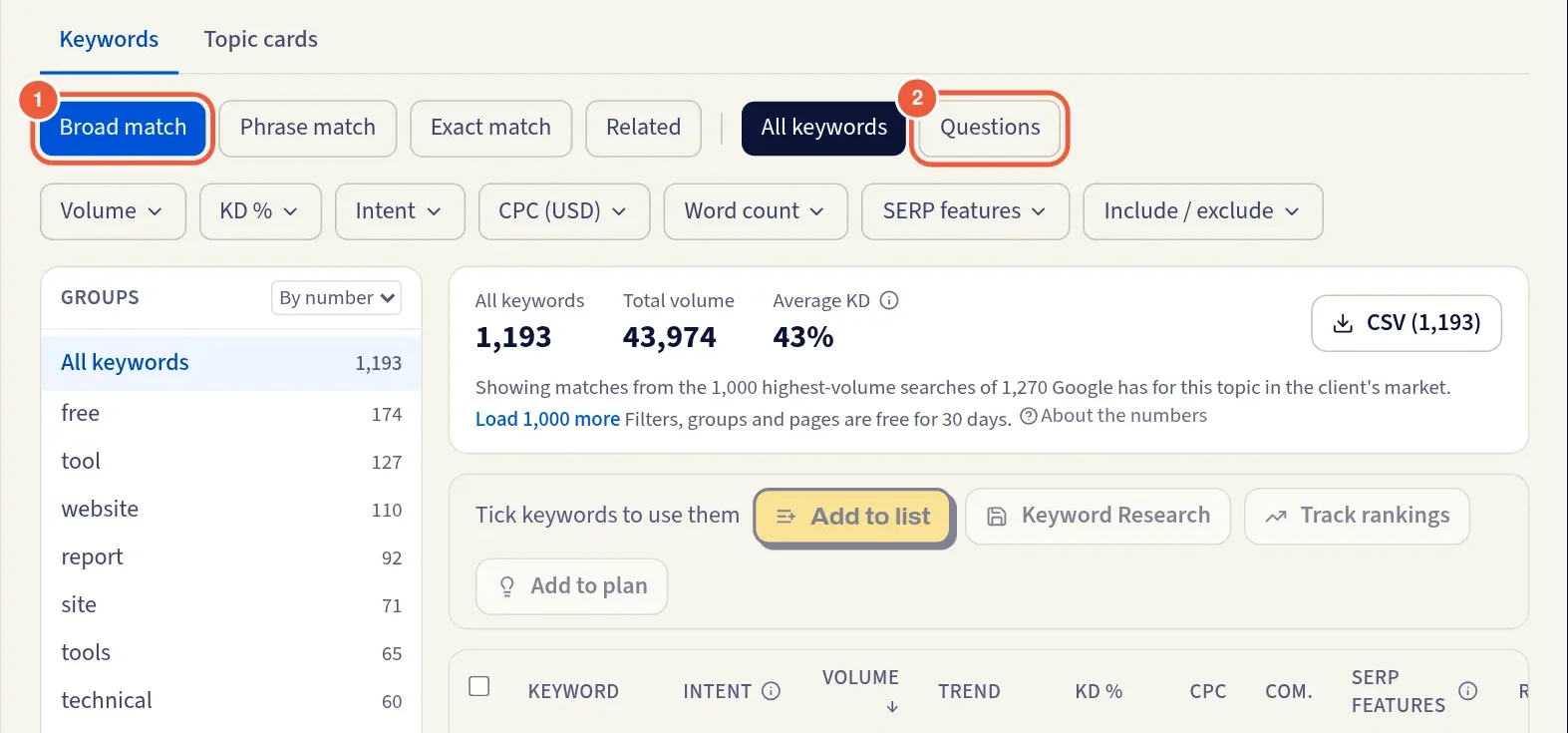 1: Broad match is the default. 2: Questions shows only question searches. The filter row below holds Volume, KD %, Intent and the rest.
Step 3: Narrow the list with filters
Each filter opens a small panel:
- Volume: a range, or a quick pick such as 100+ or 101-1000.
- KD %: presets from Very easy (0-14) to Very hard (85-100), or your own range. For a newer or smaller site, start with Very easy and Easy.
- Intent: informational, commercial, transactional, navigational.
- CPC (USD): what advertisers pay per click. A high CPC usually means the search is valuable to businesses.
- Word count: long-tail searches (4+ words) are usually easier to rank for.
- SERP features: only searches where Google shows an AI Overview, Featured snippet, People also ask, Local pack and so on.
- Include / exclude: keep searches with all or any of certain words (“near me”, “cost”), and drop ones with words such as “free”, “jobs” or competitor names.
Clear filters resets them. On wide screens, the Groups panel on the left groups the results by a shared word. Click a group to see only those searches, and switch between By number and By volume.
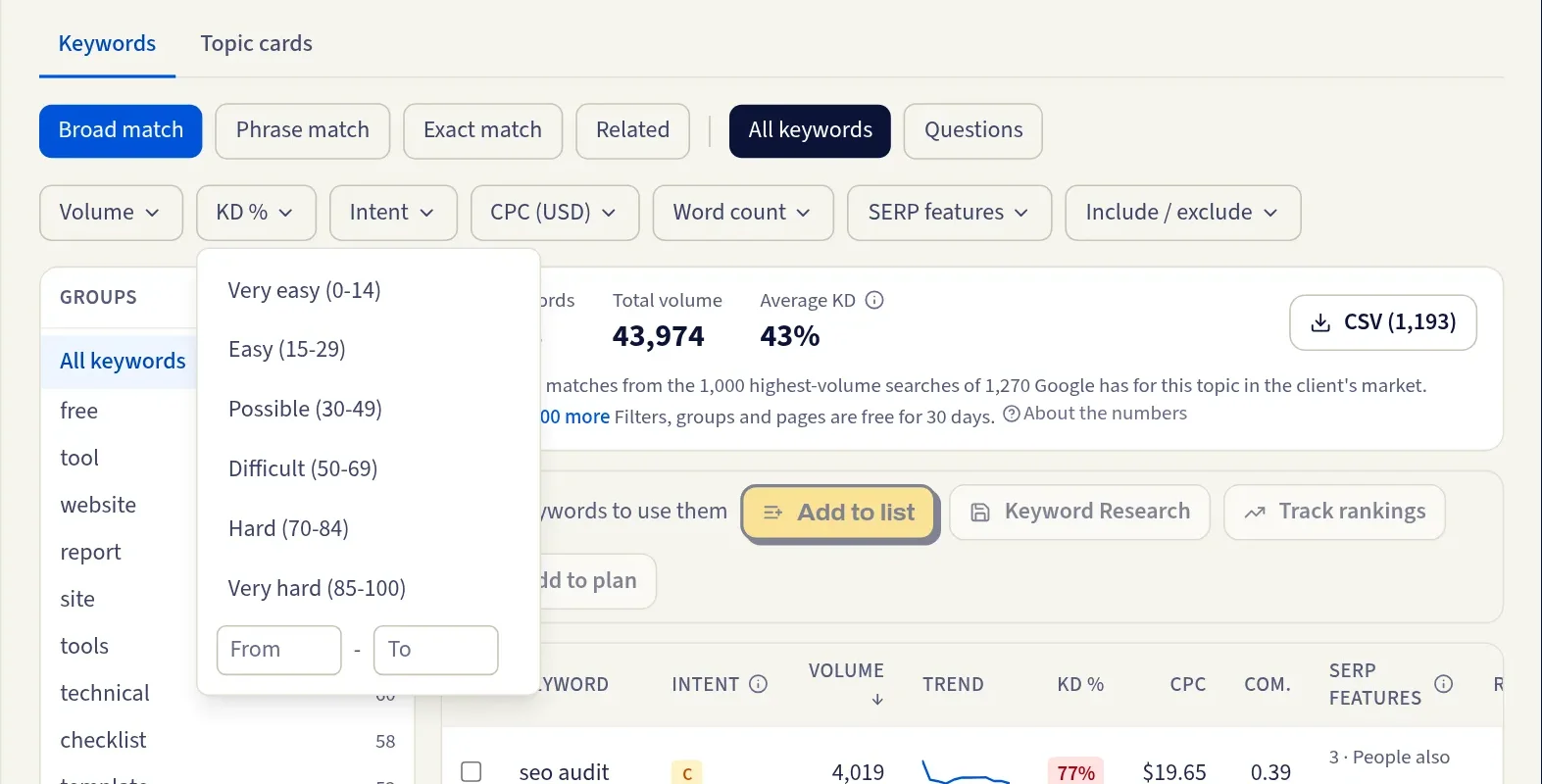 Difficulty presets. KD here comes from DataForSEO and runs lower than Semrush’s, so compare keywords with each other rather than with another tool.
Step 4: Read the table
| Column | What it tells you |
|---|---|
| Keyword | Click it to open the keyword in Domain Explorer: who ranks, questions, trend. |
| Intent | Why people search: to learn, compare, buy or find a site. Match the page type to it. |
| Volume | Monthly searches in the chosen market. “est” marks an estimate for searches Google hides, such as health topics. |
| Trend | The last 12 months. Spot seasonal searches before you plan content. |
| KD % | How hard it is to reach page one, 0-100. |
| CPC / Com. | Ad cost per click and ad competition. |
| SERP features | What else is on the results page. An AI Overview or local pack takes clicks from regular results. |
| Results | How many pages Google has for the search. |
The summary card above the table shows the number of keywords, total volume and Average KD for what you are viewing, plus a CSV button (up to 10,000 rows). When a topic has more searches than were loaded, Load 1,000 more fetches the next batch.
Step 5: Use the keywords you pick
Tick keywords in the table (the top checkbox ticks the whole page). The bar above the table then offers:
- Add to list: save them to a new or existing keyword list for this client (SEO › Keywords › Lists). Name a new list after its purpose, such as “Blog topics Q4”.
- Keyword Research: add them to the project’s keyword list.
- Track rankings: add them and start weekly Google position checks in Rank Tracker.
- Add to plan: turn the searches you ticked into ideas in the Content Plan. Searches one article can answer become one idea, and searches the site already covers are skipped.
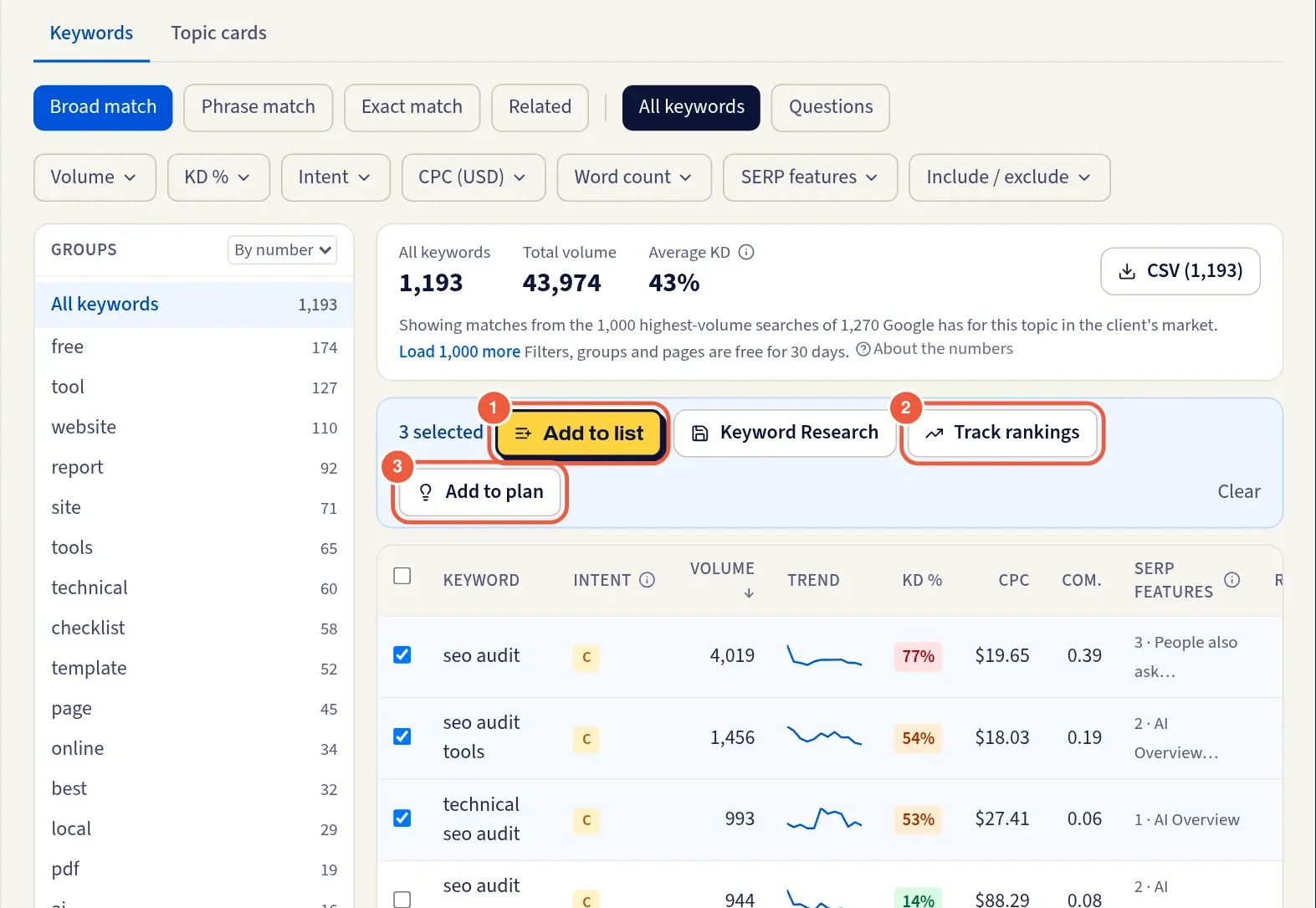 1: Add to list saves research for later. 2: Track rankings starts weekly checks. 3: Add to plan turns searches into article ideas.
Step 6: Break a topic into subtopics (Topic cards)
Switch to the Topic cards tab to see the topic split into subtopics. Each card shows its searches, volume, difficulty, an efficiency bar (volume per point of difficulty, so you can see where effort pays most), questions, the pages ranking in Google now and People also ask. Tick cards and click Create N topic ideas to add them to the Content Plan.
FAQ
“No keywords match.” What now?
Loosen the filters or pick another word group. With exact match, try phrase or broad match. Otherwise try a shorter, broader topic.
Why are the volumes different from Semrush or Google Keyword Planner?
Volume is Google Ads volume split across the variants people actually type, from clickstream data. Every tool estimates differently. Use the numbers to compare keywords with each other.
Does searching again cost anything?
Not for 30 days. Changing filters, groups, sorting and pages on a search you already ran is free.
Next, start tracking the keywords you chose in Rank Tracker, or turn a search into an article with Write an article.