
Keyword Lists hold the research you do for a client, with the numbers for each keyword: volume, difficulty, CPC, intent, trend and what’s on the results page. Use one list per job, such as “Blog topics Q4” or “Service pages”, so research doesn’t get lost between sessions. From a list you can send keywords to the project’s keyword list, start rank tracking, add them to the Content Plan, or build a strategy that maps keywords to pages.
Lists are separate from SEO › Keywords. A list is a workspace for research; Keyword Research is the project’s main keyword list that tracking and reports use. Keywords only move between them when you send them.
Step 1: Create a list
Go to SEO › Keywords › Lists and click New list. Give it a Name and, if you like, What it’s for (optional), then click Create. The new list opens straight away.
If the project has no lists yet you’ll see No keyword lists yet and a Find new keywords button. Most lists start there.
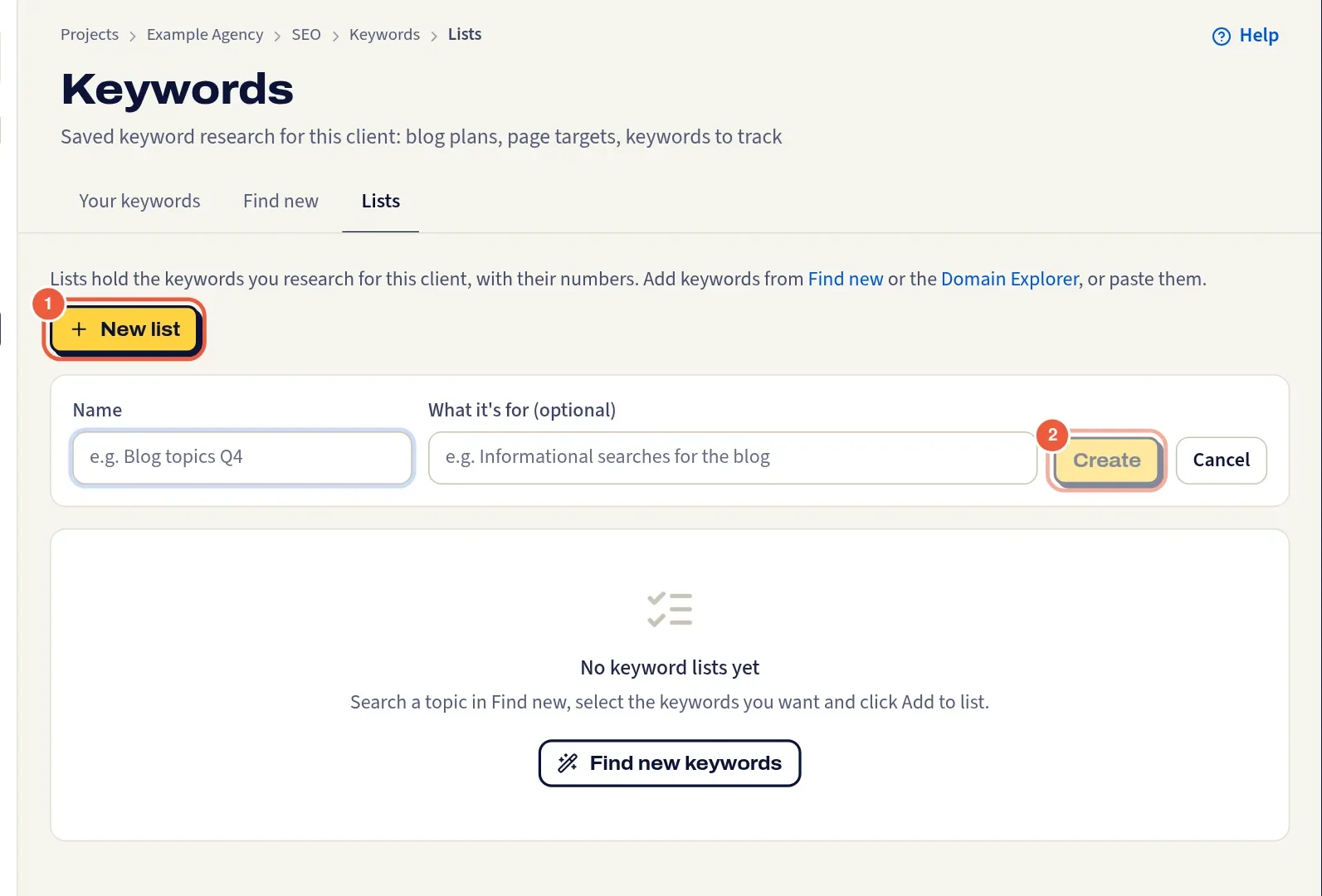 1: New list opens the form. 2: Create makes the list and opens it. Below the form, a project with no lists shows No keyword lists yet.
Step 2: Add keywords
There are three ways to fill a list:
- From Keyword Magic: search a topic, tick keywords, click Add to list, then pick the list (or New list…) and click Add to list. See Keyword Magic.
- From Domain Explorer: Keyword Overview, Organic Keywords and Keyword Gap each have an add-to-list button for the keywords you tick.
- Paste: inside a list, click Paste keywords, enter one keyword per line (or separated by commas) and click Add to list. RankThat looks up their numbers in the client’s market.
The Added column shows when each keyword arrived and where it came from (Keyword Magic, Domain Explorer, Keyword Gap, Pasted and so on).
Step 3: Read and filter a list
Open a list by clicking its name. The card above the table shows the number of Keywords, Total volume and Average KD for what is shown. Narrow it with Keyword contains, Any intent and, once you use tags, Any tag.
The table columns are Keyword, Intent, Volume, Trend, KD %, CPC, SERP features, Tags, Note and Added. Click a heading to sort. Click a keyword to open its Keyword Overview in Domain Explorer.
Step 4: Tag, note and tidy
Tick keywords to see more options in the action bar:
- Add tag: type a tag and press Enter, for example “service page” or “FAQ”. Click a tag in the table to filter by it. With a tag filter on, Remove tag takes it off the ticked keywords.
- Remove takes keywords out of the list. They stay in Keyword Research and Rank Tracker if you sent them there.
- + note (in the Note column) adds a note to one keyword, such as the page it should target.
Step 5: Send keywords on
The action bar applies to the ticked keywords, or to every keyword shown when nothing is ticked:
- Keyword Research adds them to the project’s keyword list. See Keyword Research and clusters.
- Track rankings adds them and starts weekly Google position checks in Rank Tracker, after you confirm.
- Add to plan turns the searches into ideas in the Content Plan: searches one article can answer become one idea, and searches the site already covers are skipped.
The On the site column shows what the site already has for each search: an Article, a Planned topic, or a Page that ranks (with its position), or Close when an article or page covers almost the same thing. Filter with On the site: Not covered yet to see only what’s new.
- Refresh numbers gets fresh volume, difficulty, CPC and trend.
- CSV (top right) downloads the list with all its columns.
Step 6: Build a strategy from the list
Open the Strategy tab. The Strategy Builder groups the list into pages the way Google does: keywords whose Google top 10 share enough of the same pages belong on one page, and related pages form a pillar topic. Each page is then matched to the client’s existing page.
- Pick Grouping: Strict (4 shared pages), Normal (3 shared pages) or Loose (2 shared pages). Normal suits most lists.
- Click Build strategy. The button shows how many keywords it will use and the estimated cost. It takes about a minute per 100 keywords, uses up to 500 keywords (highest volume first), and you can leave the page while it runs.
The result shows Pages to build or fix and Pillar topics, and gives each page an action:
| Action | Meaning |
|---|---|
| New page | No page on the site shows up for these searches. Write one. |
| Optimize | A page already ranks on page one. Cover the other searches in it to climb. |
| Improve | A page shows up but below page one. Rework it for these searches. |
| Merge | Two or more pages compete for the same searches. Combine them and redirect the rest. |
Click an action to filter by it, tick pages and click Add to plan to add them to the Content Plan, or download the plan with CSV. Google results are kept for 30 days, so Rebuild after small changes costs little.
FAQ
I deleted a list. Are the keywords gone everywhere?
Only from the list. Keywords you already sent to Keyword Research or Rank Tracker stay there.
Why do some keywords show no numbers?
Their numbers haven’t been looked up yet, or there is no data for that market. Tick them and click Refresh numbers.
Can I use one list for several clients?
Lists belong to one project, so each client keeps its own research.
Next, track the keywords you picked in Rank Tracker.