
Domain Explorer researches any website, not only your own: its estimated Google traffic and keywords, the pages that bring its visitors, who it competes with and who links to it. Then it compares it with competitors to show the searches they win and you don’t, and the sites that link to them but not to you. Use it before pitching a new client, when planning content against a competitor, or to size up a market.
Before you start
- Domain Explorer sits outside projects: open it from the sidebar. You don’t need a project for the site you look up.
- Each new lookup uses data credits and counts towards your plan’s monthly domain lookups. Looking at the same domain again within 7 days is free and doesn’t count.
- The numbers are DataForSEO estimates. They are good for comparing sites with each other; for your own site’s real clicks, use Search Performance.
Step 1: Look up a domain or keyword
Click Domain Explorer in the sidebar. Type a domain (competitor.com) or a keyword (pipe freezing) in the search box and pick the country database. Click Search.
A domain opens on Overview. A keyword (anything with a space, or without a dot) opens Keyword Overview instead.
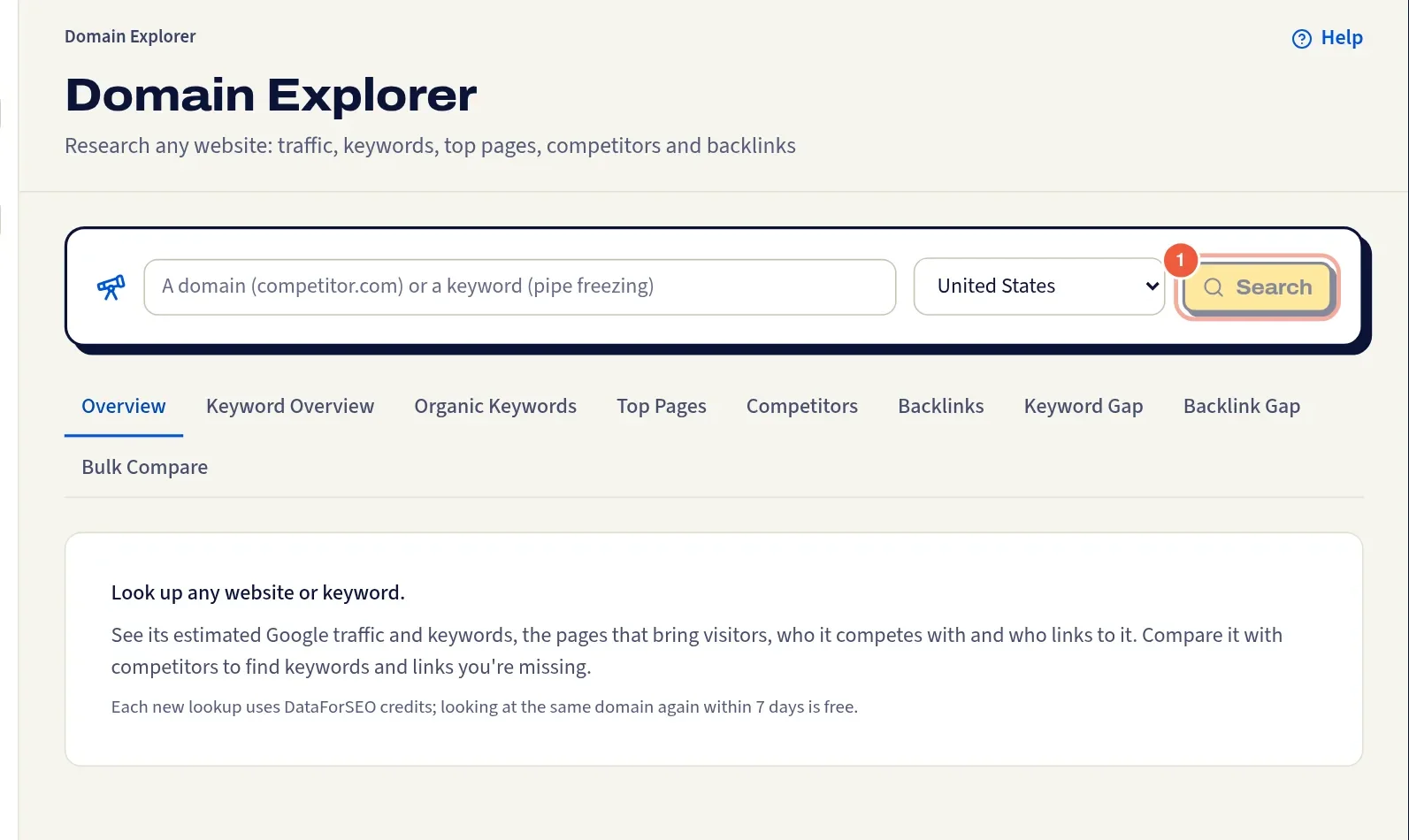 Type a domain or a keyword, pick the country, then click Search (1). The tabs below the search box switch between the reports.
The address bar keeps the domain, tab and country, so you can bookmark a view or send the link to a colleague.
Step 2: Read the Overview
The top row shows six numbers:
- Authority Score: 0-100, from links and traffic. Compare it with the sites you compete with, not with an absolute target.
- Organic Keywords: how many searches the site ranks for, with new and improved counts.
- Organic Traffic: estimated visits a month from Google.
- Traffic Value: what the same visits would cost in Google Ads.
- Referring Domains and Backlinks, with the follow count and spam score.
Below them: a traffic and keyword chart over the last months, Where its keywords rank (top 3 to 51-100), Top keywords, Top pages and Main organic competitors. The line above the numbers says whether you see a fresh lookup or a saved one, and from which date.
Step 3: Dig into keywords and pages
- Organic Keywords lists every keyword the site ranks for, with position, change (new, up, down, lost), volume, KD, CPC, intent, traffic and the ranking URL. Filter by change, intent, Min volume, Max KD, Keyword contains and URL contains, then sort by traffic, volume, position or easiest.
- Top Pages lists the pages that bring the most traffic, with their keyword count and traffic value. A competitor’s top pages show you which topics earn them visits.
- Keyword Overview shows one keyword in depth: volume, trend, difficulty, intent, what’s on the results page, who ranks in Google now, and variations, questions and related searches.
To save keywords, tick them and click Add to list, then choose the client and list. Keyword Overview also has Add with variations & questions. See Keyword Lists.
Step 4: Find competitors and keyword gaps
The Competitors tab lists sites competing with the domain for the same Google keywords, with the competition level, common keywords and their traffic. Tick up to 4 and click Keyword gap to compare.
Or open Keyword Gap directly: your domain is shown as “You”, type each competitor in Add a competitor and click Add (up to 4), then click Compare. The result splits keywords into:
| Group | Meaning |
|---|---|
| Untapped (shown first) | At least one competitor ranks, you don’t. |
| Missing | Every competitor ranks, you don’t. |
| Weak | You rank lower than every competitor. |
| Strong | You rank higher than every competitor. |
| Unique | Only you rank. |
| Shared | Everyone ranks. |
Start with Missing: if every competitor ranks for a search, customers expect a page on it. Then work through Untapped and Weak. The table shows the first 500 by volume; CSV downloads all of them.
Step 5: Check backlinks and link gaps
- Backlinks shows the link profile: referring domains, anchors and individual links, with top-level domains and countries.
- Backlink Gap lists websites that link to your competitors but not to you, with sites linking to several competitors first. Those are the best places to ask for a link.
For your own site’s links, including the toxic link audit and disavow file, use the project’s backlinks page. See Backlinks and toxic links.
Step 6: Compare many sites at once
Bulk Compare takes up to 200 domains, one per line. Click Compare N domains to see authority, rank, referring domains, keywords and traffic side by side. It is a quick way to rank a list of prospects or a whole local market.
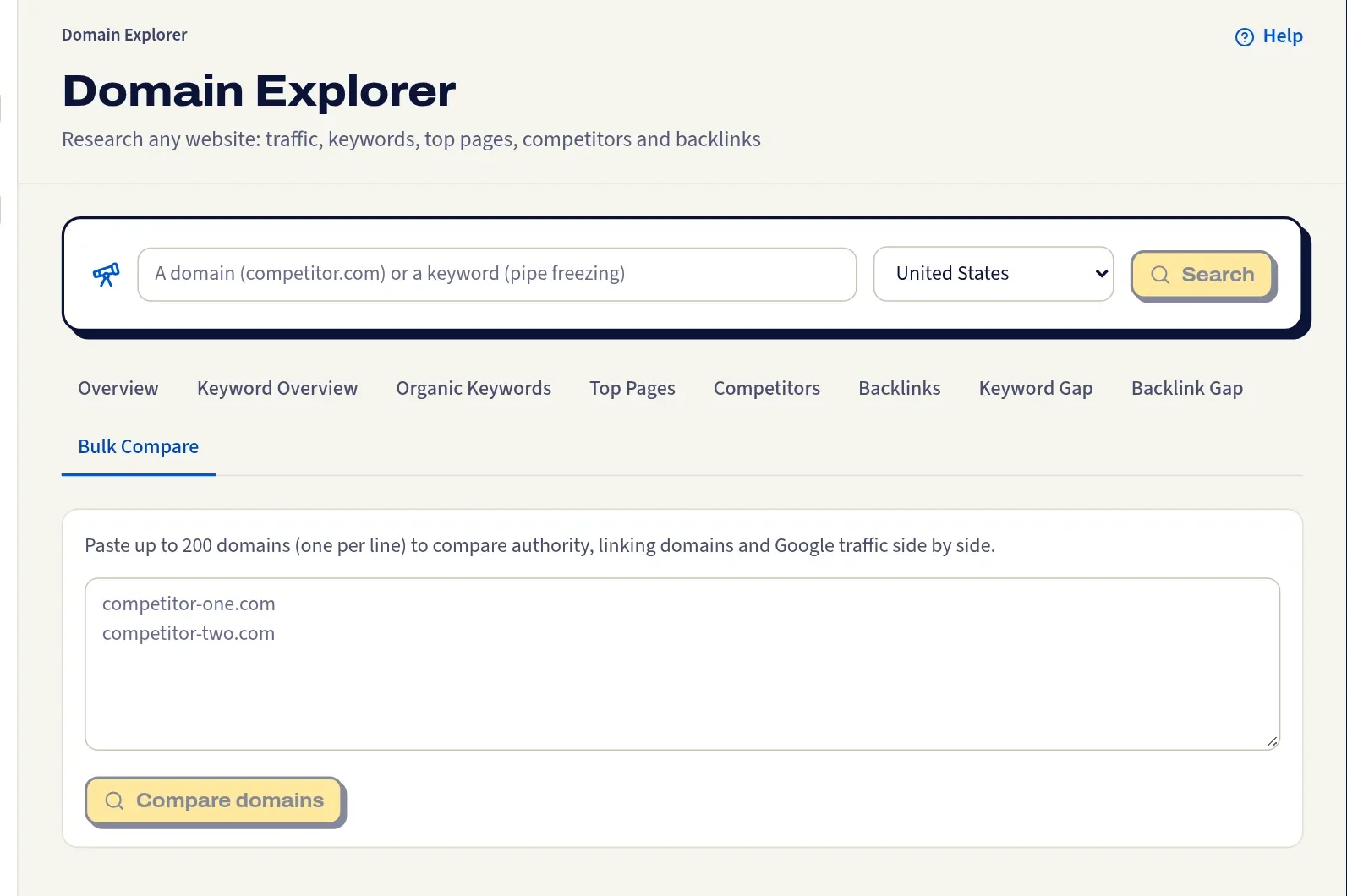 Paste one domain per line. The button shows how many domains it will compare once you add some.
Tips
- Pick the right country. A Dallas plumber’s competitors only matter in the United States database.
- Check before you pitch. Overview plus Top Pages gives you a clear, honest picture of where a prospect stands today.
- Save what matters. Lookups are free to revisit for 7 days; add keywords you want to keep to a list.
FAQ
It says I’ve used my lookups for this period.
Your plan’s monthly domain lookups are used up. Saved lookups from the last 7 days still open. Change plans in Settings › Billing.
Why do the traffic numbers differ from the site’s Google Analytics?
They are estimates from rankings and search volume, not measured visits. Use them to compare sites with each other.
“No ranking keywords found.”
The domain has no Google rankings in the chosen country’s database. Check that you picked the right country.
Next, keep the keywords you found in Keyword Lists, or set up ongoing competitor tracking in Competitors and content gaps.