
Links from other sites are still one of the strongest signals Google uses. Most sites also pick up spammy links over time: scraped directories, link farms, casino and “SEO backlinks” pages. The Backlinks page shows your whole link profile, tracks the links you gain and lose, adds the links Google itself has found, scores every linking domain for toxicity, and turns your decisions into a disavow file in Google’s format.
Before you start
- RankThat checks every project’s backlinks and runs the backlink audit by itself on the 1st and the 15th of each month. You don’t need to do anything for the numbers to stay current.
- Clicking Refresh to check now needs a Professional or Enterprise plan.
- Uploading a disavow file happens in Google Search Console, so you need access to the site’s Search Console property. See Connect Google Search Console.
Step 1: Open Backlinks & Audit
Go to Backlinks › Backlinks & Audit. Five cards sit at the top:
- Total backlinks and Referring domains (the number of different sites linking to you), each with the change since the last check.
- Dofollow: the share of links that pass ranking value, and how many that is.
- New, 30 days and Lost, 30 days: links gained and lost in the last 30 days, with the date of the last check.
Under them, Backlinks over time charts the backlinks at each check, with the number of referring domains now. Below the chart are five tabs: Backlink Audit, All Backlinks, Referring Domains, New & Lost and Competitors.
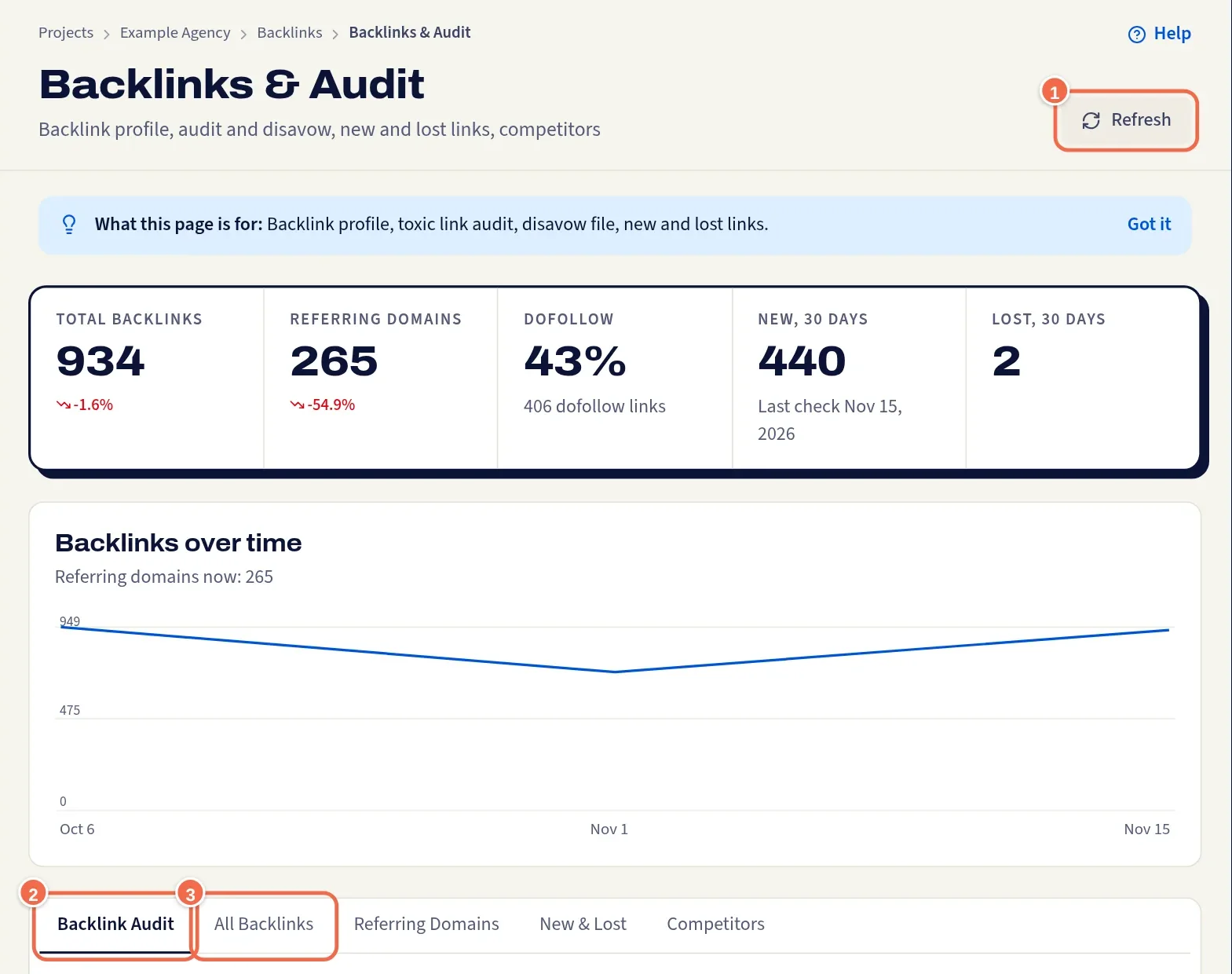 1: Refresh checks the profile now. 2: Backlink Audit opens by default. 3: All Backlinks lists every link.
Referring domains matter more than total backlinks: one site linking 300 times from its footer is still one site.
Step 2: Read the toxic score
The Backlink Audit tab opens first. At the top, Overall toxic score shows Low, Medium or High and the share of referring domains that look toxic. Medium starts at 10% and High at 25%. Most sites have some spammy links, and a few percent is normal.
Next to it you see Domains analyzed, Toxic, to review, Disavowed in Google (and how many are waiting to be uploaded), New / lost (30 days) and the Last audit date. Run backlink audit (or Re-run audit) scores the profile again in about a minute.
Only domains that still count against the site are in the score: once you mark a domain Keep (safe), or disavow it and confirm the upload to Google, it stops counting.
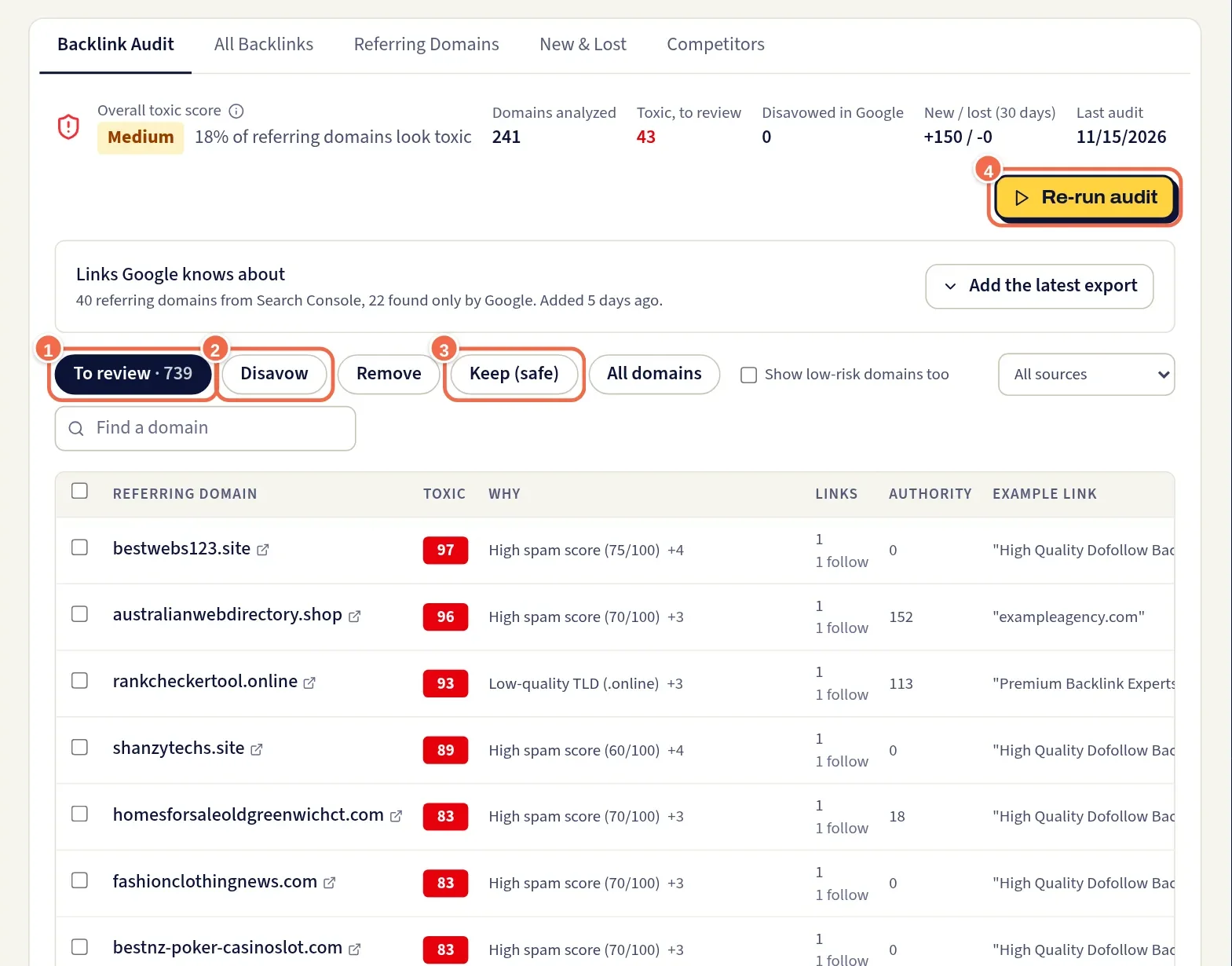 1: To review lists the domains that score as toxic. 2: Disavow holds the ones you’ve decided to disavow. 3: Keep (safe) holds the ones you’ve cleared. 4: Re-run audit scores the profile again.
Step 3: Add the links Google knows about
RankThat finds most of your links by itself, but Google often knows about a few more. Search Console lists them in its Links report, and you can add that list to the audit so every site Google has seen linking to you is checked too. Google doesn’t share this list through its API, so it comes in from Search Console itself, in one of two ways. You need access to the site’s Search Console property.
Quickest, with the RankThat Chrome helper. In the Links Google knows about box, click Get links with the Chrome helper. Search Console opens on this site’s Top linking sites, in the Google account RankThat uses for the site (handy when you’re signed in to several). Click the RankThat icon in Chrome’s toolbar, then Send linking sites to RankThat: every site in the table is sent, also the ones on its other pages. The helper only sends from that table, and only when Search Console shows the same site you chose in RankThat; on any other page it offers to open the right table. Your Google sign-in never leaves your browser. No helper yet, or an older one? The box shows how to get it.
Every site at once. Next to Get links with the Chrome helper, Refresh all sites does this for every site you manage, one after another, in a background tab of Chrome, so you can keep working. The first time, click the RankThat icon and Allow and start: Chrome asks once whether the helper may read Search Console pages. Progress shows in the box, and at the end you see how many new linking sites came in and which sites need a look (for example a site none of your signed-in Google accounts can see).
Most links, with Google’s export:
- In the Links Google knows about box, click Links report in Search Console. It opens the report for this site.
- Click Export external links at the top right and choose Latest links, then Download CSV.
- For more links, do the same with More sample links.
- Drop the files on the box, or click the box to choose them. CSV, ZIP and Excel files all work, up to 4 at once. You don’t need to open or change them.
RankThat reads every linking page, groups them by site and adds each site to the list:
- Sites RankThat had already found get an also in Google label.
- Sites only Google listed get a Google only label. They are checked for toxic signals within a minute or two, with the same score as every other domain. Google’s file has no anchor text, so their score leaves out the anchor checks.
- Your decisions stay as they are, and a later audit never marks a site from Google’s list as gone.
Next to the search box, choose Found in Google or Only in Google to see just those sites. Google finds new links all the time, so add a fresh export once a month: the box turns yellow after 30 days as a reminder.
The toxic score counts the sites from both lists, so it can move a little after your first upload.
Step 4: Review the toxic domains
To review lists the referring domains whose toxic score is 60 or more. Tick Show low-risk domains too to see the rest. Each row shows:
- Toxic: the domain’s score from 0 to 100, red from 60 and amber from 45.
- Why: the reasons, such as “Link-selling or spam words in anchor, title or domain”, “Link directory or ‘anchor index’ style page”, “Low-quality TLD”, “High spam score” or “Many links from one weak site”.
- Links: how many links it sends, and how many are follow links.
- Authority: the linking site’s strength from 0 to 1000.
- Example link: one of its links, with the anchor text. Click it to see the page.
Decide each domain with the icons on the right: disavow, keep (safe), or back to review. To decide many at once, tick them (or tick the header box for the whole page) and use the bar that appears: Disavow, Request removal, Keep or Back to review.
Your decisions are kept when the audit runs again, so you only review new domains.
How to decide:
- Disavow clear spam you didn’t build: casino and adult sites, link farms, “anchor text index” pages, scraped copies of your site.
- Keep anything a real person might click: local news, suppliers, clubs, real directories, even if their authority is low.
- When unsure, keep it. Google ignores most low-quality links by itself. Disavowing is for links that look like a scheme to manipulate rankings, or links you paid for in the past.
Step 5: Ask sites to remove links
For a link you’d rather have gone (for example one you paid for), move the domain to removal with Request removal. The Remove tab has a Removal request email with a Copy button: fill in your site, their page and your name, and send it to the site owner. If a site doesn’t respond within a couple of weeks, move it to Disavow.
Step 6: Upload the disavow file to Google
Open the Disavow tab. Click Download disavow.txt: the file lists every domain you’ve decided to disavow, in Google’s format. Upload it in Google’s Disavow links tool for this site (linked on the page). Each upload replaces the previous one, which is why the file always contains every decision, old and new.
Already have a disavow file from another tool? Click Import a disavow file to bring in its domains and URLs, so your next upload doesn’t drop them.
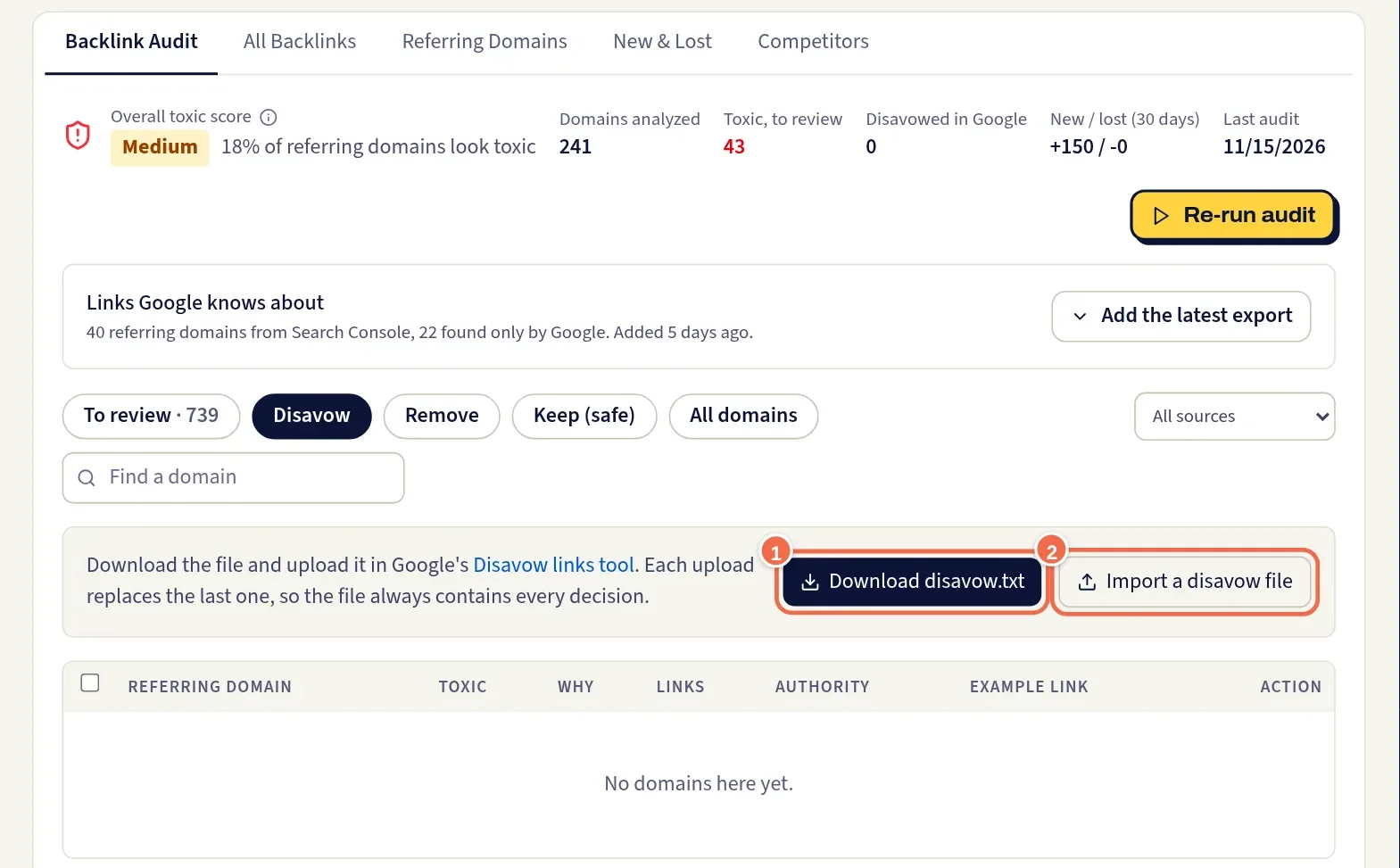 1: Download disavow.txt builds the file from your decisions. 2: Import a disavow file adds the domains from a file you used before.
After uploading, come back and click I’ve uploaded it to Google in the yellow box above the tabs. The toxic score, this page and your draft monthly reports update straight away. If you’ve disavowed more domains since your last download, the button stays gray until you download the new file.
Step 7: Browse links, new and lost
- All Backlinks: every link with its Source, Target, Anchor, Type (dofollow or nofollow), Link strength, First Seen and Status. Search by URL, domain or anchor, and filter by type or status.
- Referring Domains: one row per linking site. Click a domain to see its links in All Backlinks.
- New & Lost: choose All, New or Lost and a period from the last 7 to 90 days. Lost links from good sites are worth a polite email: often the page moved and the link can be restored.
- Competitors: sites that share backlinks with you, with their totals and how many links you have in common.
 1 to 3: switch between All, New and Lost. 4: pick the period. The list starts below with the count of new links; each row shows the linking page, the anchor and the linking site’s strength.
Troubleshooting
The audit tab says “Run the backlink audit to score every referring domain”
No audit has run yet. Click Run backlink audit, or wait for the 1st or 15th of the month.
“No links from other websites were found in that file”
The file isn’t Search Console’s links export. In Search Console open Links, click Export external links and choose Latest links or More sample links, then upload that file. The download from the Top linking sites table works too.
“I’ve uploaded it to Google” is gray
You disavowed more domains after your last download (hovering the button says “Download the latest file first”). Download the file again, upload that one to Google, then confirm.
Refresh doesn’t start
Checking on demand needs a Professional or Enterprise plan. The scheduled checks on the 1st and 15th still run.
Your backlinks feed your Authority Score and the backlink section of the monthly client report. To find links your competitors have and you don’t, add them in Competitors and content gaps. Background reading: toxic backlinks and disavow.