
When a competitor publishes a new service page or rewrites a guide, it is often a sign of where they are pushing next. Competitor Alerts lists what changed on your competitors’ sites since the last crawl: new pages, pages that changed a lot, pages that were removed, and new pages on topics you track keywords for. You can act on each one in a click by turning it into a topic idea, or dismiss it.
Before you start
- Alerts come from the competitors saved on Competitors › Competitors. Add them there first (see Add competitors and find content gaps).
- RankThat reads each competitor’s sitemap, so a competitor without a sitemap can’t produce alerts.
- Topic overlap alerts compare new competitor pages with the keywords saved in your project, so they need keywords in Keyword Research.
How alerts are created
Every Sunday, RankThat crawls each competitor again and compares the result with the previous crawl. You can also crawl one at any time with the refresh icon on Competitor Analysis, or Crawl all.
Each crawl can create four kinds of alert:
- New Content: a page that wasn’t there in the previous crawl.
- Updated: a page whose word count changed by more than 20%, which usually means a rewrite or a big expansion.
- Removed: a page that was there before and wasn’t found this time.
- Topic Overlap: a new page whose topics match keywords you track.
A crawl adds at most 50 alerts per competitor, and you get a notification in RankThat summing up the changes (“Competitor changes” with the counts).
The first crawl after you add a competitor has nothing to compare with, so the pages it finds are listed as new. Dismiss those once you’ve glanced at them; from the next crawl on, the alerts show real changes.
Step 1: Open Competitor Alerts
Go to Competitors › Competitors › Alerts. The header shows how many alerts are active. Four cards count them by kind: New Pages, Updated, Removed and Overlaps. Click a card to show only that kind, and click it again to show everything.
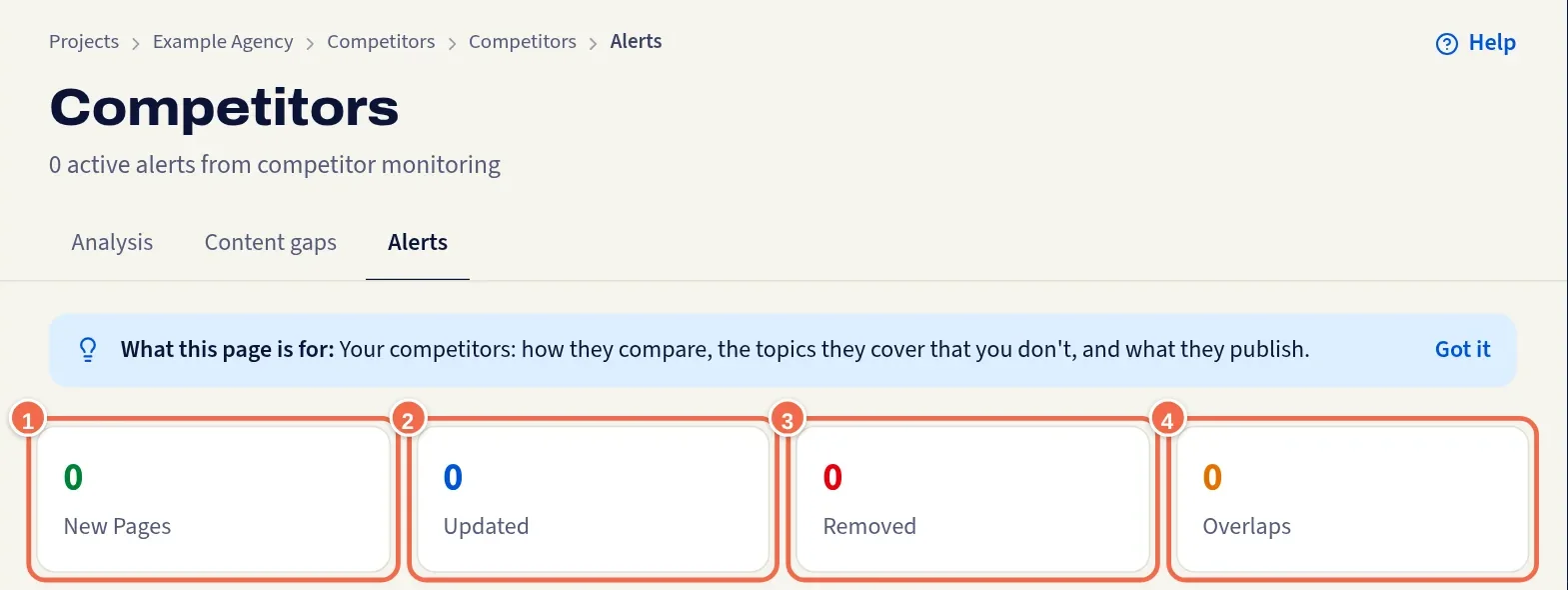 A project with no alerts yet, so every card shows 0. Once alerts arrive, click a card to filter by kind: 1: New Pages, 2: Updated, 3: Removed, 4: Overlaps.
If there are no alerts yet, the page says No alerts yet and links to Add or check competitors.
Step 2: Filter the list
Next to Filter:, the menu picks one kind (All Types, New Content, Updated Content, Removed Content or Topic Overlap). Tick Show dismissed to bring back alerts you’ve already dealt with; they show faded.
Each alert shows its kind, the competitor, the date and time, the page title and the page address. Click the address to open the competitor’s page in a new tab.
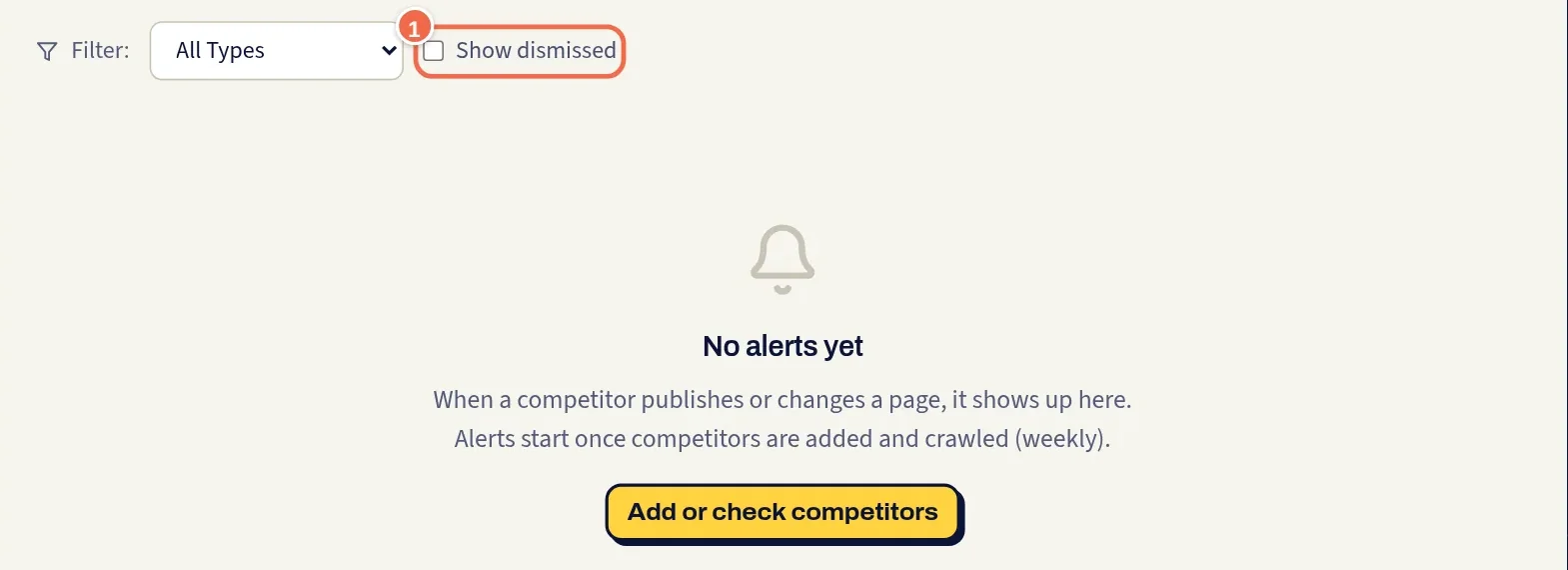 Before the first alerts, the list says No alerts yet and links to your competitors. 1: Show dismissed shows alerts you’ve cleared. Each alert card has icons on the right to expand it, add it to your Content Plan, or dismiss it.
Step 3: Turn an alert into a topic idea
When a competitor page covers something you should cover too, click the light-bulb icon (Add to plan) on the right of the alert. It isn’t offered for removed pages.
In Add to plan, check the main search (filled in from the keywords you share with the competitor) and optionally type a title (leave it blank and RankThat writes one). Click Add to plan. If your site already covers it, you’re told so and nothing is added; either way the alert leaves the list. The idea lands in the Ideas tab of Content › Content Plan, where you approve and write it (see Plan, write and publish with the Content Plan).
Write your own, better page rather than a copy: cover what their page misses, add your prices, photos, local details and first-hand experience.
Step 4: Dismiss what you’ve handled
Click the bin icon to dismiss an alert. It disappears from the list and the counts. Tick Show dismissed and use the bell icon on a dismissed alert to restore it.
The five newest alerts also appear at the top of Competitor Analysis, with View All when there are more and an X to dismiss each one there.
What to do with each kind
- New Content on a service you offer: check whether you have a page for it. If not, create the topic. If you do, compare the two and improve yours.
- Topic Overlap: a competitor is now targeting one of your keywords. Watch your position for that keyword in Rank Tracker over the next weeks.
- Updated: a big rewrite of a page that competes with yours. Read it and see what they added.
- Removed: a competitor dropped a page. If it ranked for searches you want, there may be room for your page to move up.
FAQ
Why did I get dozens of New Content alerts at once?
That is the first crawl of a competitor: every page it found counts as new. Dismiss them. Later crawls only list changes.
Why are there no alerts?
Check that competitors are added and have been crawled (Last Crawled on Competitor Analysis). A competitor without a readable sitemap shows no pages and no alerts.
Do competitor alerts include ranking changes?
No. They track the competitors’ pages. For ranking changes, use Rank Tracker and the Alerts page.
To find whole topic areas a competitor covers and you don’t, use Content Gaps, described in Add competitors and find content gaps.