
The Content Plan answers two questions for each site: what should we write next, and when does it go live? It is one list from idea to published article, with a calendar view, and a content autopilot that can pick, write and publish articles on its own. You decide how much it does without you.
What’s on the page
Go to Content › Content Plan. Four figures sit at the top: Content autopilot (on or off, its setting and how many articles a month, with Change), Written this month (and the next article with its date), Ideas to approve and Ready to publish. Below them, every article sits in one of five stages, each a tab with its count:
- Ideas: suggestions waiting for a yes or a no.
- Up next: approved ideas, each with the day it goes live.
- Writing: articles being written now.
- Ready: finished articles that aren’t live yet.
- Published: articles live on the site.
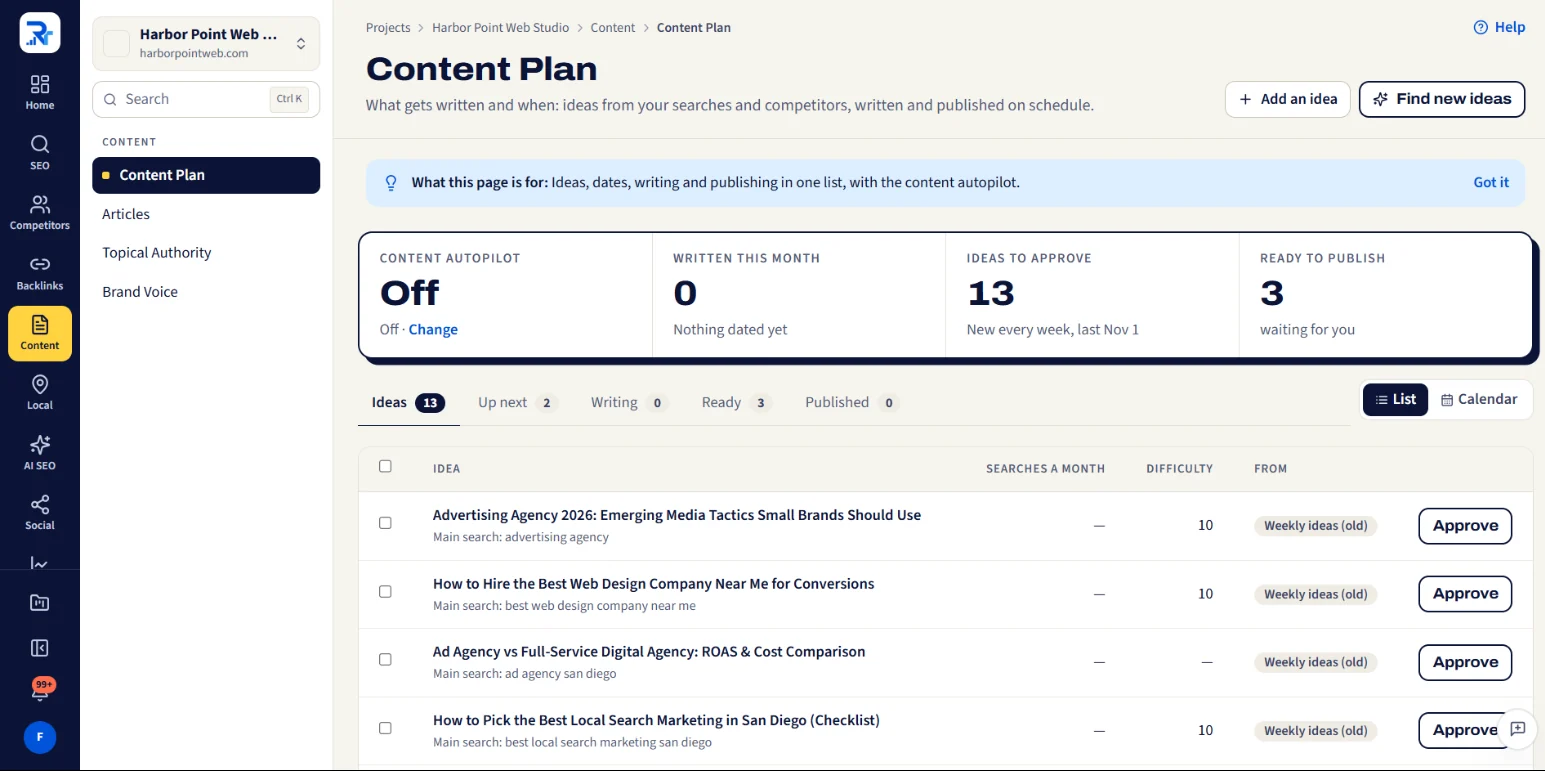 The four figures on top (here with the autopilot off), then the stages as tabs. Each idea is one row with its main search, difficulty, where it came from and Approve.
Where ideas come from
New ideas come from the site’s own data, so they are about searches people really make:
- Searches Google already shows the site for, where no page reaches page one yet (Search Console).
- The site’s keywords in SEO › Keywords that don’t rank on page one.
- Keyword lists and Strategy Builder pages with no page yet.
- Searches your competitors rank for and the site doesn’t.
- Seasonal peaks (publish ahead of them) and searches advertisers pay a lot for.
An AI check then drops ideas that don’t fit the business, such as another company’s name or a different meaning of the words, and writes a title and an angle for each one.
Ideas the site already covers are left out. Before anything is suggested, RankThat checks the site’s articles, the topics already planned, the pages that rank on page one for the search, and page titles that say the same thing. If a search is already covered, you won’t see it as a new idea.
New ideas arrive every week on the Professional and Enterprise plans, and on the 1st of each month on Starter. Find new ideas looks again now (once a day).
Add ideas yourself
- Add an idea (top right): in the panel on the right, type the main search it should rank for, and a title if you have one. If the site already covers that search, you’re told instead.
- From any tab of SEO › Keywords (Your keywords, Find new or Lists): tick searches and click Add to plan. Searches one article can answer together, like “how to tie a durag” and “how to tie durag”, become one idea, and covered ones are skipped.
Choose how much the autopilot does
Click Change on the Content autopilot figure. In the panel on the right, pick one of four settings and how many articles a month (4 is the default, one a week):
- Off: nothing happens on its own. You approve ideas and click Write now.
- I approve ideas: new ideas arrive on their own. The ones you approve get a date and are written automatically. You publish each article.
- I approve publishing: RankThat also picks the best ideas, enough for the next 30 days, and writes them on schedule. Each finished article waits for your click in the Autopilot inbox.
- Fully automatic (Enterprise plans): picks, writes and publishes on the planned day. You can still move or skip anything.
Articles are written 3 days before their date, so there is time to read them. They count towards your plan’s articles each month, and the autopilot never writes more than the number you set.
The autopilot only picks ideas meant to be read, like guides, how-tos and comparisons. “Near me” searches and service or product pages stay in Ideas for you to decide on.
Approve, date and write
On the Ideas tab, each idea is one row with its main search, searches a month, difficulty and where it came from:
- Approve on a row: the idea moves to Up next with the next free date. Dates are spread out to match your articles a month.
- Tick several rows (or the box in the header for the whole page): a bar appears with Approve and Skip for all of them at once.
- Click a row to open the idea in the panel on the right: why it was picked, the angle, the searches it should answer, and Questions for the client (three short questions you can email the client, so the article can quote real first-hand detail). The panel also has Write now (writes it straight away) and Skip (it isn’t suggested again).
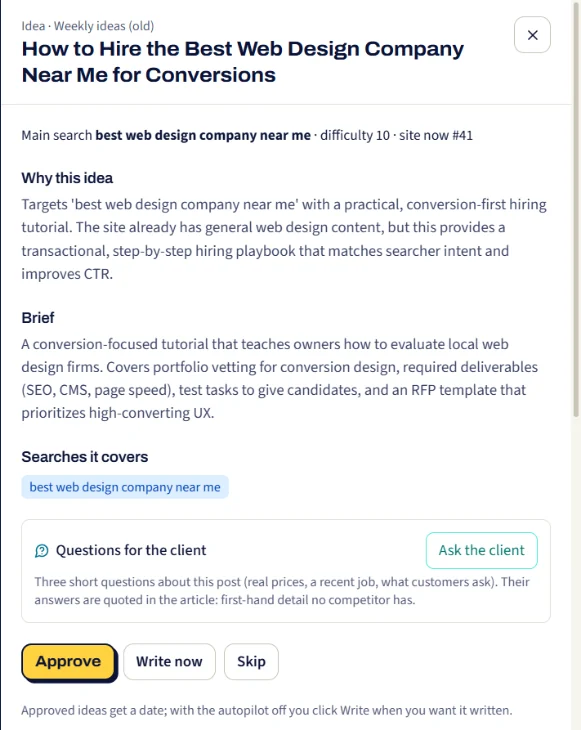 An idea in the side panel, with Approve, Write now and Skip under it.
On Up next, open an idea to change its date, send it back to Ideas, write it now or, on sites that review outlines first, Review outline. If the client approves the outlines (Project Settings, under Review the outline before writing), they get each outline by email and approve it or ask for changes on their dashboard; their note shows at the top of Review outline, where Send to the client sends your edited version back. You can always approve it yourself. On Ready, Review and publish opens the finished article.
Use the calendar
Click Calendar (next to List) to see the month. Planned posts are blue, articles being written are purple, finished ones are amber and published ones are green.
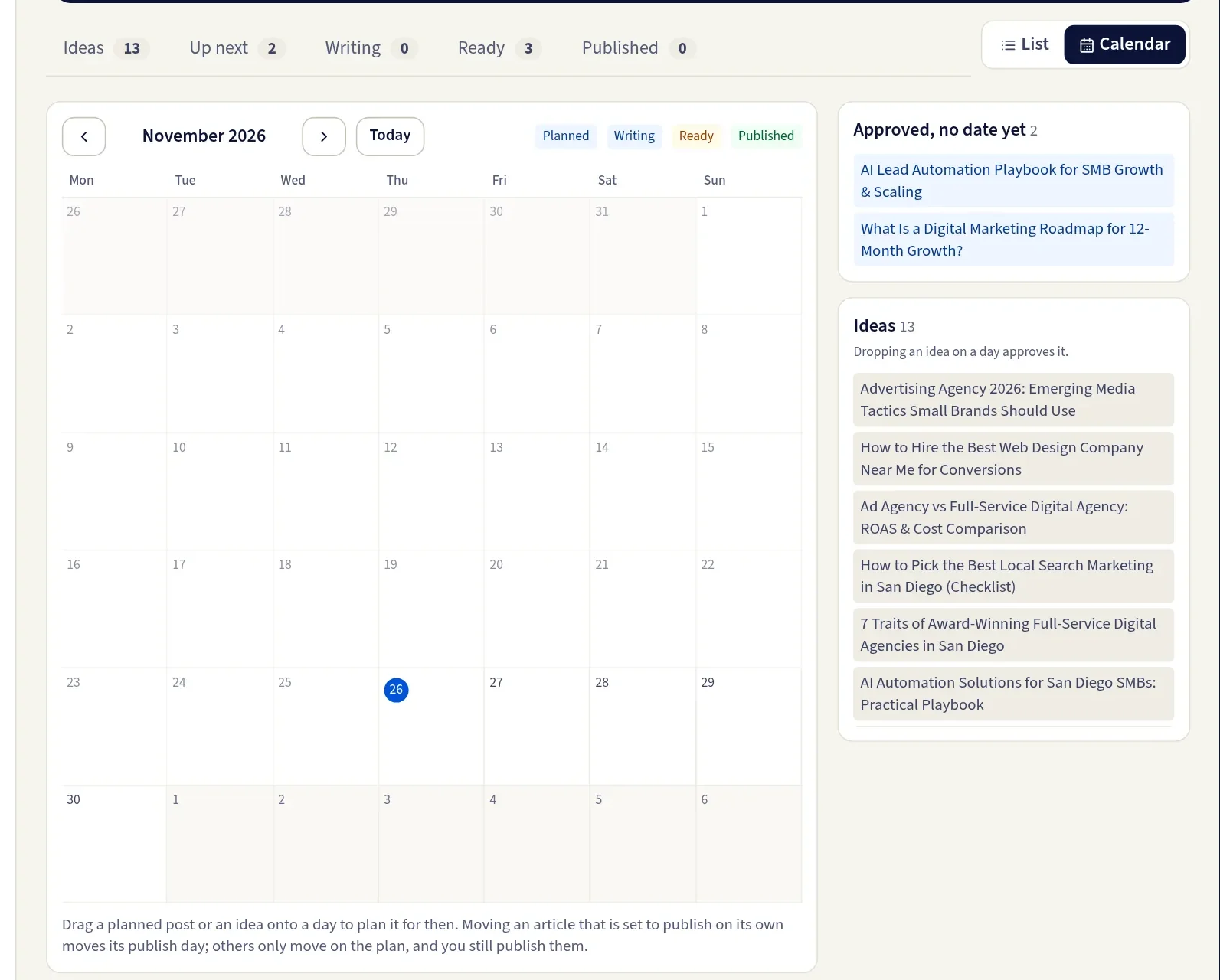 Drag a post to another day to move it. Drag an idea from the right onto a day to approve it for that day.
- Drag a post to another day to move it. If the article is set to publish on its own, its publish day moves with it. Otherwise only the plan changes, and you still publish it yourself.
- Drag from the trays on the right: approved ideas without a date, and ideas. Dropping an idea on a day approves it.
- Past days can’t take a post.
Tips
- Start with ideas that come from Search Console. Google already connects the site with those searches, so a good page often moves up fastest.
- Fill in the author and business facts (Content › Brand Voice) before you turn the autopilot on. Articles with real details and a named author do better.
- Try I approve publishing on one site first. Read the first few articles, then decide whether to give it more.
Troubleshooting
No new ideas arrive
The plan needs data to work from. Connect Search Console (how), add keywords in Keyword Research, or add competitors. Then click Find new ideas.
“Fully automatic” is greyed out
Fully automatic publishing is on the Enterprise plans. On other plans RankThat can still write on schedule, and you publish each article.
An article didn’t go live on its day
Fully automatic needs the site connected for publishing (WordPress, Webflow, Wix or HubSpot) in Project Settings › Connections. Without it, finished articles wait in the Ready tab.
Next, read and polish a finished article: Write an article and improve it in the editor.