
RankThat writes full articles for you: it researches the pages that already rank, builds an outline, adds links to your own pages, writes the text, checks the facts and creates images. You then finish the article in the editor, where a checklist scores it for Google, AI answers, readability and trust, and every AI change shows up as a suggestion you accept or discard. The result is a draft that sounds like your business and covers what searchers want, without starting from a blank page.
Before you start
- OpenAI key. Writing uses your own OpenAI account, so you pay OpenAI directly for what you write. Add the key in Settings › OpenAI Key (bottom left). Without it, RankThat shows a message asking for the key when you try to write.
- Brand Voice and business facts (optional, but worth it). The writer uses your tone and your real prices, jobs, team and reviews. Set them up in Content › Brand Voice before your first article.
- Quality tier. In Project Settings › Content & publishing, Content Quality Tier sets which models draft and polish, and how detailed the images are. Economy is the default and works well for most sites.
Step 1: Open Articles
Go to Content › Articles. The list shows every article in the project with its status, word count, focus keyword, AI model and last update. The All Statuses menu filters it (Outline, Generating, Draft, Polishing, Ready, Published, Failed).
You have two ways to start:
- Generate Article: RankThat writes the whole draft.
- Add Article: a blank article for text you write or paste yourself.
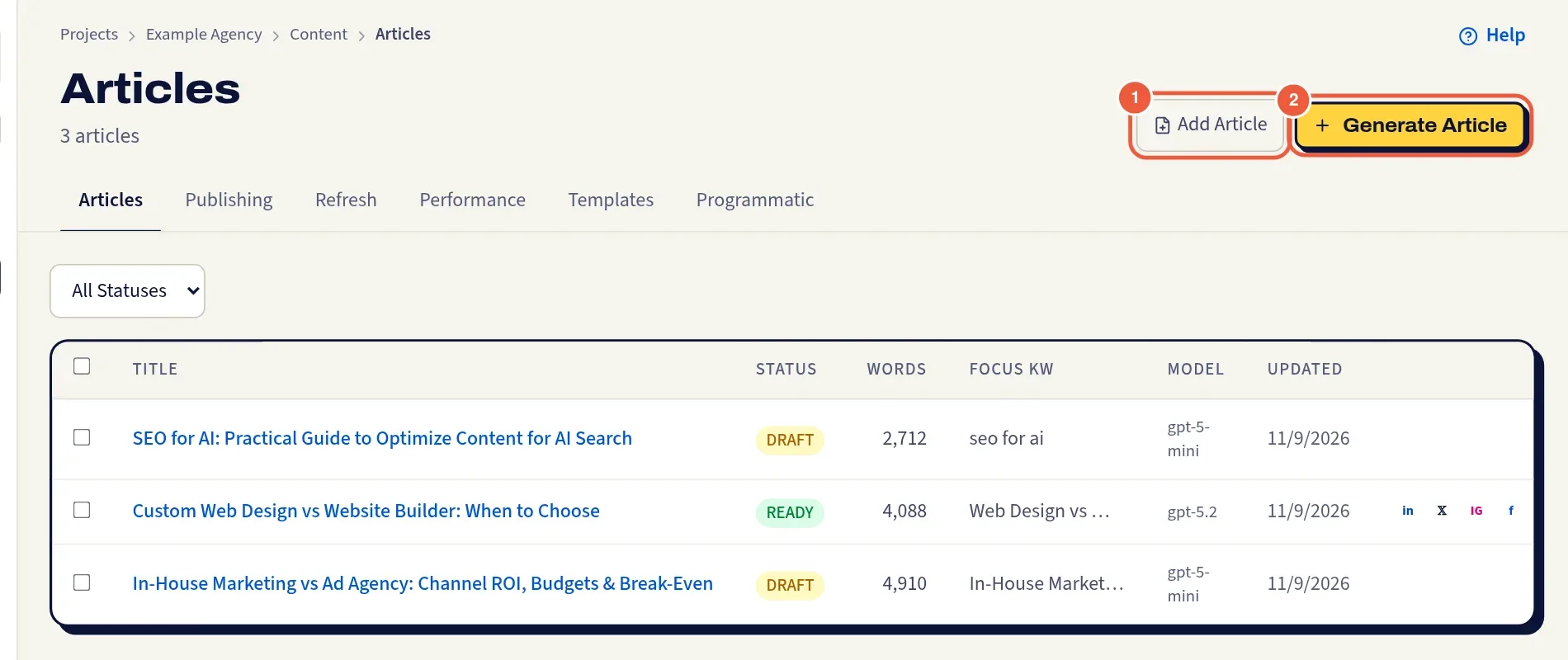 1: Add Article creates a blank article. 2: Generate Article has RankThat write the draft.
Step 2: Fill in the Generate Article form
Click Generate Article. The form asks for:
- Article Title and Target Keywords (comma-separated). Both are required. Put the main search first: it becomes the focus keyword.
- Content Brief: what the article should cover and your angle. Leave it empty and RankThat writes a general article on the title, so a sentence or two here pays off.
- Content Type: Guide, How-To, Listicle, Review, Comparison or Tutorial.
- Target Word Count: 2,500 by default (500 to 10,000).
Shortcuts at the top of the form fill these in for you:
- Quick: Generate from approved topic appears when you have approved ideas in the Content Plan. Pick one and its title, brief, type, length and keywords are copied in.
- Apply a template appears when the project has templates (Content › Articles › Templates).
- Find Keywords next to the keywords box suggests related searches with volume and difficulty. Tick the ones you want and click Add … Selected.
Click Generate Article at the bottom. The article appears in the list straight away and moves from Outline to Generating to Draft.
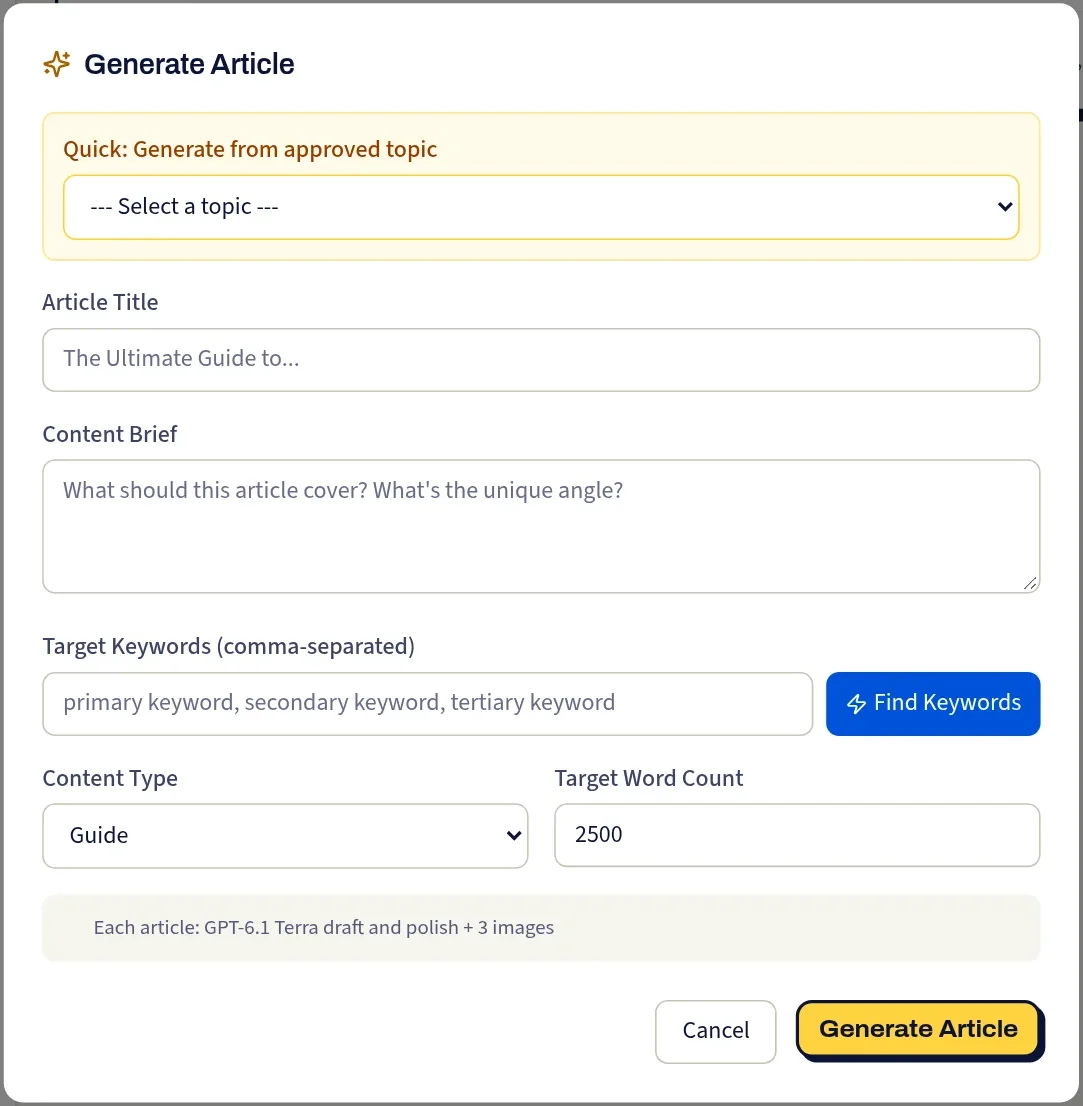 The title and target keywords are required. The gray line at the bottom shows which models write the article at your quality tier.
Step 3: Wait for the draft, then open it
Writing usually takes 2 to 5 minutes, and you can leave the page. When the status reads DRAFT, click the title to open the editor.
Along the way RankThat reads the top Google results for your keyword, uses a saved content brief as the outline when the topic has one, adds sections that most competitors cover, picks links to your own pages, works in your business facts, removes claims it can’t back up, and creates a cover image plus section images. Every article keeps a first version in Versions, so you can always go back to the original draft.
If writing fails, the status shows FAILED and a retry button appears in the list. In the editor, click Try again.
Step 4: Find your way around the editor
The editor has three parts:
- Outline on the left: every section with its word count and a colored dot (green is fine, amber or red means the checklist found something there). Click a heading to jump to it, or Add a section at the bottom. Below it are the word count, reading time, images and links to your pages.
- The article in the middle, with the Google listing (title and description) above it and the cover image. Click Edit on the listing to change the title on Google, page address, description and main search phrase.
- The coach on the right, with the tabs Improve, Searches, Links, Ask AI and Results. Links suggests links to your own pages on words already in the text, and pages of your site that should link to this one.
The top bar shows the steps (Written, Review, Approved, Published) and the save status. Your edits save on their own a moment after you stop typing; Ctrl+S saves at once.
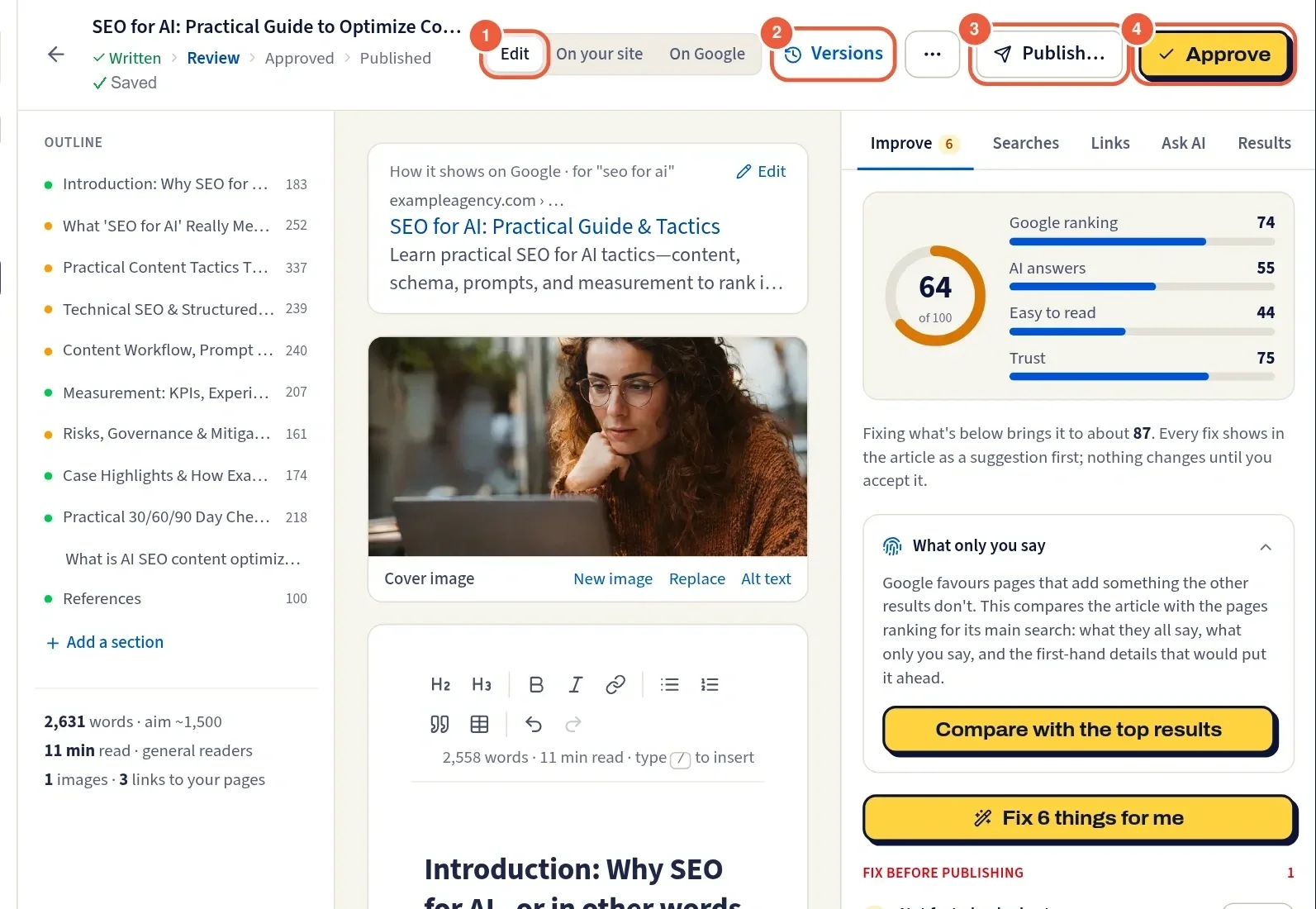 1: Edit is the writing view. 2: Versions holds every earlier version. 3: Publish… and 4: Approve finish the article.
Step 5: Raise the score with the Improve tab
Improve scores the article out of 100, with four bars: Google ranking, AI answers, Easy to read and Trust. Below the score it tells you what the article would reach if you fixed everything listed.
The checklist is grouped into Fix before publishing, Rank higher and Polish. Each item says what is wrong, why it matters and how many points it adds. Click its button (Fix, Write, Add or Check) to have the AI do it. The button at the top, for example Fix 6 things for me, prepares up to eight fixes in one go.
Nothing changes on its own. Each fix appears in the text as a suggestion, and a bar at the bottom of the article lets you Accept, Discard or Accept all. Press A to accept and R to discard the current one when you are not typing.
What only you say at the top of the tab compares the article with the pages ranking for its main search. It shows the points they all make that you don’t, what only your article says, and first-hand details you could add. Type the real answer and it is written in as a suggestion. Google favors pages that add something new, so this is often the biggest gain.
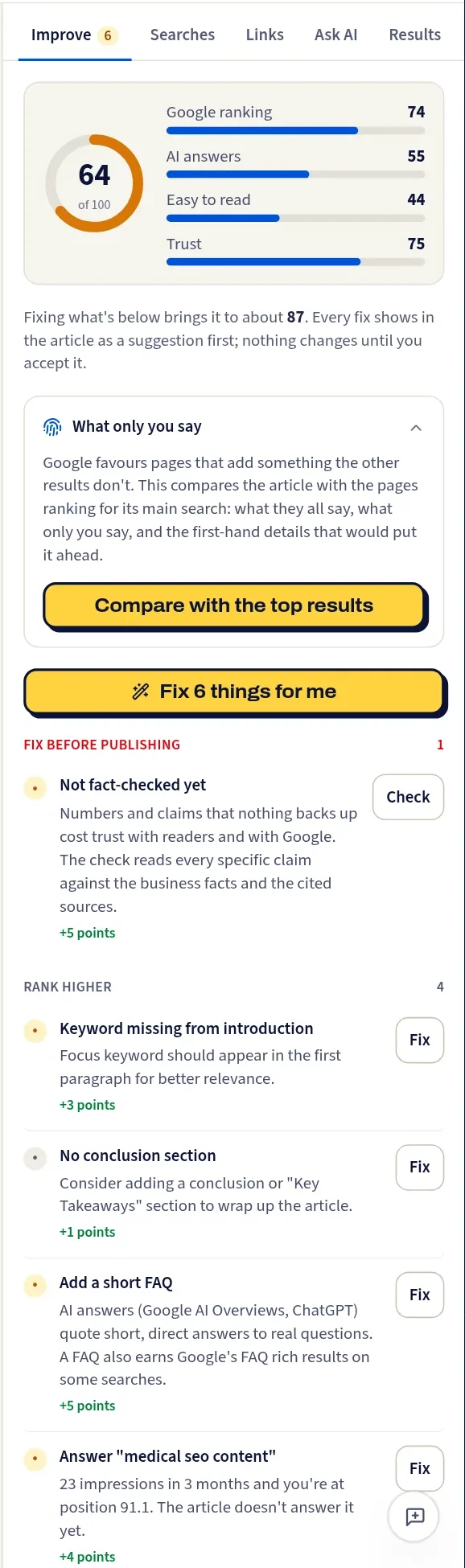 The score and its four parts, What only you say, and the checklist with points per fix.
Step 6: Answer real searches and ask for changes
Searches lists the real Google searches from Search Console that showed your site in the last 3 months and match this article, with impressions, clicks and position. Covered ones are marked Covered; for the others click Add answer. Below it, Find topics lists words and subtopics articles on this subject usually include, and Work in the missing ones adds them where they fit. Searches needs Search Console connected; see Connect Google Search Console.
Ask AI takes any request in plain words, such as “Make the intro warmer” or “Add a comparison table”. Starter buttons cover common ones. To change one part only, select it in the article first.
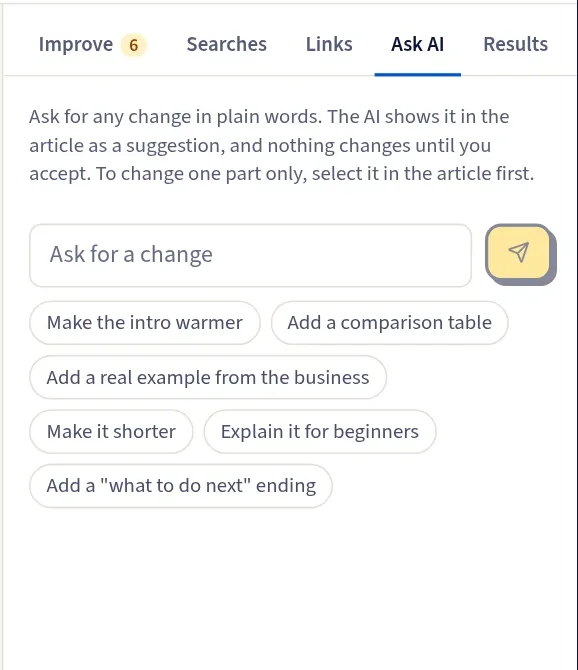 Type a request or click a starter. The change shows in the article as a suggestion.
Editing by hand
- Select text to get a small toolbar: bold, italic, link, and the AI actions Rewrite, Simpler, More human and Bullets.
- Hover a section for Rewrite, Expand, Add an example, move up or down, or delete it.
- Type / on an empty line to insert a section heading, sub-heading, list, quote or table, or an AI block: FAQ (AI), Key takeaways (AI), Comparison table (AI) or Real example (AI).
- Images: each image has New image, Replace, Alt text, Make cover and Remove. The … menu has Polish the whole article…, Create images with AI, Upload an image, Social posts, Export to Google Docs, Copy text and Copy HTML.
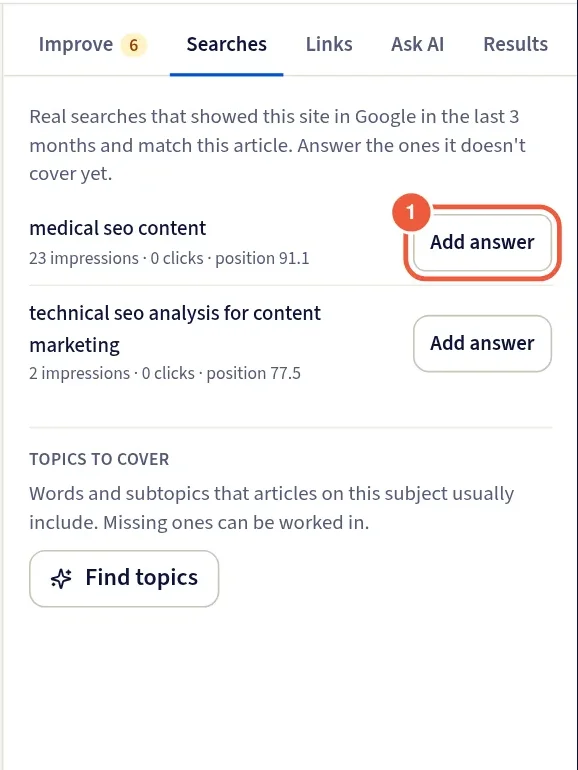 Real searches from Search Console. 1: Add answer writes an answer into the article as a suggestion.
Tips for a better article
- Aim for the Fix before publishing group to be empty. Those items (unchecked facts, for example) can cost trust.
- Answer the Searches tab’s uncovered searches. They are what people already type to find you.
- Add first-hand details: a real price, a recent job, a customer quote. Generic articles rarely beat the pages already ranking.
- Set an author in Project Settings › Content & publishing › Readers and author. With a name and a bio, published articles end with an “About the author” box.
Troubleshooting
The editor says “Writing this article failed”
Click Try again. If it fails again, check that your OpenAI key in Settings is valid and has credit.
The Searches tab asks me to connect Search Console
The tab reads real searches from Google Search Console. Connect it in Project Settings. New sites and new topics take a few weeks to show searches.
A yellow bar says the article was changed elsewhere
Someone (or an AI fix) saved a newer version while you were editing. Choose Keep my edits or Load the new version. The other one is kept in Versions either way.
Can I write without AI?
Yes. Use Add Article, type or paste your text, and use the checklist to improve it.
When the article is ready, the next step is to publish it or schedule it: see Publish and schedule articles.