
Rank Tracker checks where your site appears in Google for the searches you pick, on a schedule, and shows what moved between any two dates. It is the clearest way to see whether your SEO work is paying off for the searches that bring customers, and it feeds the rankings table in your monthly report. Search Console tells you average positions for everything; Rank Tracker gives you exact, dated positions for the searches you care about most.
Before you start
- Rank Tracker can only track keywords that are already in the project’s keyword list (SEO › Keywords). If a search you want is missing, add it there first, or send it straight to tracking from Keyword Magic with Track rankings.
- Turning tracking on and the Check now button are part of the Search Console feature of your plan (Professional and Enterprise).
- Your plan’s keyword limit per project applies to the keyword list: 100 on Starter, 1,000 on Professional, unlimited on Enterprise.
Step 1: Open Rank Tracker and pick keywords
Go to SEO › Rank Tracker. On a new project you’ll see No keywords tracked yet with an Add keywords to track button. Once keywords are tracked, the same window opens from Manage keywords at the top right.
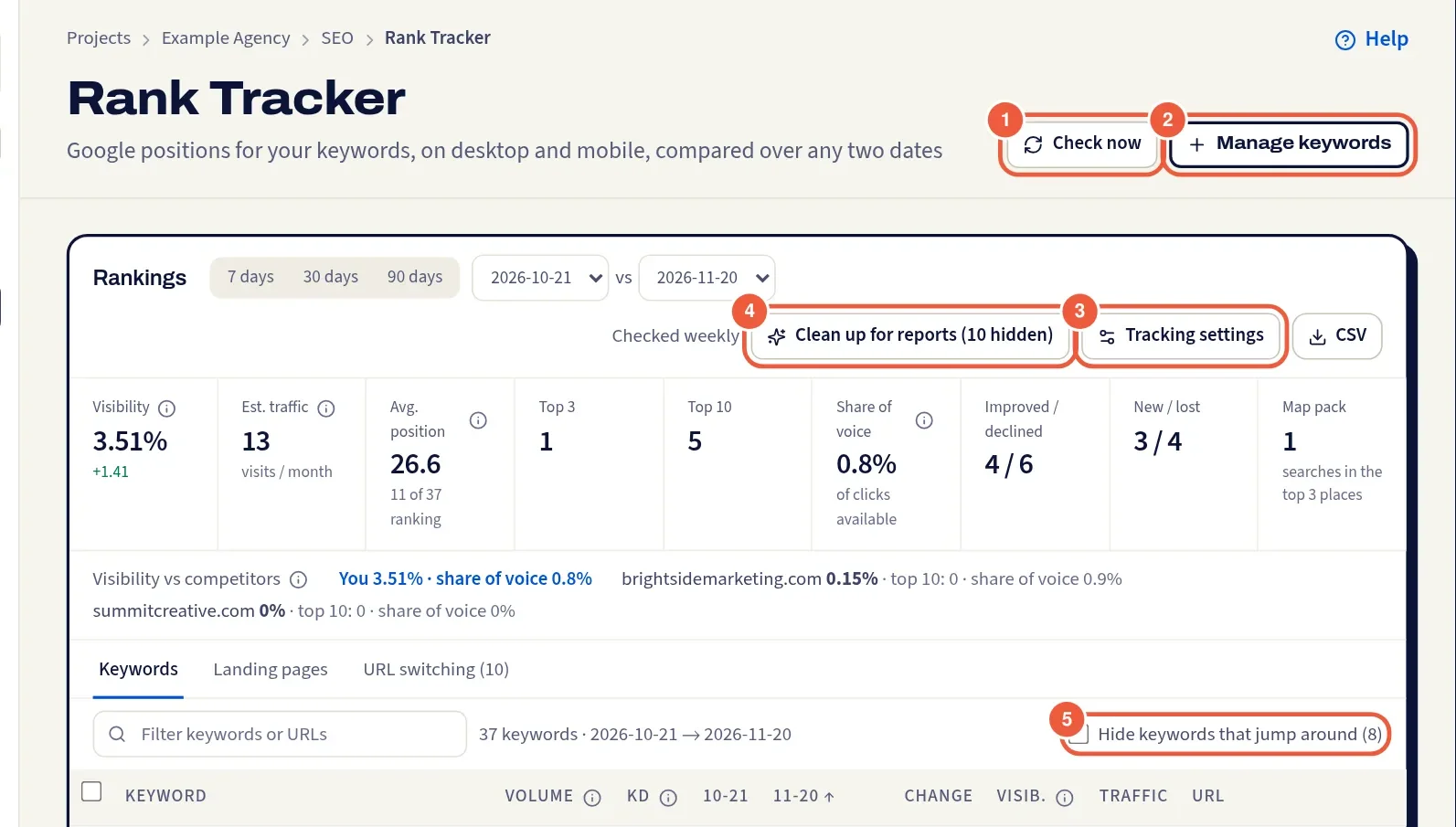 1: Check now runs a check right away. 2: Manage keywords adds or removes keywords. 3: Tracking settings sets frequency, location, devices and competitors. 4: Clean up for reports hides junk searches from client reports. 5: Hide keywords that jump around hides the keywords labeled “jumps around” in the table.
In the Manage Tracked Keywords window:
- Stay on the Add Keywords tab. Without a search it lists the 200 keywords with the most Search Console impressions. Type in Search keywords to add… to find any other keyword in the list.
- Tick the keywords you want, or use Select all.
- Click Enable N Keywords.
To stop tracking, switch to Currently Tracked, tick the keywords and click Remove N Keywords. Their history is kept.
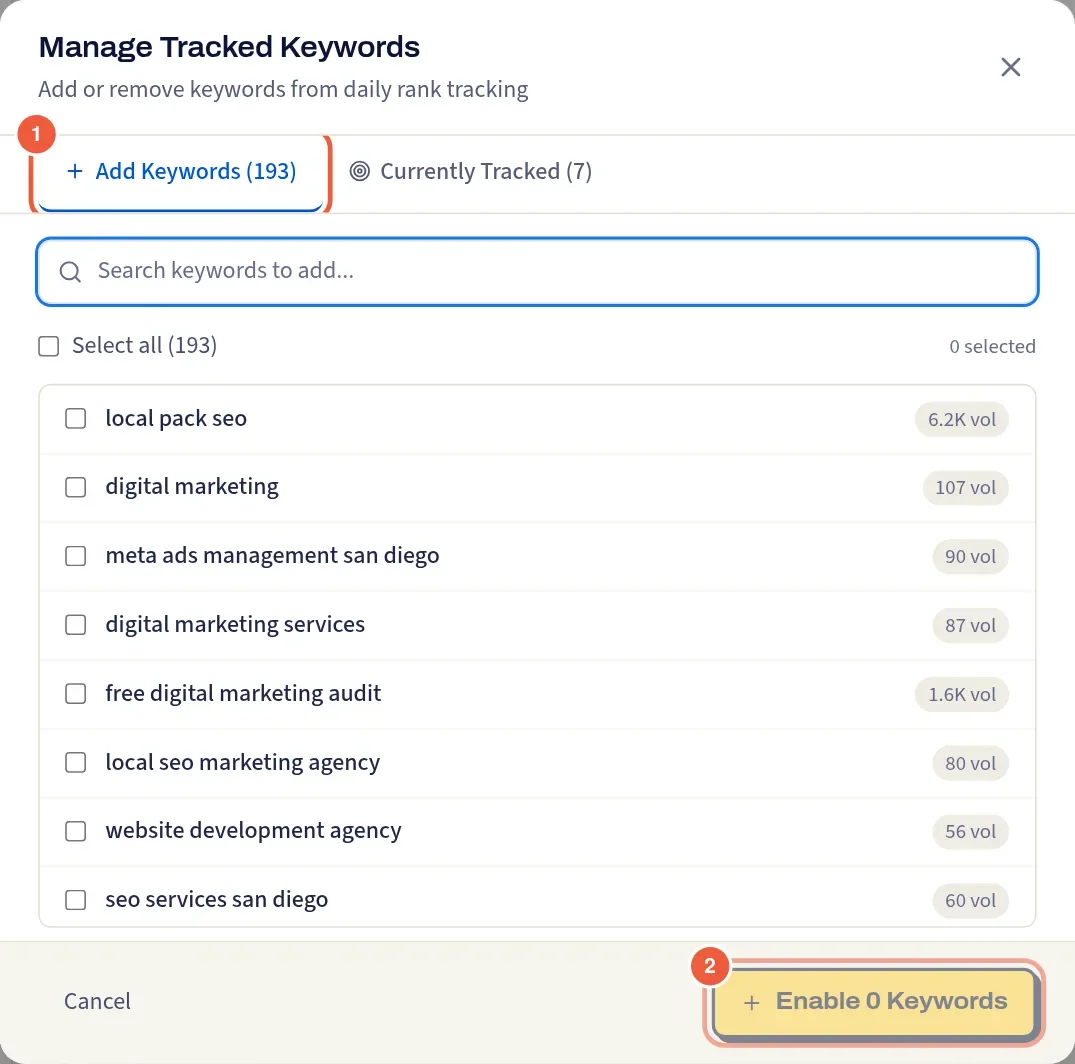 1: the Add Keywords tab lists keywords you are not tracking yet. 2: Enable starts tracking the ones you ticked.
What to track: the searches that bring work. For a plumber in Austin that means “emergency plumber austin” and “water heater repair austin”, not “how do pipes work”. Twenty to fifty well-chosen keywords tell you more than five hundred random ones.
Step 2: Set how often, where and on which devices
Click Tracking settings.
- How often to check: Weekly (the default), 3× a week or Daily. Checks run every morning; a 3× a week project is checked on Monday, Wednesday and Friday. Weekly is plenty for monthly reports. Daily is worth it during a site migration or right after a big change.
- Location: starts as Project default. Search a country, state or city to change it. Use the area the business serves: rankings in Dallas differ from rankings in Austin. Changing it makes the next check a new baseline.
- Devices: Desktop, Mobile or both. At least one stays on. Bing adds the same keywords on Bing, at country level, as a third choice in the same table and history (off by default).
- Competitors (up to 10 domains): one per line. Their positions come from the same search results, so they cost nothing extra. Their history starts from the next check.
Click Save.
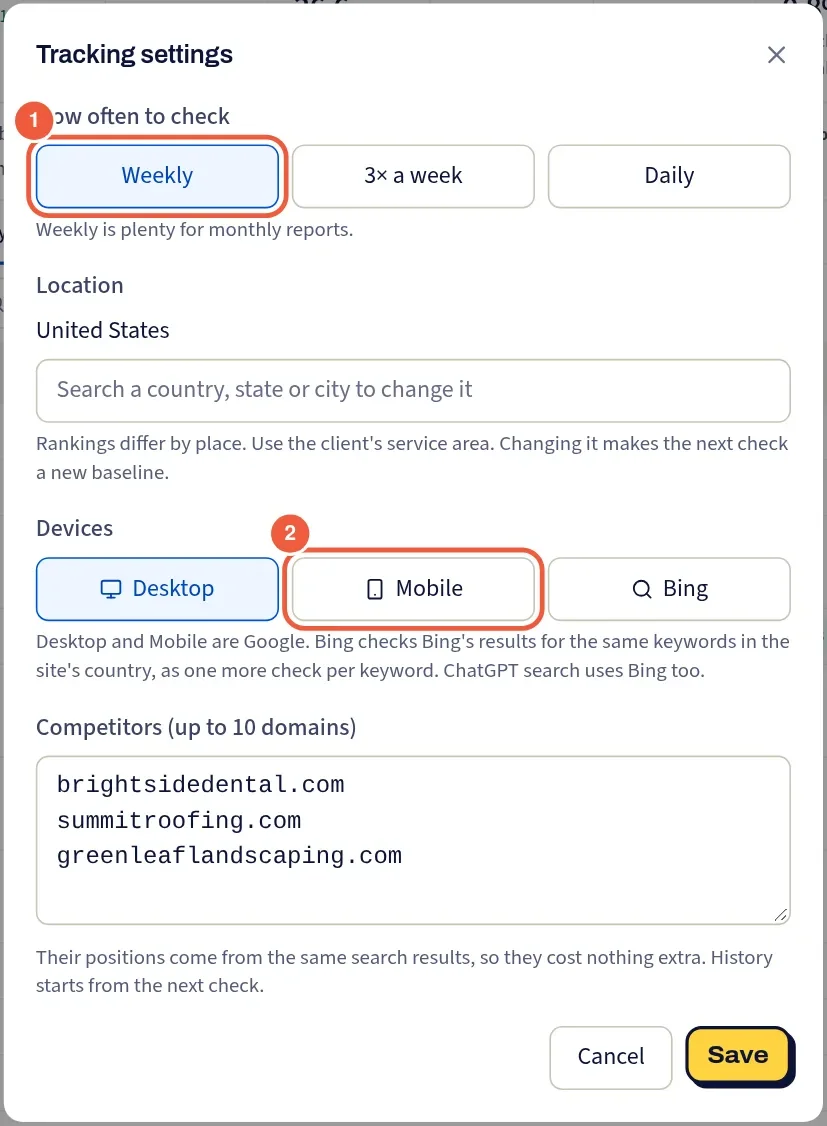 1: Weekly is the default check frequency. 2: turn on Mobile to see phone rankings, which often differ for local searches.
Step 3: Run the first check
The first scheduled check runs the next morning. To see positions sooner, click Check now. The check is queued and new positions appear in a few minutes. Reload the page after that. The page can take a while to load on projects with many tracked keywords.
Step 4: Read the Rankings panel
The top row summarizes the period you are looking at:
| Tile | What it means |
|---|---|
| Visibility | A 0-100% score of how much of the possible Google clicks your tracked keywords get, weighted by position and search volume. Ranking #1 for everything would be 100%. |
| Est. traffic | Visits a month your current positions should bring. An estimate, not measured visits. |
| Avg. position | The average position of the keywords that rank, with “X of Y ranking” underneath. |
| Top 3 / Top 10 | How many tracked keywords sit in those positions. |
| Share of voice | Your visibility compared with the competitors you added. |
| Improved / declined | Keywords that moved up or down between the two dates. |
| New / lost | Keywords that started or stopped ranking in the top 100. |
| Map pack | How many tracked searches show the business in Google’s map pack (the top 3 places on the map). |
 Visibility and share of voice are the best single numbers to watch month to month.
Above the tiles you can switch Desktop and Mobile (when both are tracked), jump to 7 days, 30 days or 90 days, or pick any two check dates in the two date boxes. If you tagged keywords, a tag menu filters the panel.
In the keyword table, the two date columns show the position on each date and Change shows the difference. Positions 1-3 are dark blue, 4-10 light blue. SERP features lists what Google shows for the search (AI Overview, Local pack, Snippet and so on); a blue label means your site appears in that feature. Click any keyword to open its Position history (30, 90 or 180 days), the page that ranks and the top results from the last check.
Two small labels help you read the table:
- Map #1 to Map #3: your business is in Google’s map pack (the three places shown above the regular results) for that search. The position next to it is the regular one, so a local business can be “Map #1” with a regular position of 13. For local searches it is often the first thing people see.
- jumps around: the keyword moved 10 or more places at least twice in its last five checks. Google shows it differently from week to week, so one move says little. These keywords are left out of keyword alerts, and Hide keywords that jump around above the table hides them.
Step 5: Check landing pages and URL switching
Two more views sit next to Keywords:
- Landing pages groups keywords by the page that ranks, with top 3, top 10, average position, volume and estimated traffic per page. Use it to see which pages carry the site.
- URL switching lists keywords where Google showed a different page of your site during the period. That usually means two pages compete for the same search. Pick the page that should rank, make it the best answer, and link to it from the other (or merge them).
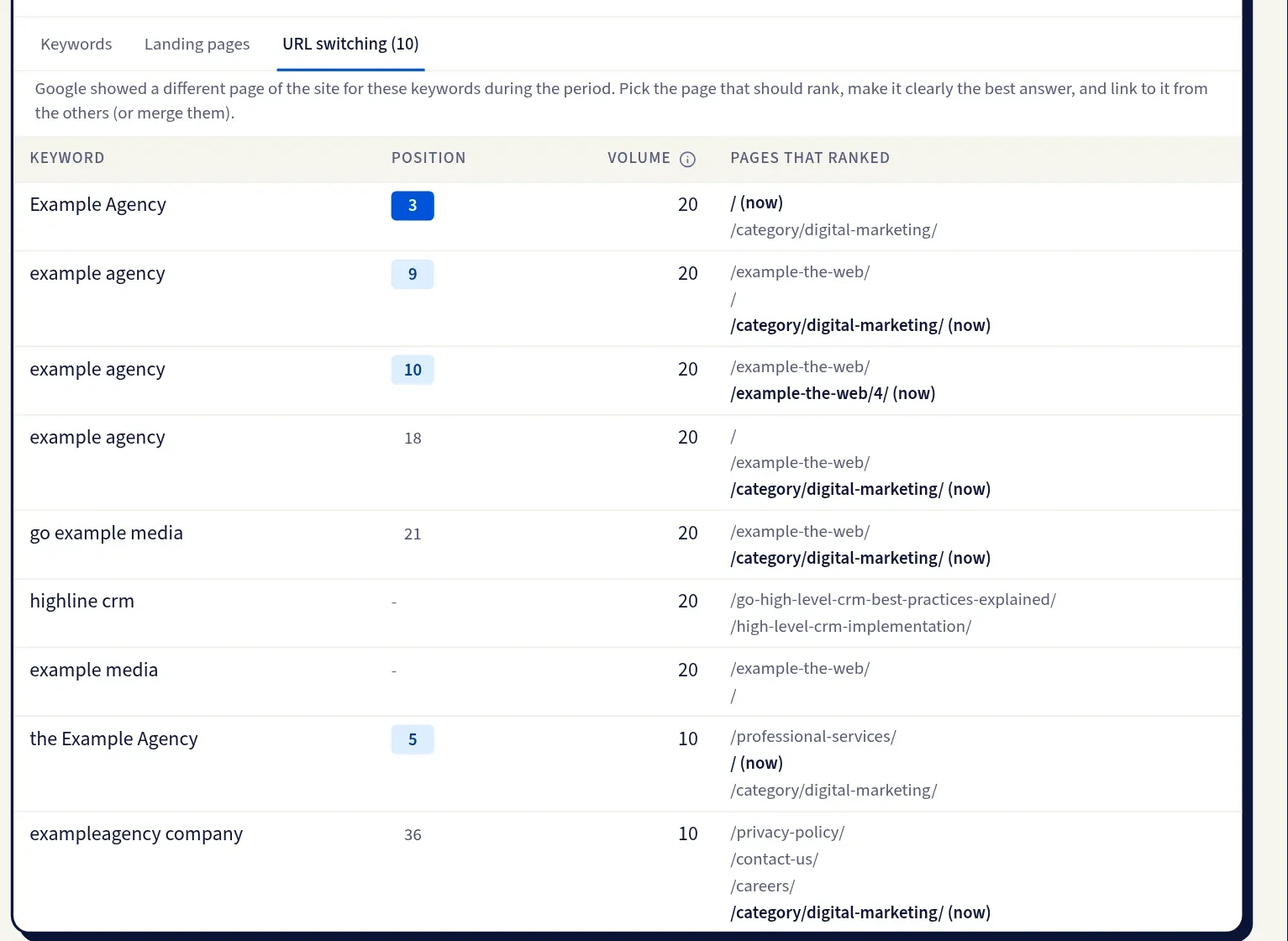 The page in bold, marked “(now)”, is the one ranking at the latest check.
Tips for getting more out of it
- Tag keywords by service or location: tick them in the table, type a tag name and click Add tag. Then filter by tag to report on one service line.
- Clean up before reporting. Clean up for reports then Check the list sorts tracked keywords into typos, duplicates, competitor names, other locations, not relevant and junk searches. These are left out of the monthly report table but still tracked. Use Show it or Hide it to override, or Stop tracking these for a whole group.
- Export with CSV for the current device and dates, including competitor positions.
FAQ
Why does a keyword show ”-” for position?
It is not in Google’s top 100 for that location and device on that date.
Rank Tracker and Search Console show different positions. Which is right?
Both. Rank Tracker records one check from one location on one device. Search Console averages every time your site appeared, for everyone, over a period, and it counts the map pack: if your business is in the map pack, Search Console shows a position of about 1 to 5 even when the regular position is lower (see the Map label). Use Rank Tracker for trends on chosen searches and Search Console for the full picture.
Why doesn’t a keyword I researched appear in Add Keywords?
Only keywords in the project’s keyword list appear. Add it in SEO › Keywords, or from Keywords › Find new.
I changed the location and the numbers jumped.
That is expected: the next check after a location change is a new baseline.
Next, see where the site already gets clicks in Search Performance, or find new searches worth tracking with Keyword Magic.