
Keyword Research is the project’s main keyword list: every search you care about for this client, with Google volume, difficulty and intent next to how the site already does in Search Console. Rank Tracker, the Content Plan and articles all draw from this list, so a clean list makes everything else easier. Clustering then groups the keywords that one page can rank for, which tells you how many pages you need and which keywords belong on each.
Before you start
- Your plan’s keyword limit per project applies to this list: 100 on Starter, 1,000 on Professional, unlimited on Enterprise.
- Import from Search Console needs Search Console connected (see Connect Google Search Console) and a plan that includes it.
Step 1: Fill the list
Go to SEO › Keywords. The buttons under the page title give you four ways in:
- Import from Search Console adds the searches your site already shows up for in the last 28 days. Start here on an existing site: these are searches Google already links to you.
- From sitemap finds keywords in your page titles, headings and URLs. A window lists the new ones (keywords already in the list are left out); untick any you don’t want and click Add N keywords.
- Add lets you paste your own keywords, one per line, then Add keywords.
- Research keywords expands seed keywords (next step).
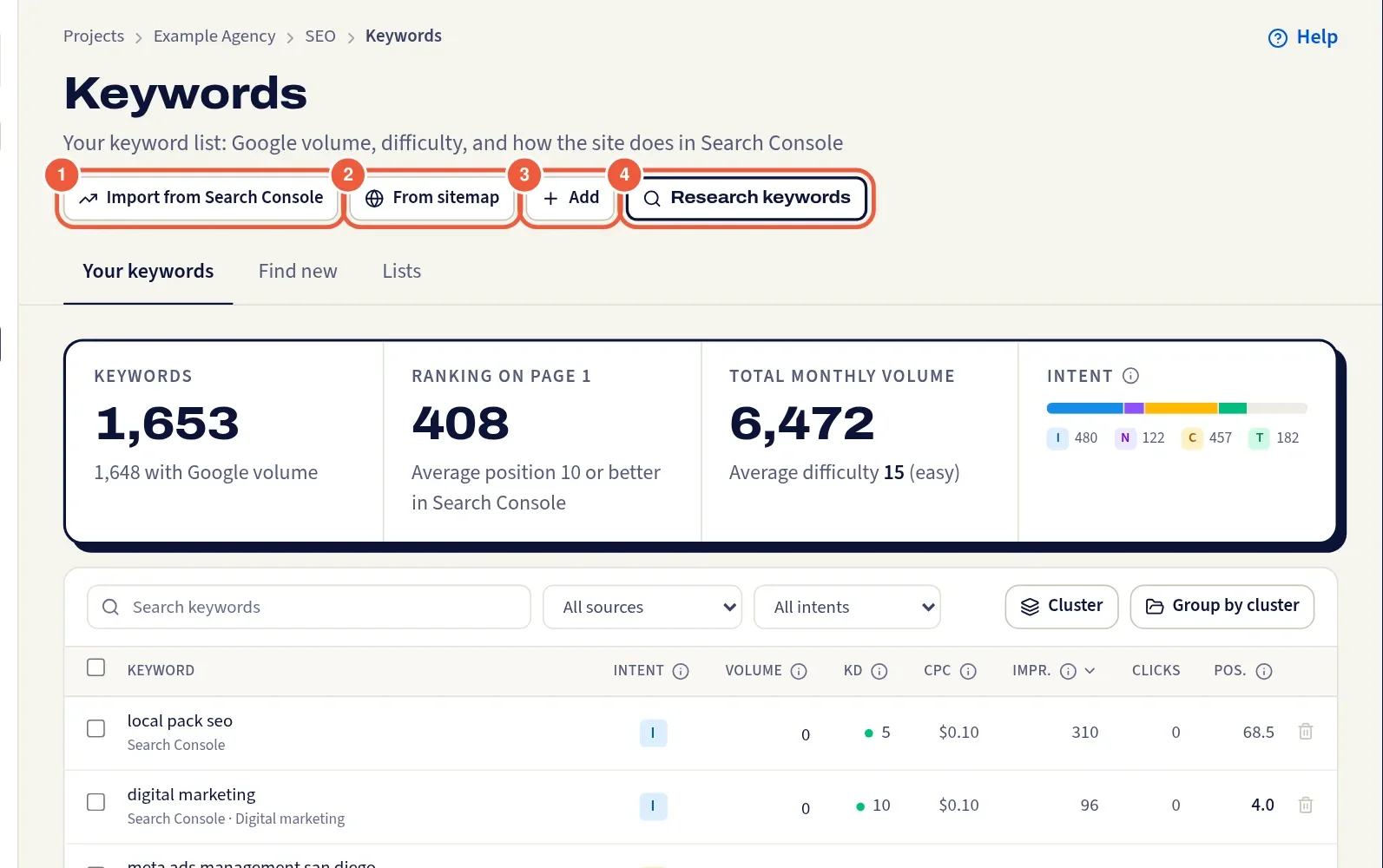 1: Import from Search Console. 2: From sitemap. 3: Add for your own list. 4: Research keywords to expand seed keywords.
Step 2: Expand seed keywords
Click Research keywords. Type up to 20 seed keywords, one per line, for example “brake repair del mar” and “hybrid car service”. RankThat collects Google autocomplete, People also ask and related searches for each.
- Also try each seed with a to z added finds more ideas but takes longer.
- Use DataForSEO for real volume, difficulty, CPC and intent fills in the numbers as it goes.
Click Start research. It runs in the background; follow it under Track jobs. For a deeper look at a single topic with filters and word groups, use Keyword Magic instead.
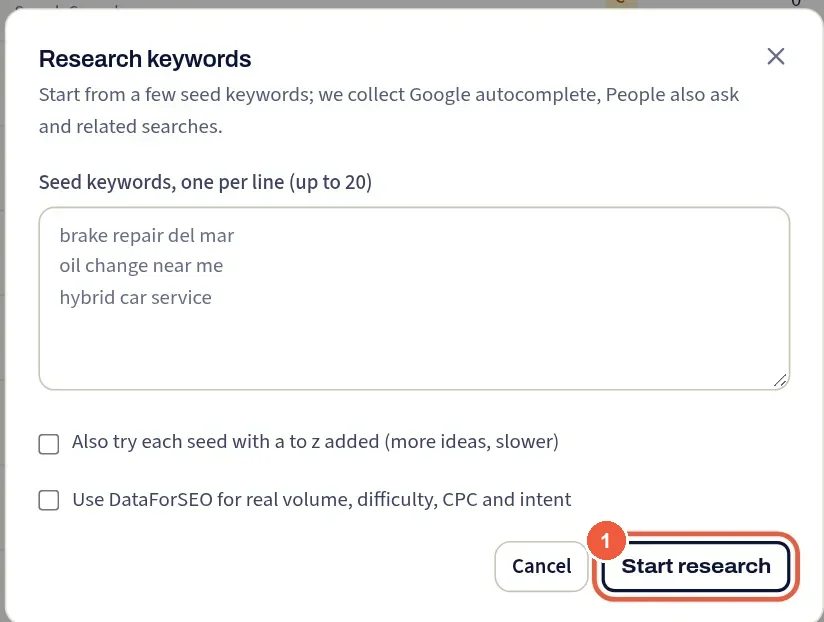 Enter seed keywords one per line, then click Start research (1).
Step 3: Read the list
Four cards at the top summarize the list (or the filtered part of it):
- Keywords, with how many have Google volume.
- Ranking on page 1: keywords with an average Search Console position of 10 or better.
- Total monthly volume, with the average difficulty.
- Intent: the split between I (informational), N (navigational), C (commercial) and T (transactional). Click a letter to filter.
The table shows each keyword with its source and cluster underneath, then Intent, Volume (with a 12-month trend line), KD, CPC, and the Search Console columns Impr., Clicks and Pos. By default it is sorted by impressions. Click a heading to sort by something else, use Search keywords to find one, or filter by source and intent.
KD has a colored dot: green is easy (under 25), yellow medium, orange hard (50 and over), red very hard (75 and over).
Step 4: Fill in missing numbers
Keywords from Search Console, the sitemap or your own list may have no volume or difficulty yet. Tick them (the top checkbox ticks the whole page), then use the bar that appears:
- Get volume & KD looks up volume, difficulty, CPC and intent. A confirmation asks first.
- Analyze SERP checks what ranks in Google for them.
- Add to plan turns them into ideas in the Content Plan (similar searches become one idea; searches the site already covers are skipped).
- Delete removes them from the list (this can’t be undone).
Step 5: Group keywords into clusters
Click Cluster. RankThat groups the keywords that a single page can rank for and names each cluster. It only works on keywords not already in a cluster, so you can run it again after adding new keywords without reshuffling the old groups.
Then click Group by cluster to see the table grouped. Each cluster row shows its name, the number of keywords and their total volume; click it to open or close it. Keywords without a cluster sit under Not in a cluster at the end. Ticking a cluster’s checkbox selects all its keywords, so you can send a whole cluster to Add to plan at once.
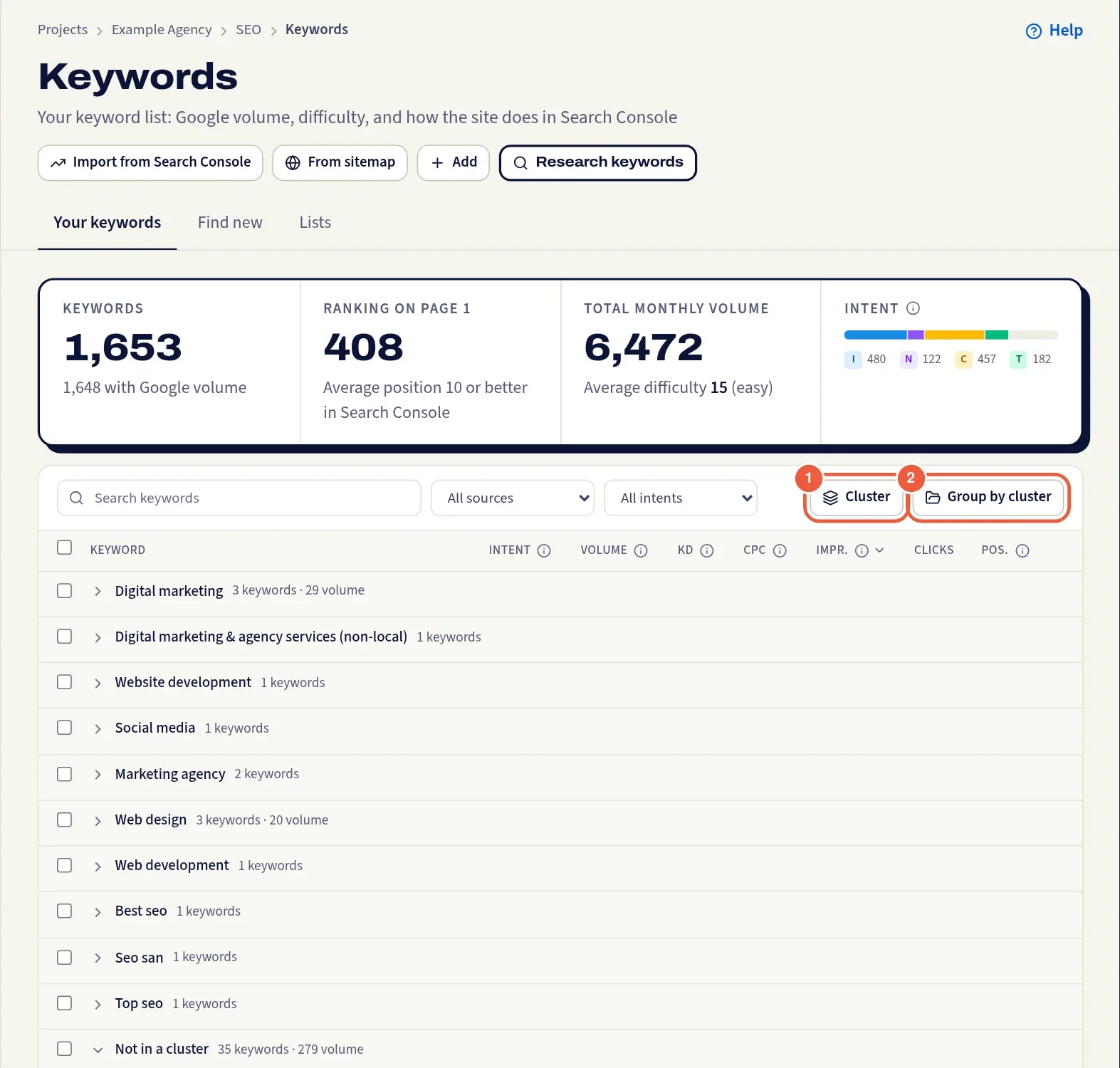 1: Cluster groups unclustered keywords. 2: Group by cluster switches the table to the grouped view.
How to use clusters: one cluster is roughly one page. If your site already has a page for a cluster, make sure the page covers the main keywords in it. If not, that cluster is a page to write. Groups show the keywords on the current page of the table, so for a big list, filter first (for example by intent) to see a full cluster.
Tips
- Keep the list focused. Delete keywords that don’t fit the business (other cities, jobs, free versions). They clutter clusters and reports.
- Use intent to decide the page type. Informational clusters suit guides and blog posts; commercial and transactional ones suit service and product pages.
- Track the important ones. Open Rank Tracker › Manage keywords to pick keywords from this list for weekly position checks.
FAQ
Why is Volume empty for some keywords?
The list shows Google Ads volume only, never a number guessed from Search Console impressions. Use Get volume & KD to look it up.
Clustering made no new clusters.
Every keyword is already in a cluster. Add new keywords, then click Cluster again.
Why don’t Search Console clicks here match Search Performance?
This table shows each keyword’s own Search Console numbers from the last import. Search Performance totals include searches Google leaves out of keyword rows. See Search Performance.
Next, track the keywords that matter in Rank Tracker.