
Opportunities is a to-do list for the site, sorted by how many extra Google visits each item could bring. It looks at your tracked rankings, Search Console and the Google index, and picks out keywords close to the top, pages people see but don’t click, pages losing clicks, pages competing with each other and pages Google hasn’t indexed. Each item says what to do, and title and description fixes can be written and applied for you. When you act on something, RankThat measures the result in Google.
Before you start
- Connect Search Console. Most opportunities, and all of the measuring, come from it. Without it the page shows “Connect Search Console in Project Settings”.
- Track keywords in Rank Tracker. “Close to the top” items come from tracked keywords.
- To apply new titles and descriptions to the site directly, a WordPress site needs the RankThat Bridge plugin; other sites can use the Cloudflare Worker or snippet set up in Project Settings. Without one of these you can still copy the text and paste it in yourself.
Building the list uses data RankThat already stores, so opening the page costs nothing.
Step 1: Read the summary
Go to Overview › Opportunities. Four figures sit at the top:
- Pages to improve: how many pages have something to do, and how many need a better Google title.
- Extra visits possible: a rough monthly total from Search Console. It is there to order the work, not a promise.
- Not in Google: pages Google hasn’t indexed, so they can’t rank yet.
- Changes that worked: how many earlier changes gained clicks, out of those measured so far.
 Extra visits possible is rough and only meant for ordering. Changes that worked counts earlier changes that gained clicks once measured.
Step 2: Understand the five types
| Type | What it means | What to do |
|---|---|---|
| Close to the top | A tracked keyword ranks between 4 and 20 and has real search volume. | Improve the page for that search: title and description, coverage of the topic, internal links. Fix writes a new title and description. |
| Seen, not clicked | A page shows in Google’s top 10 with at least 300 appearances last month, but under half the usual click rate for its position. | A clearer, more specific title and description usually fixes it. Fix writes one. |
| Losing clicks | A page that had 20 or more Google clicks lost 30% or more of them last month. | Refresh it: update facts and dates, cover what newer pages cover, link to it from fresh posts. Open the article appears when RankThat wrote it. |
| Pages competing | Two or more of your pages show up for the same search. | Pick one page for the search and merge or refocus the others. |
| Not in Google | Google has not indexed the page. | See why in Site Audit opens Site Audit’s index view with the reason. |
Step 3: Filter the list and open a page
The To do tab lists one row per page, with everything to do on that page together. The buttons above the list (All, then one per type) narrow it to one kind. Visits / mo is the rough extra visits if the page is fixed, and the list is already sorted with the biggest first.
Click a row, or its Review button, to open the page in a side panel: each opportunity on it with its numbers, what it means, and the button for the next step. For competing pages it lists every page involved.
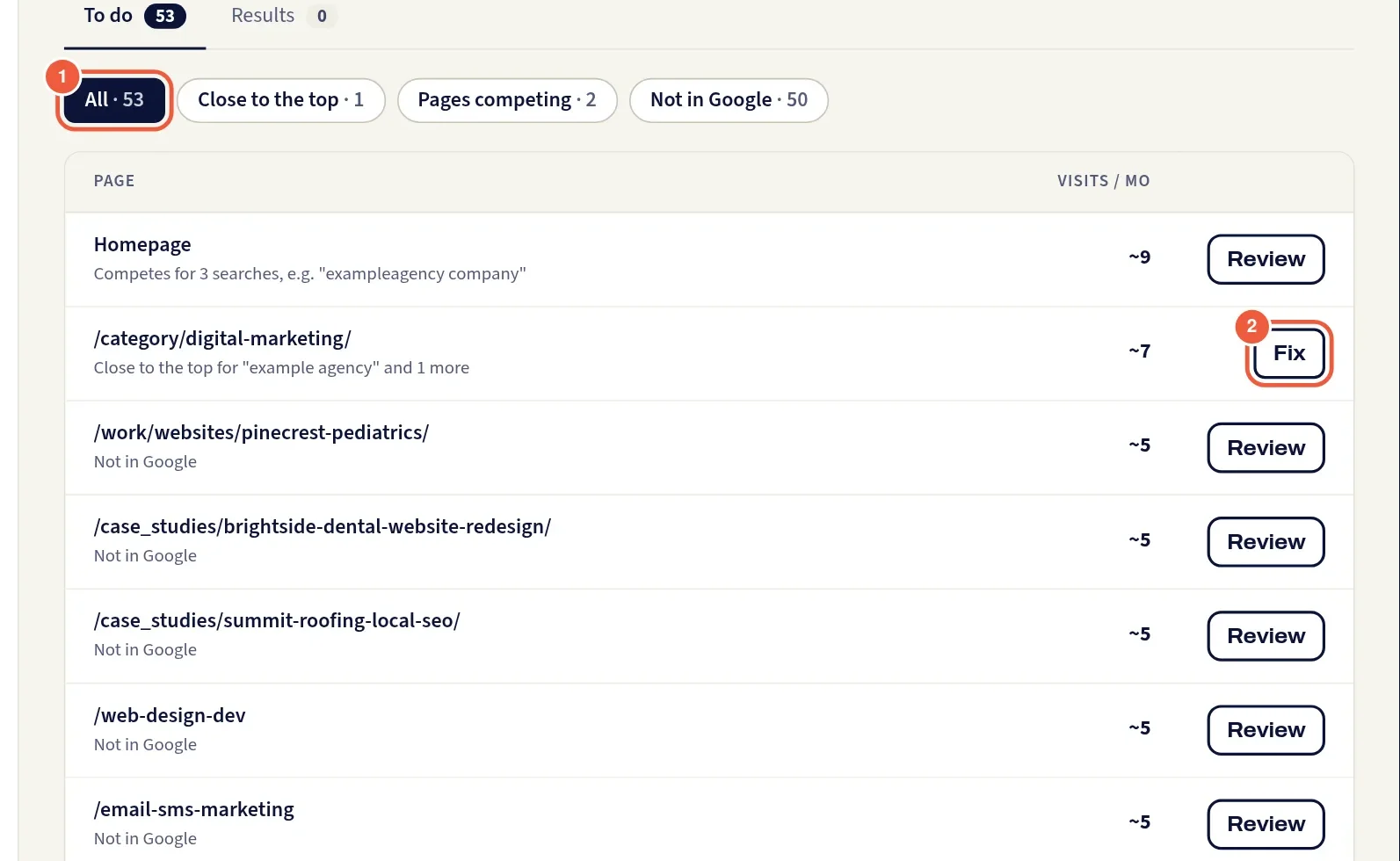 1: the filter buttons, All and one per type. 2: Fix appears on pages that need a better Google title and description. Other pages show Review, which opens the details.
Step 4: Fix titles and descriptions
On a page with a Close to the top or Seen, not clicked item, click Fix (or Write them in the side panel). RankThat reads the page and writes a new Google title and description aimed at the search. You see the current title and description under Now, then the new ones with a character count (up to 60 for titles, 155 for descriptions). Edit them if you like, then:
- Apply to the website updates the live page (through the Bridge plugin on WordPress, or the Worker or snippet on other sites). When the plugin pulls changes from behind a firewall, it applies them within 5 minutes.
- Copy copies both, to paste into the page yourself.
When several pages need new titles, an Improve N titles and descriptions button appears at the top right. It handles up to 25 pages in one review, each rewritten for the search it is closest to winning. Untick or edit any of them, then click Apply N to the website. Run it again afterwards for the rest.
Step 5: Mark pages done or dismiss them
At the bottom of the side panel, Mark done records anything you fixed another way (a content refresh, merging pages). RankThat measures its effect in Google from two weeks on. Dismiss hides a page whose items don’t apply. Dismissed items stay hidden; items marked done stay off the list for 90 days.
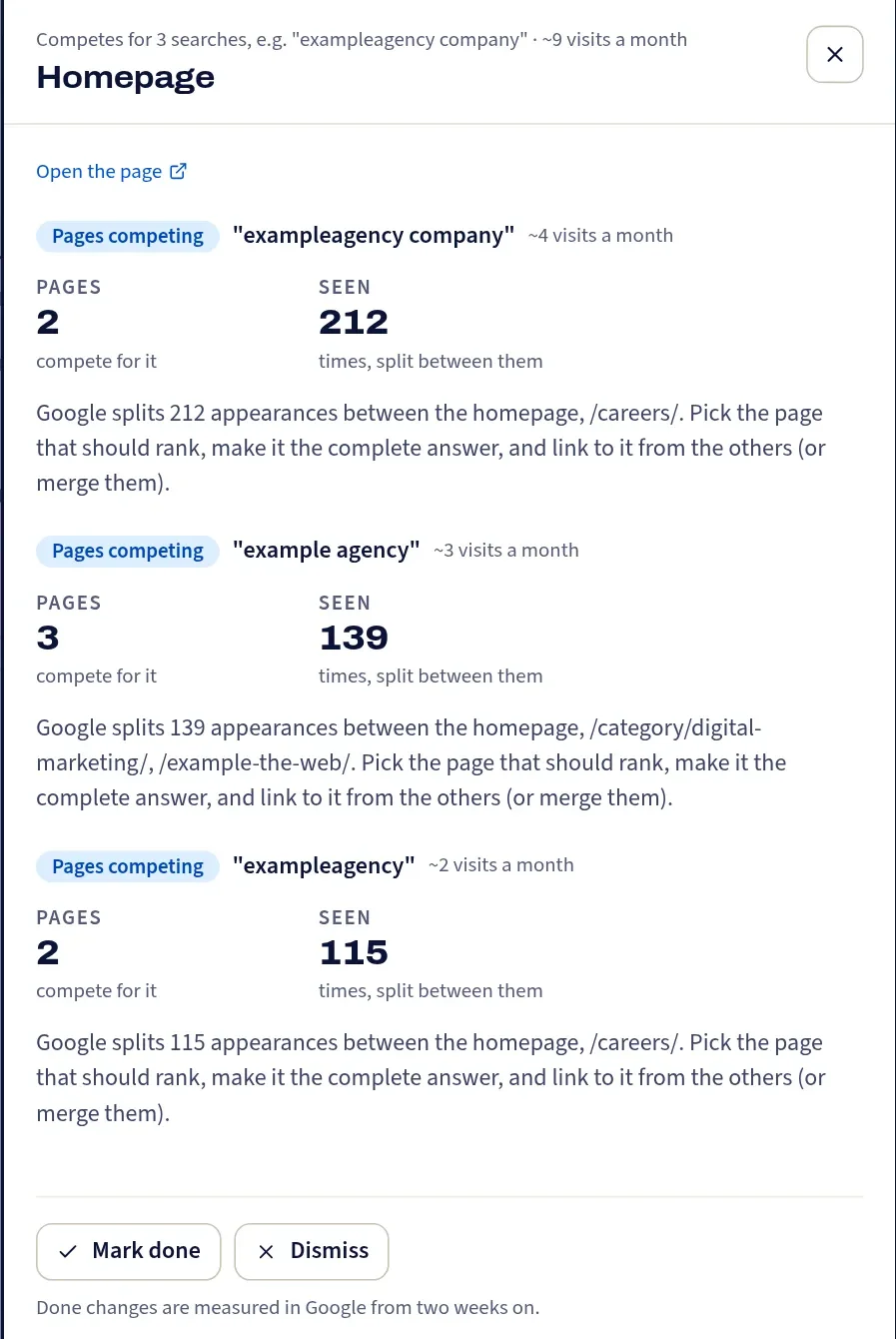 The homepage in the side panel: each search it competes for, with the pages that share it and what to do. Mark done and Dismiss apply to everything on the page.
Step 6: Check the results of changes
Open the Results tab. It lists every change recorded for the site, including fixes applied here, from Site Audit and from Claude. From two weeks after each change, it compares the page’s Google clicks and position for the 28 days before with the period since. Until then the result reads “Measuring from” and the date.
Each change is marked More clicks, Fewer clicks or No change, with the clicks a month and the position before and after. These results also feed the monthly report, so you can show a client what each change did.
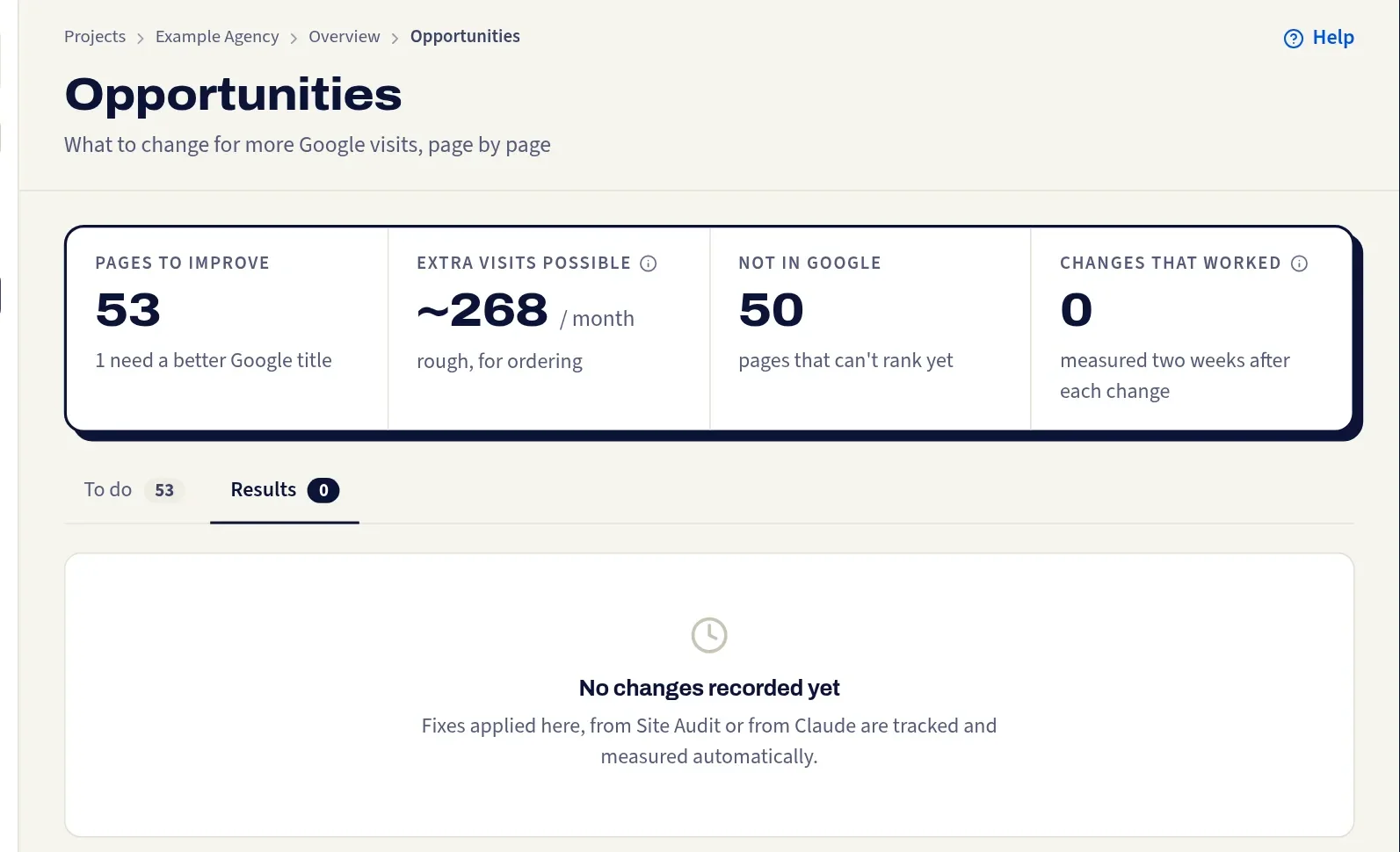 The Results tab before any change has been recorded. Once you fix pages or mark them done, each change shows clicks before and after, and the position change when there is one.
Tips
- Work from the top. The list is ordered by potential, so the first five pages usually matter more than the next fifty.
- Give changes time. Google needs a few weeks to re-crawl and settle; judge a change by its measured result, not the next day’s ranking.
- Combine with Search Performance: when a page is losing clicks, check its trend there to see when the drop started.
FAQ
The list is empty.
“Nothing left here” means there is nothing to act on right now. New opportunities appear as rankings and Search Console data update. If Search Console isn’t connected, connect it first.
Fix only offers Copy, not Apply.
Applying needs a way to change the site: the Bridge plugin on WordPress, or the Cloudflare Worker or snippet elsewhere. The side panel says why it can’t apply. You can always copy the text and paste it in.
Are the visit numbers a forecast?
No. They are rough estimates from Search Console and typical click rates, used to sort the list.
Next, keep an eye on the searches behind these wins in Rank Tracker.