
RankThat has an MCP server, the standard way AI assistants connect to other tools. Once you add it to Claude, ChatGPT or another agent, you can ask questions like “Which of my sites lost the most Google clicks last month?” or “Draft better titles for the five pages closest to page one” and the assistant answers from your real RankThat data. With your approval, it can also apply fixes to your sites.
The agent signs in as you and sees the same projects you can open in RankThat, with the same permissions.
Before you start
- An agent that supports MCP: Claude (claude.ai, Claude Desktop or Cowork), ChatGPT in developer mode (Plus, Pro, Business and Enterprise), Claude Code, Cursor, VS Code with GitHub Copilot agent mode, or any other MCP client that supports sign-in (OAuth).
- For automations (n8n, Make, the OpenAI or Claude Agent SDKs, your own scripts) you’ll use an API key instead of a sign-in. See step 5.
Step 1: Copy the server URL
In RankThat, open the account menu (your initials, bottom left), choose Settings, then AI agents. Under Connect an AI agent, the Server URL is https://rankthatseo.com/mcp. Click Copy.
Agents that support sign-in need only this URL. Copy it first, then use the links on the same page.
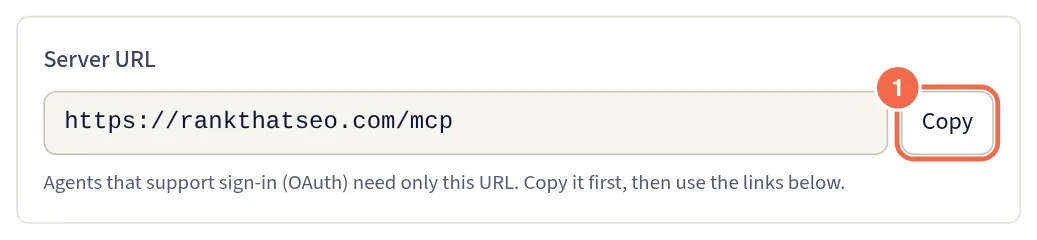 1: copies the server URL. It’s the same for every RankThat account; signing in decides whose data the agent sees.
Step 2: Add RankThat to Claude
- On the Claude card, click Open Claude connectors (it opens claude.ai’s connector settings).
- Choose Add custom connector. Name it
RankThatand paste the URL. Leave the OAuth fields empty. - Click Connect. Sign in to RankThat if asked.
- RankThat shows what the connector will be able to do. Click Allow.
- In a chat, turn RankThat on in the tools menu.
The permission page lists two things. The agent can read your projects (rankings, Search Console, audits, backlinks, reports, AI visibility and content) and make changes you approve (SEO titles and meta descriptions, audit fixes, keywords to track, report drafts). It can’t send reports or change billing.
The same connector works in Claude Desktop and Cowork once it’s added to your Claude account.
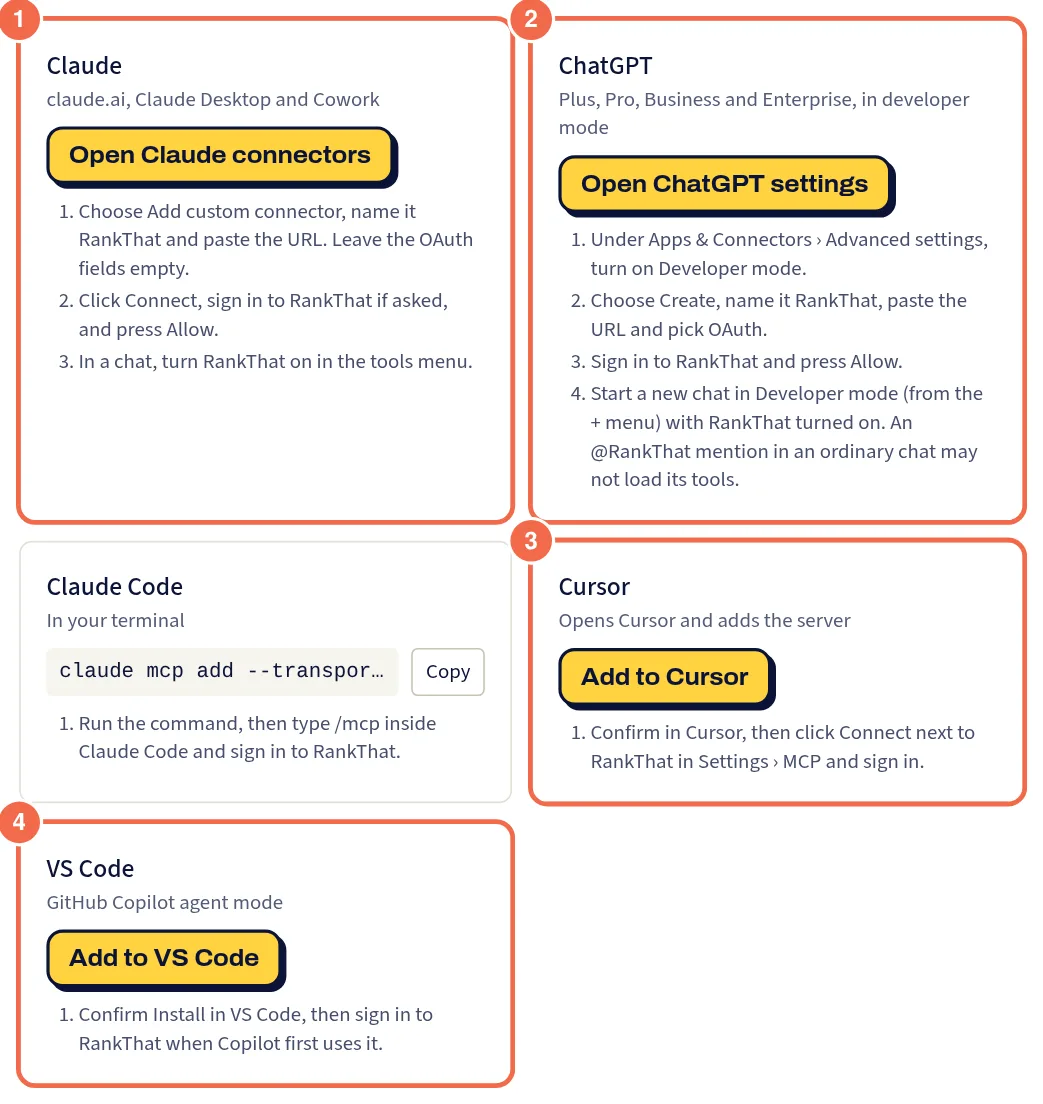 1: Claude (claude.ai, Desktop and Cowork). 2: ChatGPT in developer mode. 3: Cursor. 4: VS Code. Claude Code has its own card with a command to copy. Each card lists its steps.
Step 3: Other agents
- ChatGPT (developer mode): click Open ChatGPT settings. Under Apps & Connectors › Advanced settings, turn on Developer mode. Choose Create, name it RankThat, paste the URL and pick OAuth. Sign in to RankThat and press Allow. Then start a new chat in Developer mode (from the + menu) with RankThat turned on. An @RankThat mention in an ordinary chat may not load its tools.
- Claude Code: copy the command on the card,
claude mcp add --transport http rankthat https://rankthatseo.com/mcp, run it in your terminal, then type/mcpinside Claude Code and sign in. - Cursor: click Add to Cursor, confirm in Cursor, then click Connect next to RankThat in Cursor’s Settings › MCP and sign in.
- VS Code: click Add to VS Code, confirm Install, then sign in to RankThat when Copilot first uses it.
- Any other MCP client: add the server URL and sign in when it asks.
Step 4: Ask questions and approve changes
Name the site in your question by its project name or domain. A few prompts to start with:
- “List my projects and their Site Health scores.”
- “What are the top 10 searches for Coastline Plumbing that are close to page one?”
- “Compare last month’s Google clicks with the month before for every site.”
- “Show the site audit issues for Brightside Dental and propose fixes for the titles.”
- “Which pages does Google not index for Bean & Barrel Coffee, and why?”
Reading is safe. Questions about rankings, Search Console, audits, backlinks, AI visibility, local grids, leads, citations, keyword research and competitors never change anything. Asking the agent to propose a fix only drafts it.
Changes always ask first. Applying an audit fix, changing a page’s SEO title or description, starting a site audit, tracking keywords, showing or hiding a report for a client, and drafting a monthly report are marked as changes, so your agent asks you before each one. Reports are never emailed from an agent: a drafted report waits for you in RankThat.
Fixes apply wherever RankThat applies fixes: through the Bridge plugin on WordPress, or the Cloudflare Worker or snippet on other sites (see Apply fixes on sites without WordPress). They’re recorded and measured like any change you make in the app.
Step 5: Create an API key for automations
Tools like n8n and Make can’t do the sign-in, so they use a key.
- In Settings › AI agents › API keys, type what it’s for (for example “n8n weekly report”) and click Create key.
- Copy the key straight away. It isn’t shown again.
- Send it to the server URL with each request as
Authorization: Bearer <key>, or in anX-API-Keyheader.
A key acts as you, with your project permissions, so keep it secret. You can have up to 20 active keys. Revoke one any time with Revoke next to it.
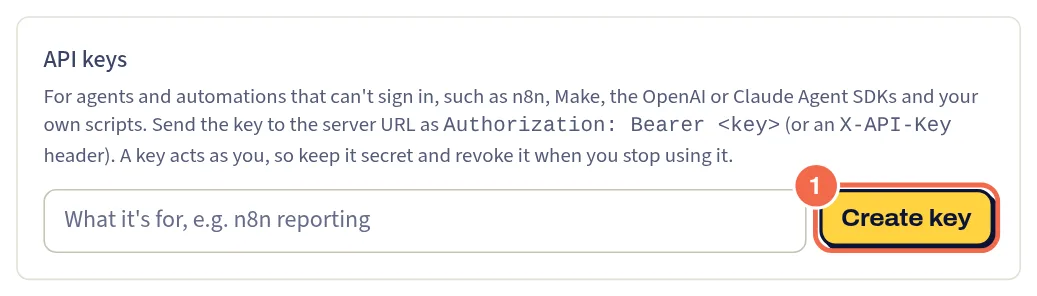 1: creates a key. Name each key after what uses it, so you know which one to revoke later.
Step 6: See and remove connections
Connected apps at the bottom of Settings › AI agents lists every agent you’ve connected, when it was connected and when it was last used. Click Disconnect to cut one off. It loses access at once; to use it again, connect again from step 2.
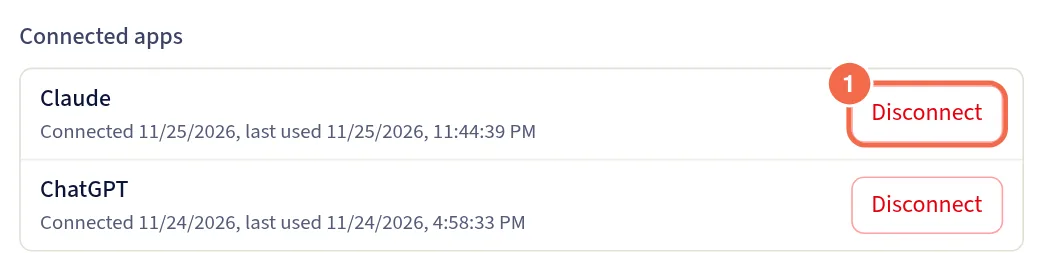 Every connected agent with when it was connected and last used. 1: Disconnect removes its access straight away.
Who can do what
The agent has your access, no more:
- Projects where you’re a client (view only): it can read, but every change is refused.
- Projects where you’re an editor or admin: it can make the changes you approve.
If a teammate connects their own agent, it sees their projects, not yours. To change what someone can open, see Invite teammates and give clients view-only access.
Troubleshooting
ChatGPT says the RankThat tools aren’t available
Its tools only load in a developer mode chat. Start a new chat from the + menu in Developer mode, with RankThat turned on, instead of mentioning @RankThat in an ordinary chat.
The agent can’t find my site
Use the project name as it appears in RankThat, or the domain. Ask “List my projects” to see the names the agent sees.
A change was refused
Check your role on that project. View-only access can’t make changes. If the change was a fix, the site also needs a connection that can apply it (the Bridge plugin, or a Cloudflare Worker or snippet).
I shared an API key by mistake
Revoke it in Settings › AI agents › API keys, then create a new one for the tool that used it.
Next step
Ask your agent to propose fixes from the latest audit, then apply them on WordPress with the Bridge plugin.