
Moving a site over from Semrush or Ahrefs? You don’t have to start your rank history from scratch. RankThat reads the CSV files those tools export and brings in your keywords (with volume, difficulty and CPC), your ranking history, day by day, and your competitors. Rank Tracker charts then show the months before you switched, and you can compare old and new positions on the same chart.
Before you start
- One project per site. Each import goes into the project you’re in. If you’re moving several sites, create a project for each first.
- Plan limits apply. New keywords count toward your plan’s keywords per project (Starter 100, Professional 1,000, Enterprise unlimited), and new competitors toward your competitor limit. Keywords already in the project are updated and don’t use up room.
- File size. Up to 9 MB per file. For bigger exports, export fewer rows or split the file.
Step 1: Export the right report
Export as CSV. Any of these work:
Semrush
- Position Tracking › Overview › Export: your tracked keywords with ranking history. This is the one to use for history: each date in the file becomes a day of rank history in RankThat.
- Organic Research › Positions › Export: the keywords a domain ranks for, with the current position.
- Organic Research › Competitors › Export: competitor domains.
- Keyword Magic Tool or Keyword Manager exports: keyword lists with volume and difficulty.
Ahrefs
- Site Explorer › Organic keywords › Export: keywords with the current position and URL.
- Site Explorer › Organic competitors › Export: competitor domains.
- Rank Tracker › Export: tracked keywords and positions.
- Keywords Explorer exports: keyword lists.
UTF-8 and UTF-16 files both work, and so do comma, tab and semicolon separated files. You don’t need to edit the file: RankThat finds the header row even if the export starts with a few lines about the report.
Step 2: Open Import data and choose the file
In the project, open Project Settings and choose Import data in the left menu. In Import from Semrush or Ahrefs, click Choose CSV file and pick the export.
RankThat reads the file before importing anything, and shows what it found.
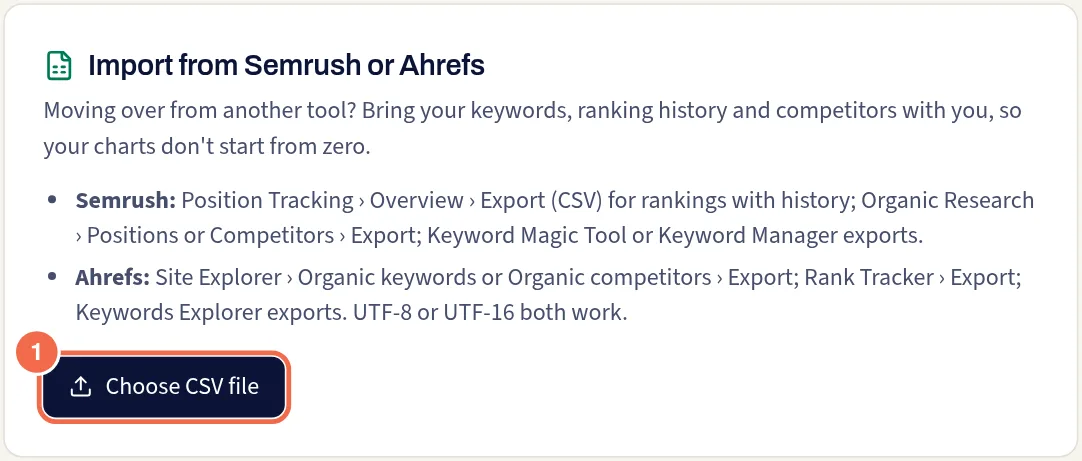 Choose CSV file reads the export and shows a preview. Nothing is imported until you click Import.
Step 3: Check the preview
The preview names the type of file, for example “Semrush rank tracking history”, “Ahrefs keywords with positions” or “Semrush competitors”, and then:
- For keywords: how many keywords, how many have a position, and, for history files, how many dates and the date range.
- For competitors: how many competitor domains. They’re added in the order of the file.
- Warnings, in amber, if something is off. For example, “Your plan has room for 250 more keywords in this project” means new keywords past that number are left out.
If the file isn’t one RankThat recognizes, you’ll see “This file has no Keyword or Domain column” and no Import button. Export one of the reports from step 1 instead.
Step 4: Choose the options
For keyword files, three options appear:
- Track them in the Rank Tracker (ticked by default): turns on rank tracking for every imported keyword. Untick it to bring the keywords into Keyword Research only.
- Positions are for desktop / mobile: Semrush and Ahrefs track devices separately. Pick the device the export was for, so the history lands on the right chart.
- Date of the export: shown for single-date exports with a position but no date column. Set the day the export was made; leave it blank for today. History files carry their own dates, so this doesn’t appear.
Click Import. You’ll see “Import started” and the file appears under Recent imports while it runs.
Step 5: Check the result
When the import finishes, Recent imports shows the result on one line, for example:
- “312 keywords added, 48 updated, 9,840 days of rank history”
- “12 competitors added, 3 over your plan’s limit”
- ”… left out (plan limit)” when the plan ran out of room for new keywords
A failed import shows the reason in red.
What happens to your data
- New keywords are added with Semrush or Ahrefs as their source, so you can tell them apart on the dashboard’s Keywords card and in Keyword Research. Tags in the file are kept.
- Keywords already in the project are updated, not duplicated, and new tags are merged with the old ones. If RankThat already has its own search volume and difficulty for a keyword, it keeps those.
- Rank history is saved one day per date in the file. Days RankThat already has for that keyword and device are left alone, so importing the same file twice doesn’t double anything.
- Competitors are added once each. Your own domain and competitors you already have are skipped.
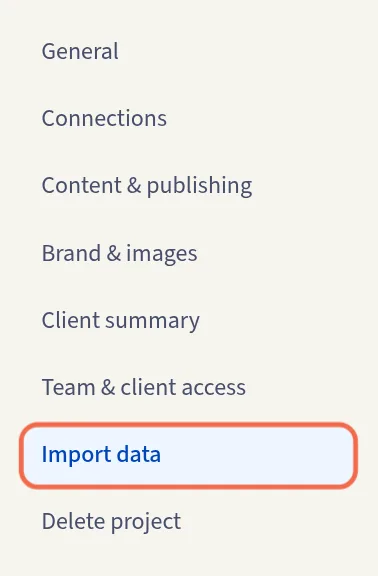 Import data sits in the Project Settings menu, under Team & client access.
Tips
- Import desktop and mobile separately. Export Position Tracking once per device and import each file with the matching device selected.
- Import history first. Rank Tracker’s trend charts look back further once the history is in, so import before you start judging progress.
- Keep the Semrush project running until the import is checked. Open Rank Tracker and spot-check a few keywords against the old tool before you cancel anything.
- Bring competitors in too. Imported competitors feed Competitor Analysis, Content Gaps and the Authority Score comparison. See Competitors and content gaps.
Troubleshooting
“That file is over 9 MB”
Export fewer rows (for example, only the top 5,000 keywords), or split the file and import each part.
“Your plan does not include rank tracking”
Your plan has no room for tracked keywords. Untick Track them in the Rank Tracker, or change plans from Billing in the account menu.
Some keywords were “left out (plan limit)”
The project reached its keyword limit. Remove keywords you don’t need in Keyword Research, or change plans, then import the same file again: keywords already imported are updated and only the missing ones are added.
Next step
Your imported keywords are now in Rank Tracker. See how to read the charts in Track keyword rankings, or save research for later in Keyword lists.