

To add schema markup, write it as a JSON-LD script describing the page (the business, the article, the product), place it in the page’s HTML, usually in the <head>, then test it with Google’s Rich Results Test and the Schema Markup Validator. On WordPress an SEO plugin such as Rank Math or Yoast outputs most of it for you; on other sites you paste the script into the page template or use a tool that adds it for you.
Schema markup is a shared vocabulary, defined at schema.org, that tells search engines and AI assistants what a page is about in a form they can read without guessing. It is one kind of structured data. It can make a page eligible for rich results such as product prices, review stars and breadcrumbs, and it removes doubt about basic facts like your business name, address and phone number.
This guide covers which types to use, three ways to add them, how to test, and the mistakes we see most often on client sites.
Which format: use JSON-LD
Google supports three formats: JSON-LD, Microdata and RDFa. Google’s introduction to structured data recommends JSON-LD because it is easiest to add and maintain: it sits in one script block instead of being woven through your HTML. Google can also read JSON-LD that JavaScript adds to the page after it loads.
Which schema types you need
Most sites need only a few types. Start with these:
| Page | Schema type | What it does |
|---|---|---|
| Homepage | Organization, or LocalBusiness (or a subtype like Plumber, Dentist) |
Who you are: name, logo, address, phone, hours, social profiles |
| Every page | WebSite, WebPage, BreadcrumbList |
Site name, page context, breadcrumbs in results |
| Blog posts and guides | Article or BlogPosting |
Headline, author, dates, image |
| Service pages | Service |
The service, who provides it, the area served |
| Product pages | Product with Offer |
Price, availability, reviews |
| Events | Event |
Date, location, tickets |
Two types to treat carefully:
- FAQPage. Google stopped showing FAQ rich results for every site on May 7, 2026 (they had been limited to government and health sites since 2023). The markup is harmless and still describes the page, but on most sites it won’t get extra space in the results. See FAQ schema.
- HowTo. Google no longer shows HowTo rich results at all.
The rule that matters most
Structured data must describe what is visible on the page. Google’s guidelines say not to mark up information users can’t see, even if it is accurate, and not to create empty pages just to hold markup. Review stars in schema with no reviews on the page, or a price in schema that differs from the page, can lead to a manual action, and at best the markup is ignored.
Structured data also doesn’t guarantee a rich result. It makes the page eligible, if the required properties are present and the guidelines are followed.
An example: LocalBusiness for a plumber
Here is JSON-LD for Coastline Plumbing, our fictional plumber in Austin, Texas. It uses the Plumber type, a subtype of LocalBusiness:
<script type="application/ld+json">
{
  "@context": "https://schema.org",
  "@type": "Plumber",
  "@id": "https://www.coastlineplumbing.example/#business",
  "name": "Coastline Plumbing",
  "url": "https://www.coastlineplumbing.example/",
  "logo": "https://www.coastlineplumbing.example/logo.png",
  "image": "https://www.coastlineplumbing.example/team.jpg",
  "telephone": "+1-512-555-0142",
  "address": {
    "@type": "PostalAddress",
    "streetAddress": "1200 Example Ave",
    "addressLocality": "Austin",
    "addressRegion": "TX",
    "postalCode": "78701",
    "addressCountry": "US"
  },
  "areaServed": ["Austin", "Round Rock", "Pflugerville"],
  "openingHoursSpecification": [{
    "@type": "OpeningHoursSpecification",
    "dayOfWeek": ["Monday", "Tuesday", "Wednesday", "Thursday", "Friday"],
    "opens": "07:00",
    "closes": "18:00"
  }],
  "sameAs": [
    "https://www.facebook.com/coastlineplumbing.example"
  ]
}
</script>
Notes on what we did there:
- The most specific type.
Plumbertells Google more thanLocalBusiness. Schema.org has subtypes for dentists, lawyers, restaurants, roofers (RoofingContractor) and many more. - An
@id. A stable identifier lets other markup on the site (an article’s publisher, a service’s provider) point at the same business instead of repeating it. - The same details as the page. The phone, address and hours match the footer and contact page exactly, and match the Google Business Profile.
The free Schema Generator builds this kind of block from a short form, so you don’t have to write it by hand.
Method 1: WordPress with an SEO plugin
If you use a WordPress SEO plugin, it already outputs schema. Check what it does before adding anything, or you will end up with duplicates.
Rank Math
- In the setup wizard (or Rank Math > Titles & Meta > Local SEO), choose whether the site is a person or an organization, and fill in the name, logo and, for local businesses, the business type, address, phone and hours.
- In Titles & Meta, set a default schema type for posts, pages and products.
- On each post or page, open the Schema tab in the Rank Math panel to change the type or edit the fields.
Yoast SEO
- In Yoast SEO > Settings > Site representation, choose organization or person and add the name, logo and social profiles.
- In Settings > Content types, set the default page and article type for each post type.
- On each post, the Schema tab in the Yoast sidebar changes the page and article type.
Yoast’s free version doesn’t output full LocalBusiness details such as address and hours; that needs its Local SEO add-on, or a separate block.
Adding what the plugin doesn’t cover
RankThat’s free WordPress Bridge plugin can add page schema (JSON-LD) and Organization or LocalBusiness schema as fixes drafted for you and reviewed before they go live, with one-click undo. RankThat re-checks the live page after a fix is applied.
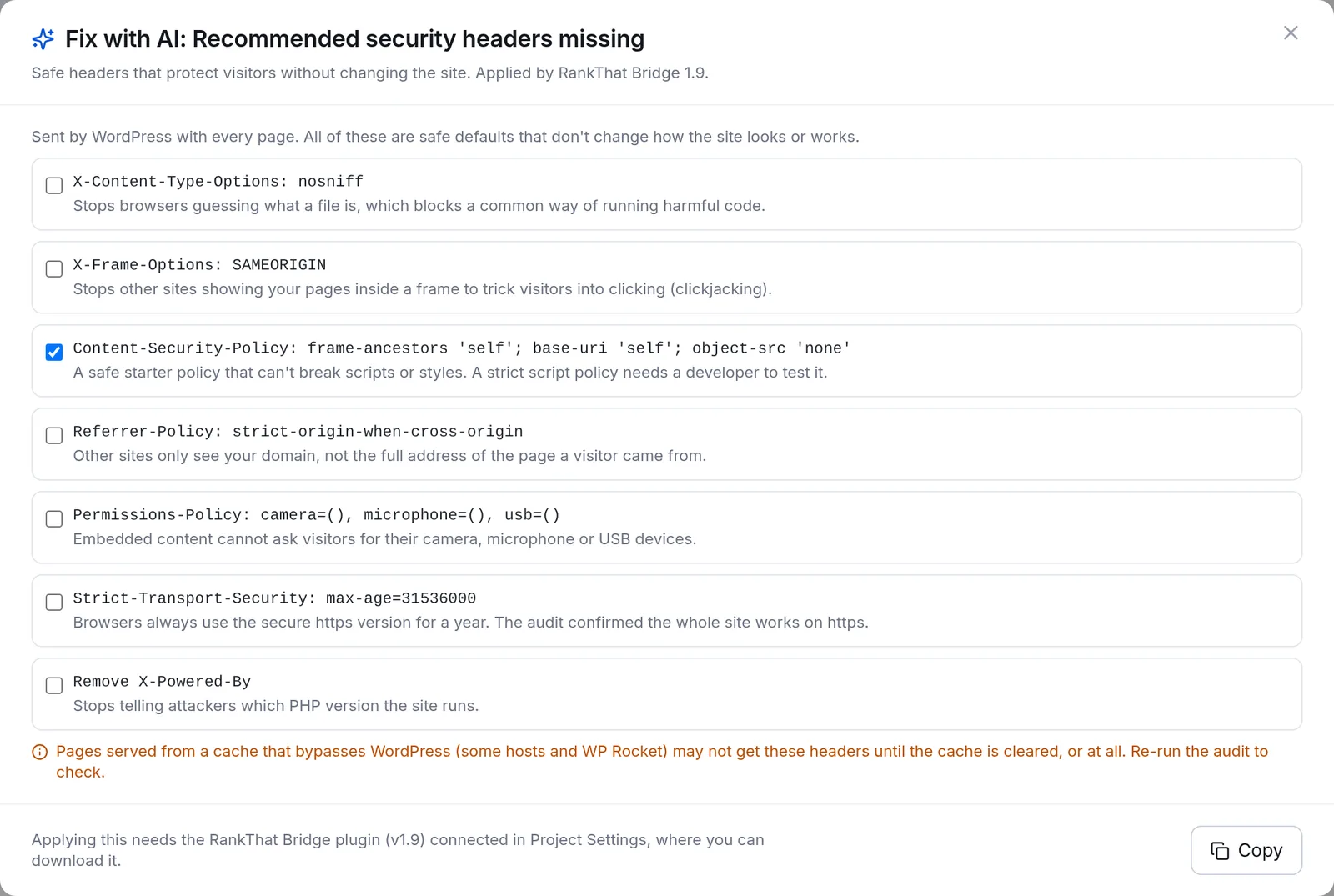 An issue opened in RankThat’s Site Audit with its drafted fix. For schema, you see the JSON-LD before anything changes on the site.
Method 2: Any site, by hand
On Webflow, Squarespace, Wix, Shopify or a custom site, paste the JSON-LD script into the page:
- Site-wide schema (Organization or LocalBusiness) goes in the site’s global head code setting, or in the layout template, so it appears on the homepage at least.
- Page schema (Article, Service, Product) goes in that page’s custom head code, or in the template for that page type, filled with the page’s own values.
Most builders have a “custom code” or “code injection” field for the head. On a custom site, add it to the template that renders the <head>. Many ecommerce platforms and themes already output Product schema, so check the page source before adding your own.
Method 3: Any site, without editing code
RankThat can apply schema on sites without WordPress in two ways, set up in Project Settings under “Fixes on sites without WordPress”:
- Cloudflare Worker (recommended, for any site whose domain uses Cloudflare, free plan included). You paste a script RankThat generates into Cloudflare and add a route. It adds page schema and Organization schema as pages are served, so the JSON-LD is in the HTML that search engines and AI crawlers fetch. Removing the route restores the site exactly.
- Script snippet (any other site). One line in the head that adds schema, titles, descriptions, canonicals and alt text in the browser. Google renders JavaScript and can read the result, but it is the weaker option: crawlers that don’t run JavaScript won’t see it.
Nothing changes in either case until you approve the fix.
How to test schema markup
Use two tools, because they check different things.
- Google’s Rich Results Test (search.google.com/test/rich-results). Paste a URL or code. It shows which rich result types the page is eligible for and lists errors (missing required properties) and warnings (missing recommended ones). It only covers types Google uses for rich results.
- The Schema Markup Validator (validator.schema.org). It checks all schema.org types against the vocabulary, including ones Google doesn’t use for rich results, such as
Service. Use it to catch typos in property names. - Search Console. After the markup is live, the reports under Enhancements (Breadcrumbs, Products, Review snippets and so on) show valid and invalid items across the whole site. Fix errors, then click Validate fix.
- URL Inspection > Test live URL. For schema added by JavaScript, this shows whether Google sees it in the rendered page.
RankThat’s Site Audit also flags pages without structured data, invalid JSON-LD and a missing Organization or LocalBusiness block across the whole site.
Mistakes we see
- Duplicate Organization blocks. The theme, the SEO plugin and a schema plugin each output one, with slightly different names or phones. Keep one source.
- Marking up what isn’t on the page. Reviews, prices or FAQs in schema that visitors can’t see.
- Self-serving review stars. Google doesn’t show review snippets for
LocalBusinessandOrganizationmarkup about your own business written on your own site. - Wrong or generic types.
Organizationfor a dental practice instead ofDentist;Articleon a service page. - Stale data. Old hours, an old phone number or an old address left in hand-written JSON-LD after a move. Put schema review on your redesign and move checklists.
- Expecting FAQ rich results. Google no longer shows them at all.
For a full page-by-page list, see the on-page SEO checklist, and for where schema fits in a wider review, our guide on how to do an SEO audit.
FAQ
Does schema markup improve rankings?
Not directly. Google says structured data helps it understand pages and can make them eligible for rich results. Rich results can earn more clicks, and clear markup helps search engines and AI assistants get your facts right.
Where should JSON-LD go, the head or the body?
Either works. The head is the convention and easiest to manage. Google reads JSON-LD wherever it appears in the HTML, including when JavaScript adds it.
Can I have more than one schema type on a page?
Yes. A service page can have WebPage, BreadcrumbList, Service and a reference to your LocalBusiness. Link them with @id values so they describe one connected set rather than separate fragments.
Why doesn’t my rich result show even though the test passes?
Passing makes the page eligible, not guaranteed. Google decides whether to show a rich result based on the query, the page and its quality. Some types, like FAQ, are limited to certain sites.
Do I need schema to appear in AI Overviews or ChatGPT?
No special schema is required for Google’s AI features. Accurate Organization and LocalBusiness markup still helps every system identify your business consistently.