
Programmatic SEO means creating many similar pages from one pattern and a list of values: “Emergency plumber in {{city}}” for 20 cities, or “Best {{product}} for {{use_case}}” for every pairing you sell. In RankThat you build the pattern once as a template, paste the values as CSV, check the titles, and RankThat writes one article per row. Each article goes into Content › Articles as a normal draft, so you review, improve and publish it like any other.
Before you start
- Writing uses your OpenAI key (Settings › OpenAI Key), as any article does. A batch of 50 rows is 50 articles on your OpenAI account, so start with a small batch.
- Have your values ready in a spreadsheet, one row per page and one column per variable.
- Only make pages that are genuinely useful on their own. Fifty pages that differ only by the city name are thin content, and Google treats them that way. Give each row something specific, such as local details in an extra column.
Step 1: Create a template with variables
Go to Content › Articles › Templates and click New template. Fill in:
- Template name / title pattern (required): the article title with placeholders in double curly braces, for example
Emergency plumber in {{city}}: prices and response times. For programmatic SEO this becomes the title of every article. - Content type, Target word count, Max images and Auto-generate images.
- Default keywords (comma-separated).
- Custom instructions: what every article must include. Use variables here too, for example “Mention that we serve {{city}} and the nearby {{areas}}.”
Under Template variables, click Add variable for each placeholder. Give it a Variable name (the word inside the braces, such as city), a Label, tick Required if every row must have it, and an optional Default value used when a row leaves it empty.
Two optional parts shape every page the same way:
- Outline: the headings each page is written with, in this order (Add section). Leave it empty and each page gets its own AI outline.
- FAQ questions (Add question) end each page with those questions, answered. Meta title and Meta description set the Google title and description, with variables if you like; left empty, the page title and the page’s first lines are used.
Click Create template.
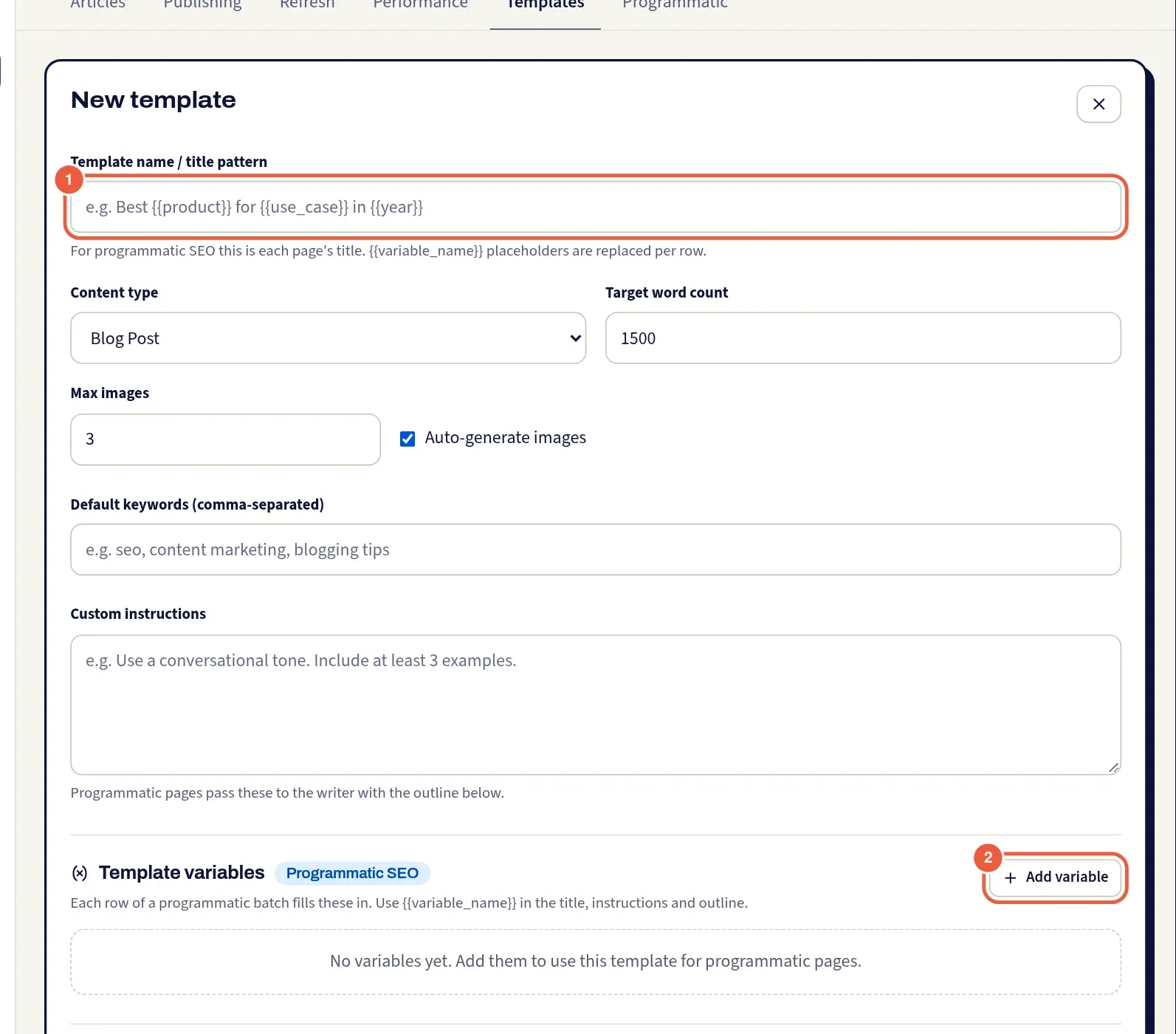 The New template form. 1: the title pattern, where you type placeholders like {{city}}. 2: Add variable adds a row to define each placeholder for batches.
Tip: add a variable called keyword (or focus_keyword). RankThat uses it as each article’s focus keyword. Without it, the article title is used instead.
Step 2: Start a batch
Go to Content › Articles › Programmatic and click New Batch. In Create Programmatic Batch:
- Batch Name, for example “City Landing Pages”.
- Template: pick your template. The list shows how many variables each has. Once picked, the variables appear as tags, marked required or optional.
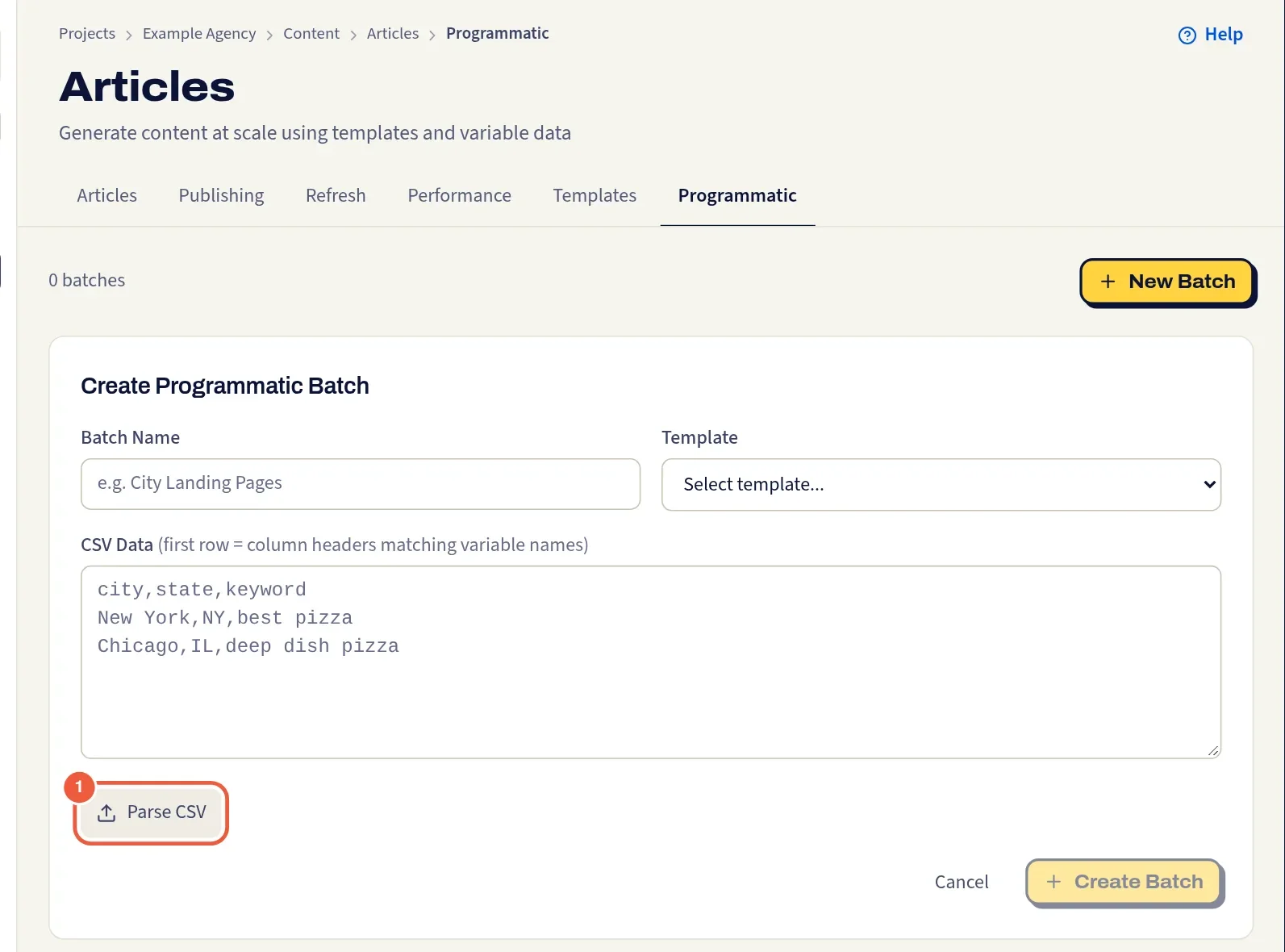 Name the batch, pick the template, paste the CSV, then 1: Parse CSV.
Step 3: Paste your CSV data
In CSV Data, paste your rows. The first row is the column headers, and they must match the variable names:
city,keyword,areas
Austin,emergency plumber austin,Round Rock and Pflugerville
Dallas,emergency plumber dallas,Plano and Irving
Click Parse CSV. RankThat counts the rows and columns and checks them against the template:
- Missing required columns (red): add the column or the batch can’t fill those titles.
- Missing optional columns (amber): defaults will be used.
- Extra columns (gray): fine. They are available as variables too.
Step 4: Preview the titles
Click Preview. RankThat shows the finished titles for the first rows (up to 20). Read them: odd capitalization, missing words or awkward phrasing show up here, and are much cheaper to fix now than after writing.
When the titles look right, click Create Batch. The batch appears in the list with the status Draft.
Step 5: Generate the articles
Click the batch to open it, then Start Generation. For each row, RankThat creates an approved topic and writes the article. The batch shows a progress bar and a count such as “12/40 items”.
- Pause stops after the current row. Resume carries on.
- Each row shows its status (Pending, Generating, Completed, Failed or Skipped) and, once written, the article’s own status.
- A row whose title already exists as an article in the project is Skipped, so running a batch twice doesn’t create duplicates.
- Delete removes the batch and its rows. The articles already written stay in Content › Articles.
Batch articles are written without images, to keep large batches fast. Add images per article in the editor (… menu › Create images with AI or Upload an image).
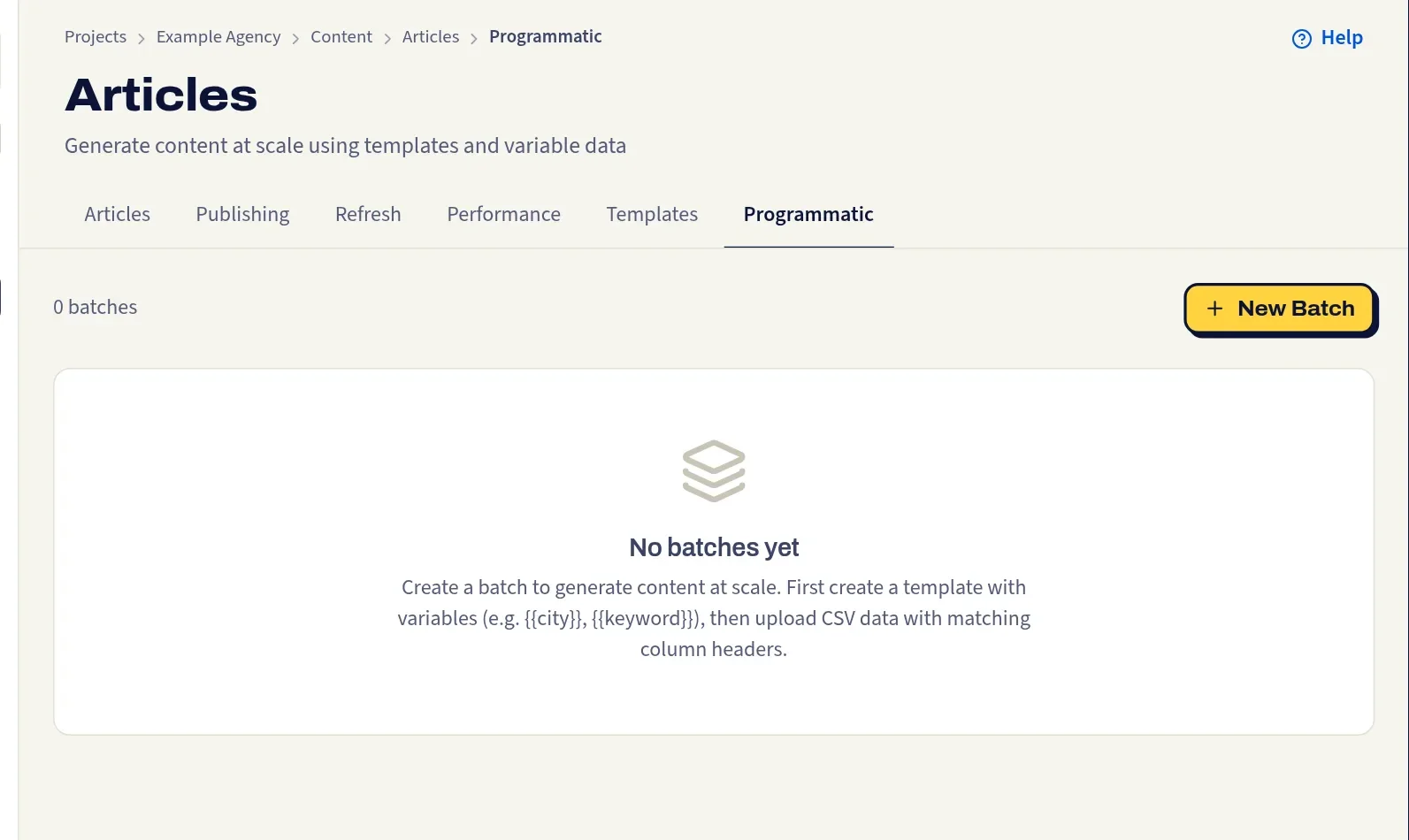 The page before your first batch. Once you create batches, each one is listed here with its status and progress. Open one to see each row’s title and status; failed rows show the reason.
Step 6: Review and publish
Every article lands in Content › Articles as a draft. Before publishing:
- Open a few and run through the Improve tab. Fix anything that repeats across all of them in the template’s Custom instructions for the next batch.
- Add what makes each page different: local details, a price, a job you did in that area. The editor’s What only you say helps here.
- Publish them in groups, not all on one day. Approve them and drag them to different days on the Content Plan’s calendar, or schedule each from the editor. See Publish and schedule articles.
Troubleshooting
“This template has no variables defined”
Edit the template in Content › Articles › Templates and add a variable for each placeholder in the title pattern.
“Missing required columns”
The CSV’s first row must contain every required variable name, spelled the same way.
A row was Skipped
An article with exactly that title already exists. Change the title pattern or that row’s values if you want a separate article.
A row Failed
The reason shows under the row. Fix it, then start a new batch with just that row.
Programmatic pages are only as strong as the subject behind them. To pick patterns worth scaling, look for clusters with many similar keywords in Find topic gaps with the Topical Authority map.