
Every article you publish is material for a week of social posts. The Social Calendar writes posts for LinkedIn, X (Twitter), Instagram, Facebook, Reddit and your Google Business Profile, some from your published articles and some original, in formats such as tips, questions and myth busts. You review each post and approve it. Google Business Profile posts can go out on their date by themselves; for the other networks, RankThat writes the post and you copy it and share it yourself. It can also write posts for each new article as soon as it goes live.
Before you start
- Writing posts uses AI, like writing articles.
- What posts by itself today: Google Business Profile posts, once the business’s Google Business Profile is connected in Project Settings › Connections. They go out on their scheduled date.
- Facebook and Instagram can be connected only after Meta approves RankThat’s app (Meta’s App Review). Until then they show Copy & share only.
- LinkedIn, X and Reddit are copy and share: RankThat writes the posts, you post them.
- Posts drawn from articles need published articles in the project. See Publish and schedule articles.
Step 1: Set up platforms and preferences
Go to Social › Social Calendar and click Settings in the page header (not the Settings icon in the left sidebar). The settings panel has:
- Social accounts: each network with its state. A network that can’t be connected shows Copy & share only. The Google Business Profile row reads Copy & share until connected; its Connect button opens Project Settings › Connections, where you connect the listing.
- Platforms: tick the platforms you want posts for.
- Posts per week: 1 to 28.
- Content Mix: a slider for the share of posts repurposed from your articles; the rest are original.
- Share new blog posts: when an article goes live on the site, write one post per platform above, linking to it, one a day from the next day.
- Auto-approve: approve generated posts automatically. Leave it off while you get used to the posts.
- Auto-generate: Manual, Daily, Weekly or Biweekly, and the Generate Day.
- Image generation: create images for posts.
- Tone Preferences: for example “Professional but approachable, use industry jargon sparingly”.
- Post Formats: Tips, Hot Takes, Polls, Questions, Mini Stories, Stat Shares and Myth Busts.
Click Save Settings.
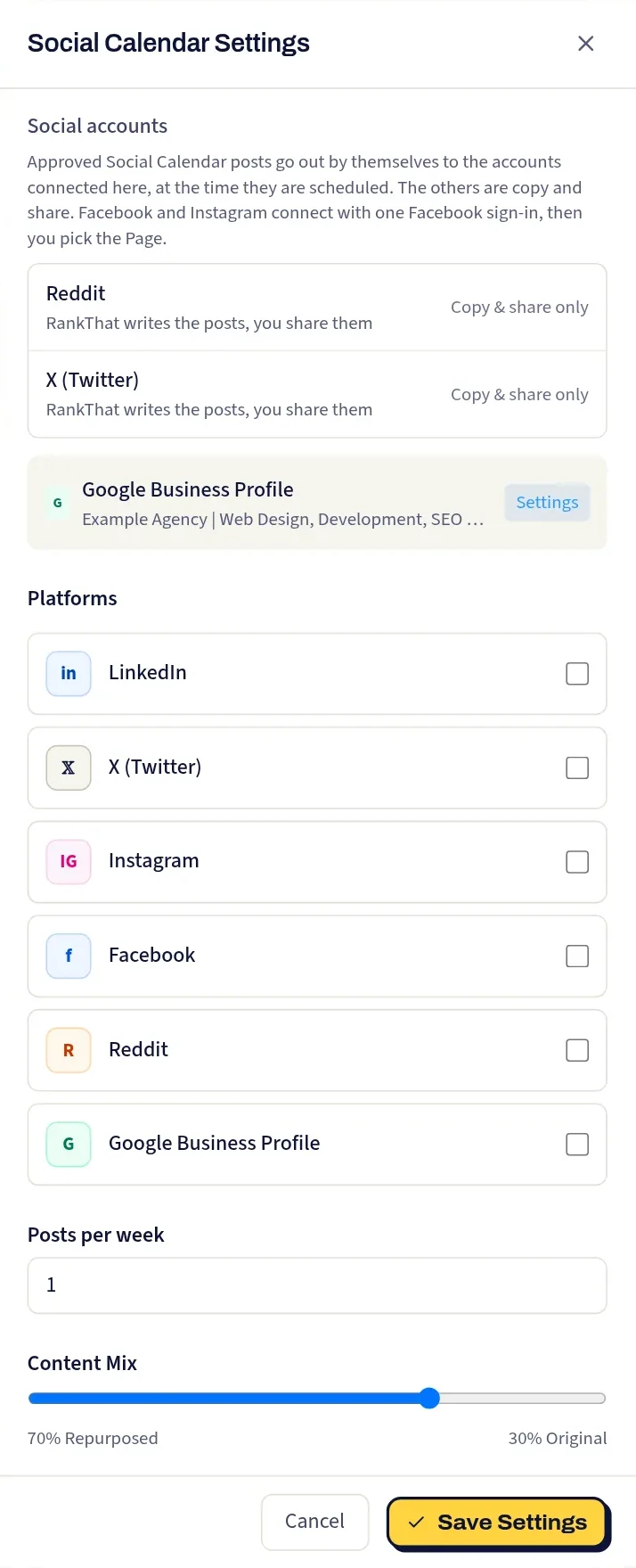 Social accounts at the top (Google Business Profile posts publish by themselves; the others are copy and share), then the platforms to write for, posts per week and the content mix.
Step 2: Generate a week of posts
Click Generate Week (or Generate Your First Week on an empty calendar). Choose a Start Date and End Date and click Generate Posts. RankThat writes posts for that range from your published articles and original ideas, and places them on the calendar.
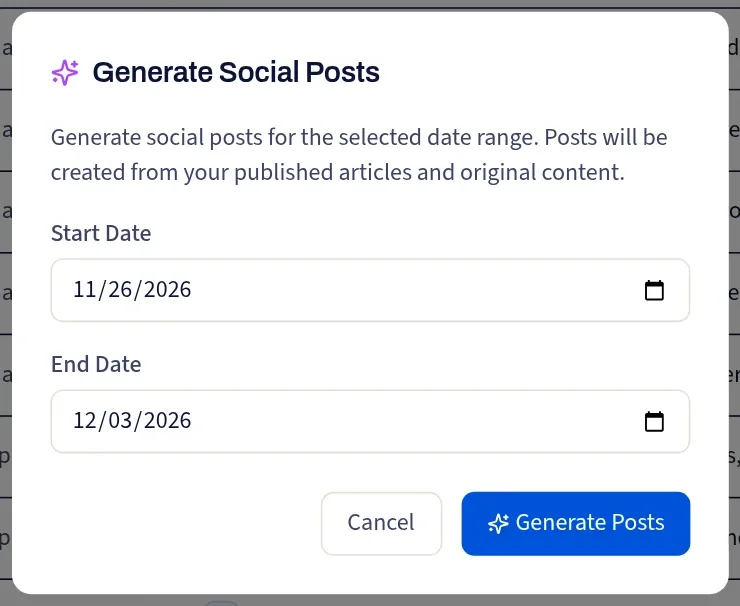 Pick the date range. Posts are created from your published articles and original content.
Step 3: Review the calendar
The counters at the top show Total Posts, Drafts, Approved and Posted. Switch between Month, Week and List views, and filter by platform and status.
Each post has a status: Draft, Approved, Scheduled, Posting, Posted, Failed or Skipped. In List view, the Source column shows whether a post was Repurposed from an article or is Original.
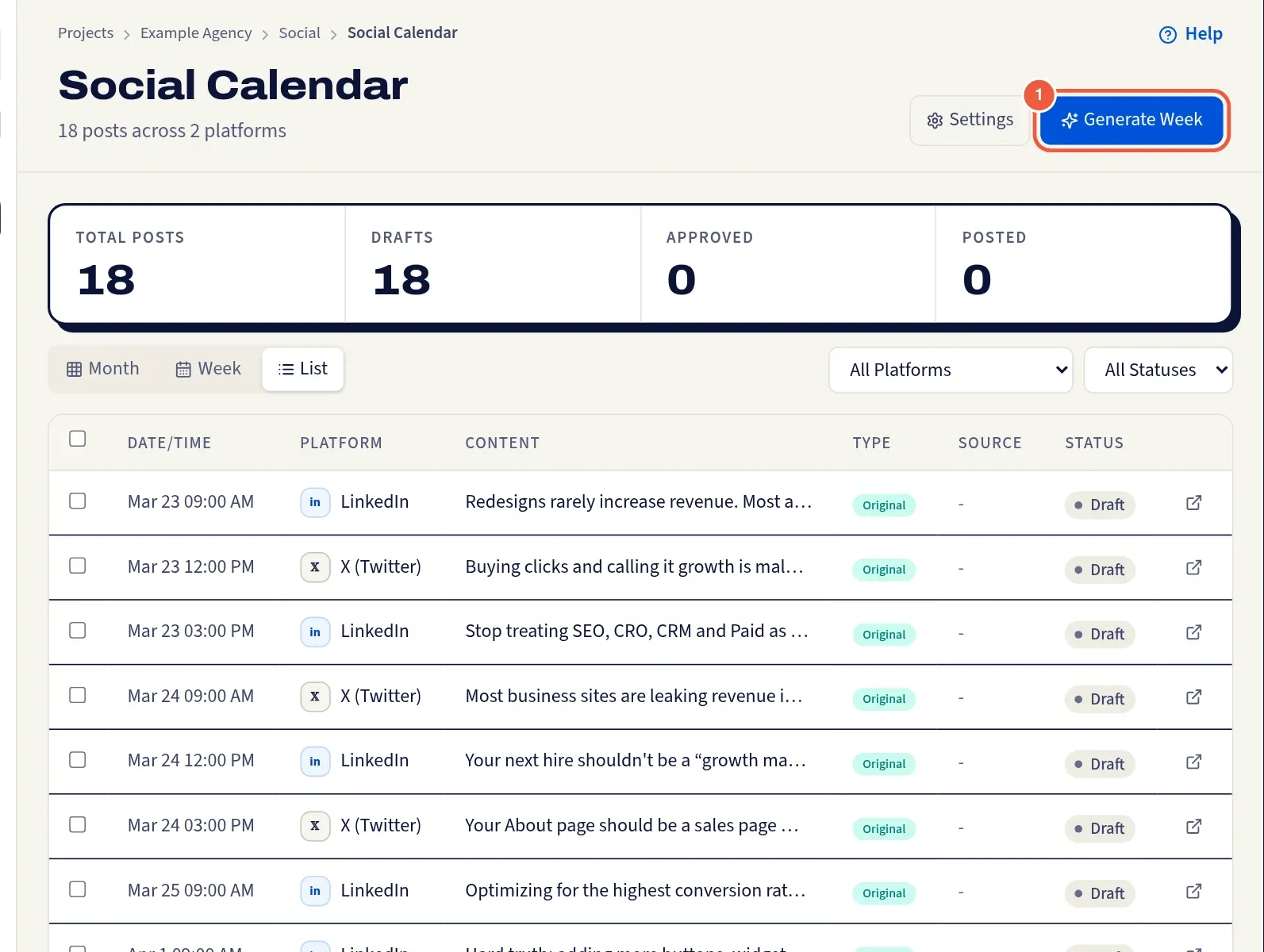 1: Generate Week writes the next batch. The Settings button next to it opens the platforms and preferences.
Step 4: Edit and approve posts
Click a post to open it. You can edit the Content (keep within the platform’s limit, for example 280 characters on X), add or remove Hashtags, see the Image, the Schedule Date/Time and the Source Article.
Then decide:
- Approve: the post is ready.
- Regenerate: write it again.
- Skip: leave it out.
To handle many at once, tick posts in List view and approve or schedule them together.
Step 5: Post it
What happens next depends on the platform:
- Google Business Profile, connected (in Project Settings › Connections): click Schedule on an approved post. RankThat posts it at its scheduled time, checking every 10 minutes. Post Now sends it straight away. When it’s done the status reads Posted. The post appears as an update on the business’s Google profile, with a Learn more button to the article when it came from one, and its image. Google checks every post, so a post with a phone number in the text can be refused; the reason shows on the post.
- LinkedIn, X, Reddit, Facebook and Instagram: click Copy & Share. The text is copied and the platform opens (for LinkedIn, X and Reddit the post is filled in for you). Post it there, then click Mark as posted.
- Google Business Profile, not connected: click Copy & open Google, add an update on your profile and paste the text, then Mark as posted.
If a post fails, the error shows on the post. Fix the cause (often a phone number in the text, or a Google Business Profile connection that needs signing in again in Project Settings › Connections) and click Retry.
Posts for a single article
You don’t need the calendar for a one-off. In the article editor, open the … menu and click Social posts. RankThat writes posts for each platform about that article, with buttons such as Share on LinkedIn, Post on X and Copy & Open Facebook. The next time you open it, the saved posts come back instead of new ones. In Content › Articles you can also tick several articles and click Social Posts to write posts for all of them.
Find trending topics with Viral Topics
Social › Viral Topics looks for subjects that are trending in your niche (from sources such as Reddit), with angles, hook variations and suggested posts. Approve a topic to send it to the calendar, or dismiss it. In its Settings you can add subreddits, keywords and interests to watch, and turn on Auto-Discovery (daily or twice daily).
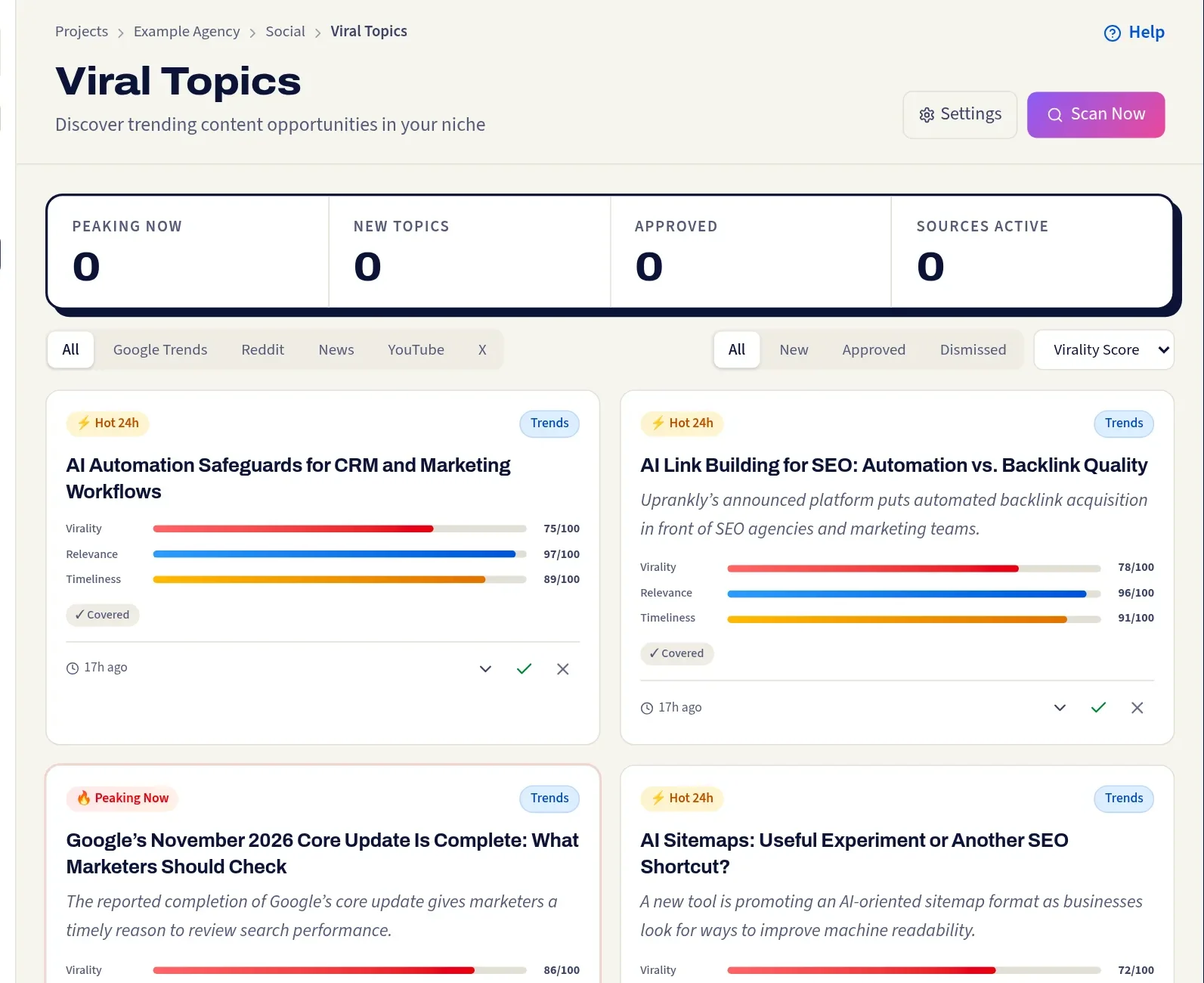 Trending subjects in your niche, ready to turn into posts.
Tips
- Turn on Share new blog posts. Each article then gets a post per platform, spread over the following days, with no extra work.
- Keep Auto-approve off until a few weeks of posts look right to you.
- Write for the platform. Edit the LinkedIn version to sound like a person at the business, not a headline.
- Add a real detail to each post: a price, a result, a question customers ask. These are the posts people react to.
Troubleshooting
“No Social Posts Yet”
Click Generate Your First Week. If you have no published articles yet, posts are original only.
Schedule isn’t offered on a post
The post must be approved first. Only Google Business Profile posts can be scheduled, and only once the business’s Google Business Profile is connected in Project Settings › Connections; until then they are posted by hand, like the other networks.
A post shows Failed
Open it to read the error. Most often Google refused the text (a phone number, for example) or the Google Business Profile connection needs signing in again in Project Settings › Connections. Fix it and click Retry.
Posts work best when there is a steady flow of articles behind them: see Plan, write and publish with the Content Plan.