
The project dashboard is the first page you see when you open a site in RankThat. It puts last month’s Google results at the top, then what to do next, site health, searches close to page 1, AI search and content, so you can see in a minute whether the site is moving in the right direction and where to look next. Almost every number is a link to the tool behind it.
Before you start
Most of the dashboard fills itself in once the main connections are made. Without Search Console the Google numbers show a dash; without an audit, Site health shows a button to run one. If you haven’t set those up yet, start with Get started with RankThat and Connect Google Search Console.
Step 1: Open the dashboard
Click a site on the Projects page, or choose Overview › Dashboard (the Home icon in the sidebar) from anywhere inside a project. The header shows the project’s name and domain, and which month the Google numbers cover. Under the title, three buttons: All tools lists every tool in the project, Test WordPress (only on WordPress sites) checks the connection, and the yellow button opens last month’s report.
While a site isn’t fully set up, a Set up this site card sits at the top with a progress bar and the next step highlighted. It disappears once every required step is done. Get started with RankThat explains each step.
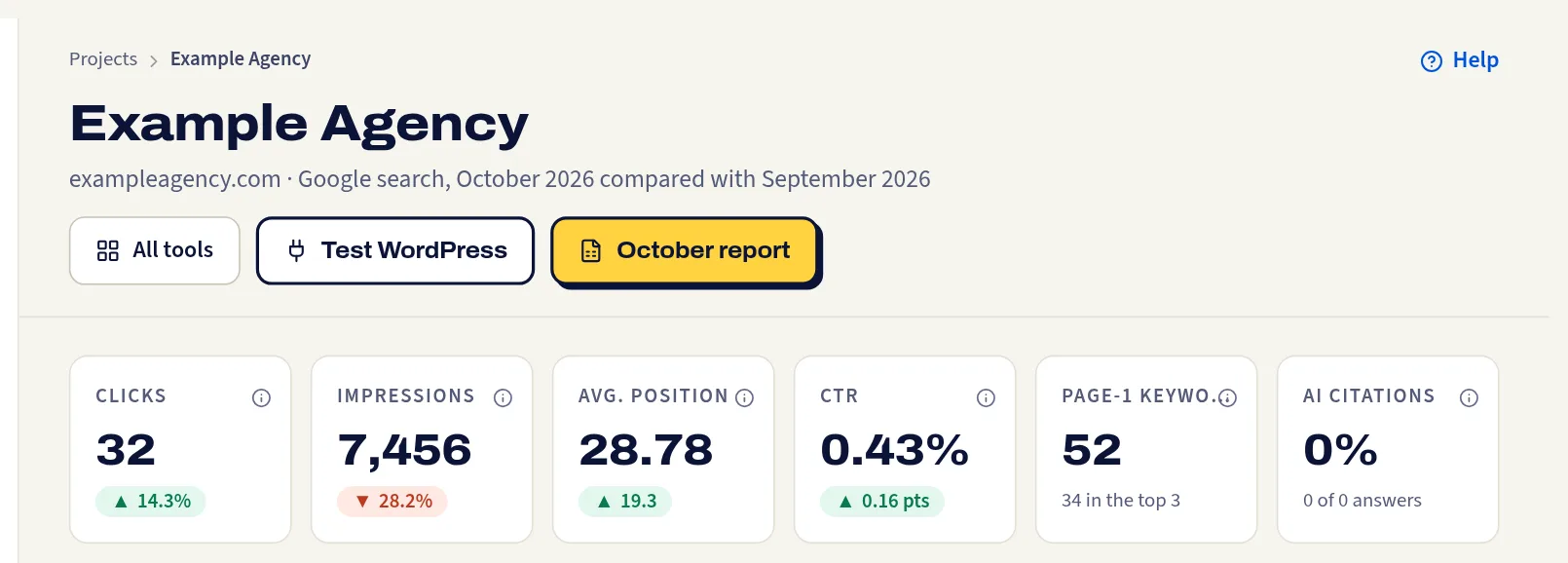 The header with All tools, Test WordPress and the monthly report, then the Google search tiles for last month.
Step 2: Read the Google search numbers
The row of tiles compares the last full month with the month before, using site-wide Search Console data (the same numbers as Search Performance and the monthly report).
| Tile | What it means | What good looks like |
|---|---|---|
| Clicks | Visits from Google search results | Rising month on month, or steady in a quiet season |
| Impressions | How often the site appeared in results | Rising usually means more searches the site shows up for |
| Avg. position | Average ranking across every search the site appeared for | A lower number is better; a green change means it moved up |
| CTR | Clicks divided by impressions | Depends on position: low CTR at a good position often means the title or description needs work |
| Page-1 keywords | Searches from Search Console where the site’s average position is on page 1, with how many are in the top 3 | Rising over time |
| AI citations | The share of AI answers that cite the site, from the latest AI visibility scan | Any citations are a good start; compare with competitors in AI Visibility |
Each tile shows the change from the previous month. Click a tile to open the tool behind it: Search Performance, Rank Tracker or AI Visibility. If Search Console isn’t connected, the Clicks tile says Connect Search Console and links to Project Settings.
Below the tiles, Clicks from Google, day by day shows daily clicks (solid line) and impressions (dashed line). Look for sudden drops: a fall on one day across the whole site usually points to a technical problem or a Google update, not a single page. Search performance under the chart opens the full report.
When the site has them connected, cards for website leads, ads, store sales and the Google Business Profile (calls, direction requests, website clicks and profile views) come after the chart.
Step 3: Clear what’s in Do next
Do next, beside the chart, lists work that’s waiting, each row linking to the right page:
- topics waiting for review for 7 days or more
- articles that failed to generate (open Articles to try them again)
- keywords missing search volume or difficulty
- competitors that haven’t been crawled in 30 days or more
When nothing is waiting, it says “Nothing needs attention right now.”
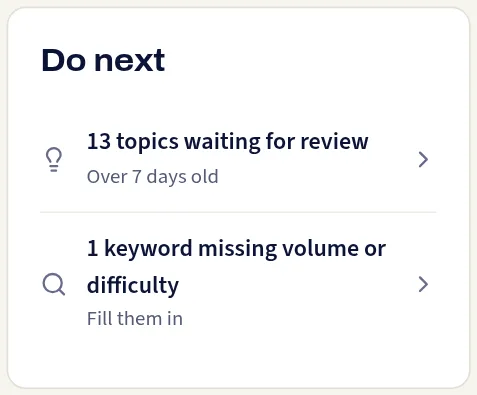 Each row is a shortcut to the page where you can clear it.
Step 4: Check Site health and Authority Score
Site health shows the score and grade from the latest site audit, the change since the audit before, and a score for each category. Click Open audit to see the full report, or Run it again to start a new audit. While an audit is running, the card shows its progress.
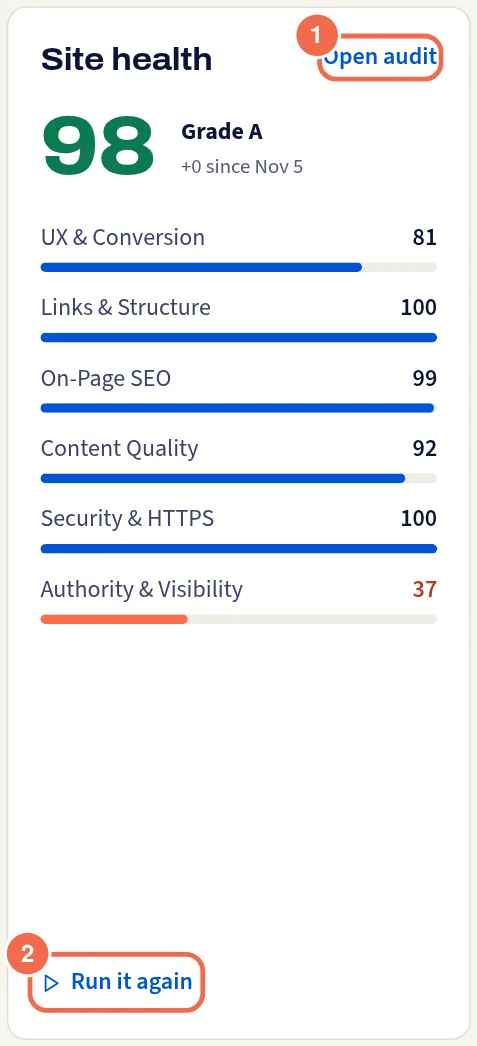 1: Open audit opens the full report in Site Audit. 2: Run it again starts a new audit.
Authority Score, further down, is RankThat’s 0 to 100 measure of a site’s strength in Google, like Ahrefs’ Domain Rating or Moz’s Domain Authority, with its monthly trend, link strength, referring domains and organic traffic. It appears after the first backlink check. The Backlinks link opens Backlinks & Audit, and Compare with competitors puts the site next to its rivals.
Step 5: Work through Close to page 1
Close to page 1 has two lists:
- The top list shows searches already ranking 8th to 20th: the site is at the bottom of page 1 or on page 2, with impressions and the current position. These are often the fastest gains: a better title or a few internal links can move the page into the clicks. All keywords opens Search Performance.
- Searched a lot, no page yet: keywords in the project with good search volume and no article yet. Add to plan turns them into ideas in the Content Plan (similar searches become one idea, and anything your site already covers is skipped).
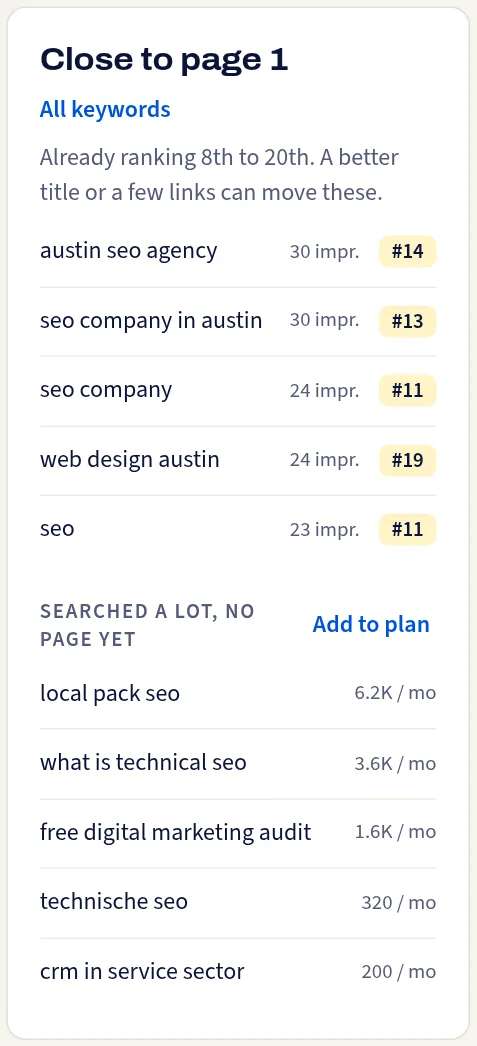 Searches in positions 8 to 20 with their impressions; the amber number is the current position. Below them, searches with no page yet.
Step 6: Check AI search, keywords and content
- AI search: before the first scan, the card explains what a scan does and shows the AI readiness score from the site audit, with Run AI scan. After scans, it shows the grade and how often AI assistants name and cite the site. AI tracker opens AI Visibility.
- Keywords: the number of keywords in the project and where they came from (Search Console, Semrush, Ahrefs, AI suggested and so on). Click the number to open Keyword Research.
- Content: articles by status, how many are published and how many topics are planned.
- Articles published per month: a bar for each of the last six months, so you can see whether publishing is keeping pace.
Step 7: Plan usage, all tools and recent jobs
Plan usage shows how much of each plan limit you’ve used, your plan name and, during a trial, how many days are left. When any limit is over 80% used, an Upgrade your plan link appears.
Recent jobs shows the last background jobs for the project (audits, imports, articles being written) with their status. All jobs opens Track Jobs.
All tools, in the header, opens a panel with every tool in the project, grouped the same way as the sidebar. Hover a tool to see what it’s for.
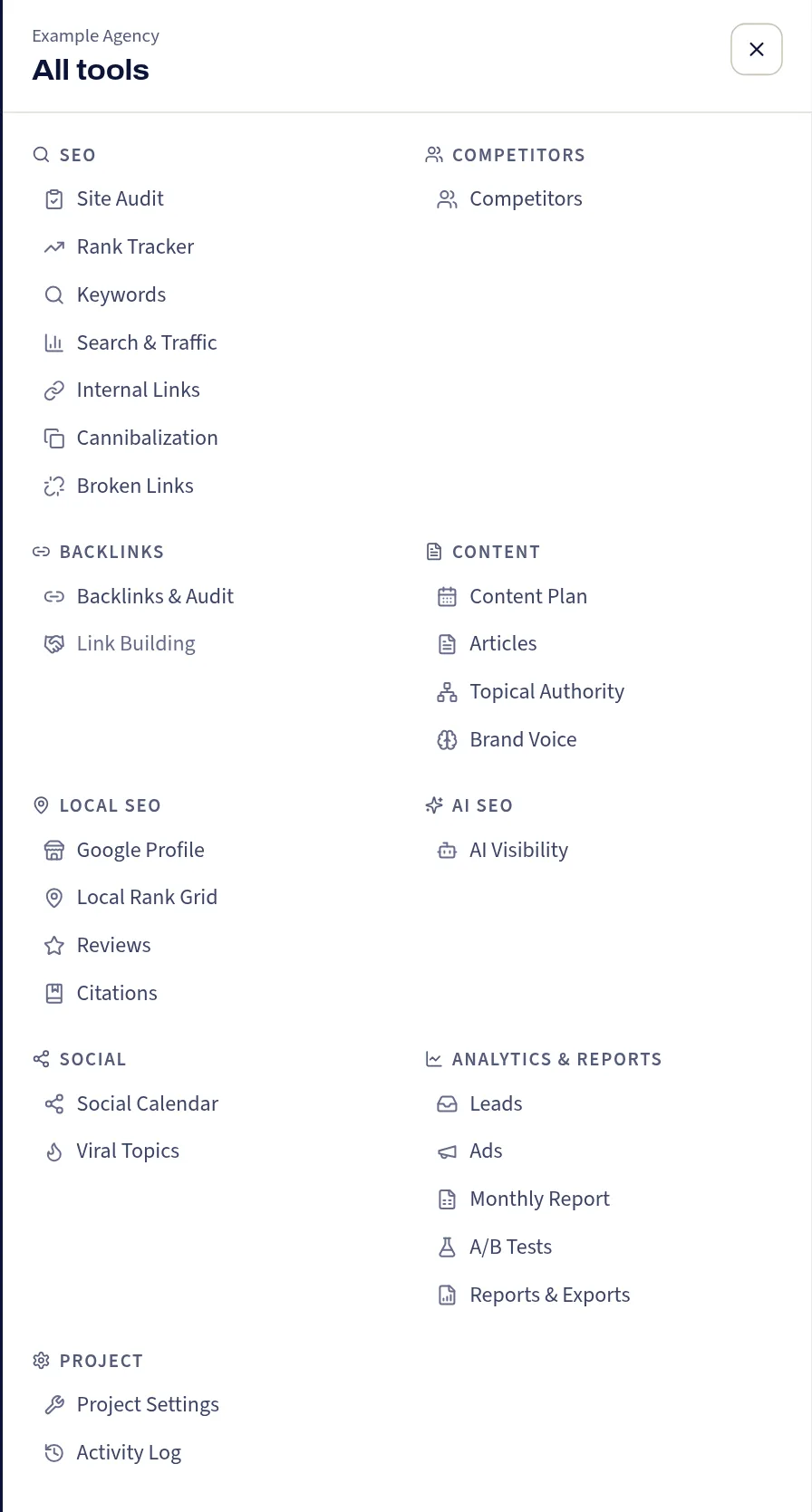 Every tool in the project, grouped like the sidebar. Grayed-out tools aren’t available yet; hover to see why.
Tips for getting the most out of it
- Check it weekly, act monthly. The Google numbers compare full months, so they change most after the 1st. Do next and Close to page 1 change every week.
- Start with Close to page 1. A page in position 11 with 2,000 impressions a month is usually worth more attention than a new article.
- Watch CTR next to position. If the position improved but clicks didn’t, the page’s title and description are the next thing to test.
- Clients see a simpler dashboard. People you invite with view-only access get a client dashboard with their rankings, visits from search, leads, reviews and finished reports, without drafts or settings.
FAQ
Why are the Google numbers a dash?
Search Console isn’t connected for this project, or there’s no full month of data yet. Connect it in Project Settings › Connections.
Why doesn’t the dashboard match Rank Tracker?
The dashboard uses Search Console averages across every search the site appeared for. Rank Tracker checks the exact position of the keywords you chose, on a set day and device. Both are right; they measure different things.
The setup card is gone but I didn’t finish
The X hides it for this browser session only. It comes back when you open RankThat in a new browser session, until every required step is done.
Next step
To find more pages worth improving, open Opportunities. To grow the keyword list behind these numbers, see Keyword research and clusters.