
When someone asks ChatGPT “who is the best dentist in Austin for implants?”, the answer names a few practices and cites a few sites. Prompt tracking asks your customers’ real questions on five assistants every week (or every day) and records, for each answer, whether your business is named, where it comes in the list, whether your site is a source, and who is recommended instead. It is the most direct way to see your AI visibility, because you choose the questions.
This article covers the Questions customers ask AI and Where AI gets its answers parts of the AI Visibility page. For the score and the citation sample on the same page, see AI Visibility.
Before you start
- Prompt tracking is on the Enterprise plans. Each plan includes a number of prompt checks a week, shared by all your sites: 50 on Enterprise 25, 100 on Enterprise 50 and 200 on Enterprise 100.
- A question checked weekly uses 1 check a week. A question checked daily uses 7.
- Adding questions and changing the settings needs Editor or Admin access to the project.
Step 1: Open Questions customers ask AI
Go to AI SEO › AI Visibility and open the Questions customers ask tab. The Questions customers ask AI card is at the top. Under the description are the schedule menu and Check now, then a row of assistants (Google AI Mode, ChatGPT, Perplexity, Gemini, Claude) and a line showing how many of your weekly prompt checks are in use across all your sites, and when the questions were last checked.
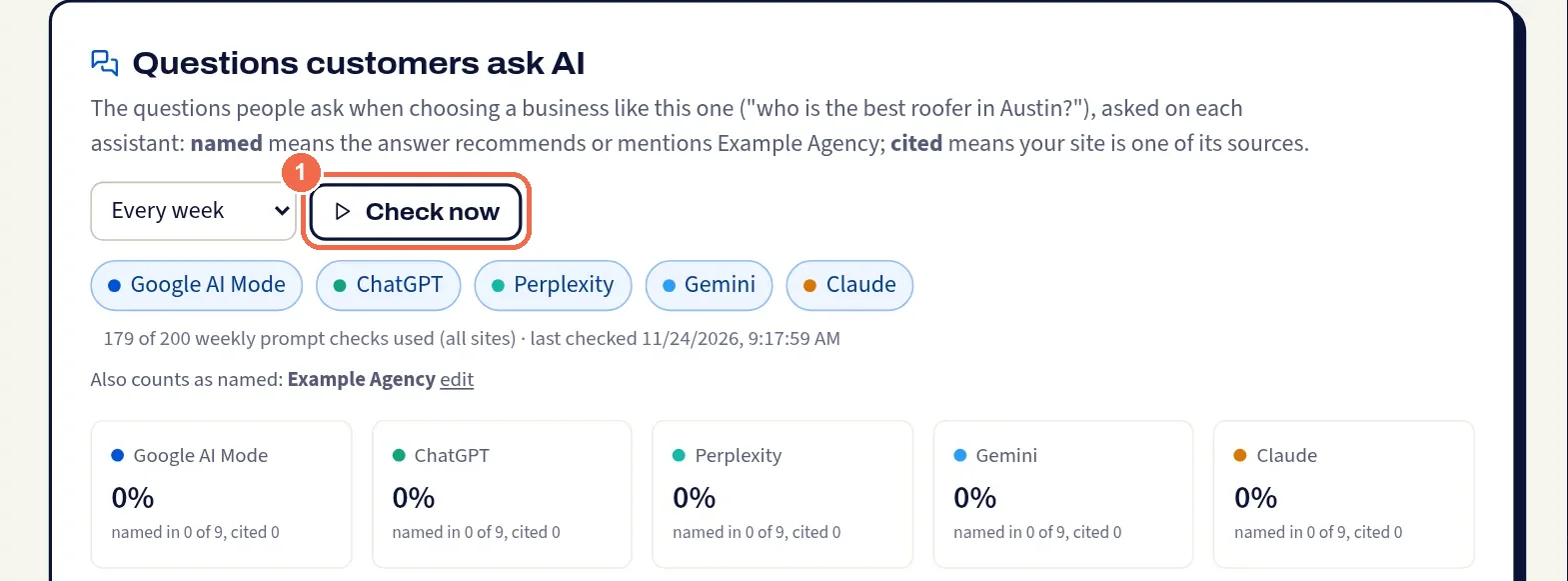 A project that already tracks questions. 1: Check now asks every active question again. Below the assistants: the weekly checks in use, Also counts as named, and a box per assistant with the share of answers that name the business.
Step 2: Add the questions
If the project has no questions yet, RankThat suggests about ten as soon as you open the page, written from the business, its area and its keywords. Remove the ones that don’t fit with the X, then click Track these 10 and check now (the number matches the list). The questions are added and asked straight away.
To add your own, type a question in the box, add a City if the answer depends on location, and click Add. Suggest prompts writes more ideas; click one to add it, or Add all to add the lot (with a city typed in, the button reads Add all for that city).
What makes a good question:
- Write it the way a customer would type it: “best emergency plumber near Coastline Beach” or “is a heat pump worth it in Denver”.
- Mix “best X in my area” questions with comparisons, prices and the specific problems you solve.
- Leave your brand out. You want to know whether the assistant thinks of you by itself.
- Add the city for local businesses. RankThat adds it to the question, and ChatGPT also searches from that city.
RankThat skips a question that is already tracked, and stops adding once the plan’s weekly checks are used.
Step 3: Pick the assistants and the names that count
Click an assistant in the row to switch it on or off for this project; at least one must stay on. All five are on by default.
Also counts as named lists the names RankThat looks for in each answer, beside the website address. It uses the project name by default. Click edit, type every name the business goes by, separated by commas (for example “Coastline Plumbing, Coastline Plumbing & Drains”), and click save. An answer that uses a name you didn’t list, and doesn’t mention the website address, is counted as not named.
Step 4: Check now and set the schedule
Click Check now to ask every active question on the chosen assistants. Results arrive in a few minutes. You can check by hand at most once every 6 hours, and a second check on the same day only asks the answers that are missing or failed.
To keep it current, set the schedule menu to Every week or Every day. Not scheduled means questions are only asked when you click Check now. Weekly suits most businesses: AI answers move slowly, and daily uses seven times the checks.
Step 5: Read the results
After the first check, a card per assistant shows the share of answers that name the business, with “named in X of Y, cited Z” underneath.
The table lists every question with one cell per assistant:
- #1, #2 and so on: the business is named, and this is its place among the businesses the answer lists.
- Named: the business is mentioned, but not in a numbered or bold list.
- Not named: the answer doesn’t mention the business.
- A small link icon means your site is one of the answer’s sources.
- error: the assistant didn’t answer this time. Hover to see why; the next check asks again.
Click any cell to read the answer, see whether it cites your site, and list the sources it used.
Below the table:
- How often you are named (% of answers): a line per assistant, once there are two or more checks.
- Businesses recommended instead: the business names the answers put forward, with how many answers named each.
- Sites the assistants cite for these prompts: the domains used as sources, with counts.
Step 6: Work the sites AI cites
Where AI gets its answers appears once your questions have answers. It lists every site the assistants cited in the last 90 days, with its Type (Directory, “Best of” article, Review site, Forum, Video, Social, News / media, Guide / reference, Competitor, Business or blog), how many Answers and Prompts cited it, and which Assistants. links to you marks sites that already link to your site.
Click a row to see What to do for that kind of site and the exact pages cited. Getting onto these pages is the fastest way into the answers: a directory profile, a mention in a “best of” list, a helpful forum reply.
Use the Status menu on each row to track outreach: To do, Contacted, Got it or Skip, and add a note (contact, date pitched, outcome) with Save note. Hide done and skipped keeps the list to what is left, and CSV downloads it for a spreadsheet.
Reading the results
- Named on Google AI Mode but not ChatGPT: the assistants use different sources. Compare their sources in the answer window.
- Cited but not named: the assistant read your page but recommended someone else. Make the business name, area and services plain on that page.
- Named, but always #4 or #5: look at what the businesses above you have that you don’t, often more reviews on the directories cited.
- A competitor in every answer: add them under Competitors if they aren’t there yet (see Competitors and content gaps).
Troubleshooting
“Prompts were checked in the last 6 hours”
Manual checks are limited to one every 6 hours per project. The weekly or daily schedule still runs as normal.
“Your plan includes N prompt checks a week across all your sites, and they are in use”
Remove questions here or on another site, or switch a site from Every day to Every week.
A cell says error
That assistant failed for this question on this check. It is asked again on the next check, and Check now on the same day only asks the failed ones.
For ideas on what to change once you can see the answers, read How to get recommended by ChatGPT and How to optimize for Google AI Overviews.