
For most local businesses the Google Business Profile listing brings more calls than the website. Google Profile is where you run it from RankThat: posts, offers and events on a schedule, the enquiries the listing really sends to your website, alerts when Google edits the listing by itself, holiday hours, photos, and a side-by-side with the businesses that beat you on the map. Reviews and replies stay on the Reviews page.
Before you start
- Connect the business’s Google Business Profile once: go to Project Settings › Connections, click Connect Google Business Profile, sign in with the Google account that manages the listing and tick the permission to manage your Business Profile listings. Then pick this site’s listing and click Use this listing. For an agency, sign in with the login that manages your clients’ listings: every site of the agency can then pick its own listing.
- The Top 3 on the map tab needs at least one Local Rank Grid scan.
- Posting, changing the listing and setting hours need Editor or Admin access to the project. Clients with view-only access see the figures and the posts.
RankThat never changes the listing by itself. Posts go out when you post or schedule them (or, if you choose, when a new article goes live), and the other changes (the website link, the phone number, a category, holiday hours, a photo) happen only when you click.
Step 1: Read the figures
Go to Local SEO › Google Profile. The top row shows the last 28 days against the 28 days before:
- Enquiries: the forms and taps on your phone number from people who came to the website from the listing, counted by RankThat (see Step 6 to switch this on).
- Calls, Direction requests and Website clicks: taps on the listing’s buttons, as Google reports them.
- Profile views: how often the listing was seen on Google Search and Maps.
Google reports these a few days late, so the 28 days end a few days back. When a holiday is near and the listing has no hours for it, a note above the figures says so, with a link to set them.
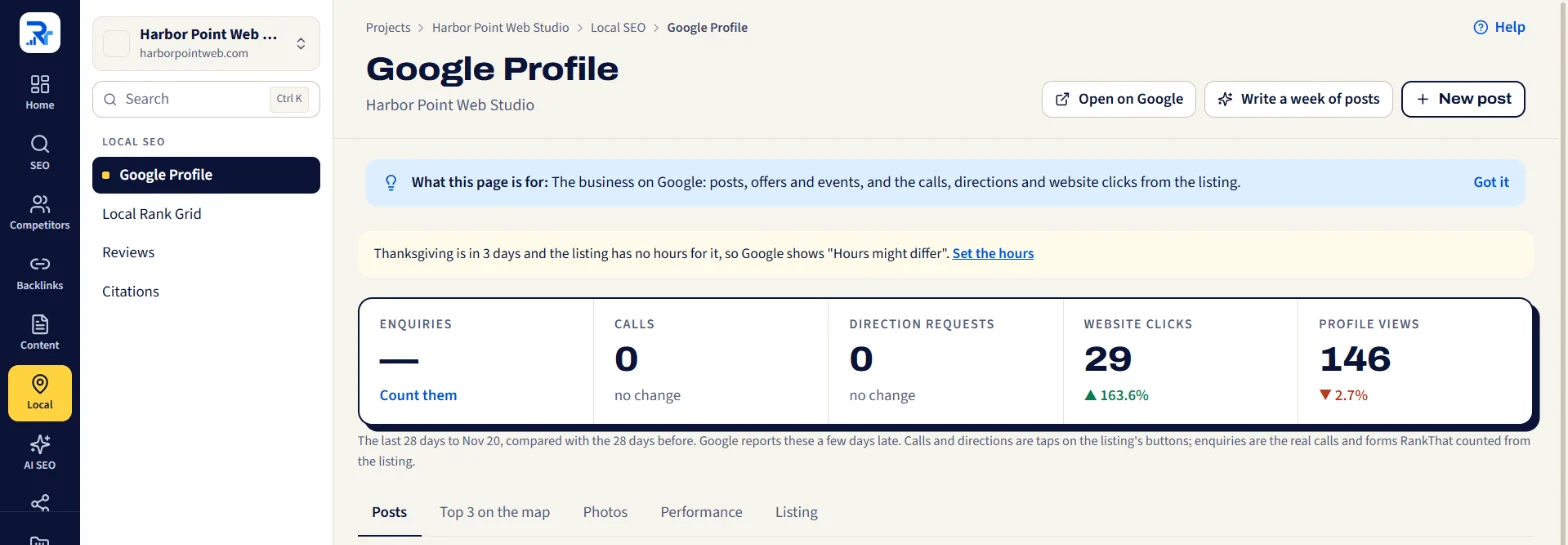 The figures for the last 28 days, a note that Thanksgiving has no hours yet, and the tabs: Posts, Top 3 on the map, Photos, Performance and Listing.
Step 2: Post an update, an offer or an event
Click New post. In the panel on the right:
- Pick the type: Update (news, a service, a tip), Offer (a title, start and end dates, an optional coupon code and terms) or Event (a title, dates and optional times).
- Write the text, up to 1,500 characters. Leave phone numbers out: Google refuses posts with one. Use the Call now button instead.
- Pick the button (Learn more, Book, Sign up, Order online, Buy or Call now) and the link it opens. Offers get Google’s View offer button.
- Add a photo if you like: pick one of the images from your website’s articles, or paste any public link to a JPG or PNG.
- Under Post to, tick other listings to send the same post to them too (listings of other sites you can edit, once they are connected).
- Choose Now or At a time, then click Post now or Schedule post. Save draft keeps it without posting.
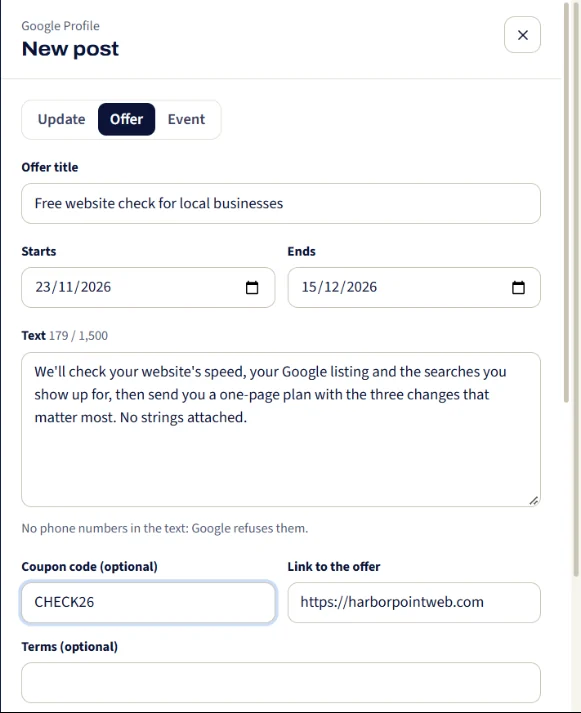 An offer with its dates, text and coupon code. The link gets a tracking code by itself.
Every post’s link gets a tracking code, so the From its link column of the Posts table shows the visits and enquiries each post brought. Visits need the site’s Google Analytics connected; enquiries need the RankThat Bridge plugin.
Write a week of posts at the top drafts updates from your business facts and the articles you published lately. They wait under Drafts for you to check, edit and schedule. It never writes offers or events, because only you know your deals and dates.
New articles, above the posts, turns each article you publish into a Google post about it, with a Learn more button to the article. It is set per site:
- Off (the default): nothing is posted from articles.
- Draft first: each new article gets a post written under Drafts. Check it, then post or schedule it.
- Automatic: the post goes out on the listing the same day or the next, around noon US Eastern time, with the article’s featured image. If Google refuses one, you get an email with Google’s reason.
The post is written from the article only, so it never invents prices, results or stories, and it never includes a phone number, which Google refuses.
The table lists posts as Scheduled, Posted, Not posted (with Google’s reason, for example a phone number in the text) and Drafts. Open one to change it, post it now, or delete it. To change a post that is already on Google, edit it in the Business Profile itself.
Step 3: Compare with the top 3 on the map
The Top 3 on the map tab puts the listing next to the three businesses that most often show in the map’s top 3 in your latest Local Rank Grid scans: their share of the top 3, rating, reviews, new reviews a month, photos and categories.
What to do under the table lists the gaps, most useful first: a category the top 3 use and your listing doesn’t (Add it adds it to the listing), fewer reviews or a slower pace than theirs, a lower rating, fewer photos, or no Google post in 30 days. Add a category only if the business really offers it: a wrong category can get a listing suspended.
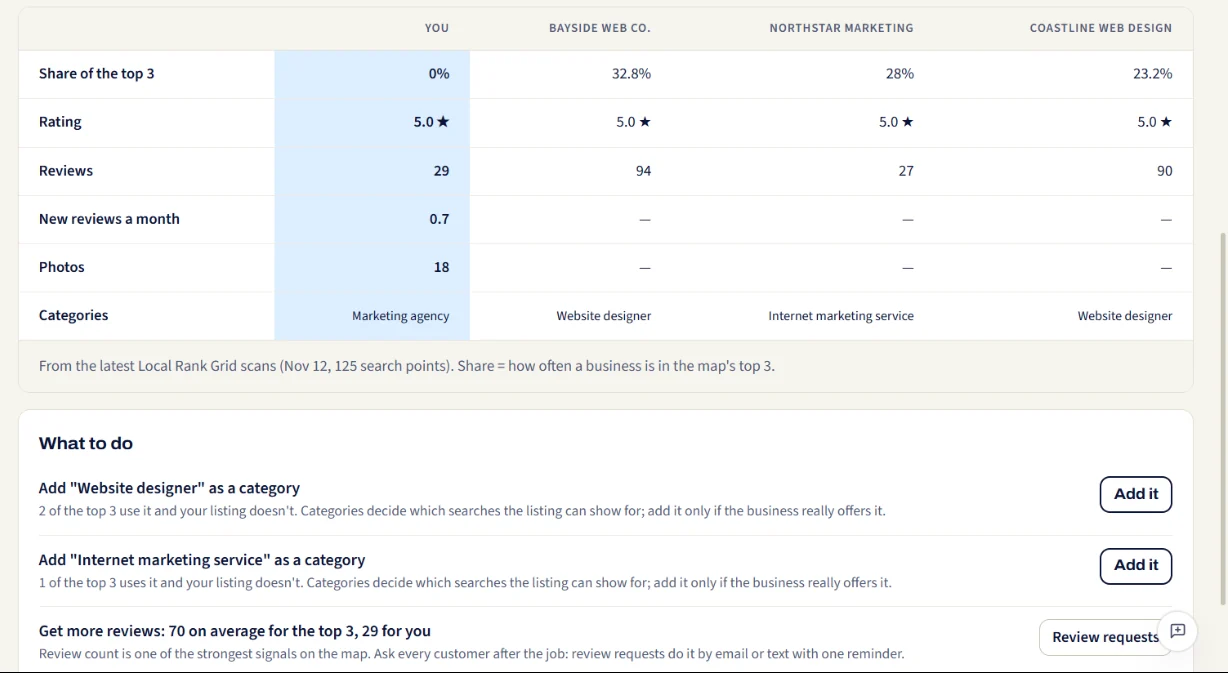 The listing against the three businesses most often in the map’s top 3, and the gaps to close.
Step 4: Add photos
The Photos tab shows the photos on the listing, newest first, and how old the business’s newest one is. To add one, pick an image from the website or paste a link, choose what it shows (At work, Team, Outside, Inside, Product or Other) and click Add to the listing. Google checks every photo before it shows. Recent photos of real work, the team and the place get a listing more calls and direction requests.
Step 5: Watch for Google’s own edits and set holiday hours
Open the Listing tab.
Google’s own edits: Google sometimes changes a listing by itself, often from a stranger’s suggestion: the hours, the phone, the website, the categories, the address or the name. RankThat checks every morning (or click Check now). When Google changed something, you get an alert, and the card shows yours next to Google’s for each field. Click Keep yours to send your details back, or Accept Google’s if Google is right.
Holiday hours: the coming US holidays (Thanksgiving, Christmas, New Year’s and the others) with what the listing says for each. Without hours for a holiday, Google shows “Hours might differ”. Click Set hours, choose Closed or Open with the times, tick any other listings that should get the same hours, and click Set on Google.
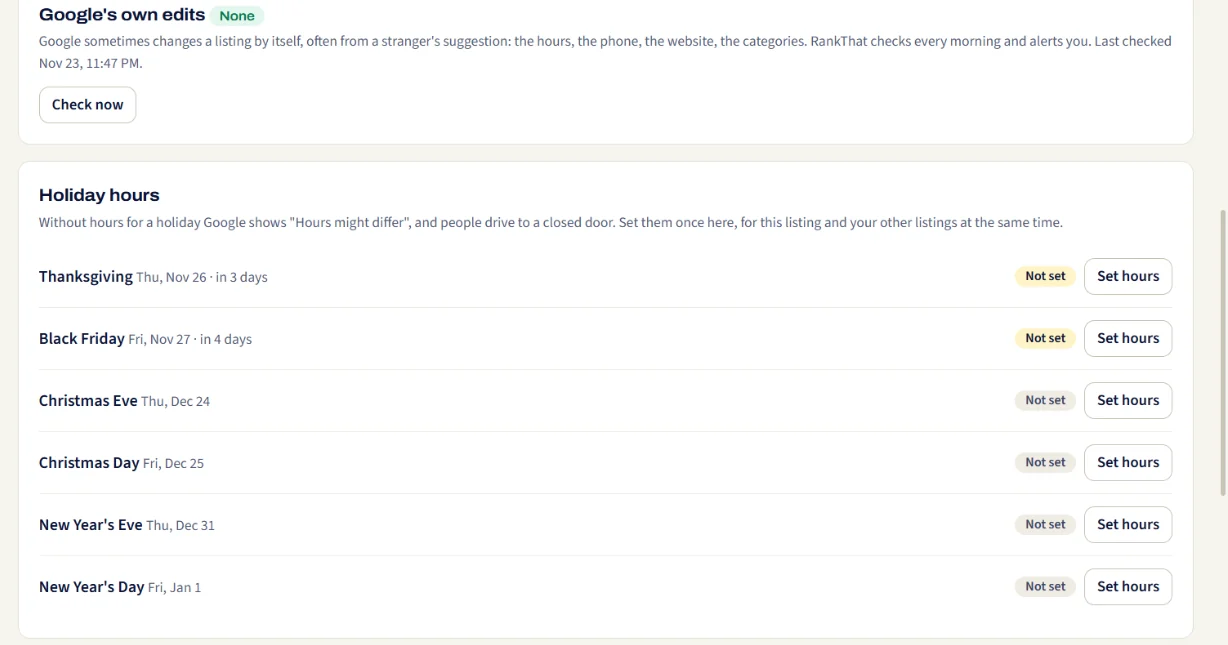 No edits by Google since the last check, and the coming holidays with Set hours on each.
Step 6: Count the enquiries from the listing
Google only reports taps. Count the enquiries from the listing, on the Listing tab, lets RankThat count the real enquiries that reach your website from the listing:
- Tag the link adds a tracking code to the listing’s website link. Visits from the listing stay in Organic Search in Google Analytics, and the Bridge plugin marks the forms and phone taps from those visits as coming from the listing.
Tagging changes the listing, so it happens only when you click, and Undo puts back the link that was there. From then on the Enquiries figure and the monthly report’s Google Business Profile section count them.
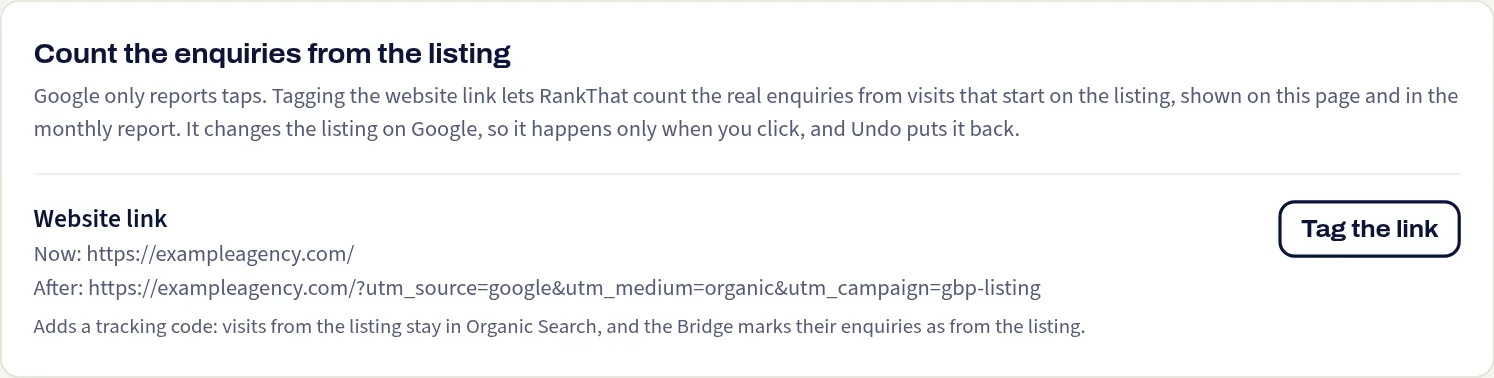 The listing’s website link before and after tagging. Tag the link adds the tracking code, and Undo takes it off again.
Calls made straight from the listing’s Call button never reach the website, so they stay in Google’s Calls figure. If the business uses CallRail and the listing shows a CallRail number, connect CallRail to the site and those calls show on the Leads page too.
Reading the results
The Performance tab shows the last 90 days of calls, directions and website clicks, and of views, plus 13 months by month with views on Search and on Maps separately. Under them, Searches that showed the listing lists, month by month, the searches people used before they saw the listing, with the month before. Google gives small numbers only as “under 15”. Each search is marked when the Local Rank Grid or the Rank Tracker already tracks it, and searches for the business’s own name are marked Your name; the ones marked Not tracked are worth adding. The monthly report adds a Google Business Profile section with the same figures for the month, compared with the same days of the month before while the month is still running.
FAQ
Why does Enquiries show a dash?
Nothing counts them yet. Tag the listing’s website link (Step 6), and the figure starts counting from then.
Why was my post not posted?
The reason shows on the post. Most often the text has a phone number, a link shortener, or wording Google doesn’t allow. Edit the post and click Post now again. Listings that already took it are not posted twice.
Will RankThat change my listing by itself?
No. It posts what you post or schedule, posts about new articles only if you set New articles to Automatic, and replies to reviews only as set in Reviews › Reply rules. The website link, categories, holiday hours and photos change only when you click.
Why are the numbers a few days behind?
Google publishes Business Profile numbers a few days late. RankThat reads them every morning and fills in the missing days as they arrive.
The business has several locations. How does that work?
Each site in RankThat takes one listing. Give each location its own site, or pick the main location’s listing. Posts and holiday hours can go to several listings at once.
For more ways to rank higher on the map, read How to get more Google reviews.