
Reviews are one of the few things a local business can grow every week that moves both map rankings and clicks. RankThat checks the business’s Google reviews every morning, drafts a reply to each new one in your voice, and lists them under Replies for you to approve and post. The page also shows how fast the business replies, what customers keep praising or complaining about (What they say), and how you compare with the businesses you meet in the map pack (Competitors). Under Get more reviews, Review requests emails (or texts) your customers a direct link to the Google review form after each job, with one reminder.
Before you start
- Reviews come from the business’s Google listing, which RankThat finds through the Local Rank Grid. Create a tracker for the business and run one scan: the scan links the Google listing, and from then on reviews can be read.
- Review requests need a review link. If the business has a tracker, RankThat builds the Google “write a review” link for you. Otherwise paste the link from your Google Business Profile.
- To post replies to Google from RankThat, connect the business’s Google Business Profile once (see Connect the Google Business Profile below). Without it you post each reply on Google yourself, in two clicks.
- Approving replies, changing the reply rules and the review request settings, and adding customers need Editor or Admin access to the project. Clients with view-only access see the reviews, the reply numbers and the topics, but not the drafts.
Step 1: Open Reviews
Go to Local SEO › Reviews. If no Google listing is linked yet, the page says reviews come from the business’s Google profile, with an Open Local Rank Grid button. The Review requests card is shown below it, so you can set it up first.
Step 2: Read the rating and the reply numbers
Once the listing is linked, the top row shows four numbers: the Google rating (with the number of reviews and how many came in the last 30 days), Waiting for a reply (with how many drafts are ready to approve), Reply rate (with the median time to reply) and Asked for a review (review requests sent in the last 30 days). Hover the i next to Reply rate for how many reviews were answered and the share answered within 2 days. Reply rate and reply time cover the reviews of the last 90 days. Reply time runs from the review to the business’s reply on Google, so it is the number customers actually feel. If a site has more than one business, pick it above the numbers.
RankThat checks the reviews every morning by itself (the newest 20 each day, the newest 50 on Mondays). To check now, click Fetch latest at the top; it takes a few minutes.
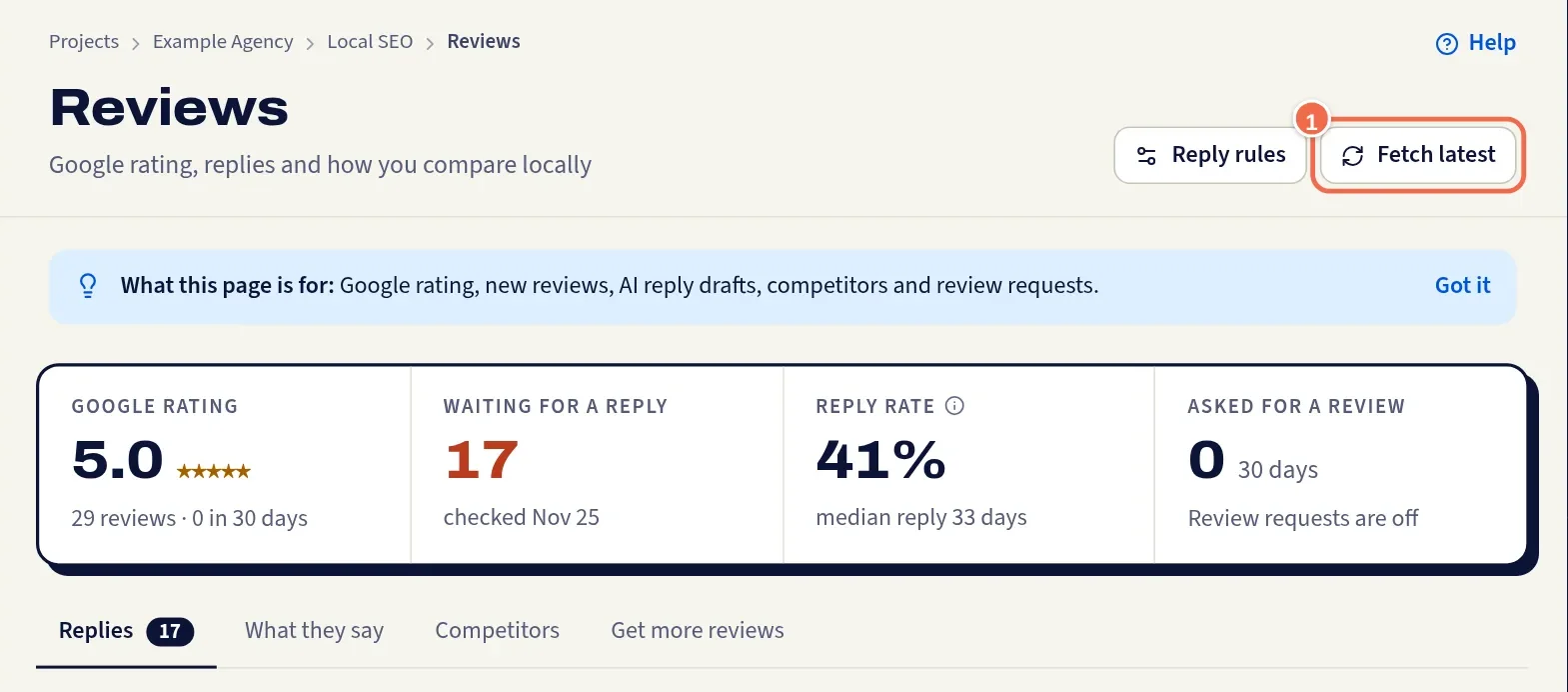 The four numbers for a linked listing, then the tabs: Replies, What they say, Competitors and Get more reviews. 1: Fetch latest checks for new reviews now.
Step 3: Reply to reviews
Every morning RankThat drafts a reply to each new review: short, specific to what the customer said, and in the brand voice. The Replies tab lists one review per row, newest first, with its status (Draft ready, No draft yet, Needs a person, To post on Google, Replied) and one button. The filters above the list are To reply (the default), To post on Google, Replied, 3 stars or less and All.
Click a review (or its button) to open it in the panel on the right, with the full review, its topics and your reply. Then:
- Read the draft and edit it in the box if you like. If it needs a person’s eye (for example a low rating, or a mention of a refund or a staff member), the reason shows under the box, with anything the automatic check found. With no draft yet, click Draft a reply.
- With the Google Business Profile connected, click Post to Google. The reply goes straight under the review on Google and the review moves to Replied. If Google refuses it, the review shows Not posted with Google’s reason, and Try again posts it again.
- Without the connection, click Approve, then post it on Google one of two ways:
- Copy and open in Google copies the reply and opens the review. On Google, click Reply under the review, paste and click Post.
- Fill the reply box with the Chrome helper (with the RankThat helper installed) sends the reply to the helper and opens the review. On Google, click Reply under the review, the RankThat icon in Chrome, then Fill the reply box. Read it and click Post.
Without the connection you click Post on Google yourself, and the next morning’s check sees the reply and moves the review to Replied, with its response time. There is nothing to tick.
Other buttons in the panel: Write another for a new draft, No reply needed for a review that doesn’t need one (Undo brings it back), and Back to drafts on an approved reply. Approving or dismissing a reply in Autopilot does the same thing here, and the other way round.
Good habits:
- Reply to every review, not only the bad ones. Recent replies tell Google and customers the business is active.
- For a low rating, thank them, say what you will do, and offer a way to talk offline. Don’t argue or share private details.
Connect the Google Business Profile
Connecting lets RankThat read the business’s reviews straight from Google (all of them, with the replies made on Google) and post the replies you approve. Nothing else on the listing is changed.
- Go to Project Settings › Connections and find Google Business Profile.
- Click Connect Google Business Profile and sign in with the Google account that manages the listing. For an agency, use the login that manages your clients’ listings: you connect it once and every site of the agency can use it.
- On Google’s screen, tick the permission to manage your Business Profile listings and click Continue.
- Back in RankThat, pick this site’s listing (the business from the Local Rank Grid is suggested) and click Use this listing. Its reviews are read straight away.
The card then shows the listing and when its reviews were last read. Change picks another listing, Remove stops using the connection for this site, and Read the listings again finds a listing you added in Google later. If the connection stops working (for example the Google sign-in was removed), a red line at the top of the Reviews page says what to do.
Get the Chrome helper
Filling the reply box needs the RankThat Chrome helper, version 1.1.0 or later. If it is missing or older, the link under the reply reads Get the Chrome helper or Update the Chrome helper and downloads it. Unzip it, open chrome://extensions, switch on Developer mode, click Load unpacked and pick the unzipped folder (to update, remove the old one first, or click its reload button after unzipping over it). Then reload the Reviews page. The same helper fills directory forms on Citations › Listings. It only works when you click it and never clicks Post or Submit.
Reply rules
Click Reply rules at the top to choose how drafting works for this site (they open in a panel on the right):
- Drafting: draft every new review and a person approves each reply (the default), let the rules approve good reviews, or don’t draft at all.
- When the rules approve good reviews, only 4 or 5-star reviews (or 5 only) whose draft passes the automatic check are approved by themselves. Reviews of 3 stars or less, anything about legal action, refunds, injuries or a staff member, and every healthcare business always need a person.
- Post approved replies to Google (off until you tick it, and only with the Google Business Profile connected): a reply a person approves, here or in Autopilot, posts within 15 minutes, and a reply the rules approve posts after the Hold before posting time, so you can still change or stop it. Left off, approved replies wait for you to click Post to Google.
- Healthcare business: detected from the business category, or set it yourself. Healthcare drafts never confirm that the reviewer is a patient and never mention a visit or treatment, and a person approves every reply.
- Sign-off: an optional line at the end of every reply, such as “The Bright Smile team”.
Who hears about new reviews
Owners and editors get:
- A low review (at or below the rating set in Alerts › Settings, 3 stars by default) at once by email, in the app and on Slack, with the drafted reply. Reviews of 1 or 2 stars also come by text when texts are set up and you added your mobile number in Settings › Notifications.
- New good reviews with their drafts, in your daily or weekly update email (or as they happen, if you chose that).
- A reminder when an approved reply still isn’t on Google after 2 days, or a low review has had no reply for a day.
Step 4: See what customers talk about
The What they say tab groups this month’s reviews by topic (for example staff, wait time, price, results, cleanliness), with how many praised or criticised each one, the change from last month and a short quote (hover it for more). Use it to see what to keep doing and what to fix. The monthly report shows the most praised and most criticised topics, the reply rate and the median response time for the month.
Step 5: Compare with local competitors
The Competitors tab uses your latest map grid scans. For each business that showed up, it lists the Rating, Reviews, Map pack share (how often it appeared in Google Maps’ top 3 across all grid points), Seen in top 5 and Best rank. Your business is highlighted.
If the businesses with the biggest map pack share also have far more reviews than you, review volume is likely part of the gap. That is what the next steps fix.
Step 6: Set up review requests
Open the Get more reviews tab. At the top is Your review link, with Copy link, Copy an email and Copy a text message for asking by hand. Below it is the Review requests card. Click Settings and fill in:
- Review link: filled in for you when it was found from the Local Rank Grid. Paste your own link to override it; it must start with https://.
- Business name in the email: the name customers know, if it differs from the project name.
- Replies go to (the business’s email): where a customer’s reply lands.
- Send after the job: Straight away, 1, 2 or 4 hours, 1 day or 2 days. A few hours after the job usually works best.
- Reminder: No reminder, or after 3, 4 or 7 days, sent only to customers who haven’t clicked.
The same panel has Ask leads marked Customer on the Leads page: tick it and every website enquiry someone marks as Customer is asked for a review too. Click Save settings, then tick Send requests at the top right of the card. While it is not ticked, customers you add wait and nothing is sent.
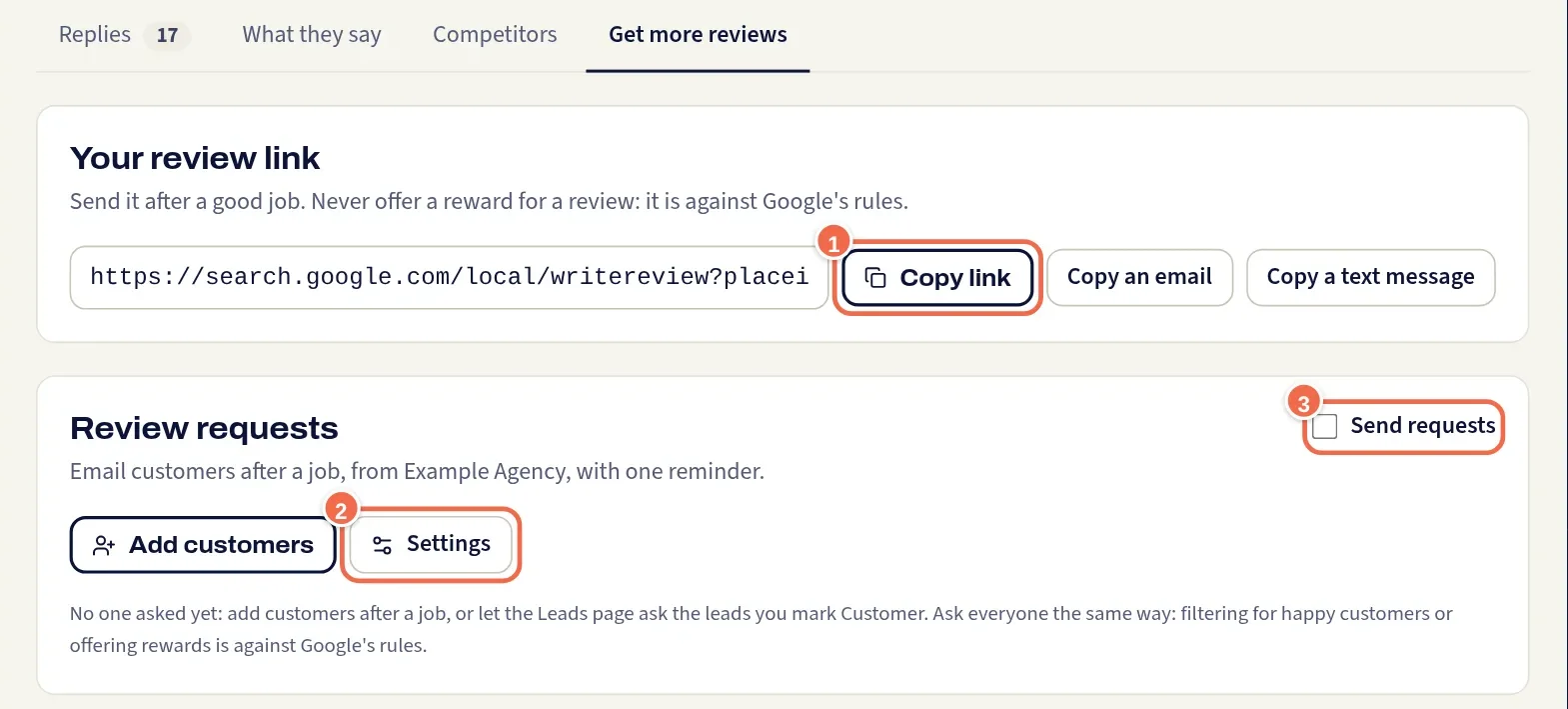 1: Copy link copies the Google review link. 2: Settings opens the review request settings. 3: Send requests turns sending on once the settings are saved.
Step 7: Add customers
Click Add customers on the card. In the panel:
- One customer: first name, email and/or mobile number, plus an optional note about the job. Click Add.
- Or paste a list: one customer per line, with a name, an email and/or a mobile number in any order, for example “Ana Lopez, ana@example.com”. The button below shows how many it found, such as Add 3 customers; click it.
To add customers automatically when a job is finished, open Settings and scroll to Add customers when a job is finished: click Create the link to get a webhook URL, then point a Zapier or Make step at it from your job or invoicing tool (Jobber, Housecall Pro, ServiceTitan, QuickBooks, Square). Send email or phone (or both), and optionally name and note. The link is shown once, so copy it straight away. Make a new link replaces it, and the old one stops working.
Each customer gets one email from the business name with a button to the Google review form, plus the reminder if you set one. Customers with a mobile number get a text instead when texting is available on your account. Every email has an unsubscribe link, and anyone who unsubscribes is never contacted again.
RankThat skips anyone without a valid email or phone, anyone who unsubscribed, and anyone already asked in the last 90 days, and the confirmation tells you how many were skipped.
Reading the results
Once requests go out, the card shows how many customers were asked in the last 30 days, how many opened the review page (and the percentage), and how many are waiting or failed; Asked for a review at the top of the page shows the same count. The list below the card shows each customer with a status: Waiting to send, Sent, Opened the review page, Failed, Unsubscribed or Cancelled. Click the X next to a waiting request to cancel it. The Google rating badge for the website card below gives you a snippet that shows the business’s rating and review count on its own site.
Ask every customer the same way. Sending the link only to happy customers, or offering a discount for a review, is against Google’s rules and can get reviews removed.
FAQ
Why are no reviews showing?
The business needs an active Local Rank Grid tracker that has run at least one scan, so its Google listing is known. After that, click Fetch latest or wait for the next morning’s check.
Why does saving fail with “Add the review link first”?
There is no tracker with a linked Google listing and no link in Review link. Paste the link from your Google Business Profile.
Can I post replies to Google from RankThat?
Yes, once the business’s Google Business Profile is connected in Project Settings › Connections: Post to Google posts a reply at once, and Post approved replies to Google in Reply rules posts approved replies by themselves. Without the connection, approve the reply, then Copy and open in Google or fill the reply box with the Chrome helper, and click Post on Google yourself.
Why does a reply show “Not posted”?
Google refused it, and the reason shows above the reply: most often the Google sign-in expired or the connected login can no longer manage the listing. Fix the connection in Project Settings › Connections, then click Try again. A reply that failed is never posted again by itself.
Why does a review still show “To post on Google” after I posted it?
When you post on Google yourself, the reply is picked up by the next morning’s check. If it still shows the next day, the reply may have gone to another review or not been posted; open the review on Google to check.
Why can’t the helper find the reply box?
Click Reply under the review on Google first, so the box is open, then click Fill the reply box. If Google changed its page, use Copy reply in the helper (or Copy and open in Google) and paste it.
Why is my first week of response times longer?
Reviews from before the daily checks were read once a week, so a reply’s time could only be known to the week. From now on it is known to the day, or exactly when Google gives the reply time.
The other half of local trust is consistent business details across directories. For tactics that bring in more reviews, read How to get more Google reviews.