
RankThat watches every site in your account and tells you only about changes that may need action: the site going down, an SSL certificate about to run out, Google clicks falling (or rising), keywords dropping, pages falling out of Google, a new technical error, a strong link lost, a bad review, or a change on the site that hurts Google or tracking. You choose the rules per site and how the alerts reach you. Quiet days stay quiet.
Before you start
- Alerts go to the project’s owner and editors: in the app, by email and in Slack if you connect it. Clients with view-only access never get them.
- Some alerts need data from other tools: Google click drops need Search Console, keyword alerts need tracked keywords, review alerts need the site’s Google reviews, AI citation alerts need AI Visibility scans.
- Changes on WordPress are caught within about 5 minutes when the RankThat Bridge plugin is installed (Install the WordPress Bridge plugin); other sites are checked every hour.
Step 1: Open Alerts
Click Alerts in the left sidebar, outside any project. It covers all your sites: the feed first, and Which alerts you get (top right of the feed) opens how you get alerts and the rules for each site.
The line at the top of the feed says whether all monitored sites are up, and lists any site whose SSL certificate renews within three weeks. Sites are checked every 10 minutes; Google clicks and SSL once a day.
Step 2: Choose how you get alerts
How alerts reach you is set with all your other notifications in Settings › Notifications (the How you get alerts card under Which alerts you get links there). In the Alerts row:
- Email: the new alerts across your sites in one summary, sent at 07:00 UTC daily or weekly (Mondays): pick it under Email summary. It leads with good news and the articles published that week, then what is worth a look. Nothing is sent when nothing changed. New accounts start on weekly; agency staff on daily.
- In-app: alerts in the bell in RankThat.
- Slack: paste a Slack incoming webhook on the same page (in Slack: Apps › Incoming Webhooks › Add to a channel). You get the summary there, and site-down alerts (plus serious site changes, such as a noindex) straight away. Send a test posts a test message to the channel.
- Text: urgent alerts such as a site going down, to the mobile number you add there, once texts are available.
 In Settings › Notifications, the Alerts row: turn email, in-app, Slack or text on or off, and pick Daily or Weekly under Email summary. The other rows work the same way for content, reports, team and leads.
These choices are yours alone. Each person on the team sets their own. Choose your notifications explains the page.
Step 3: Set the rules for each site
The Rules per site card has a menu to pick the site. Each rule has a checkbox, and some have numbers you can change. All are on by default.
| Rule | What triggers it | Default |
|---|---|---|
| Keyword drops | A keyword falls by at least the set number of places, checked twice so Google’s day-to-day flicker is ignored. Keywords that jump 10+ places most weeks are left out (the alert says how many) | 10 places, keywords with 30+ searches a month, and any keyword leaving the top 10 |
| Keywords reaching the top 3 | Good news to pass on to the client | On |
| Google clicks dropping | Search Console clicks, last 7 complete days against the 7 before, then the last 4 weeks against the 4 before. Only a change bigger than normal week-to-week movement counts | Down 30%, when the week before had 30+ clicks |
| Google clicks rising | The same check the other way: good news to pass on | On |
| Site down and back up | The homepage, checked every 10 minutes; two failures in a row count as down | On |
| SSL certificate expiring | Days before the certificate runs out | 14 days |
| Pages dropping out of Google | From the Google index checks | On |
| New technical errors | Error types the latest audit found that the one before did not | On |
| Lost links from strong sites | From the twice-monthly backlink check | Link strength 200 or more (0 to 1000) |
| Negative Google reviews | New reviews at or below a rating | 3 stars or fewer |
| AI citations gained or lost | From the AI Visibility scans | On |
| Changes that hurt Google or tracking | noindex added, robots.txt blocking Google, canonicals pointing elsewhere, tracking code removed, top pages breaking, “Discourage search engines” turned on, SEO or tracking plugins switched off | On, plus title, description, robots.txt and plugin changes as notices |
| Vulnerable plugins | Plugins, themes and WordPress versions on Bridge sites with known security problems | On |
| Google Shopping problems | Stores with Google Merchant Center connected: an account problem such as a suspension, more products not approved than the day before, or a product feed that failed or lost more than 20% of its products | On |
Click Save rules to keep the changes for that site, then pick the next site in the menu.
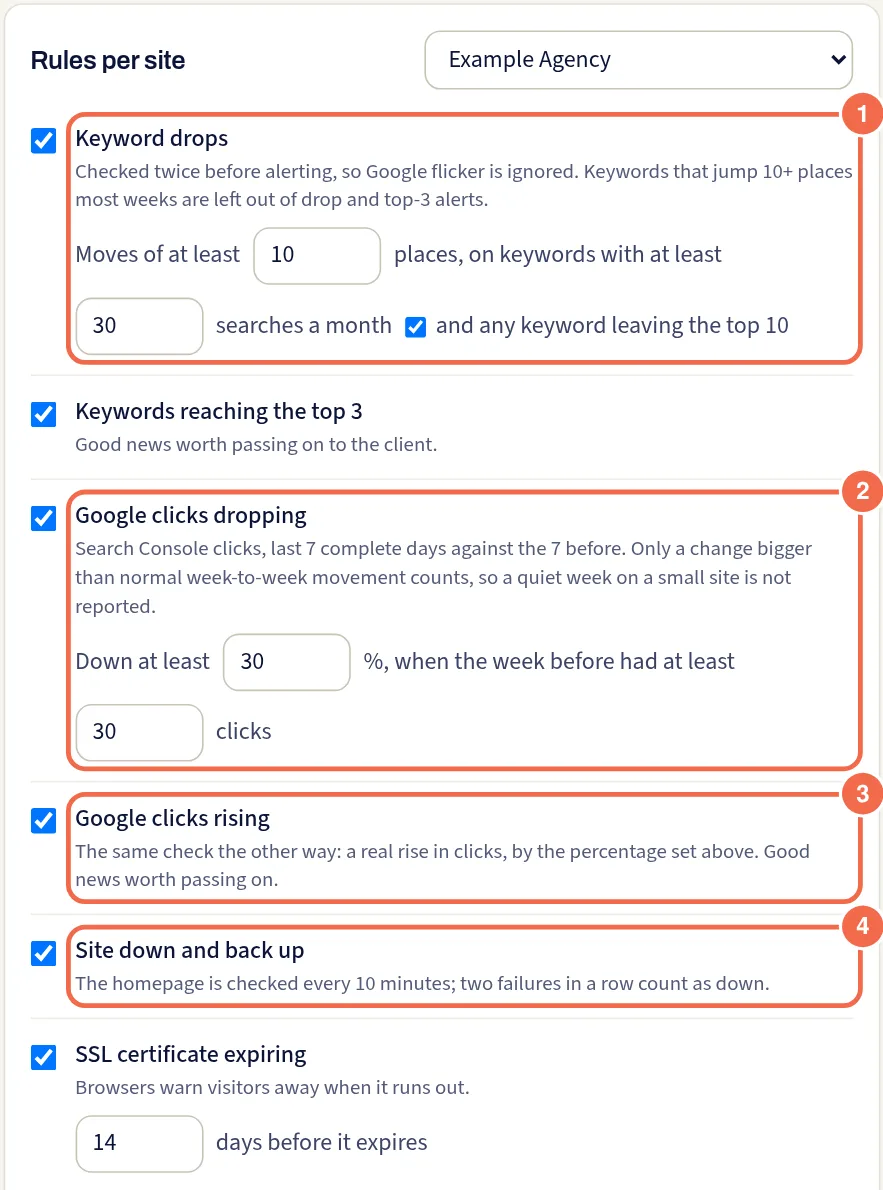 The first rules. 1: Keyword drops, with places and minimum searches. 2: Google clicks dropping. 3: Google clicks rising. 4: Site down and back up.
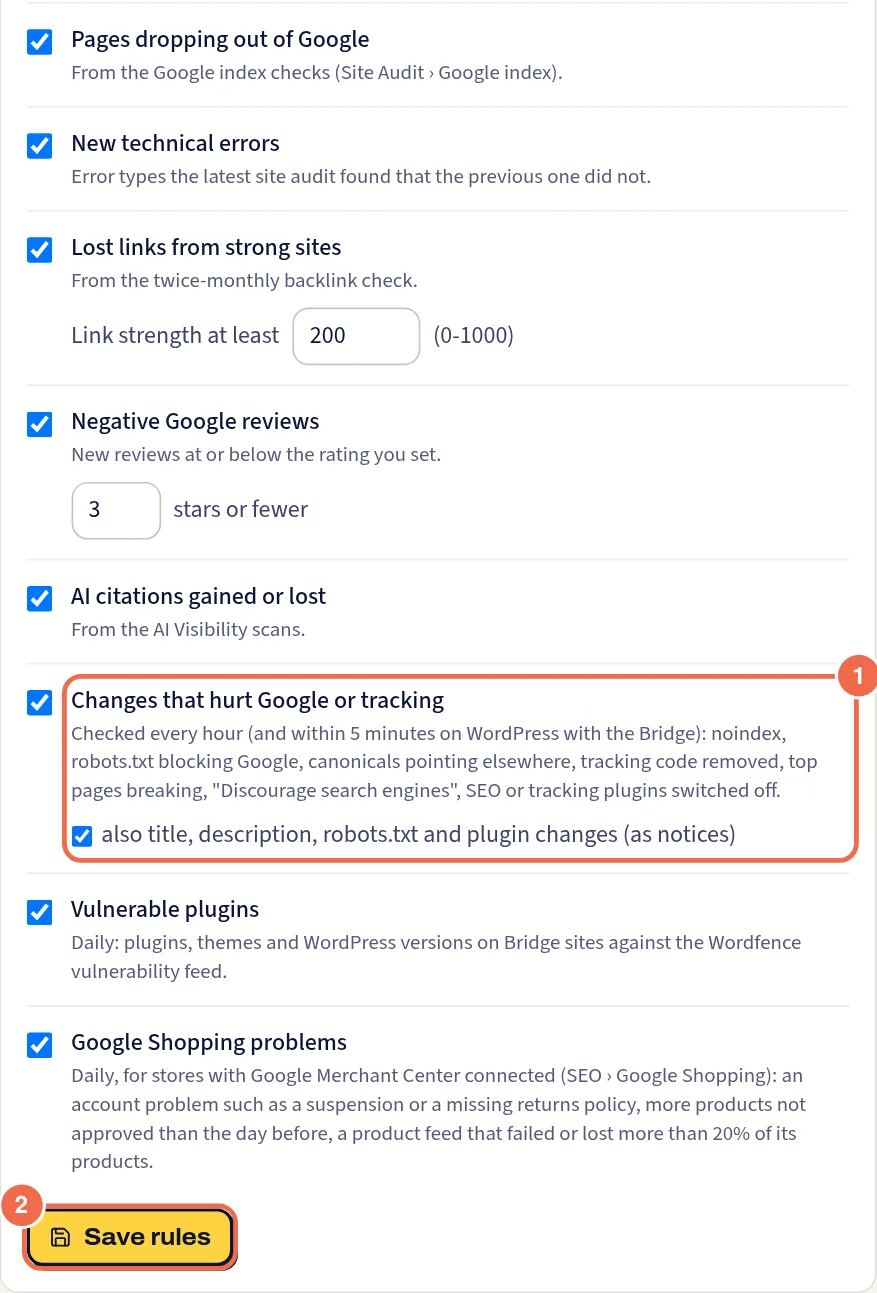 The rest of the rules. 1: Changes that hurt Google or tracking, with the option to include title and description changes. 2: Save rules saves this site only.
Step 4: Work through the feed
Click Back to the alerts to return to the feed. It shows the last 30 days, one line per alert, grouped into Today, Yesterday, Earlier this week and Earlier. Each line has a colored dot (red for critical, amber for warning, blue for a notice, green for good news), what happened, the site and how long ago.
The feed opens on Needs a look: the critical alerts and warnings. Good news shows keywords reaching the top 3, clicks rising and the like, worth passing on to clients; Everything shows all of them. The site menu narrows the feed to one site.
Click an alert to open it in a side panel: the full message (for a keyword drop, every keyword with its old and new place), What to check for that kind of alert, and a button to the page in the project where you can act on it, such as Open Rank Tracker.
Tuning the rules
- Too many keyword alerts? Raise the minimum searches, so drops on tiny keywords don’t alert you. Keep “any keyword leaving the top 10” on: that is where clicks are lost.
- Small sites: a quiet week is not reported. A drop from 37 to 20 clicks is normal movement for a small site; a fall that lasts shows up in the 4-week check.
- Leave site changes on. A noindex tag or a blocked robots.txt after a site update can wipe out a site’s Google traffic in days, and this catches it within the hour.
- Lost links: set the link strength higher for sites with many links, so only the links that matter alert you.
FAQ
A site behind a firewall shows as down.
A firewall that answers with “access denied” doesn’t count as down: only no answer at all or a server error does. If the site is really up, ask the host to allow RankThatBot (see Run a site audit).
Several sites went down at the same moment, but I got no alert.
Unrelated sites almost never fail together, so when two or more other sites go down within the same hour, RankThat treats it as a problem with the connection between its checker and the sites and holds the alert back. If the site is still down an hour later, you get the alert anyway, with the time it went down. The outage is still recorded, and the monthly report leaves it out of uptime and says so.
I didn’t get an email.
The email is only sent when there are new alerts or new articles. Check that Email summary is ticked in Settings, whether it is set to weekly (Mondays only), and that the alert came in after the last email.
Slack shows nothing.
Check the webhook starts with https://hooks.slack.com/services/, then click Send a test. Slack gets the daily summary once a day; only a site going down or coming back up, and serious changes on the site, arrive straight away.
I get alerts about a keyword drop that recovered the next day.
Drops are checked twice before alerting, and keywords that already jumped around in two of their last four checks are left out of keyword alerts (drops and top-3 wins). Google can still move a steady keyword for a week. If it keeps happening on one site, raise Moves of at least for that site.
Next, check which pages Google has dropped from its index: Google index report.