
Google Maps results change with where the searcher stands. A plumber can be first in the map pack two blocks from the shop and missing entirely three miles away. The Local Rank Grid searches Google Maps from a grid of points around the business, for each of your keywords, and colors every point by where the business appears. You see your real coverage instead of one average position, and you can see who beats you in each part of town.
The grid is also what the rest of Local SEO builds on: once a tracker has scanned, Reviews and Citations can find the business’s Google listing by themselves.
Before you start
- Local SEO scans are part of the Professional plan (4 scans a month) and every Enterprise plan (no monthly limit). Each scan you start counts as one.
- You need the business’s name exactly as Google Maps shows it, and its address or coordinates.
- Pick the keywords people use to find this kind of business, such as “emergency plumber” or “dentist near me”. You can add up to 50 per tracker.
Step 1: Open the Local Rank Grid
In your project, go to Local SEO › Local Rank Grid. If the project has no trackers yet you’ll see No Trackers Yet with a short explanation. Click Create tracker at the top right, or Create Your First Tracker in the middle of the page. Both open the same form.
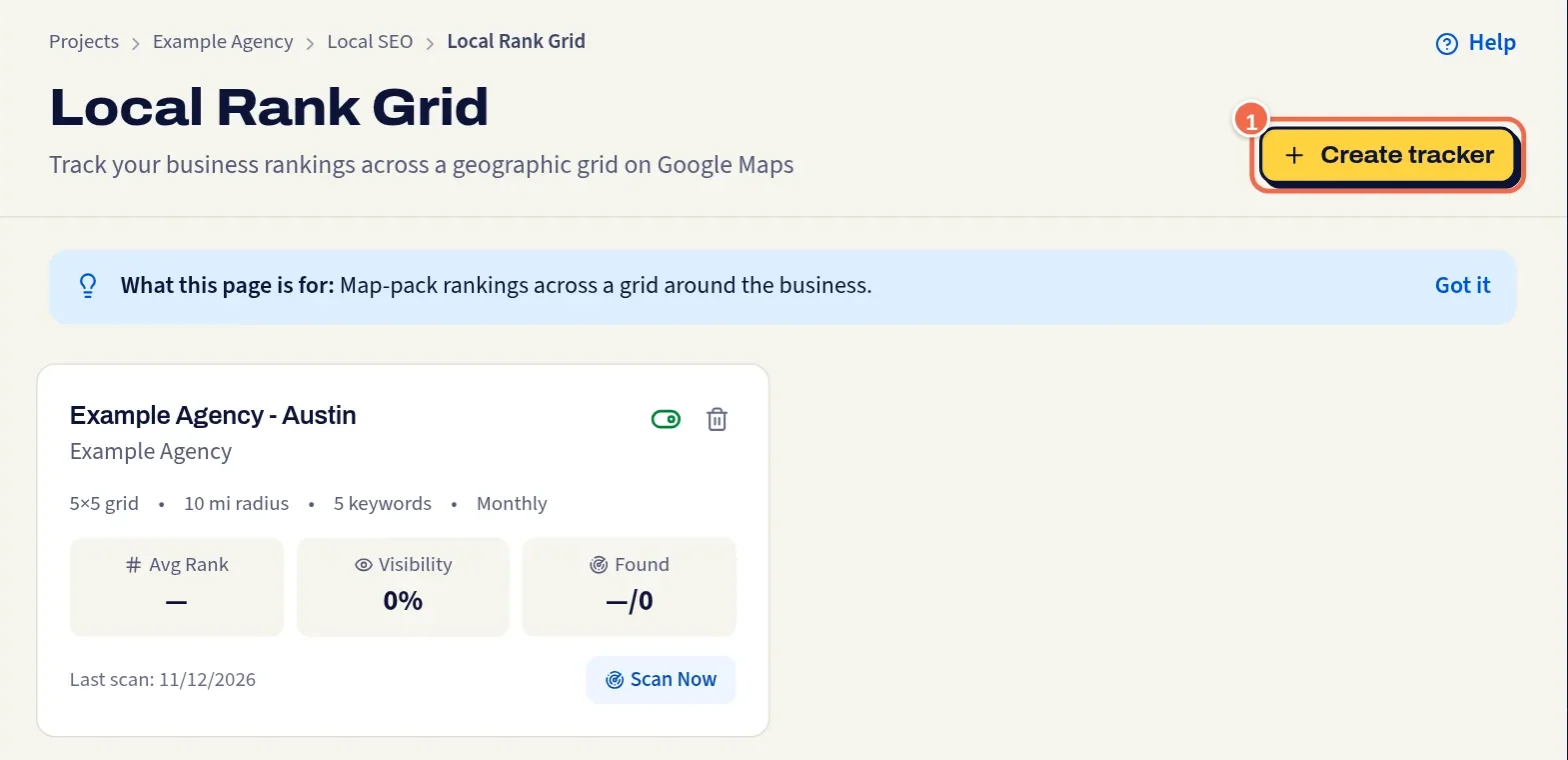 A project with one tracker. 1: Create tracker opens the setup form. Each tracker is a card with its grid, radius, keywords, schedule and last scan.
Step 2: Name the tracker and the business
The Create Grid Tracker form asks for:
- Tracker Name: your own label, for example “Coastline Plumbing - Downtown”. Use one tracker per location if the business has several.
- Business Name: the exact name on Google Maps. RankThat looks for this name in every map result, so a shortened or old name can make the business look like it isn’t ranking.
- Google Place ID (optional): if you know it, paste it for precise matching. If you leave it empty, the first scan finds the listing that matches most often and saves its place ID for you. Later scans then match it exactly.
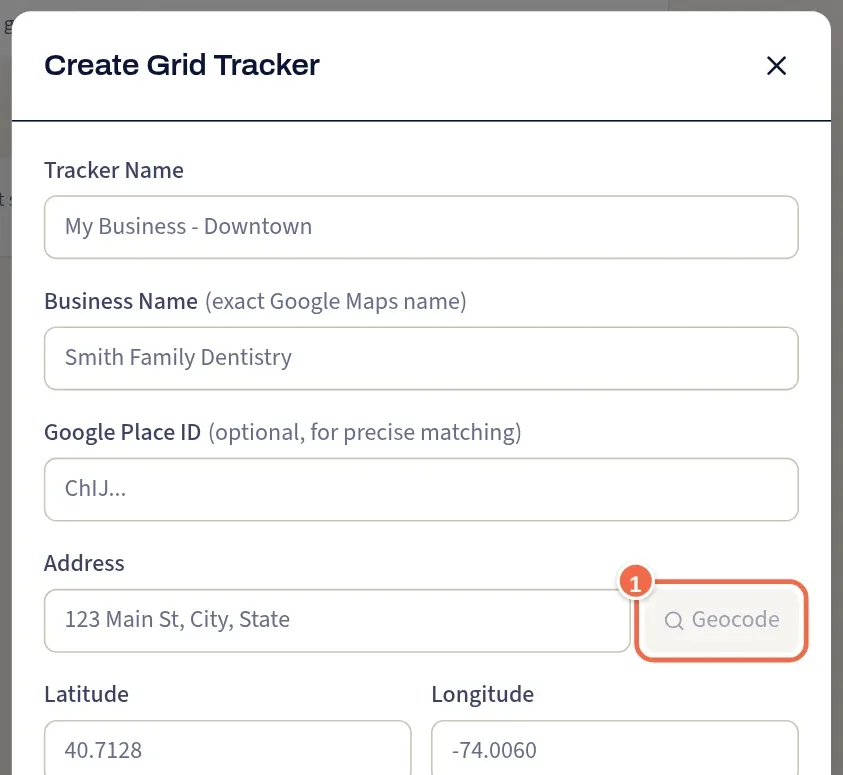 Business Name must match Google Maps exactly. 1: Geocode turns the address into the latitude and longitude below it.
Step 3: Set the center of the grid
Type the business address in Address and click Geocode. RankThat looks up the address and fills Latitude and Longitude. If the lookup fails (new buildings and rural addresses sometimes do), copy the coordinates from Google Maps by right-clicking the pin, and type them in.
The grid is centered on these coordinates, so use the address customers see on the Google listing. For a service-area business without a public address, use the point you want to measure around, such as the middle of your main town.
Step 4: Choose the grid size, radius and schedule
- Grid Size: 3×3 (Budget) searches 9 points, 5×5 (Standard) 25 points and 7×7, the largest, 49 points, for every keyword. 5×5 is the default and a good start.
- Radius (miles): how far the grid reaches from the center, from 0.5 to 50 miles (default 5). Match it to the area you serve. A dense city practice might use 2 miles; a roofer covering a county might use 15.
- Scan Frequency: Manual Only, Monthly (1st of month) or Weekly (Sundays). Scheduled scans run by themselves for active trackers.
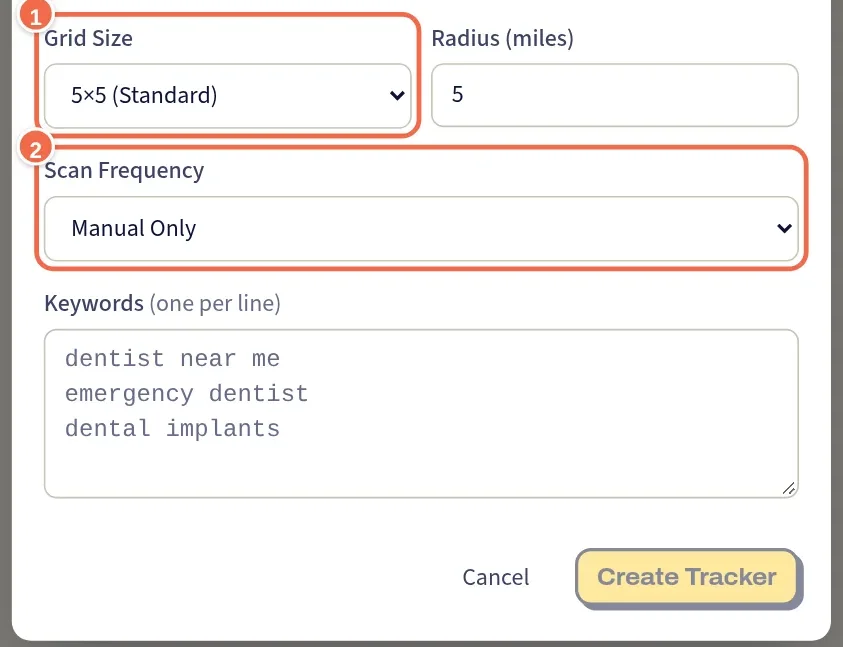 1: Grid Size sets how many points are searched. 2: Scan Frequency sets how often it runs by itself. Enter keywords one per line; Checks per scan then shows how many map checks one scan makes (grid points times keywords).
Step 5: Add keywords and create the tracker
Type your keywords in Keywords, one per line. Start with three to five that bring real customers, then add more once you know what the grid tells you. Click Create Tracker.
The new tracker appears as a card showing its grid size, radius, keyword count and schedule. Until it has scanned, the card says Not scanned yet: open it and click Scan now.
Step 6: Run the first scan
Click Scan Now on the card, or open the tracker and click Run Scan. A progress bar shows how many grid points are done. When it finishes, five numbers appear above the tabs:
- Avg Rank: the average map position across the points where the business was found.
- Local visibility: a 0 to 100% score across every point. Position 1 counts fully, lower positions count less, and points where the business isn’t in the top 20 count as zero. This is the number to watch over time.
- Found: how many points showed the business in the top 20, out of all points searched.
- API Cost and Scan Date.
Reading the results
The tracker has four tabs.
Grid Map shows the grid on a map. Each point is colored by position: green for 1 to 3 (the map pack most people see), yellow for 4 to 7, orange for 8 to 13, red for 14 and below, and gray for not found in the top 20. Click a point to see the top results there. With several keywords, the Keyword menu switches between one keyword and All Keywords (each point then shows your best rank and lists every keyword). View as shows the same grid for a competitor that appears in the top 5, so you can see where they are strong.
Results lists every point and keyword with the rank, the listing matched and the #1 Competitor with its rating. Filter to Found or Not Found, and use CSV to download the table.
Trends charts visibility, average rank and found versus not found across scans. It needs at least two completed scans. Above the charts, What happened between scans puts each scan next to the one before and lists what changed in between: Google posts, new reviews and their stars, changes to the Business Profile listing (yours and Google’s own), articles published and changes to the site. Click a line to see each change with its date. The map also moves with competitors and on its own, so treat these as clues, not proof.
Settings lets you edit everything from the form, add or remove keywords, and delete the tracker (this removes its scan history).
What to do with it:
- Green near the center, gray at the edges is normal: Google favors businesses close to the searcher. If the gray starts very close in, work on the Google Business Profile itself (categories, services, photos, reviews).
- Strong for one keyword, weak for another usually means the profile and website don’t cover that service clearly. Add it as a service and give it its own page.
- A competitor green where you are red: use View as to see their footprint, then compare their reviews on the Reviews page.
Troubleshooting
The business shows as not found everywhere
Check that Business Name matches Google Maps exactly, or add the Google Place ID in Settings. Also check the center coordinates: a pin in the wrong town makes every point look far away.
I can’t create a tracker or start a scan
Local SEO scans need a Professional or Enterprise plan. On Professional, the fifth scan in a month is refused until the next month.
Trends is empty
Trends needs at least two completed scans. Set the tracker to weekly or monthly and it fills in by itself.
Once the first scan has run, the tracker’s Google listing is linked, and Local SEO › Reviews can start reading the business’s rating and reviews. For keyword positions in the regular Google results, see Track keyword rankings. For the SEO side of map rankings, read How to rank in Google Maps or the glossary entry on the local rank grid.