
You don’t need a project to audit a website. The SEO Audits page runs the same audit on any address, such as a prospect you are about to call, and gives you a PDF with your agency’s logo, colors and call to action. Put the free-audit widget on your own site and visitors can audit their sites too: they get a score and a branded report, and you get their name and email as a lead.
Before you start
- Every audit counts toward your plan’s monthly audit allowance, whether you start it, a project starts it, or it comes from the widget or the API. The New audit form shows how many you have used this month.
- Mini audits are on every plan that includes audits. Full audits, white-label branding, the website widget and the Audit API are on Professional and Enterprise.
- To audit one of your own projects, use the project’s Site Audit instead: see Run a site audit.
Step 1: Start an audit on any site
Click SEO Audits in the left sidebar, outside any project. The cards at the top count Total audits, This month, Leads captured and your Average score.
The page opens on Your sites: every project with its health score, lowest first, and Run to start a mini audit on one. Click a site to see its last audit, run a full audit, open its Site Audit or download its last PDF. Audit history lists every audit, and Scheduled reports the reports sent on a schedule. New audit (top right) starts an audit on any address.
Click New audit and fill in the form:
- Website URL: the site to audit, such as example.com.
- Mini audit: up to 50 pages in 1 to 3 minutes, with every key check, speed and a summary. Right for prospects and quick checks.
- Full audit: up to 500 pages, a deeper crawl with orphan pages, duplicates, every broken link, competitors and a full action plan.
- Pages to crawl: leave empty for the default (25 for a mini audit, 200 for a full one), or set your own up to the maximum.
- Prepared for: the client or company name for the PDF cover. Optional.
Click Run mini audit (or Run full audit). RankThat opens the audit’s page while it runs.
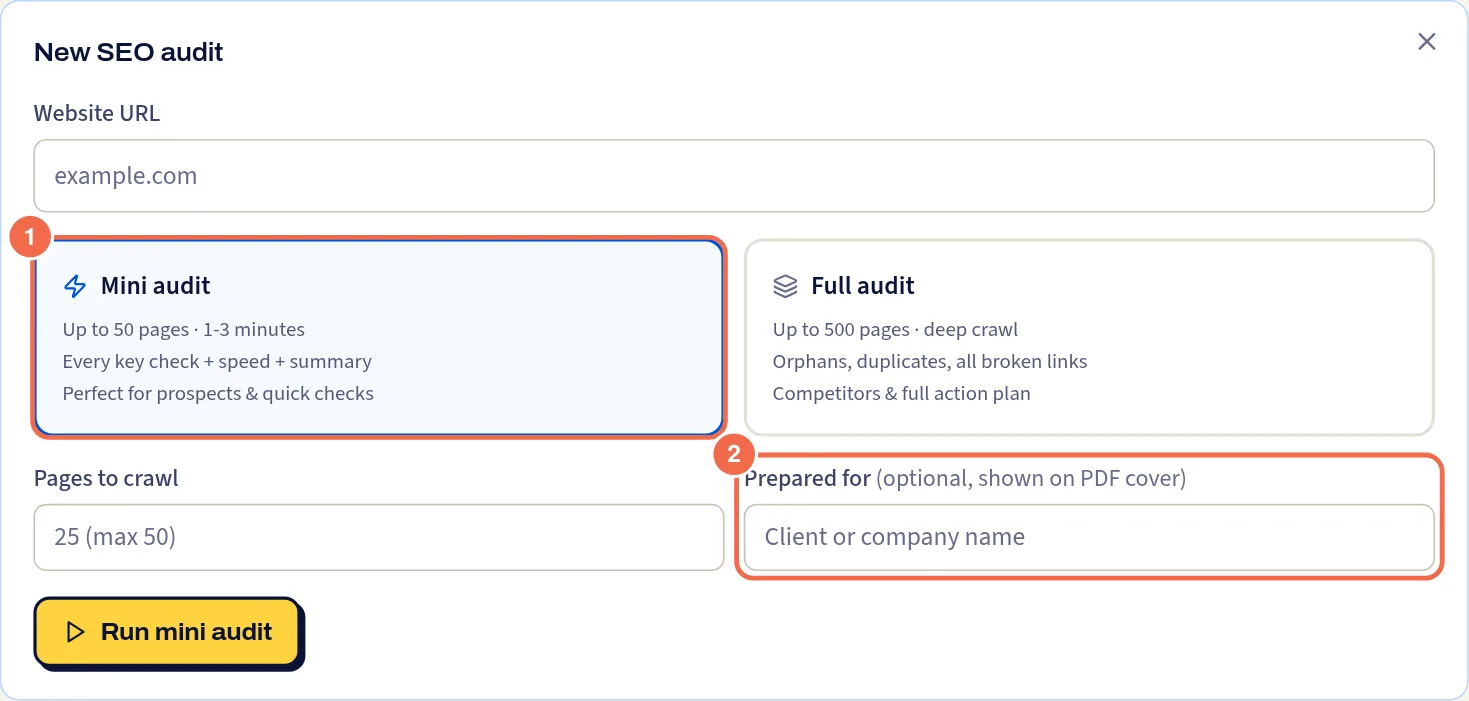 The New SEO audit form. 1: Mini audit is selected; Full audit sits next to it (marked Pro if your plan doesn’t include it). 2: Prepared for goes on the PDF cover.
The crawler identifies itself as RankThatBot. A site behind a strict firewall may block it; Run a site audit explains how a site owner can allow it.
Step 2: Read the results and download the PDF
The audit report works like a project audit: an overall score and grade, issues by category, each with why it matters and how to fix it. Reading it is covered in Run a site audit, and the PDF options in Audit PDF reports.
To download the PDF later, open the Audit history tab and use the download button at the end of the audit’s row.
On a sales call, lead with two or three problems the prospect can understand (pages Google can’t index, a slow phone experience, missing titles), not the full list.
Step 3: Put your branding on the reports
Open Settings › Agency (the line at the bottom of SEO Audits links there). On the Report branding tab, fill in:
- Identity: Agency name, Logo (a PNG with a transparent background works best; it appears on the cover, every page header and the closing page), Primary color and Dark accent color.
- Contact details: Website, Email, Phone and Address, shown on the cover and the closing page.
- Call to action: a Pitch paragraph, Button text and Button link (for example your booking page) for the last page of every report.
- Footer note: an optional disclaimer.
The PDF cover preview updates as you type. Click Save branding. Existing audits pick up the new branding the next time their PDF is downloaded. On a plan without white-label reports, you can set this up now and it switches on when you upgrade.
Step 4: Create a widget key
Open the API keys & widget tab. There are two kinds of key:
- Website widget key (starts with
rt_pk_): for a free-audit form on your own website. Mini audits only. - Secret API key (starts with
rt_sk_): for your own server, Zapier, Make or a CRM. It never goes in website code.
 The API keys & widget tab. The Website widget key is the one for capturing leads on your site.
Click Create key, choose Website widget and fill in:
- Name: for example “Agency website widget”.
- Allowed websites: your own domain, such as youragency.com, or *.youragency.com for every subdomain. The widget only works there, so nobody can copy your key onto their site.
- Max pages per audit and Audits per 24h: limits that protect your monthly allowance (25 and 25 to start).
- Notify me about new leads: the email address that gets each new lead.
- Email the branded PDF report to the lead automatically: sent in your agency’s name, with replies going to your branding email.
- Webhook URL: optional, to send each lead to Zapier, Make or your CRM.
Click Create key. The key and the embed code are shown only once, so copy them now. If you lose the key, revoke it and create a new one.
Step 5: Add the widget to your website
Paste the embed code into the page where you want the form. On WordPress, use a Custom HTML block. It is two lines: a div with your key and a script.
Visitors enter their Website, Name, Email and Company, and get their score straight away, plus the branded PDF by email when that option is on for the key. You can change the form with attributes on the div: data-title, data-subtitle, data-button and data-color, plus data-phone="true" to ask for a phone number or data-company="false" to hide the company field. The Developer docs tab lists them all, along with the API.
Step 6: Follow up on leads
Each lead arrives at the address you set, and its audit appears in Audit history with the visitor’s name and email in the Lead / Client column and “Website widget” as the source. Click Leads above the table to see only those, or search by domain, lead name or email.
 Audit history. 1: Leads shows only audits that came with a lead. The search box finds a lead by name, email or domain.
Follow up while the report is fresh: the same day if you can. Open their audit before you call, so you can talk about their site, not SEO in general. If you have Prospector (or your agency’s owner does), click Add to pipeline on a lead’s row: the lead becomes a company with a deal, tasks and History, shared with your team, and In pipeline then opens it. When they sign, create a project for the site to track it properly (Getting started with RankThat).
FAQ
The widget doesn’t show on my site.
Check that your domain is in Allowed websites for the key. A key with none listed shows “any (add your domain!)” in the key list. Also check the full key was pasted, not the shortened one shown in the list.
It says I have used all my audits this month.
Widget, API and project audits all count. Lower Audits per 24h on the widget key, or upgrade from Settings › Billing.
The Full audit option is locked.
Full audits are on Professional and Enterprise. Run a mini audit, or upgrade.
My logo doesn’t appear on an old PDF.
Download the PDF again. Branding is applied when the PDF is made.
Next, turn the issues into work: Fix audit issues.