
Links to pages that no longer exist frustrate readers and make an article look neglected. Sites you link to move pages, close down or change their addresses all the time, so an article that was perfect when you published it can collect dead links within months. The Broken Link Monitor checks every link in the articles you published with RankThat once a week, tells you which are broken, and groups them by article so you know exactly what to edit.
Before you start
- It checks articles published from RankThat. The monitor reads the articles in Content › Articles that have the status Published. Pages you built outside RankThat aren’t included here: for those, use the site audit (see “Broken links on the rest of your site” below).
- Checking on demand needs Search Console in your plan. The weekly check runs for every project with published articles. The Check Now button is part of the Search Console integration, so it’s available on plans that include it.
Step 1: Open Broken Links
Go to SEO › Broken Links. The page is titled Broken Link Monitor. At the top, five cards count the links by status:
- OK: the link works.
- Broken (4xx): the page is gone or never existed (for example a 404 error).
- Server Error (5xx): the other site’s server failed when we checked.
- Timeout: the other site took more than 10 seconds to answer, or the connection failed.
- DNS Error: the domain doesn’t resolve, which often means the site no longer exists.
Below the cards you see how many links were checked and how many active issues there are.
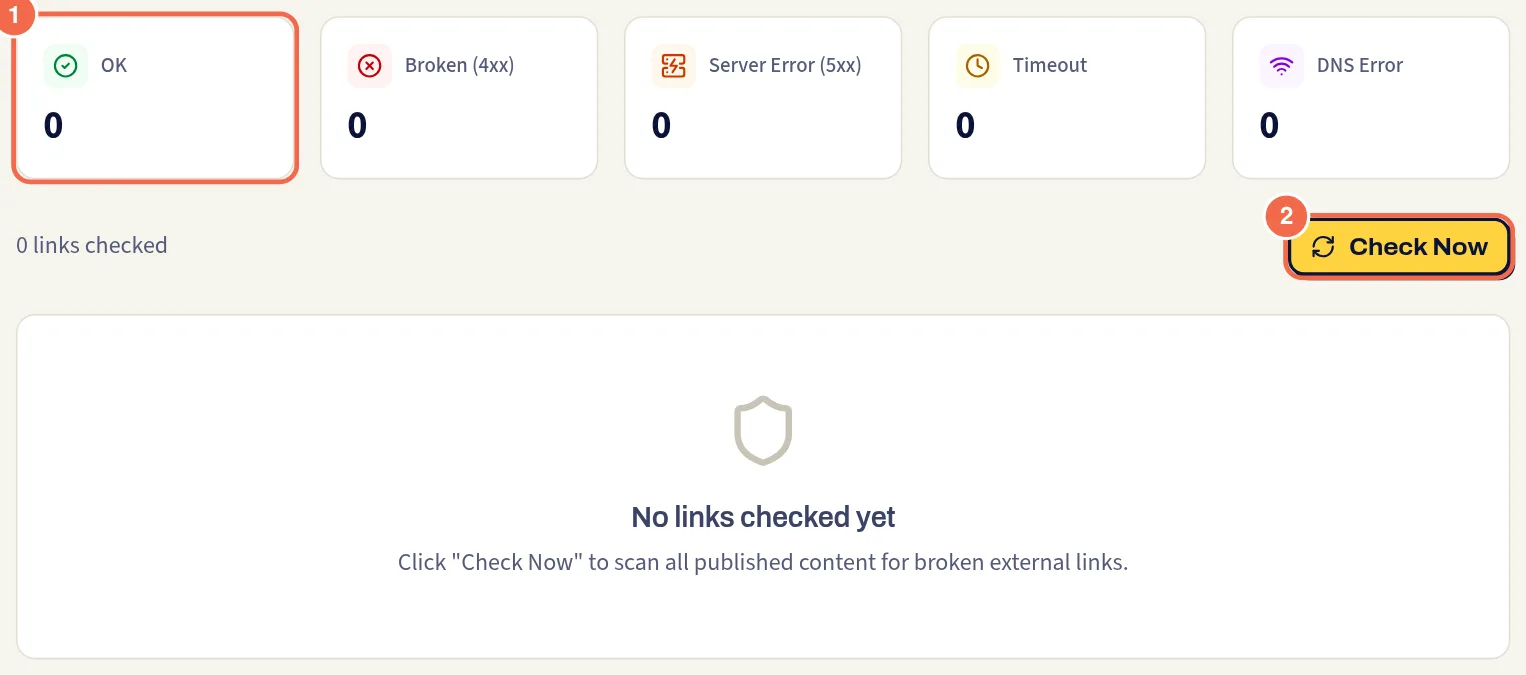 A project before its first check: every card shows 0 and the list says No links checked yet. 1: click a status card to show only those links. 2: Check Now checks every link again.
Step 2: Run a check
The monitor checks automatically once a week. To check now, click Check Now. A message confirms that the check has started and that it may take a few minutes. Each unique link is checked once, even if several articles use it, and the results come in as the check runs. Refresh the page after a few minutes to see them.
If you see No links checked yet, no check has run for this project. Publish an article from RankThat, or click Check Now.
Step 3: Filter to the problems
Click Broken (4xx) (or any other status card) to show only those links. Click the card again, or Clear filter, to show everything.
The links are grouped by article. Each article row shows its title, how many links it has and a red count of broken ones. Click an article to open its list of links.
Step 4: Fix each broken link
For every link you see the address, the anchor text (the words that are linked) and the status. Open the address to confirm it’s really dead, then edit the article in your CMS:
- Find the new address. Pages often move. Search the other site for the same title or topic.
- Link to a better source. If the page is gone for good, link to another page that backs up the same point, ideally an official or original source.
- Use an archived copy. For historical references, the Wayback Machine (web.archive.org) often has the page.
- Remove the link. If nothing fits, keep the words and drop the link.
Server Error and Timeout results are sometimes temporary. Wait for the next check before you change them; if they fail again, treat them as broken.
Step 5: Mark it fixed
After you update the article, click Mark Fixed next to the link. It now shows Fixed and no longer counts as an active issue. You don’t have to do this for every link: when a link that was broken works again at the next check, RankThat marks it fixed on its own.
When a check finds links that were working before and are now broken, RankThat sends you a notification, so you don’t have to come back every week to look.
Broken links on the rest of your site
The Broken Link Monitor only covers the articles you published with RankThat. To find broken links on every page of your site, including your own pages that link to each other, use the site audit:
- Broken internal links: links to your own missing pages. On WordPress, RankThat can draft redirects to the closest live page.
- Broken outbound links: dead links to other sites, anywhere on the crawled pages. On WordPress, RankThat can point them at an archived copy or another address, or remove them (the text stays).
Both are in the Issues tab of SEO › Site Audit, with a Fix with AI button. See Fix audit issues. A full audit checks every broken link; a mini audit checks fewer pages.
The audit’s Site health tab also shows the total number of broken links found, next to redirects and 4xx / 5xx errors.
 The site audit’s Site health totals. Broken links counts every broken link the crawl found across the site.
Tips
- Link to sources that last. Official sites, government pages and well-known publications move pages less often than small blogs.
- Check old articles first. The older an article, the more likely its links have died.
- Don’t panic about one 5xx. Servers have bad moments. Two failed checks in a row is a real problem.
Troubleshooting
Check Now gives an error
If your plan doesn’t include the Search Console integration, the button can’t start a check, but the weekly check still runs. Upgrade from Billing if you want to check on demand.
An article I know has links isn’t listed
Only articles with the status Published in RankThat are checked, and only links written as normal web links (starting with http or https). Pages built outside RankThat are covered by the site audit instead.
I marked a link fixed but it’s still broken on my site
Mark Fixed only changes the status in RankThat. It doesn’t edit your article. Update the link in WordPress or your CMS too.
Next step
Broken links are one half of a healthy link structure; the other is linking your own pages together well. The internal links report in SEO › Internal Links shows orphan pages and gives you link suggestions. For background, read our guide on how to find and fix broken links.