
Internal links are the links between your own pages. They help visitors find related content, help Google discover your pages, and pass ranking strength from your strongest pages to the ones that need it. A page that no other page links to, an orphan page, is hard for Google to find and looks unimportant. Internal Links maps how your pages link together, lists the orphans, and suggests new links you can add.
Before you start
The report is built from two sources, so it is only as complete as they are:
- The pages from your content quality crawl. Run Re-Crawl & Audit on the Content quality tab of Site Audit first. RankThat reads every page in your sitemap and records the links on it, including menus and footers. See Content quality audit.
- The articles you published with RankThat. Their links are read from the article itself.
If neither exists yet, the page says there are no pages to check yet.
Step 1: Read the figures
Go to SEO › Internal Links. The analysis runs when you open the page. Four figures sit at the top:
- Links worth adding: new links RankThat suggests between related pages.
- Pages nothing links to: orphan pages, with their share of all pages. The number turns red above 5.
- Links per page: internal links divided by pages, with the total number of links.
- Pages checked: every page RankThat knows for this site.
After you change links on your site, click Check again at the top right. (If your pages changed, re-crawl them on the Content quality tab of Site Audit first.)
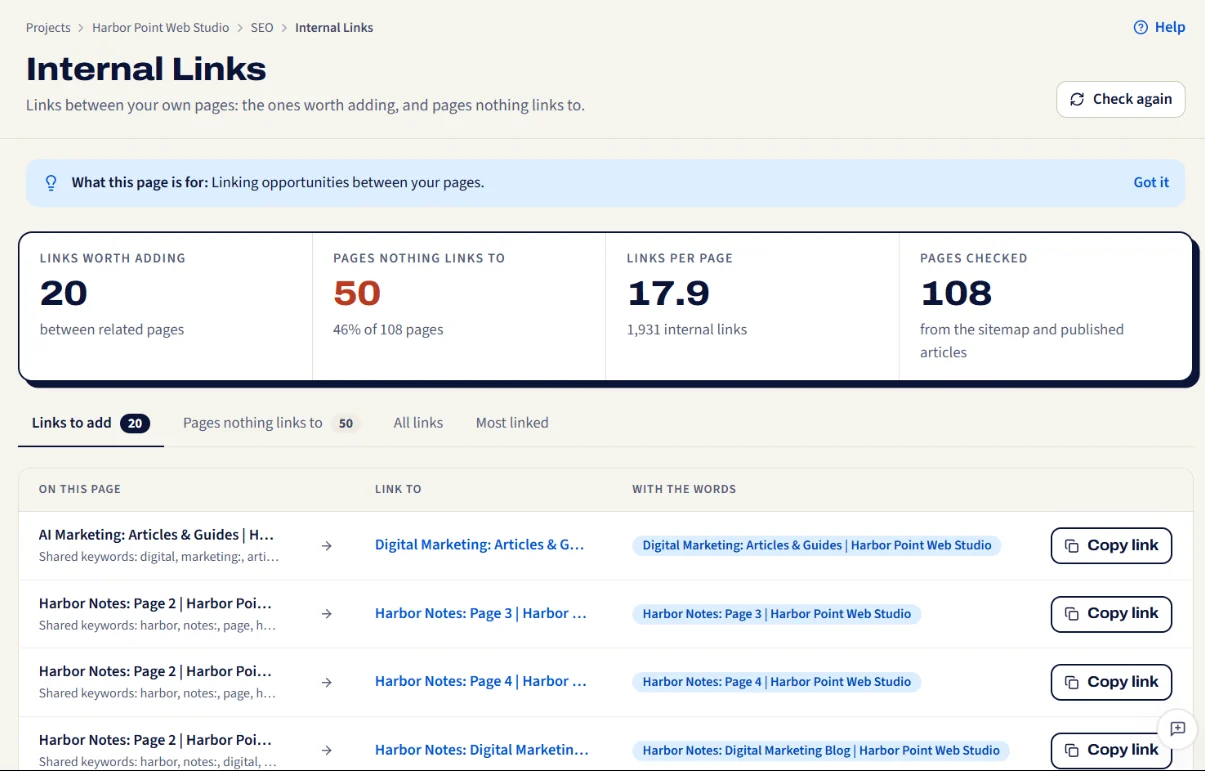 The four figures, then the links worth adding: the page the link goes on, the page it links to, the words to use and Copy link.
Step 2: Add the links worth adding
The Links to add tab opens first. Each row is one suggestion: the page the link goes on, the page it should link to, the words to turn into the link, and why the two pages belong together.
Click Copy link to copy a ready-made HTML link, then paste it into the first page where those words appear, or turn a sentence that already mentions the topic into the link. The suggestion drops off on the next check once the link is there.
If the tab says there are no links to add, your articles don’t overlap enough yet. Publishing more articles on related topics gives RankThat more to work with.
Step 3: Fix the pages nothing links to
The Pages nothing links to tab lists each orphan page, marked Article (published with RankThat) or Page (from your sitemap), with Open. For each one, decide:
- Keep it and link to it. Add a link from two or three related pages, from a category or service overview page, or from the menu if it’s important.
- Remove or merge it. Old, thin or duplicate pages are often better redirected to a stronger page.
- Leave it. Thank-you pages and landing pages for ads are often orphans on purpose.
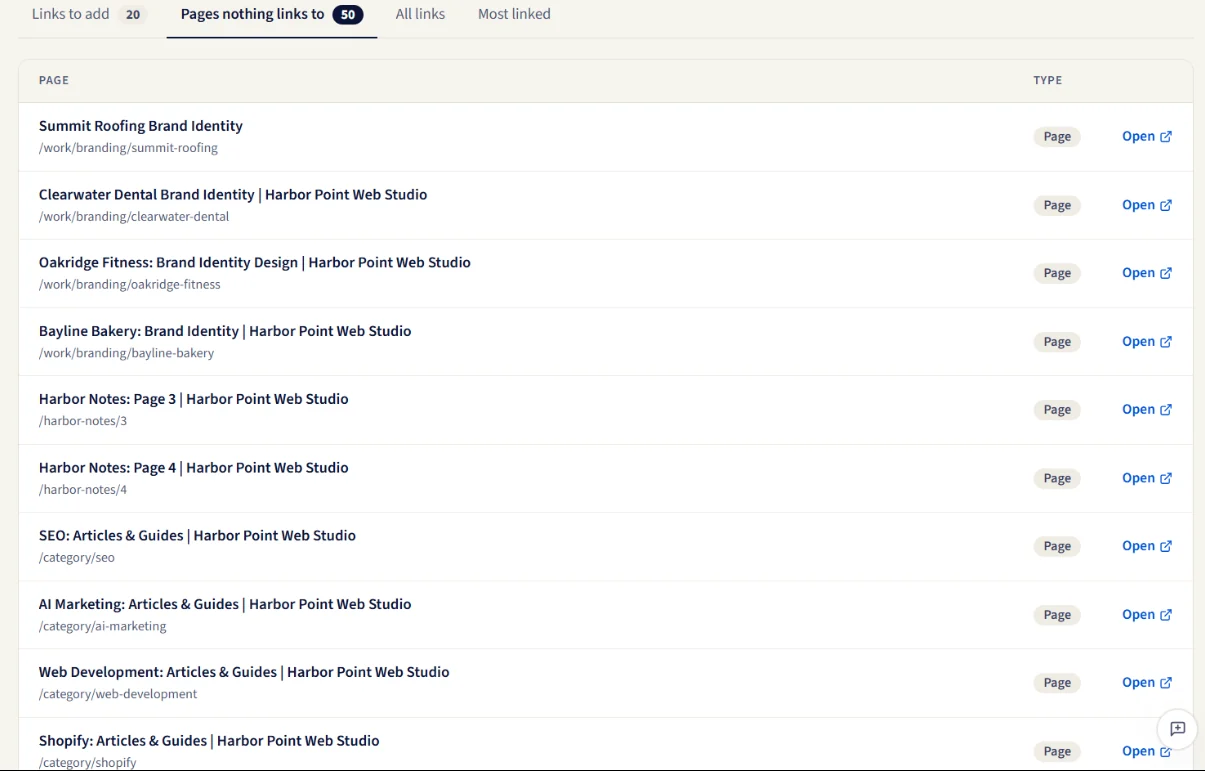 Each page no other page links to, with its address and Open.
Step 4: Look up any link
The All links tab lists every internal link found: From (the page with the link), To (where it points) and Link text. Type in the search box to find a page, an address or link text, for example “which pages link to my pricing page?”. Links with “(no text)” are usually image links or icons.
Most linked lists the pages with the most links out and in. Pages linked from everywhere, like those in menus and footers, pass the most weight: link from them to the pages that matter.
Let RankThat add the links on WordPress
The site audit finds the same problems and can fix them for you. A full audit flags Orphan pages (no internal links) and Content pages with very few internal links. With the RankThat Bridge plugin, Fix with AI turns existing words on related pages into links to those pages. You review every link before it’s applied, and each change can be undone. See Fix audit issues. Orphan-page detection in the audit needs a complete crawl, so use a full audit with enough pages.
Tips
- Link from strong pages to the ones you want to rank. A link from your homepage or a popular article carries more weight than one from a page nobody visits.
- Use descriptive anchor text. “Emergency plumbing in Austin” tells Google more than “click here”.
- Three to five links in the body of a content page is a good starting point. Menus and footers help, but links inside the text count most for related content.
- Fix broken links at the same time. See Broken links.
Troubleshooting
“No pages to check yet”
RankThat has no pages for this site yet. Run Re-Crawl & Audit on the Content quality tab of Site Audit, or publish an article from RankThat.
“The internal links could not be checked”
The analysis couldn’t run. Click Try again. If it fails again, run the content quality crawl or publish an article first.
A page shows as an orphan but I know it’s linked
The report only knows the links on pages RankThat has crawled. If the page linking to it isn’t in your sitemap, its links aren’t counted. Add that page to the sitemap and re-crawl.
The counts didn’t change after I added links
Click Check again. If the links are on pages that were crawled before you added them, re-crawl on the Content quality tab first (pages crawled in the last 24 hours are skipped).
Next step
When two of your pages compete for the same search, internal links alone won’t settle it. Open SEO › Cannibalization next to find pages that compete with each other in Google.